WordPress
 WordPress
- Check Your PHP Version in WordPress
- Discourage search engines from indexing this site
- How do I add a new WordPress admin user? Or remove one?
- How do I add HTML code to my website?
- How do I change who a form gets sent to?
- How do I edit my WordPress header or footer?
- How do I redirect a page or post?
- How do I replace an existing PDF or image in WordPress?
- How do I set up a staging website?
- How to Edit WordPress Navigation Menu/Links
- How To Improve WordPress Search
- How to know and what to do if my WordPress website gets hacked?
- How to test changes without messing up a live web page
- Should I run a WordPress security plugin?
- Should I upload videos directly to my website?
- What Is Xmlrpc.php in WordPress? Why disable it?
- What premium plugins/services do I get with your service?
- Where can I find images to use on my website?
- Why are there plugin updates in my WordPress Dashboard?
Digital Marketing
 Digital Marketing
- How to Add Google Analytics to WordPress
- How to Claim Your Business Profile on Google
- Technical SEO Explained Simply
Troubleshooting
 Troubleshooting
- Does my website use cookies?
- Email Account vs Email Forwarder
- How to Add a Delegate User on Squarespace Domains
- How To Assign A Technical Contact in Network Solutions
- How to clear the cache in Chrome
- How to clear the cache in Edge
- How to clear the cache in Firefox
- How to clear the cache in Opera
- How to clear the cache in Safari
- How to Clear Your Browser Cache
- How to Delegate Access to Your GoDaddy Account
- How to Delegate Domain Access on Namecheap
- How to spot phishing attempts
- How To View Your Website Traffic/Analytics
- I’m not receiving form notifications from my website
- My changes aren’t showing up on my website
- My image looks blurry after I upload it?
- My site shows a security/SSL warning
- What to Include When Contacting our Helpdesk
- Why doesn’t Google show my meta description or title?
How to Edit WordPress Navigation Menu/Links
Table of contents
How do you change your menu navigation in WordPress?
Tweaking your navigation is quick and easy to do, here’s what you need to do:
1. Within your WordPress Dashboard, go to Appearance > Menus.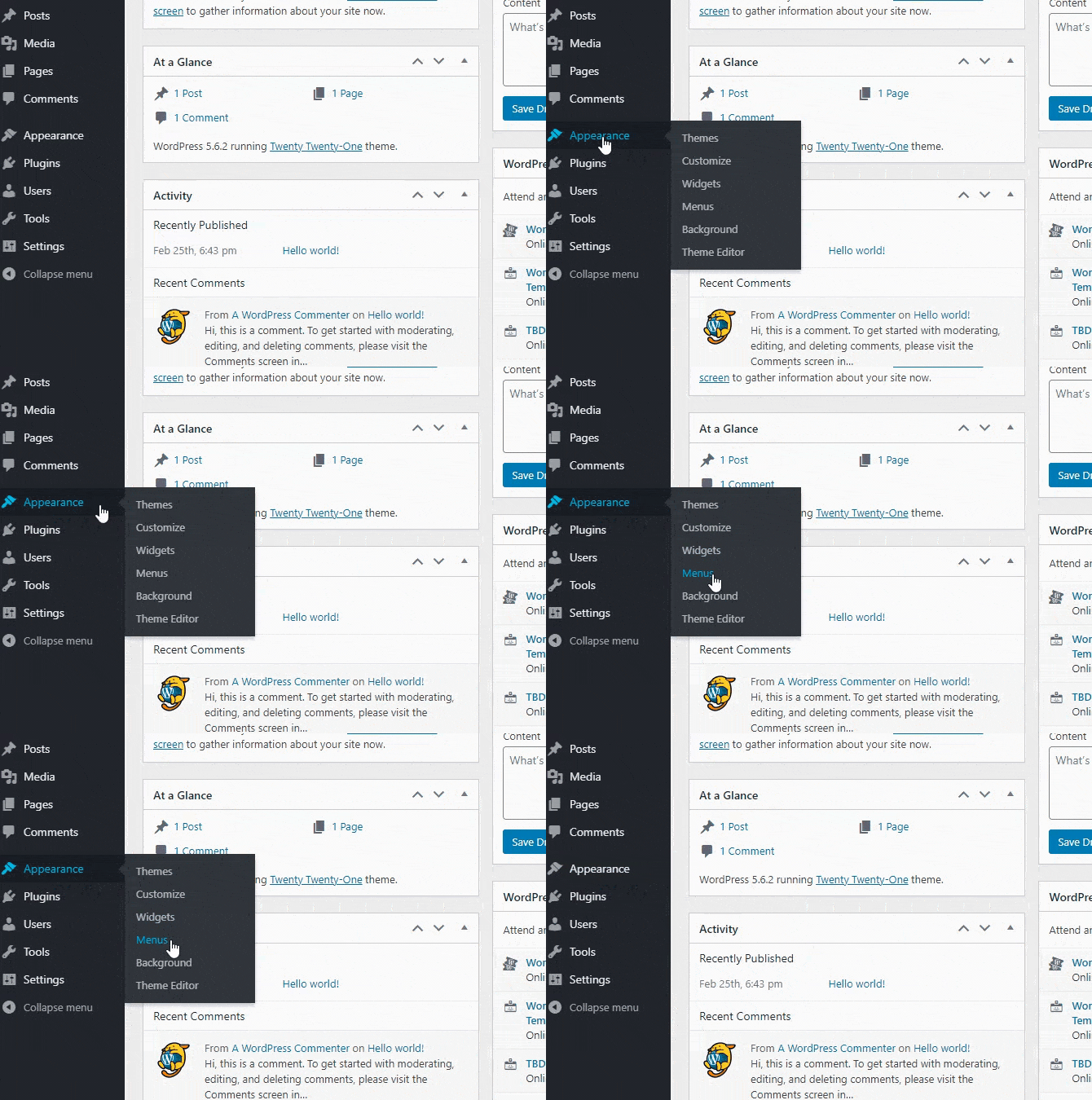
2. Once here, if your site has more than one menu, you may need to select the correct menu. In this example, I’m selecting the ‘Bottom Bar’.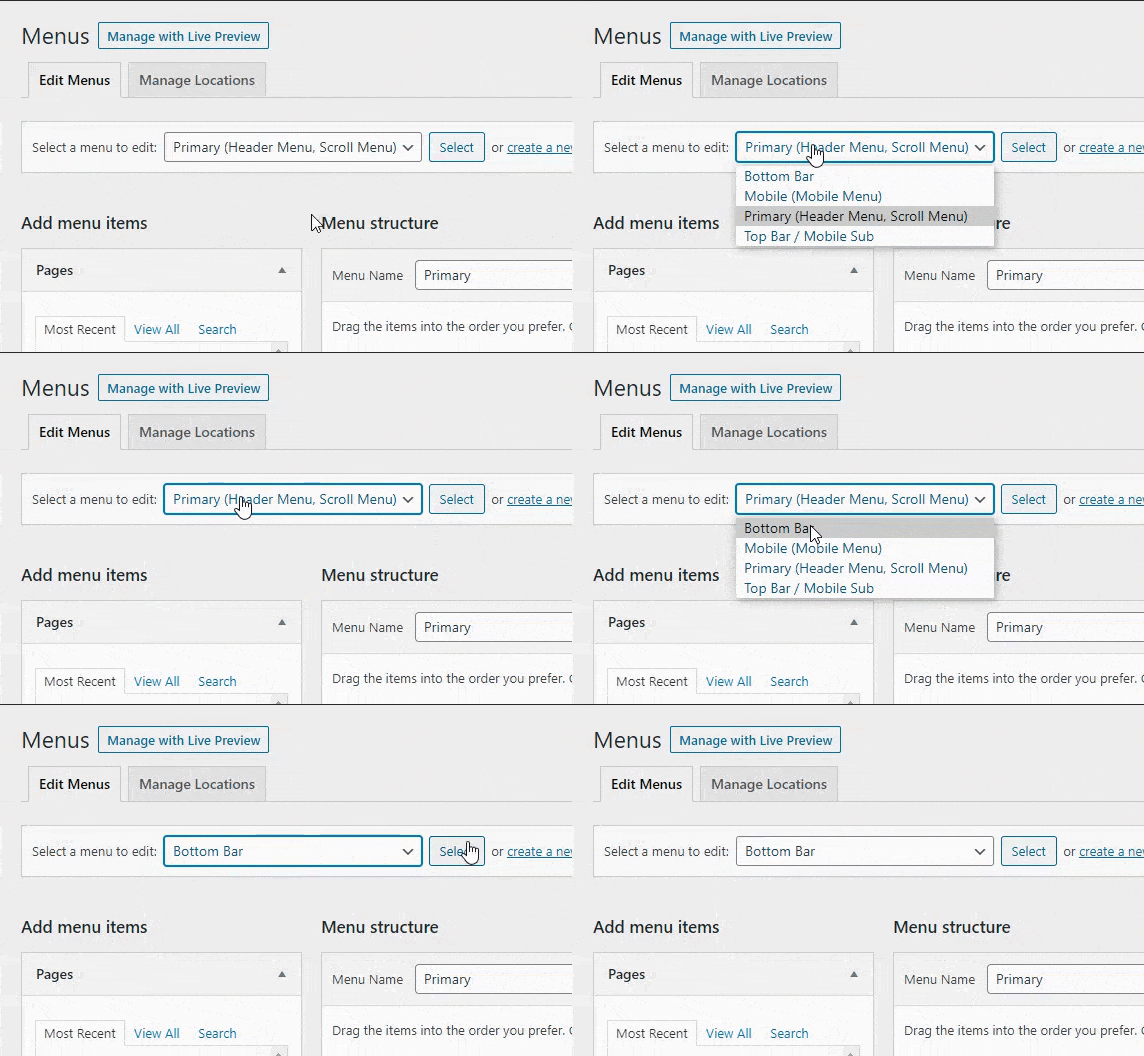
3. You’ll then see a list of recent pages along the left, and the actual menu you’re editing on the right.
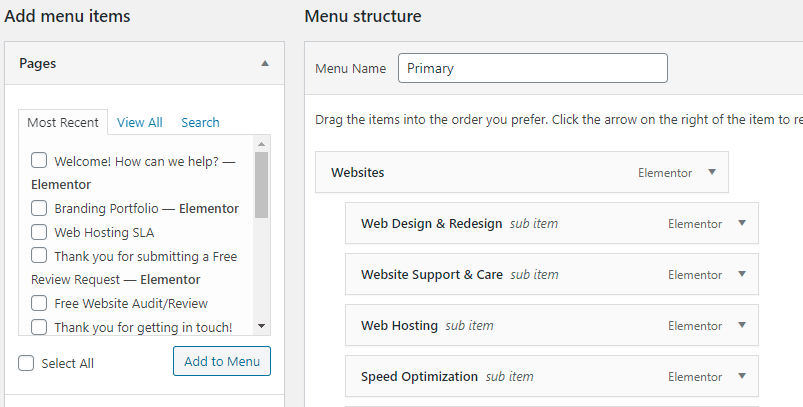
4. You can select a recent page, view all your pages, or search for the specific page you’d like to add to your menu. Once you find the page you’d like to add, click it (the text or the checkbox), and click ‘Add to Menu’.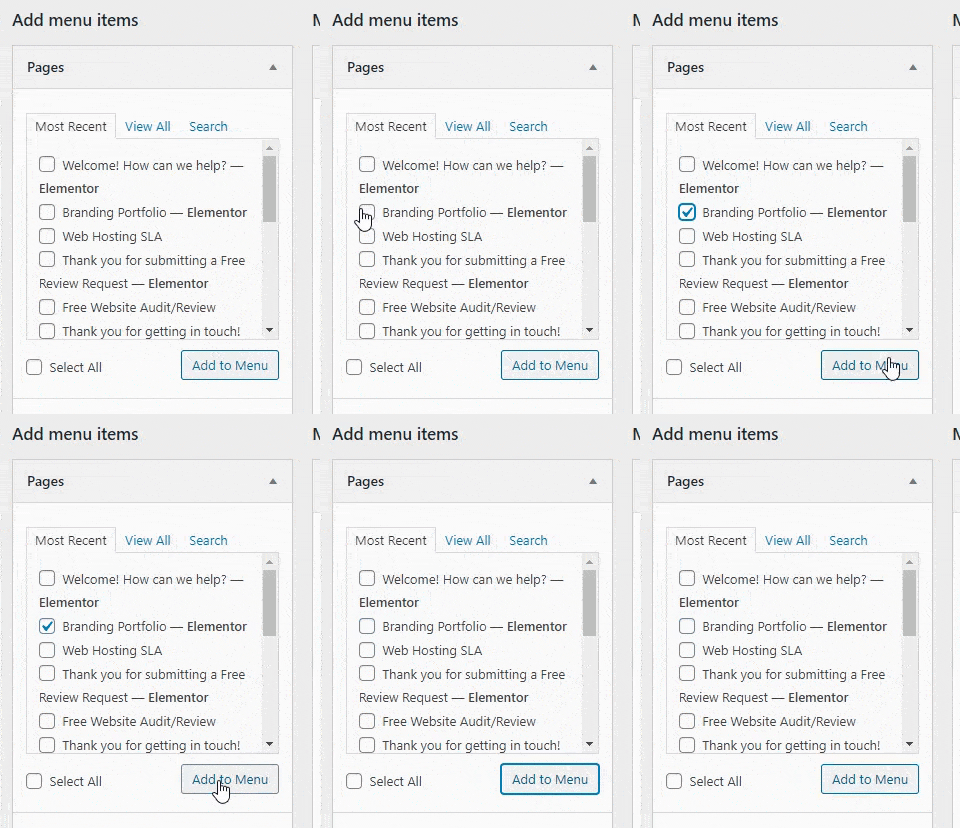
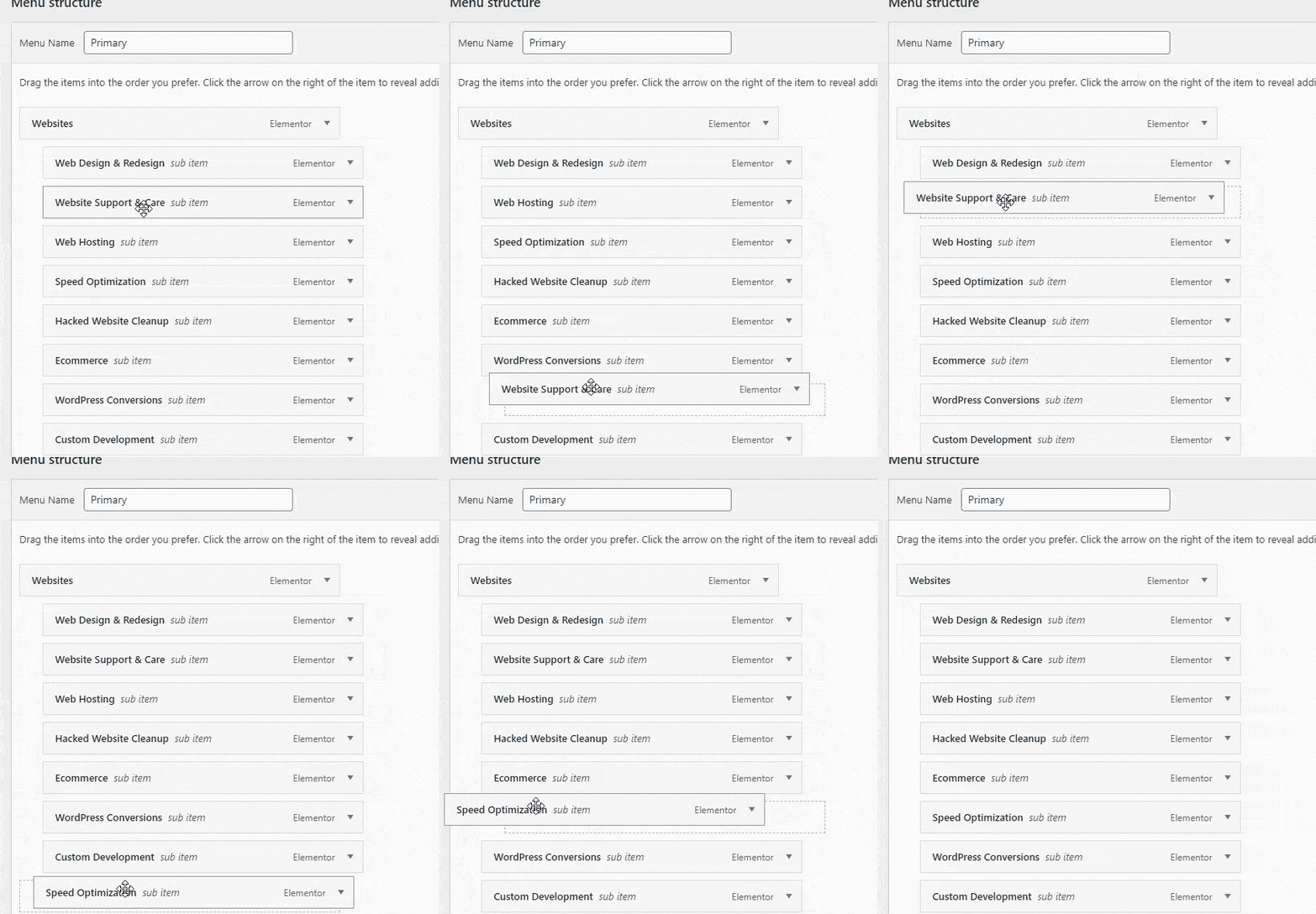
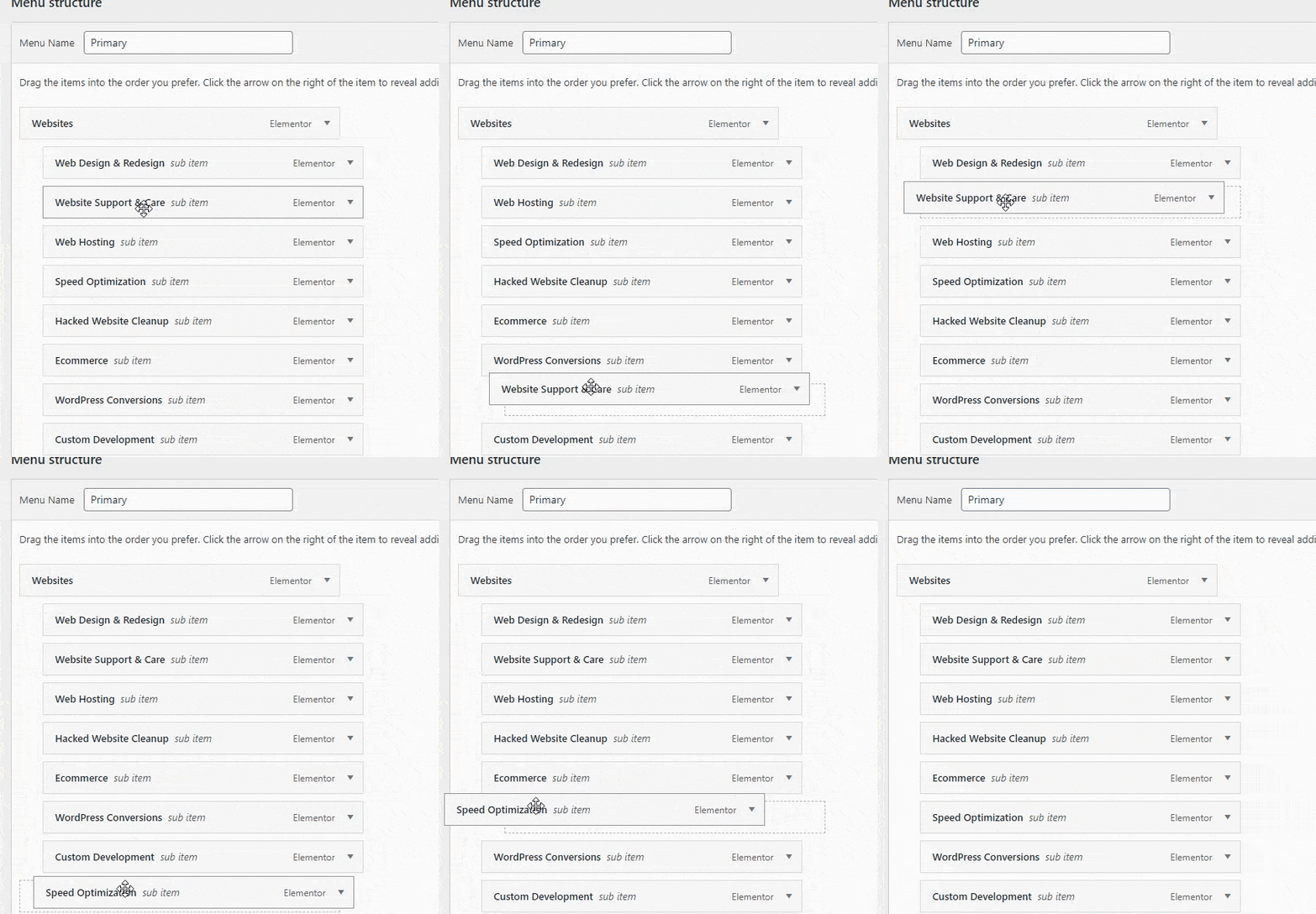
5. Once you’ve added the page to your menu, you can then click it and rearrange it in whatever order you wish.
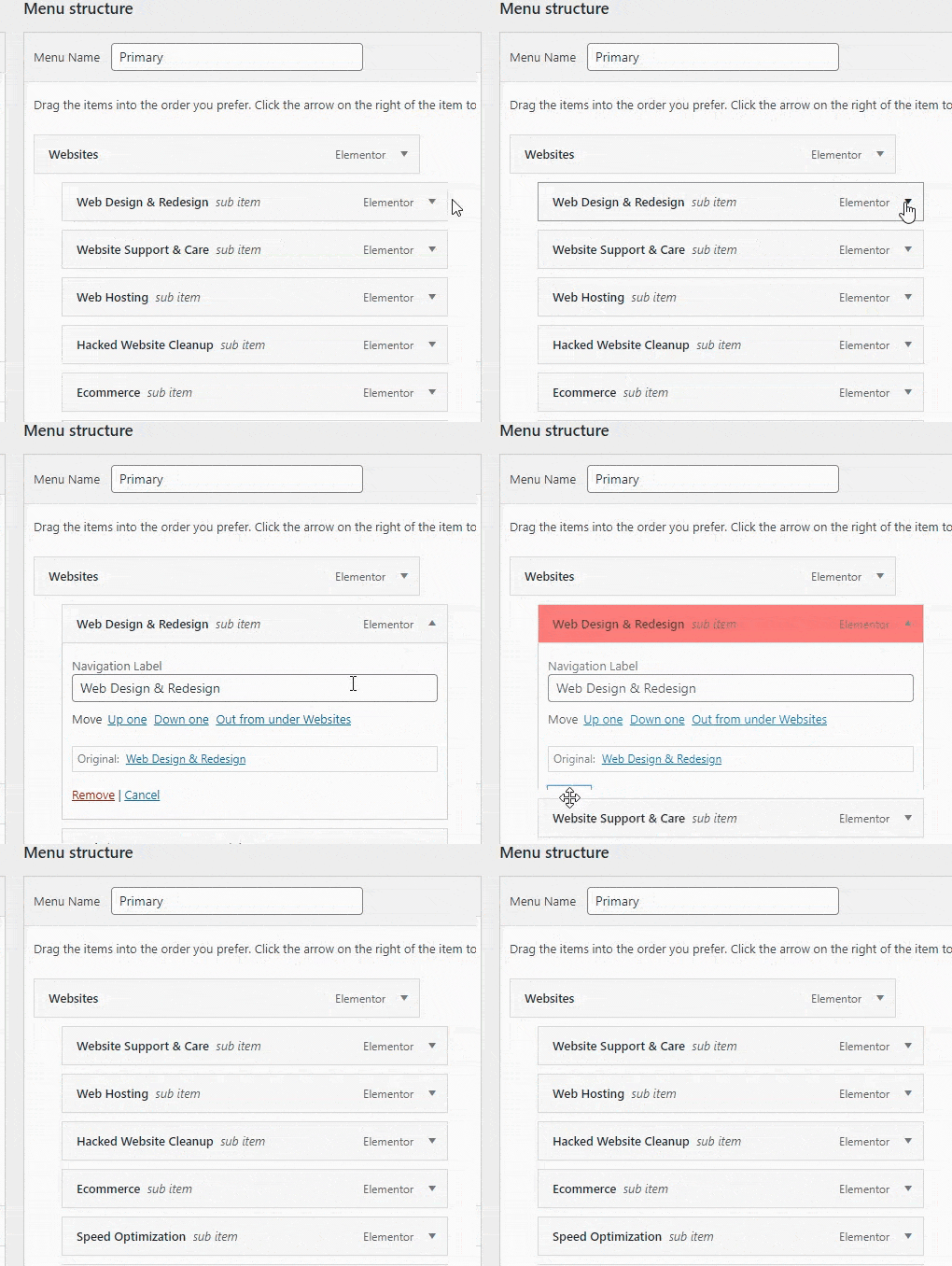
Note: make sure you keep an eye on the ‘indentation’ of your links. You’ll see that the ‘Websites’ page below is all the way to the left, but the pages beneath it have some extra spacing/indentation. This means they are showing up within a dropdown menu, under ‘Websites’.
How do you add a link to a different website in your WordPress menu?
If you’d like to add a link to a website other than yours, such as a customer login portal or a partner company:
1. Within your WordPress dashboard, go to Appearance > Menus.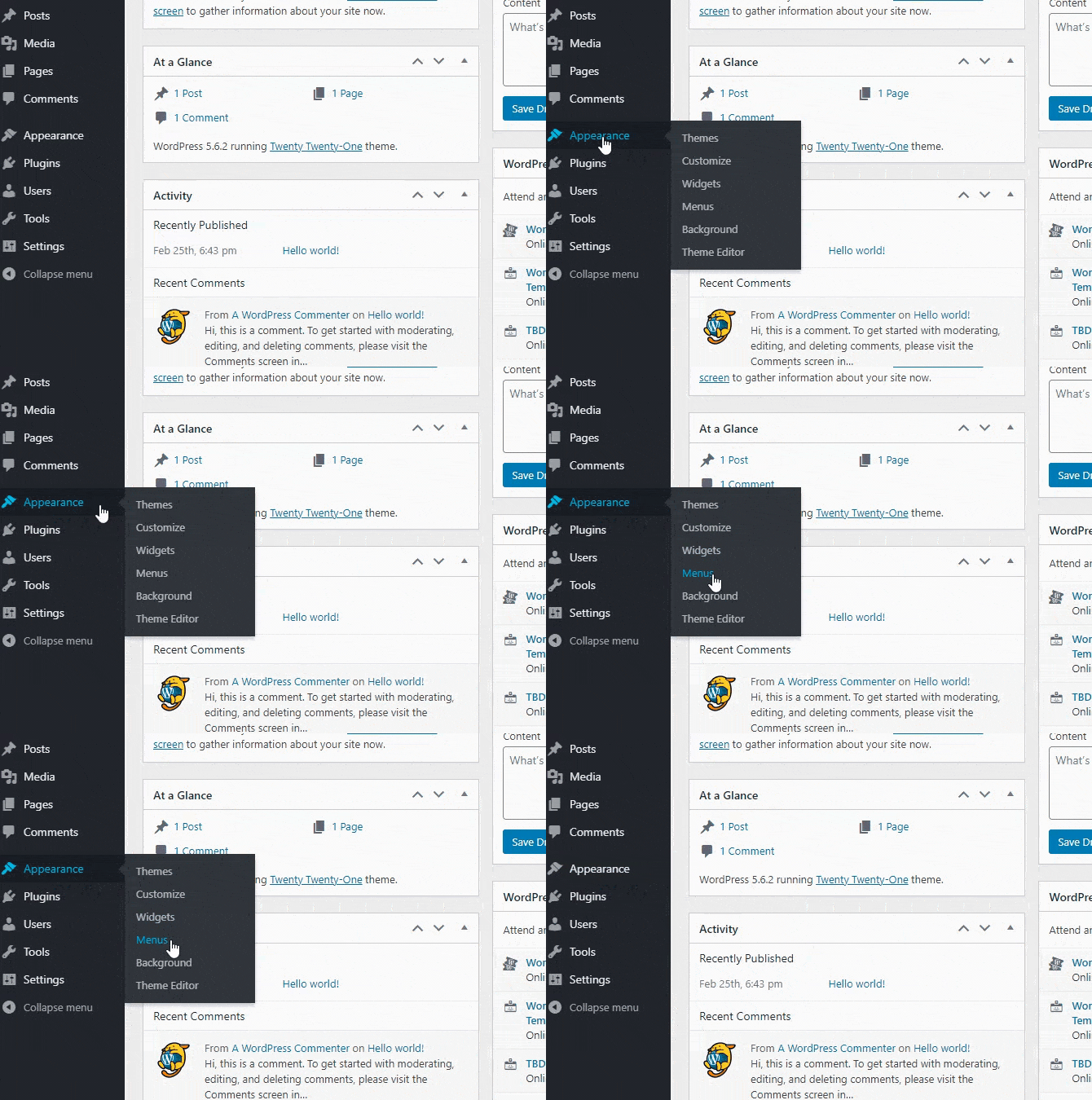
2. Once here, if your site has more than one menu, you may need to select the correct menu. In this example, I’m selecting the ‘Bottom Bar’.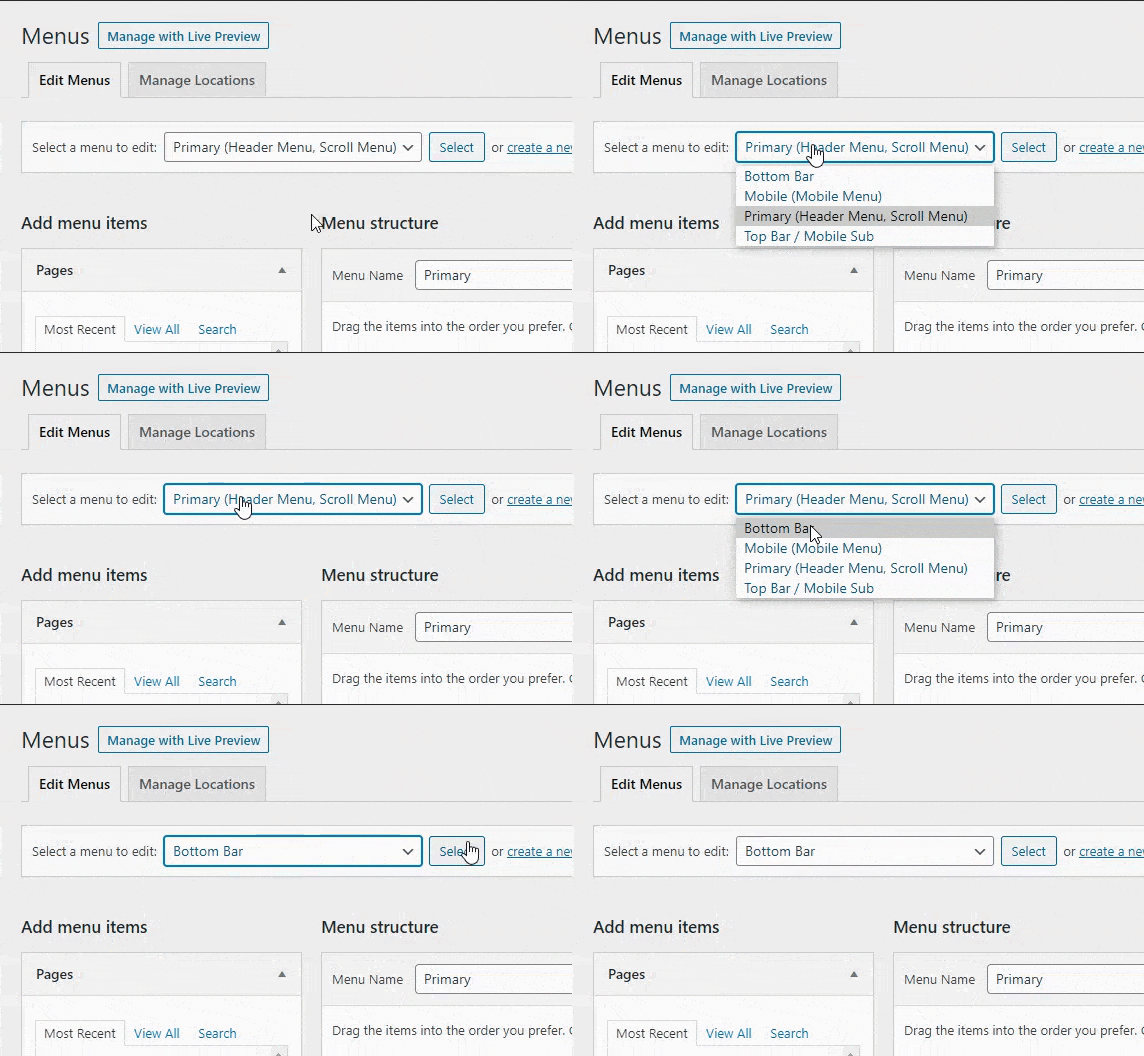
3. On the left-hand side, you’ll want to click on ‘Custom Links’. You can then enter the link of the website and the Link Text that should appear in the menu. Click ‘Add to Menu’ and it’ll be added.
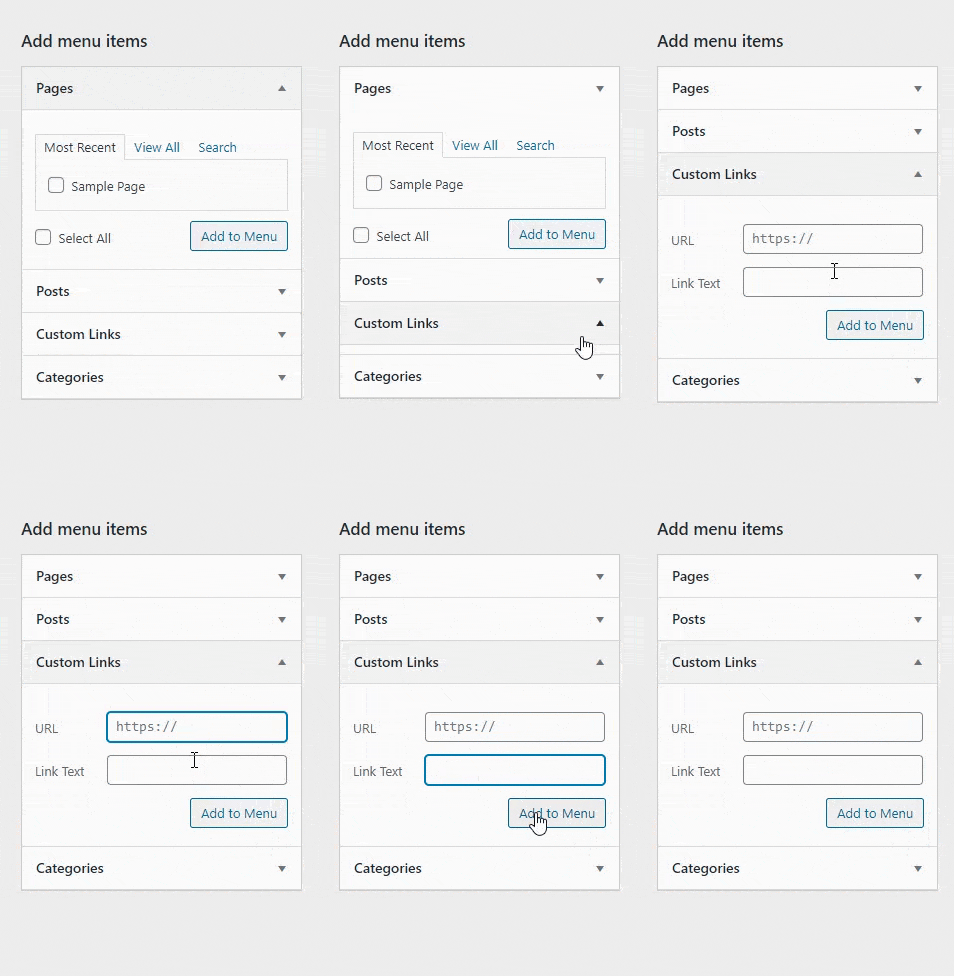
4. Once you’ve added the page to your menu, you can then click it and rearrange it in whatever order you wish.
Note: make sure you keep an eye on the ‘indentation’ of your links. You’ll see that the ‘Websites’ page below is all the way to the left, but the pages beneath it have some extra spacing/indentation. This means they are showing up within a dropdown menu, under ‘Websites’.
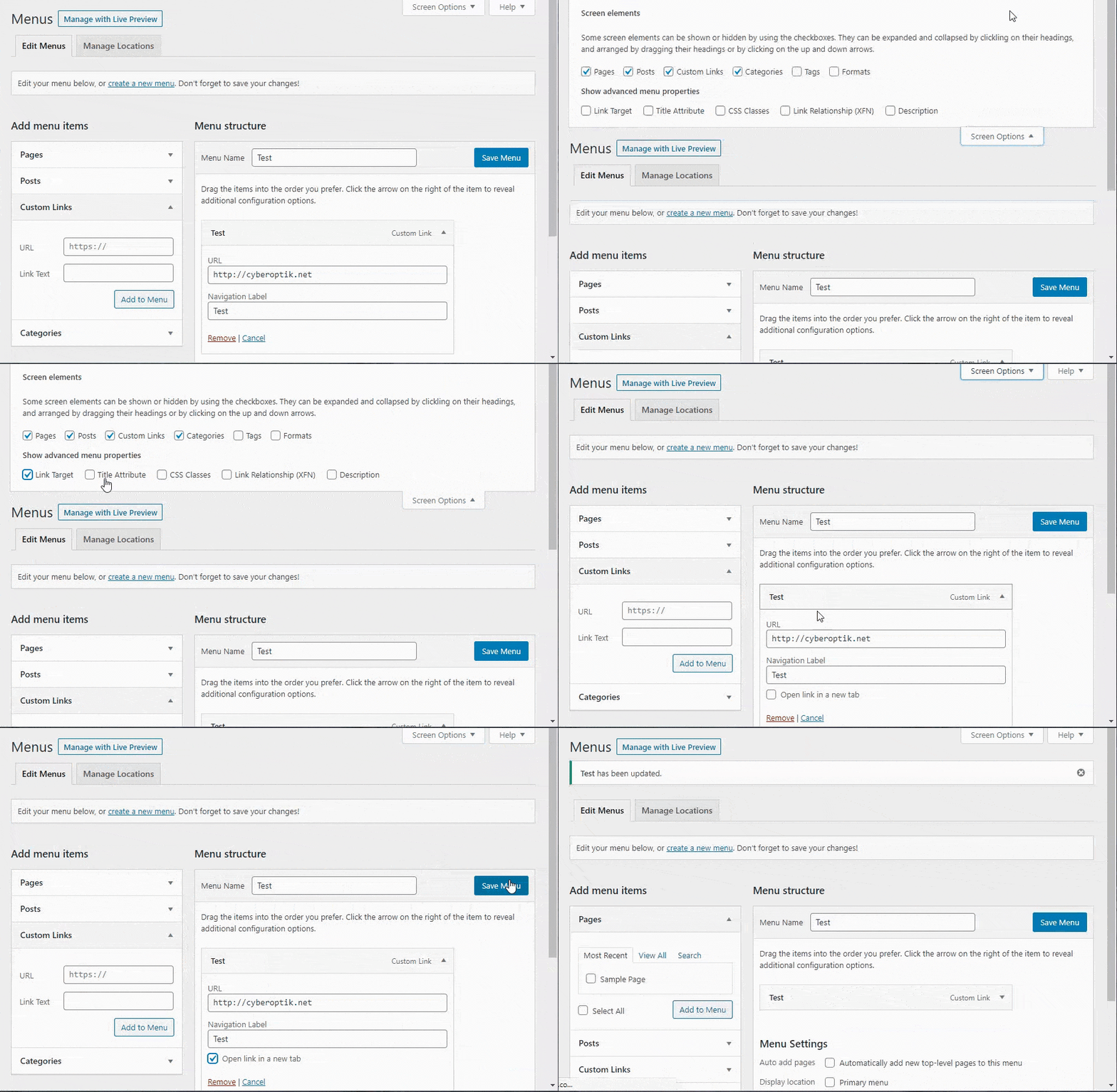
6. Since this link is going to a separate website, the best practice is to have this open up in a new window.
To do this, click ‘Screen Options’ at the top of the Menus page, and select ‘Link Target’
You can then edit the link, and you will see an ‘Open link in a new tab’ option, click it, and then save your menu.
How do you remove a link from your WordPress navigation/menu?
Removing things is usually a lot easier than adding them in, same case here. Click the menu item you want to remove, expand/open it, and click ‘Remove’. Then click ‘Save Menu’.