Severity: Major · Fix time: 15–60 min · Skill level: Advanced
WooCommerce Checkout Errors are failures that occur during the checkout process — ranging from the checkout page not loading, the order form reloading instead of processing, payment being declined at the gateway level, or an order getting stuck without completing. The most common causes are a misconfigured or caching-blocked AJAX endpoint, a payment gateway configuration issue, an expired SSL certificate, or a session/cookie conflict introduced by a caching plugin treating the checkout page like a regular cacheable page.
Every checkout failure is a direct revenue loss. A checkout that silently fails — redirecting customers back to the form without an error message — is particularly damaging because customers often assume the transaction completed when it did not. Identifying the specific failure mode quickly is critical.
Need a quick map of every WordPress error? See our 70+ WordPress Errors Guide → for a categorized reference of every common WordPress issue.
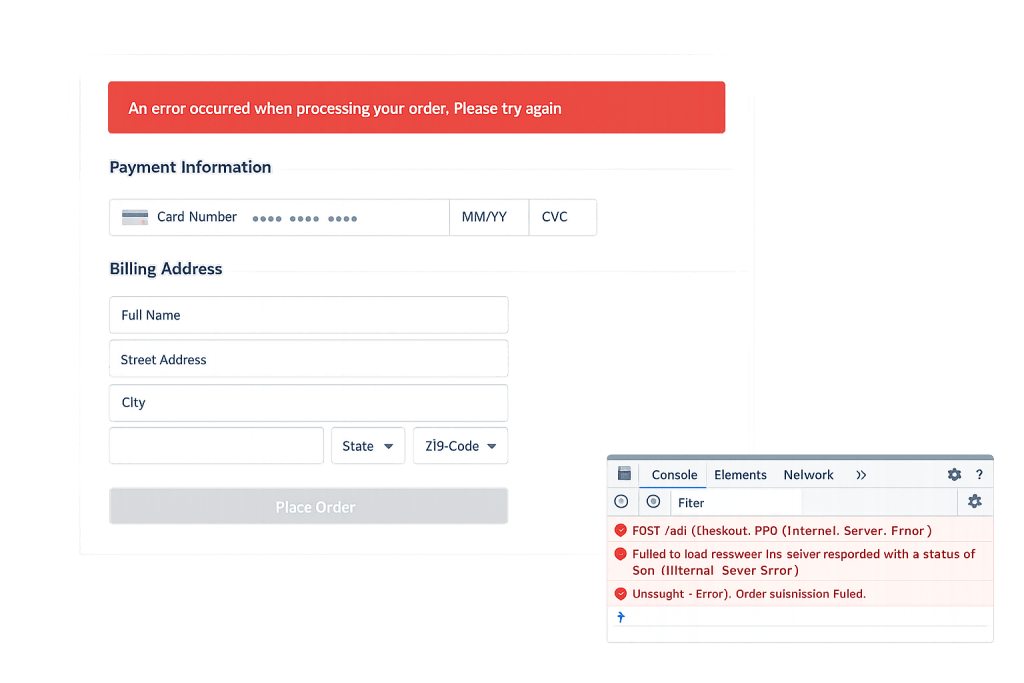
[Image: Screenshot of WooCommerce checkout page showing an order error notice above the payment form, and a browser console showing AJAX request failures]
How WooCommerce Checkout Errors Work
WooCommerce checkout is powered almost entirely by AJAX requests. When a customer clicks “Place Order,” the browser sends an AJAX request to /wp-admin/admin-ajax.php (or the newer WooCommerce AJAX endpoint at /?wc-ajax=process_checkout). The server processes the payment, creates the order record, and returns a success response that redirects the customer to the order confirmation page. If any part of this chain breaks, the checkout fails.
The most common failure modes:
- Caching layer intercepting checkout AJAX — Page cache plugins or CDNs like Cloudflare that cache dynamic pages can cache or intercept WooCommerce AJAX requests, returning stale nonce values or blocking the checkout POST entirely. WooCommerce requires that
/wp-admin/admin-ajax.phpand/?wc-ajax=*endpoints are never cached. - Payment gateway misconfiguration — Incorrect API keys, a gateway set to test mode in production, SSL mismatches, or a gateway that has deauthorized the site (due to domain changes) will all cause payment processing to fail at the gateway level. The checkout page may show a generic “Sorry, there was an error” or the specific gateway error message.
- Session and cookie conflicts — WooCommerce uses PHP sessions and browser cookies to track the cart and order data between pages. If a caching plugin, security plugin, or server configuration clears sessions aggressively, the customer’s cart data may be lost between the cart and checkout pages, causing unexpected behavior.
- SSL certificate issues — WooCommerce requires HTTPS on the checkout page. An expired SSL certificate, a mixed-content warning, or a payment gateway that validates the SSL chain at processing time can cause checkout failures.
- JavaScript errors from plugin conflicts — A plugin that breaks JavaScript on the checkout page can prevent the order form from submitting at all. The customer clicks “Place Order” and nothing happens — no error, no redirect, just a frozen button.
- Insufficient PHP resources — Processing a WooCommerce order involves database writes, payment gateway API calls, and email sending. If PHP runs out of memory or hits an execution time limit during this process, the order transaction fails mid-way.
Check This First — 2-Minute Diagnostic
- Test a checkout with a free or test product — Create a £0 or test product and attempt checkout with the “Cheque” payment method (no payment processing required). If this succeeds, the checkout mechanism works and the issue is payment-gateway-specific.
- Check your SSL certificate — Visit your site in a browser and confirm the padlock is green with no warnings. An expired certificate or mixed content warning prevents many payment gateways from processing.
- Open the browser console on checkout — Press F12, go to the Console tab, and click “Place Order.” Red AJAX errors in the console identify whether the checkout endpoint is being blocked, returning a 403, or encountering a JavaScript error.
- Temporarily disable caching — Disable your caching plugin and clear all caches, then test checkout again. If it works with caching disabled, the cache configuration is blocking WooCommerce AJAX.
- Check payment gateway settings in WooCommerce — Go to WooCommerce → Settings → Payments and verify that your active gateway shows “Enabled” and that your API keys are correct. Confirm the gateway is not in “Test Mode” on a live site.
Purpose & Benefits
1. Every Checkout Error Is a Revenue Event
Unlike most WordPress errors, checkout failures have an immediate, measurable cost. A checkout that fails silently during a busy campaign period can mean dozens of lost orders before anyone notices. Understanding the common failure modes — and having a systematic diagnostic process — means you can identify and resolve the issue in minutes rather than hours. Our eCommerce website services include WooCommerce configuration that avoids these failure points from the start.
2. Diagnosing the Root Cause Prevents Repeat Failures
A checkout error that gets fixed by clearing the cache will return the next time the cache refreshes unless the underlying caching rule is corrected. A payment gateway that fails due to an API key mismatch will continue failing until the key is updated. The diagnostic process — especially using the browser console to identify AJAX failures — reveals the actual cause so the fix is permanent, not temporary.
3. Guest Checkout and Logged-In Checkout Fail Differently
WooCommerce’s session handling differs between guest and logged-in customers. Guest checkout relies heavily on cookies and PHP sessions to track cart data. Logged-in checkout reads order data from the database. If only guests are experiencing checkout failures while logged-in customers are not (or vice versa), that distinction immediately narrows the cause to either a session/cookie issue (guest) or a user permission/nonce issue (logged-in). Documenting which customer type is affected cuts diagnostic time significantly.
Examples
1. Cloudflare Caching AJAX Checkout Endpoints
A store experienced checkout failures that appeared randomly — some customers succeeded, others had the form reload without processing. The pattern was that the failures occurred exclusively on first visits from new sessions. Investigation showed that Cloudflare was caching responses to /?wc-ajax=update_order_review requests, returning stale cached nonces to new visitors. WooCommerce nonces are session-specific; a cached nonce from a different session causes the checkout verification to fail with a “Sorry, your session has expired” error.
# Add to .htaccess or configure equivalent Cloudflare Page Rule:
# Bypass cache for all WooCommerce AJAX endpoints

# In Cloudflare: Create a Cache Rule
# When: URI Path contains "wc-ajax"
# Action: Bypass Cache

# Additionally exclude WooCommerce pages from page caching in your cache plugin:
# - /cart/
# - /checkout/
# - /my-account/
# - /wp-admin/admin-ajax.php
After adding a Cloudflare bypass rule for all wc-ajax paths and excluding the checkout page from caching, the random failures stopped entirely.
2. Payment Gateway API Keys Mismatch After Domain Migration
After migrating a store to a new domain, the Stripe gateway began returning “No such payment method” errors at checkout. The cause was that the Stripe account was still authorized for the old domain’s API keys, and the new domain was using test-mode keys in production. Updating the API keys in WooCommerce → Settings → Payments → Stripe to the live-mode keys for the new domain resolved the payment failures immediately.
// Verify your site is using the correct environment in wp-config.php.
// This is for WooCommerce payment gateway environment detection:

// If you see test-mode orders on a live site, check:
// WooCommerce > Settings > Payments > [Gateway] > Enable test mode
// Make sure this is UNCHECKED on a live production store.

// Also verify your gateway's webhook URL matches your current domain:
// Stripe: Dashboard > Developers > Webhooks > Endpoint URL
// PayPal: Account Settings > Notifications > Instant Payment Notifications
After correcting the API keys and updating the Stripe webhook endpoint to the new domain, all payment processing resumed normally.
3. Plugin JavaScript Conflict Preventing Order Submission
A store’s checkout “Place Order” button stopped working after installing a social proof notification plugin. Clicking the button produced no response — no AJAX request, no error message. Browser console inspection showed Uncaught ReferenceError: wc_checkout_params is not defined, indicating that a WooCommerce checkout JavaScript dependency had not loaded correctly. The social proof plugin was loading a conflicting version of a JavaScript library that prevented WooCommerce’s checkout script from initializing.
// Browser console diagnostic: verify WooCommerce checkout params are loaded
// Run this in the browser console on the checkout page:
console.log(typeof wc_checkout_params);
// Should return "object" — if it returns "undefined", the checkout script failed to load
// Check the Network tab for failed script loads
Deactivating the social proof plugin restored checkout functionality. The plugin developer was able to resolve the conflict in a subsequent update by scoping their library to non-checkout pages.
Common Mistakes to Avoid
- Assuming the issue is the payment gateway first — Payment gateway failures have a distinct signature: the AJAX request reaches the server, the order is created, but the payment is declined. If the order is not even being created in WooCommerce → Orders, the failure is happening before the gateway. The browser console distinguishes between these failure modes quickly.
- Caching the checkout page — WooCommerce’s checkout page must never be served from page cache. Every visit to the checkout page must be dynamically generated to ensure fresh nonces, current cart data, and valid session cookies. Most good caching plugins have a WooCommerce mode that excludes checkout automatically — verify this is configured.
- Ignoring SSL warnings as minor — An SSL certificate warning on checkout is a critical issue. Modern payment gateways validate SSL at processing time. A certificate with even a minor chain trust issue can cause the gateway to reject the transaction.
- Not testing with real card numbers after gateway changes — Test mode transactions do not validate API key live/test mismatches fully. After any payment gateway configuration change, place a small real transaction to confirm live processing works end-to-end.
- Overlooking PHP session configuration — Some servers (especially shared hosting) have PHP session garbage collection set aggressively, clearing sessions in under 30 minutes. A customer who spends time filling in checkout details on a slow connection may find their session has been cleared. Check
session.gc_maxlifetimeinphp.iniif session-related failures are occurring.
Best Practices
1. Exclude WooCommerce Pages from All Caching Layers
Configure your caching plugin, server-level cache, and CDN to never cache /cart/, /checkout/, /my-account/, or /wp-admin/admin-ajax.php. In Cloudflare, create a bypass rule for all URIs containing wc-ajax. Most caching plugins have a dedicated WooCommerce option that configures this automatically — verify it is enabled rather than assuming it is set correctly by default.
// In wp-config.php, you can also define WooCommerce to use a custom cache key
// to help cache plugins identify WooCommerce sessions:
define( 'WOOCOMMERCE_CHECKOUT_NONCE_SALT', 'unique-string-here' );
// Primarily: verify your caching plugin's WooCommerce mode is active
2. Verify SSL Certificate and Payment Gateway Webhook URLs
Before troubleshooting anything else for a payment failure, confirm your SSL certificate is valid and trusted. Use a service like SSL Labs to check the certificate chain. Then verify that your payment gateway’s webhook URL (the URL where the gateway posts payment confirmations back to your site) matches your current domain exactly — including whether it uses www or not.
3. Use Browser DevTools to Isolate AJAX Failures
Open the browser developer tools (F12), go to the Network tab, filter by “XHR” or “Fetch,” and click “Place Order.” Watch for the AJAX request to /?wc-ajax=process_checkout or /wp-admin/admin-ajax.php. Check the response status code: 200 is normal; 403 often means a nonce failure or caching issue; 500 means a PHP error on the server. Click the request to see the full response body, which usually contains a specific error message.
4. Enable WooCommerce Logging for Payment Errors
WooCommerce has a built-in logging system for payment gateways. Go to WooCommerce → Status → Logs and select the log for your payment gateway. This log records the full API request and response, including gateway error codes and messages that are not displayed to customers. Gateway-level failures are almost always explained in this log, making diagnosis significantly faster than guessing at configuration.
5. Increase PHP Memory Limit and Execution Time
WooCommerce order processing involves multiple simultaneous tasks: creating the order, communicating with the payment gateway, updating inventory, and triggering confirmation emails. On a busy store or a server with low resources, this can exhaust the PHP memory limit or hit the maximum execution time. Set memory to 256M and increase execution time in wp-config.php or php.ini:
// Add to wp-config.php to support WooCommerce order processing:
define( 'WP_MEMORY_LIMIT', '256M' );

// Or add to php.ini / .htaccess:
// php_value memory_limit 256M
// php_value max_execution_time 300
Frequently Asked Questions
What causes WooCommerce checkout errors most often?
Caching layers intercepting WooCommerce AJAX requests — particularly caching plugins that do not properly exclude the checkout page, or CDNs like Cloudflare that cache dynamic AJAX endpoints. Payment gateway misconfigurations (wrong API keys, test mode left on) and SSL certificate issues are the next most common causes. Open the browser console on the checkout page; it identifies AJAX failures within seconds.
How do I fix WooCommerce checkout errors when I can’t access wp-admin?
Checkout errors do not block wp-admin access. If your admin is also broken, you are dealing with a separate issue. For checkout-specific issues, you can disable caching plugins by renaming their folders via SFTP or phpMyAdmin, which does not require wp-admin access. For payment gateway issues, the gateway’s own dashboard (Stripe, PayPal, etc.) is usually accessible independently of WordPress.
Can WooCommerce checkout errors hurt my SEO?
Not directly — checkout pages are typically excluded from search engine indexing. The indirect impact is real, though: high checkout abandonment rates and zero conversion signals can reduce your SEO authority over time if they persist. The more immediate concern is lost revenue and customer trust.
Why does checkout work for logged-in customers but not guests?
WooCommerce handles sessions differently for guests and logged-in users. Guest checkout relies entirely on PHP sessions and browser cookies. If your server’s session lifetime is too short, a security plugin is clearing cookies, or a caching layer is interfering with session cookies, guest checkout fails while logged-in checkout succeeds. Test by temporarily registering as a guest to confirm the pattern, then investigate session and cookie configuration.
How do I know if the payment gateway or WordPress is causing the checkout failure?
If the AJAX request to /?wc-ajax=process_checkout returns a 200 response with a redirect URL in the response body, WordPress processed the order and the failure is at the gateway level. If the request returns 403, 500, or doesn’t fire at all, WordPress is the problem. WooCommerce → Status → Logs → [gateway name] shows the full payment API request and response for gateway-level failures.
Related Glossary Terms
- WooCommerce
- SSL Certificate
- Memory Exhausted Error
- Payment Gateway
- 500 Internal Server Error
- wp-config
- Caching
- JavaScript
How CyberOptik Can Help
Still broken? Our team fixes WordPress errors like this in under 30 minutes for maintenance clients. WooCommerce checkout failures are high-stakes — every hour the checkout is broken is revenue lost — and the multi-layered causes (caching, gateways, SSL, PHP configuration) often require experience to diagnose quickly rather than methodically testing every possibility. Our WordPress maintenance services and eCommerce website services cover WooCommerce configuration, payment gateway setup, and ongoing store health monitoring. Contact us to discuss your store and get checkout working reliably.