
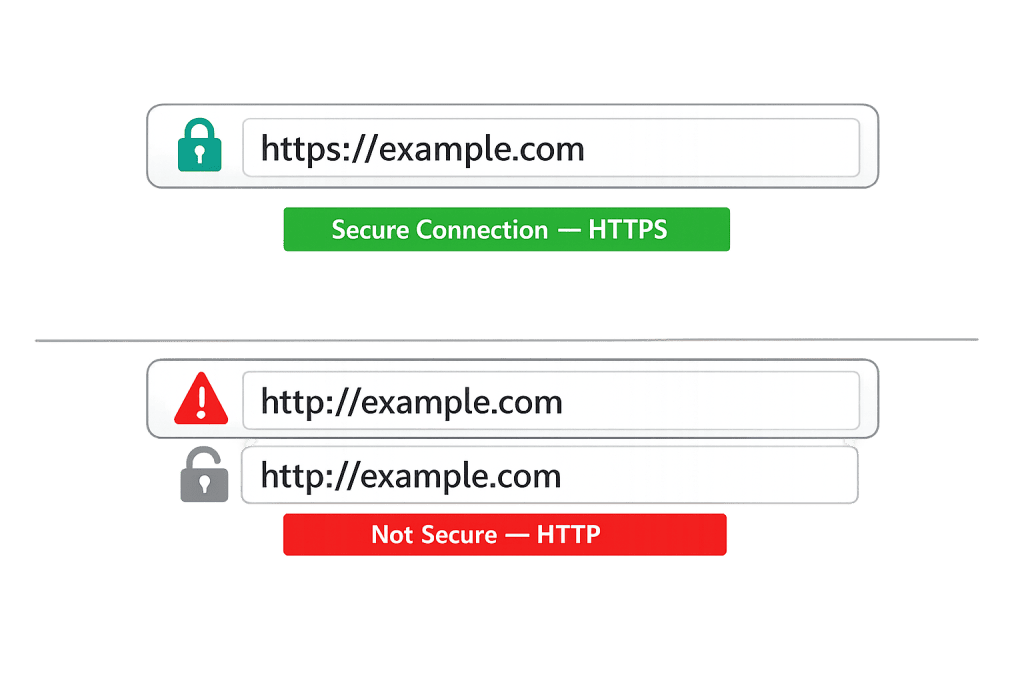
An SSL certificate is a digital credential that authenticates a website’s identity and enables an encrypted connection between a visitor’s browser and the web server. The name stands for Secure Sockets Layer — though modern certificates actually use the successor protocol, TLS (Transport Layer Security). When a site has a valid SSL certificate installed, its URL begins with https:// and browsers display a padlock icon in the address bar.
For any business website, an SSL certificate is now table stakes. Google uses HTTPS as a confirmed ranking signal, and browsers like Chrome actively flag non-HTTPS sites as “Not Secure” — a warning that causes real visitor drop-off. Beyond SEO, SSL certificates protect the data your visitors submit through forms, login fields, and checkout pages from being intercepted in transit.
[Image: Browser address bar showing padlock icon and https:// URL compared to “Not Secure” warning on HTTP site]
How SSL Certificates Work
When a user visits an HTTPS website, the browser and server perform what’s called an SSL/TLS handshake — a rapid exchange that establishes the encrypted connection before any data is transferred:
- The browser requests the certificate — The server sends its SSL certificate, which includes a public key and confirmation from a trusted Certificate Authority (CA) that the site is legitimate.
- The browser validates the certificate — It checks that the certificate is from a trusted CA, hasn’t expired, and matches the domain being visited.
- A session key is generated — The browser encrypts a session key using the server’s public key and sends it over. Only the server can decrypt this using its private key.
- Encrypted communication begins — All data exchanged for the rest of the session is encrypted using the shared session key.
This process happens in milliseconds. From the visitor’s perspective, the page simply loads — but behind the scenes, their connection is secured.
Certificates are issued by Certificate Authorities (CAs) — trusted organizations like Let’s Encrypt, DigiCert, and Sectigo that verify domain ownership before issuing a certificate. Let’s Encrypt offers free certificates and is widely used by hosting providers to provide SSL at no additional cost.
Purpose & Benefits
1. Encrypted Data Transmission
SSL certificates encrypt all data moving between a visitor’s browser and your server, making it unreadable to anyone who might intercept it. This is especially critical for e-commerce checkouts, contact forms, and login pages where sensitive information is submitted. Our WordPress hosting includes SSL as a standard feature.
2. SEO Ranking Benefit
Google has used HTTPS as a ranking signal since 2014, and the advantage has only grown as the web has moved overwhelmingly to encrypted connections. Sites still running on HTTP are at a disadvantage in search results — and Chrome’s “Not Secure” warning actively discourages visitors from proceeding, harming both bounce rate and conversions. Proper HTTPS configuration is a core element of technical SEO.
3. Visitor Trust and Credibility
The padlock icon is one of those small visual cues that carries real weight with visitors — particularly on pages where they’re being asked to share personal or financial information. Sites without HTTPS trigger browser warnings that feel alarming, even on simple contact form pages. Trust signals like HTTPS support better conversion rates across the board.
Examples
1. E-Commerce Store
An online retailer accepts credit card payments through WooCommerce. Without an SSL certificate, the checkout page would display a “Not Secure” warning — and most shoppers would abandon before entering their payment details. With SSL properly installed and HTTPS enforced across all pages, the padlock appears and customers can complete their purchase confidently.
2. Business Contact Form
A professional services firm collects prospect inquiries through a contact form on their homepage. Even though no payment information is involved, the form collects names, email addresses, and phone numbers. SSL ensures that data isn’t intercepted in transit, and the HTTPS URL builds immediate credibility with prospects who are evaluating whether to reach out.
3. Mixed Content Issue
A site installs SSL and switches to HTTPS, but some images and scripts still load over HTTP. This “mixed content” causes browsers to show a warning or block the insecure resources — effectively breaking the security guarantee. Properly migrating to HTTPS requires updating all internal links, images, and embeds to load over HTTPS as well.
Common Mistakes to Avoid
- Not enforcing HTTPS site-wide — Having an SSL certificate installed doesn’t automatically redirect all HTTP traffic to HTTPS. Without a proper redirect rule, some visitors may still land on the insecure version of the site, splitting your traffic and diluting SEO signals.
- Letting the certificate expire — SSL certificates have expiration dates (typically 1 year or less). An expired certificate triggers alarming browser warnings that block visitors from reaching your site entirely. Automated renewal through your hosting provider or a plugin is strongly recommended.
- Mixed content errors — After switching from HTTP to HTTPS, any resources (images, scripts, stylesheets) that still load over HTTP create mixed content errors. Use a tool like the Browser Developer Console or a site audit tool to find and fix these.
- Using the wrong certificate type for your needs — Standard Domain Validation (DV) certificates work for most websites. Organizations handling sensitive data may need Extended Validation (EV) certificates that show the company name in the browser bar and carry additional trust signals.
Best Practices
1. Enable Auto-Renewal Through Your Host
Most managed WordPress hosts handle SSL certificates automatically — issuing, installing, and renewing them without you needing to think about it. If your host requires manual renewal, set calendar reminders at least 30 days before expiration. Certificate expiration is one of the most preventable causes of serious site downtime.
2. Force HTTPS with a Redirect
After installing your certificate, configure a 301 redirect that sends all HTTP traffic to the HTTPS version of your site. In WordPress, this is often handled in the .htaccess file or through your hosting control panel. This ensures visitors and search engines always reach the secure version, consolidating your canonical URL properly.
3. Audit for Mixed Content After Migration
Once HTTPS is active, run a full site audit to identify any resources still loading over HTTP. Free tools like SSL Labs or browser dev tools can flag these. For WordPress sites, plugins like Really Simple SSL can automatically detect and fix common mixed content issues during the transition.
Frequently Asked Questions
Do I need to pay for an SSL certificate?
Not necessarily. Free SSL certificates from Let’s Encrypt are valid, trusted by all major browsers, and used by millions of websites worldwide. Most reputable web hosts include free SSL through Let’s Encrypt. Paid certificates from commercial CAs offer extended validation options and sometimes include warranty coverage, but for most business websites, a free certificate is perfectly sufficient.
Will an SSL certificate slow down my website?
The performance impact of SSL is negligible on modern servers — the TLS handshake adds milliseconds at most, and HTTP/2 (which requires HTTPS) actually makes sites load faster overall by allowing multiple requests in parallel. In practice, moving to HTTPS with a modern host will not slow your site, and may improve it.
What’s the difference between SSL and TLS?
SSL (Secure Sockets Layer) is the original protocol, now deprecated. TLS (Transport Layer Security) is the modern, more secure replacement. However, the industry still commonly says “SSL certificate” even though the certificate actually enables TLS encryption. When someone says “get an SSL certificate,” they mean a certificate that enables HTTPS — which uses TLS in practice.
What happens if my SSL certificate expires?
Visitors will see a full-page browser warning — something like “Your connection is not private” — that actively prevents them from reaching your site unless they manually override it. Most visitors will not override this warning. Search engines also treat expired certificates as a serious issue. Expiration should be treated as an emergency and resolved immediately.
Does every page on my site need SSL?
Every page should load over HTTPS — not just checkout or login pages. Google ranks the entire domain based on whether it’s HTTPS, and having a mix of HTTP and HTTPS pages creates duplicate content issues and inconsistent security signals. Configure HTTPS site-wide from the start.
Related Glossary Terms
- HTTPS (Hypertext Transfer Protocol Secure)
- Technical SEO
- Canonical URL
- Firewall
- Malware
- Caching
- PageSpeed
- WordPress Hardening
How CyberOptik Can Help
SSL certificate management is part of every hosting and maintenance engagement we handle. If your site is still running on HTTP, has a mixed content issue after switching to HTTPS, or you’re seeing certificate-related warnings in Google Search Console, we can diagnose and resolve it. Proper HTTPS configuration also connects directly to your SEO results — it’s one of the foundational elements we address in every site audit. Contact us for a free website review or learn more about our WordPress hosting solutions.


