
SFTP (Secure File Transfer Protocol) is an encrypted network protocol used to transfer files between a local computer and a remote server. For WordPress site owners and developers, SFTP provides direct, secure access to the files that make up a website — themes, plugins, media uploads, configuration files, and WordPress core — without going through the WordPress admin dashboard.
Unlike its predecessor FTP (File Transfer Protocol), which transmits data — including login credentials — in plain text that can be intercepted, SFTP encrypts all data in transit using the SSH (Secure Shell) protocol. This encryption protects your server credentials, file contents, and transfer metadata from interception. For any site handling sensitive data, or simply as a professional standard for all WordPress work, SFTP is the appropriate file transfer method.
How SFTP Works
SFTP operates over SSH, typically on port 22. The connection process:
- You open an SFTP client on your computer (FileZilla, Cyberduck, WinSCP, or Transmit are common choices).
- You enter your host’s SFTP credentials: server hostname or IP address, username, password (or an SSH key), and port (22 by default).
- The client establishes an encrypted SSH connection to the server.
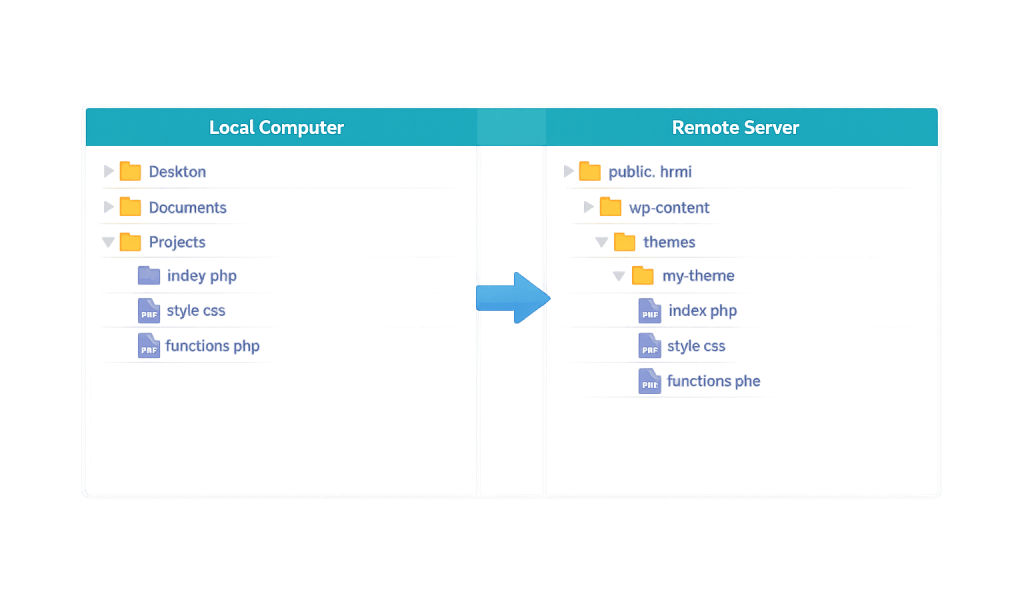
- You can then browse, upload, download, rename, move, and delete files on the server — just like a file manager, but for your server’s file system.
Authentication for SFTP can use a password or, for stronger security, an SSH key pair — a public key stored on the server and a private key held only by the authorized user. SSH key authentication eliminates the risk of password-based brute-force attacks entirely.
SFTP is distinct from FTPS (FTP Secure), which adds SSL encryption on top of the older FTP protocol. SFTP is a completely different protocol built on SSH — simpler, more widely supported, and the current standard for secure file transfer.
[Image: Screenshot of an SFTP client (e.g., FileZilla) showing a split-panel interface with local files on the left and remote server files on the right, with a WordPress directory structure visible]
Purpose & Benefits
1. Secure File Access When the WordPress Dashboard Is Unavailable
SFTP is essential for troubleshooting scenarios where the WordPress admin is inaccessible — a broken plugin causing a fatal error, a failed update that breaks the site, or a configuration change that makes the dashboard unreachable. Direct SFTP access lets you rename, delete, or modify files at the server level, bypassing WordPress entirely to restore functionality.
2. Transfer Files Securely During Development and Maintenance
When making changes to theme files, plugin configurations, or wp-config.php directly, SFTP provides a secure transfer channel that protects your credentials and file contents. Our WordPress hosting environments are all configured for SFTP access — never FTP — as part of standard security practices.
3. Enable Direct Plugin and Theme File Editing
Some advanced customizations require editing files that exist outside WordPress’s built-in file editor — particularly PHP files, CSS overrides, or configuration files in non-standard locations. SFTP provides direct access to these files without needing to go through a hosting control panel’s built-in file manager, which is often slower and less functional.
Examples
1. Recovering From a Plugin Conflict
A WordPress site goes down after a plugin update — the admin dashboard returns a white screen or fatal error. The site owner connects via SFTP, navigates to wp-content/plugins/, and renames the problematic plugin’s folder to deactivate it at the file level (WordPress treats a missing folder as a deactivated plugin). The site comes back online immediately, allowing the admin to log in and troubleshoot properly.
2. Deploying a Theme Update
A developer builds a custom theme update on a staging site and needs to deploy it to production. Rather than zipping and uploading through the WordPress admin, they use SFTP to upload the updated theme files directly to wp-content/themes/, ensuring only the changed files are overwritten. This is faster and avoids any risk of the WordPress uploader timing out on large theme packages.
3. Manually Editing wp-config.php
A site administrator needs to add security keys and change a database setting in wp-config.php. The file is in the WordPress root directory and can’t be edited through the WordPress admin. Via SFTP, they download the file, make the changes locally in a text editor, and re-upload it — completing the change safely without leaving credentials exposed.
Common Mistakes to Avoid
- Using FTP instead of SFTP — FTP transmits your username and password in plain text. Any attacker on the same network can capture these credentials. Always require SFTP access from your hosting provider; many provide both but default to FTP for legacy compatibility. Confirm you’re connecting on port 22 (SFTP/SSH), not port 21 (FTP).
- Storing SFTP credentials insecurely — Saving SFTP passwords in unencrypted notes or browser autofill creates a credential exposure risk. Use a dedicated password manager for server credentials.
- Editing live files directly without a backup — Making changes to live production files via SFTP without first taking a backup is risky. A typo in a core PHP file can break the site. Always work on a staging environment for anything beyond minor edits.
- Leaving unnecessary SFTP accounts active — SFTP accounts are potential attack surfaces. Deactivate accounts for former developers or contractors immediately when access is no longer needed. Limit SFTP user accounts to the minimum necessary.
Best Practices
1. Use SSH Key Authentication Instead of Passwords
Where your hosting environment supports it, configure SSH key-based authentication for SFTP access. This replaces password entry with a cryptographic key exchange — significantly more secure and immune to brute-force password attacks. Most managed WordPress hosts and VPS providers support SSH key authentication.
2. Restrict SFTP User Permissions
Follow the principle of least privilege: SFTP users should only have access to the directories they need. Most hosts allow you to configure a “chroot jail” that confines an SFTP user to their home directory. This limits the damage from a compromised credential — the attacker can only access the directories explicitly granted to that user.
3. Always Work With a Backup Before Making Changes
Before editing any server files via SFTP — especially core WordPress files or configuration files — take a complete backup of the site. A backup means any mistake is recoverable. Combine SFTP access with a reliable backup routine to ensure direct server access is useful without being risky.
Frequently Asked Questions
What’s the difference between FTP and SFTP?
FTP (File Transfer Protocol) transfers files without encryption — your username, password, and all file contents travel in plain text. SFTP (Secure File Transfer Protocol) encrypts everything over an SSH connection. In practice, you should never use plain FTP for WordPress file management. SFTP is the standard and provides essential security that FTP lacks entirely.
Do I need to install software to use SFTP?
Yes — you need an SFTP client on your local machine. Free options include FileZilla (Windows, Mac, Linux) and Cyberduck (Mac, Windows). Paid options like Transmit (Mac) and WinSCP (Windows) offer additional features. Your code editor (VS Code with an extension, or PHPStorm) may also support SFTP connections directly.
What credentials do I need to connect via SFTP?
You need: your server hostname or IP address, your SFTP username, your password (or SSH private key file), and the port number (usually 22). These are provided by your hosting provider — typically in your hosting control panel or in the welcome email when your account was set up.
Can I edit files directly on the server via SFTP?
Not exactly — SFTP transfers files between your computer and the server, but editing happens locally. The typical workflow is: download the file via SFTP, edit it in a local text editor, and re-upload it to overwrite the server version. Some SFTP clients support “editing” files by automating this download-edit-upload cycle, but the actual editing still happens on your local machine.
Is SFTP the same as SSH?
SFTP runs over SSH — it uses the SSH protocol for authentication and encryption. But SSH is a broader protocol that also enables terminal access (logging in to the command line), secure tunneling, and other functions. SFTP is specifically for file transfer over SSH. Think of SSH as the connection infrastructure and SFTP as one of the services that runs on top of it.
Related Glossary Terms
- FTP (File Transfer Protocol)
- SSL Certificate
- WordPress Hosting
- wp-config.php
- Security Keys
- Backup
- Staging Site
How CyberOptik Can Help
SFTP access is a standard part of how we manage and maintain WordPress sites for clients. Whether you need help recovering a broken site, deploying files safely, or understanding how to work with your server securely, our team handles it. Learn about our hosting solutions or get in touch to discuss your project.


