
.htaccess is a configuration file used by Apache web servers to control how the server handles requests for a specific directory and all its subdirectories. The name stands for “hypertext access,” and the file lives in the root directory of a WordPress installation, though you can also place them in subdirectories. On Apache-based hosting — which powers a large share of WordPress sites — the .htaccess file acts as a set of instructions the server reads on every request, before any WordPress code runs.
In a standard WordPress installation, the .htaccess file is created automatically and contains the WordPress permalink rules. Without it, clean URLs like /about-us/ would break. But the file’s capabilities go well beyond permalinks — it controls redirects, security rules, performance settings, and access restrictions. Developers and server administrators edit it regularly to handle tasks that can’t be done from the WordPress dashboard alone.
[Image: Annotated screenshot showing a standard WordPress .htaccess file with sections labeled: WordPress permalink block, HTTPS redirect, and security rules]
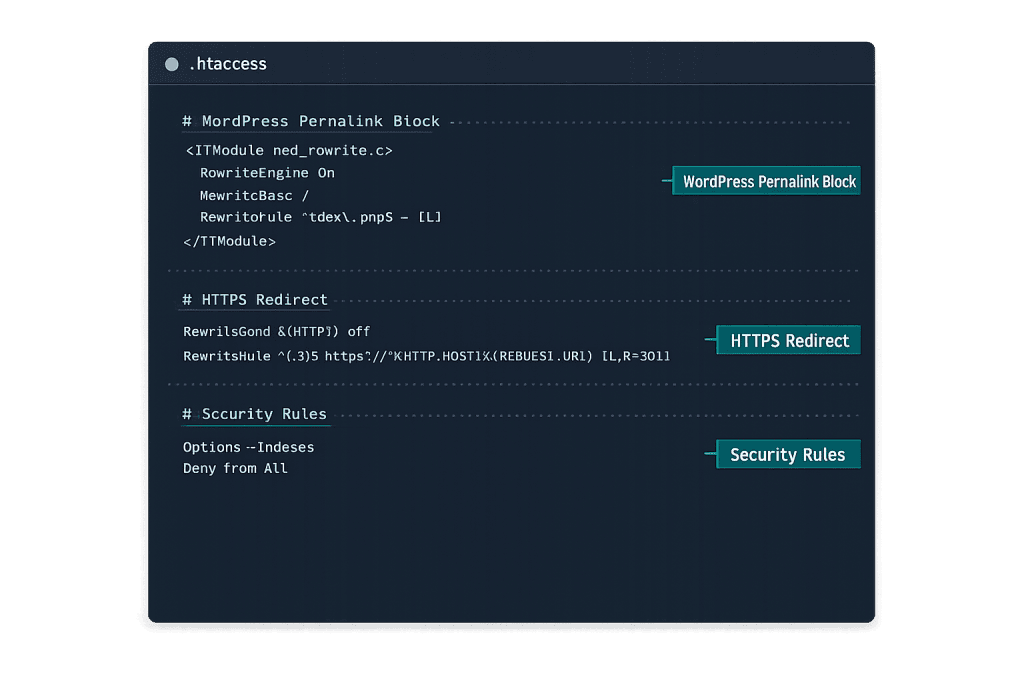
How .htaccess Works
The .htaccess file is read by the Apache server before a request reaches WordPress or any other application. This makes it powerful — it can intercept requests, rewrite URLs, block traffic, and set headers before any PHP code executes.
Key mechanics:
- Directives — Instructions written in Apache’s configuration syntax (e.g.,
RewriteRule,Order,Deny) - Modules — Most .htaccess functionality requires Apache modules like
mod_rewrite(for URL rewrites) andmod_deflate(for GZIP compression) - Scope — Rules in the root
.htaccessapply to the entire site; rules in a subdirectory.htaccessapply only to that directory - Processing order — Rules are read top to bottom; if a rule matches and contains
[L](Last), processing stops
One important limitation: .htaccess only works on Apache-based servers. Sites hosted on Nginx, LiteSpeed (in some configurations), or managed WordPress hosts may ignore .htaccess entirely — those servers handle the same settings at the server configuration level.
Purpose & Benefits
1. URL Redirects and Rewrites
The .htaccess file is the standard tool for implementing 301 redirects on Apache servers. When you change a URL, reorganize your site structure, or move content, a 301 redirect tells both users and search engines that the old address has permanently moved. Without proper redirects, you lose link equity and create broken experiences for visitors.
# Redirect old URL to new URL (301 Permanent)
RewriteEngine On
RewriteRule ^old-page/?$ /new-page/ [R=301,L]
2. Security Hardening
Several WordPress hardening techniques are implemented through .htaccess. You can block access to sensitive files, restrict wp-admin to specific IP addresses, prevent PHP execution in the uploads folder, and disable directory browsing. These rules add a server-level layer of protection that operates before WordPress even loads.
3. Performance Improvements
GZIP compression and browser caching rules can be added to .htaccess to reduce page load times without installing additional plugins. Forcing HTTPS redirects through .htaccess — rather than relying on a plugin — is also more efficient since it intercepts requests at the server level before PHP is invoked.
Examples
1. Force HTTPS for All Pages
This redirects all HTTP traffic to HTTPS, essential for sites with an active SSL certificate:
# Force HTTPS
<IfModule mod_rewrite.c>
RewriteEngine On
RewriteCond %{HTTPS} off
RewriteRule ^ https://%{HTTP_HOST}%{REQUEST_URI} [L,R=301]
</IfModule>
After adding this, any visitor typing http://yoursite.com is automatically redirected to the secure https:// version.
2. Protect wp-config.php from Public Access
The wp-config.php file contains your database credentials. This rule blocks all external access to it:
# Block access to wp-config.php
<Files wp-config.php>
Order allow,deny
Deny from all
</Files>
This is one of the most common WordPress hardening rules applied to .htaccess and should be present on every production site.
3. Enable GZIP Compression for Faster Load Times
Compressing text-based files (HTML, CSS, JavaScript) before serving them reduces bandwidth and load times:
# Enable GZIP Compression
<IfModule mod_deflate.c>
AddOutputFilterByType DEFLATE text/plain
AddOutputFilterByType DEFLATE text/html
AddOutputFilterByType DEFLATE text/css
AddOutputFilterByType DEFLATE application/javascript
</IfModule>
When enabled, this can reduce the size of HTML files by 60–80%, directly improving PageSpeed scores.
Common Mistakes to Avoid
- Editing without a backup — A syntax error in
.htaccesscan take an entire site offline with a 500 Internal Server Error. Always download a copy before making changes, and test in a staging site first. - Assuming it works on all hosts — On Nginx-based servers and many managed WordPress hosts,
.htaccessis ignored. If your redirects or security rules aren’t taking effect, check your hosting environment’s documentation. - Conflicting redirect rules — Multiple redirect rules that trigger each other can cause redirect loops. Always test redirects after adding them and check for loops using a browser’s developer tools network tab.
- Placing rules outside the WordPress block — WordPress wraps its permalink rules in
# BEGIN WordPressand# END WordPresscomments. Adding your custom rules inside this block can cause WordPress to overwrite them on the next permalink save.
Best Practices
1. Keep Custom Rules Above or Below the WordPress Block
WordPress automatically manages the code between # BEGIN WordPress and # END WordPress. Place your custom rules above this block to ensure they’re processed first, or below it if they don’t need to take priority. This prevents WordPress from overwriting your custom directives when you save permalink settings.
2. Test Changes in a Staging Environment First
Before editing .htaccess on a live site, test changes in a staging site. A single syntax error results in a 500 error for all visitors. After applying changes, verify the site loads correctly and use a redirect checker to confirm any 301 redirects are working as intended.
3. Use the Least Permissive Rules Necessary
Security rules in .htaccess should be as specific as possible. Blocking an entire directory is safer than trying to block individual file types after the fact. Pair .htaccess security rules with other WordPress hardening practices — file permissions, strong passwords, and two-factor authentication — for layered protection.
Frequently Asked Questions
What does the default WordPress .htaccess file contain?
A fresh WordPress installation creates an .htaccess file with the basic permalink rewrite rules. These rules tell Apache to route all requests through WordPress’s front controller (index.php), enabling clean URLs. Without this block, visiting /about-us/ would return a 404 error instead of the correct page.
Can I edit .htaccess from inside WordPress?
WordPress doesn’t have a built-in .htaccess editor. You can edit it through your hosting control panel’s file manager, via FTP, or through certain security plugins like Wordfence or iThemes Security that provide a managed interface. Always back up the file before making changes.
What happens if I delete .htaccess?
On an Apache server, deleting .htaccess will break WordPress’s permalink structure — most pages will return 404 errors because the URL rewriting rules are gone. You can regenerate the default file by going to Settings → Permalinks in your WordPress dashboard and clicking Save. Custom rules won’t be regenerated and will need to be re-added manually.
Does .htaccess work on all WordPress hosts?
No. It’s specific to Apache-based web servers. Many managed WordPress hosts (like WP Engine, Kinsta, and Pressable) run Nginx or a proprietary stack where .htaccess is either ignored or partially supported. On these hosts, the equivalent settings are configured at the server level by the hosting provider.
How does .htaccess relate to SSL and HTTPS?
Forcing HTTPS redirects is one of the most common uses of .htaccess. Once an SSL certificate is installed, a redirect rule in .htaccess ensures all HTTP traffic is permanently redirected to the secure HTTPS version. This protects users and signals to search engines that the secure URL is canonical.
Related Glossary Terms
- 301 Redirect
- SSL Certificate
- WordPress Hardening
- FTP (File Transfer Protocol)
- wp-config
- Staging Site
- HTTPS
- Firewall
How CyberOptik Can Help
Managing .htaccess correctly requires understanding both Apache server behavior and WordPress architecture — and a single mistake can take a site offline. Our team handles .htaccess configuration as part of every WordPress build and hosting setup we manage, from permalink rules and HTTPS redirects to security hardening rules. You don’t need to touch this file yourself — that’s what we’re here for. Get in touch to discuss your project or explore our WordPress hosting and infrastructure services.


