
Severity: Major · Fix time: 5–15 min · Skill level: Intermediate
“Sorry, you are not allowed to access this page” is a WordPress application-level capability check failure — not a server-generated 403, but a denial generated by WordPress itself when a logged-in user attempts to reach an admin page their current role doesn’t permit. The most common triggers are a corrupted wp_capabilities value in the database, a role assignment changed by a plugin or migration, or a table prefix mismatch introduced during a site move.
This error is disorienting because you are logged in. WordPress recognizes you as a valid user, just not one with the right permissions for that particular page. The fix is almost always a single database edit — in wp_usermeta, a plugin configuration, or the table prefix setting in wp-config.php.
Need a quick map of every WordPress error? See our 70+ WordPress Errors Guide → for a categorized reference of every common WordPress issue.
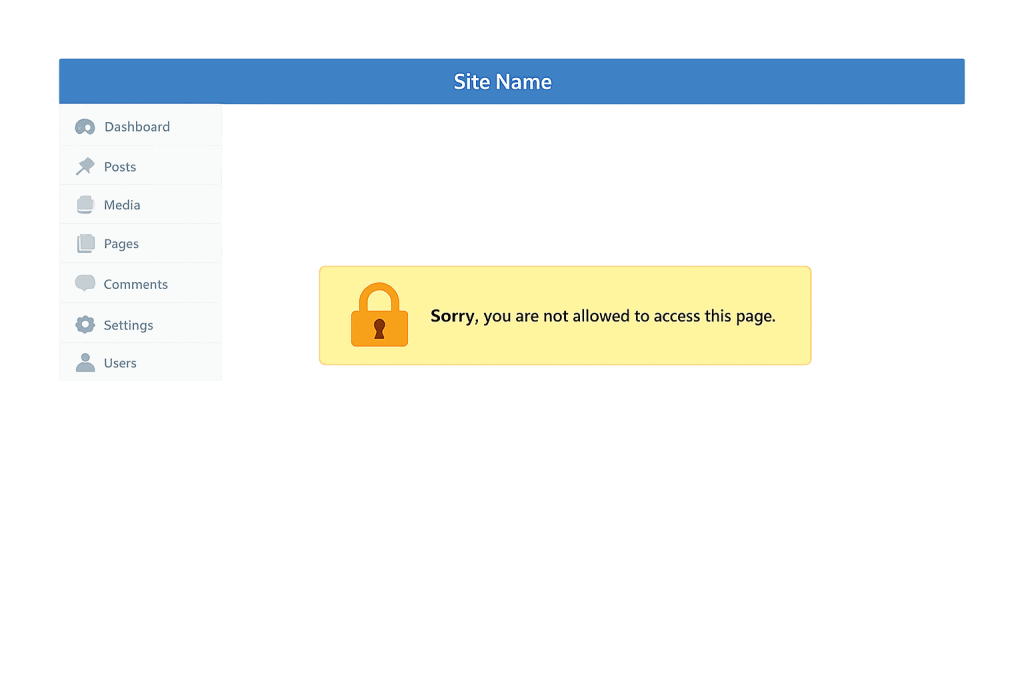
[Image: WordPress wp-admin page showing the “Sorry, you are not allowed to access this page” error message in the standard admin layout]
How the Capability Check Works
Every wp-admin page load triggers a current_user_can() check against your stored capabilities. Each user role — administrator, editor, author, contributor, subscriber — carries named capabilities like manage_options, install_plugins, and edit_theme_options. If the page requires a capability your account doesn’t have, WordPress stops you with this message.
Your role is stored in the wp_usermeta table in a row with meta key wp_capabilities. For an administrator, that value must be:
a:1:{s:13:"administrator";b:1;}Things that corrupt or remove this value:
- Database prefix mismatch after migration — If
wp-config.phpdeclares$table_prefix = 'wp_'but your tables actually use a different prefix (e.g.,wp7b_), WordPress looks forwp_capabilitiesbut the actual row is namedwp7b_capabilities. The lookup fails and your account appears to have no role. - Role plugin conflict — User Role Editor, Members, and PublishPress Capabilities all write directly to
wp_usermeta. A bug or misconfiguration can strip capabilities from your administrator account. - Multisite role assignment — Network administrators are not automatically site-level administrators on individual subsites. A network admin accessing a subsite where they haven’t been given site-level admin rights gets this exact error.
- Security plugin role reset — Some security hardening plugins offer a “reset user roles to defaults” option. Triggered accidentally, it resets every administrator to subscriber.
Check This First — 2-Minute Diagnostic
- Check which pages trigger the error — If it’s all wp-admin pages, your role is completely gone. If only specific pages, it’s a partial capability issue or a plugin-specific requirement.
- Confirm your current role — Go to Users → Your Profile (if accessible). What role is displayed? If it shows Subscriber or Editor, your role was changed.
- Check for a recent migration or plugin update — These are the two most common triggers. A table prefix change during migration is the single most common cause of this error.
- Try a second admin account — If a colleague can log in as administrator, they can correct your role assignment from Users → All Users without touching the database.
- Verify the table prefix — In
wp-config.php, find$table_prefix. In phpMyAdmin, confirm yourwp_usermetatable uses the same prefix. A mismatch here is the diagnosis.
Purpose & Benefits
1. Understanding Role-Based Access Control in WordPress
WordPress’s capability system enables different team members to have appropriate access levels. Understanding how capabilities are stored and checked means you can diagnose permission errors quickly — and design role structures intentionally. The capability check that fires this error is the same one that keeps subscribers from installing plugins and editors from modifying themes. See user roles for the full capability map.
2. Preventing Lockouts After Site Migrations
The table prefix mismatch scenario is entirely preventable. Before any migration, document the source database’s table prefix. After migration, verify that $table_prefix in wp-config.php exactly matches the prefix of the actual database tables before allowing any logins. Catching this before the first post-migration login prevents a complete administrative lockout.
3. Auditing Role-Modifying Plugins Before Updates
Role management plugins have direct write access to wp_usermeta. A bug in a major version update can silently overwrite administrator capabilities site-wide. Our WordPress maintenance services include plugin audit reviews that flag capability-modifying plugins before updates reach production — particularly relevant for any plugin touching user roles.
Examples
1. Table Prefix Mismatch After Migration
A site moves from staging to production. The staging database used wp_ as the prefix; the production database kept the old prefix wp7b_. The developer sets $table_prefix = 'wp_' in wp-config.php (to match staging) but the actual production tables are named wp7b_users, wp7b_usermeta, and so on. WordPress looks for capabilities in wp_capabilities — a key that doesn’t exist in the production tables. Every admin gets “Sorry, you are not allowed to access this page.” Fix: change $table_prefix in wp-config.php back to 'wp7b_' to match the actual tables.
2. Corrupted wp_capabilities — phpMyAdmin Fix
A User Role Editor plugin update introduces a bug that writes an empty string to wp_capabilities for all administrator accounts. Fix via phpMyAdmin SQL:
-- Restore full administrator capabilities
-- Replace '1' with the affected user's actual ID from wp_users
UPDATE wp_usermeta
SET meta_value = 'a:1:{s:13:"administrator";b:1;}'
WHERE meta_key = 'wp_capabilities'
AND user_id = 1;

-- Reset user level to 10 (administrator)
UPDATE wp_usermeta
SET meta_value = '10'
WHERE meta_key = 'wp_user_level'
AND user_id = 1;
Log out and log back in. WordPress reads the updated capabilities on the next session.
3. Multisite Subsite Permission Error
A network administrator gets this error when accessing a specific subsite’s dashboard. They have network admin rights, but on that individual subsite, their account exists only as a subscriber (the default when first added to the network). Fix: the subsite administrator navigates to Users → All Users, finds the network admin, and changes their role to Administrator for that specific site — without touching the database.
Common Mistakes to Avoid
- Editing the serialized string manually without exact formatting — The
wp_capabilitiesvalue is a PHP serialized string. The character count embedded in the format (s:13:"administrator") must match exactly. Use the precise string shown in the examples — any modification breaks the serialization and renders the account unusable. - Resetting all user roles when only one account is affected — A “reset to defaults” option overwrites correct capability settings for every other user on the site. Target only the specific user’s database row.
- Not checking the table prefix first in post-migration errors — Prefix mismatch is the most common post-migration cause and the fastest to check. Verify
$table_prefixinwp-config.phpagainst actual table names before editing anything else. - Leaving a misconfigured role plugin active after the conflict is identified — Once you identify a role plugin as the cause, fix the capabilities and then properly configure or deactivate the plugin. Leaving it active means the corruption recurs on the next update.
Best Practices
1. Check wp_capabilities in phpMyAdmin First
When this error appears, open phpMyAdmin, navigate to wp_usermeta, filter by your user_id, and check the wp_capabilities row. The value should be a:1:{s:13:"administrator";b:1;} for an administrator. If it’s blank, wrong, or missing, that’s your fix. This single check resolves the majority of cases in under two minutes.
2. Confirm Table Prefix Consistency After Every Migration
After any site migration, immediately verify that $table_prefix in wp-config.php matches the actual prefix of the database tables visible in phpMyAdmin. This prevents not just the capability error but all database lookup failures that can appear after a move.
3. Maintain a Dedicated Recovery Admin Account
Keep a second administrator account — separate email, different username — that you never use for daily operations. If your primary account loses capabilities, log in as the secondary admin and restore the primary account’s role from Users → All Users without touching the database.
4. Back Up wp_usermeta Before Any Database Edit
Before editing any row in wp_usermeta, export the table from phpMyAdmin as a SQL backup. Editing a serialized string incorrectly renders the account broken. The export takes ten seconds and creates a one-click restoration path.
Frequently Asked Questions
What causes “Sorry, you are not allowed to access this page” most often?
In our experience, the most common cause is a database table prefix mismatch introduced during a site migration, followed by a corrupted wp_capabilities value caused by a role management plugin update. Both are visible immediately in phpMyAdmin and resolved with a single database row edit.
Can this error appear for legitimate administrator accounts?
Yes — and frequently so after migrations or plugin updates. Being a WordPress administrator doesn’t protect you from this error if the database entry that defines your status is corrupted, missing, or being read with the wrong table prefix. The error is a database lookup failure, not a security block.
How do I fix this when I can’t access any wp-admin page at all?
Use phpMyAdmin to run the SQL UPDATE shown in Example 2 above. If you can’t reach phpMyAdmin either, connect via SFTP, verify the table prefix in wp-config.php, and add a temporary admin creation function to functions.php using the recovery approach described in the wp-admin locked out entry.
Does this error affect front-end visitors?
No. This is exclusively a wp-admin error. Front-end visitors browsing your site are unaffected — they don’t go through the same current_user_can() checks. Your public site continues operating normally regardless of whether any administrator can access the backend.
Can a plugin cause this for only some wp-admin pages?
Yes. If a plugin registers its own admin pages with a specific capability requirement (e.g., a custom capability or manage_options), and your role doesn’t include that capability, the error appears only on that plugin’s pages while the rest of wp-admin works normally. Check the plugin’s settings for role restrictions before editing the database.
Related Glossary Terms
- User Roles (Administrator, Editor, etc.)
- phpMyAdmin
- wp-config
- WordPress Hardening
- Firewall
- wp-admin Locked Out
- 403 Forbidden
- Database
How CyberOptik Can Help
Still broken? Our team fixes WordPress errors like this in under 30 minutes for maintenance clients. A capability check failure that locks an administrator out of their own dashboard — whether from a corrupted database record, a plugin conflict, or a migration gone wrong — is exactly the kind of issue our team diagnoses and resolves quickly. We handle database-level role repairs, table prefix corrections, and plugin conflict investigations as part of our WordPress maintenance and support services. Contact us to get back into your dashboard.


