
Severity: Critical · Fix time: 15–60 min · Skill level: Advanced
“This site can’t provide a secure connection” is Chrome’s human-readable heading for any TLS handshake failure that prevents an encrypted HTTPS connection from being established. It always appears with a specific sub-code below the heading — most commonly ERR_SSL_PROTOCOL_ERROR, but also NET::ERR_CERT_DATE_INVALID (expired certificate), NET::ERR_CERT_AUTHORITY_INVALID (untrusted certificate authority), NET::ERR_CERT_COMMON_NAME_INVALID (domain name mismatch), or ERR_SSL_VERSION_OR_CIPHER_MISMATCH (protocol/cipher negotiation failure).
The heading is the same for all Chrome TLS failures. The sub-code is what matters for diagnosis — each points to a different cause and a different fix. This entry focuses on Chrome’s presentation of these failures and how to decode the sub-codes for each fix path. For the Firefox equivalent (“Secure Connection Failed”), see our Secure Connection Failed / SSL Handshake Failed entry. For the specific Chrome code ERR_SSL_PROTOCOL_ERROR, see our ERR_SSL_PROTOCOL_ERROR entry.
Need a quick map of every WordPress error? See our 70+ WordPress Errors Guide → for a categorized reference of every common WordPress issue.
[Image: Chrome browser showing the full “This site can’t provide a secure connection” error page with the specific sub-code visible below the heading]
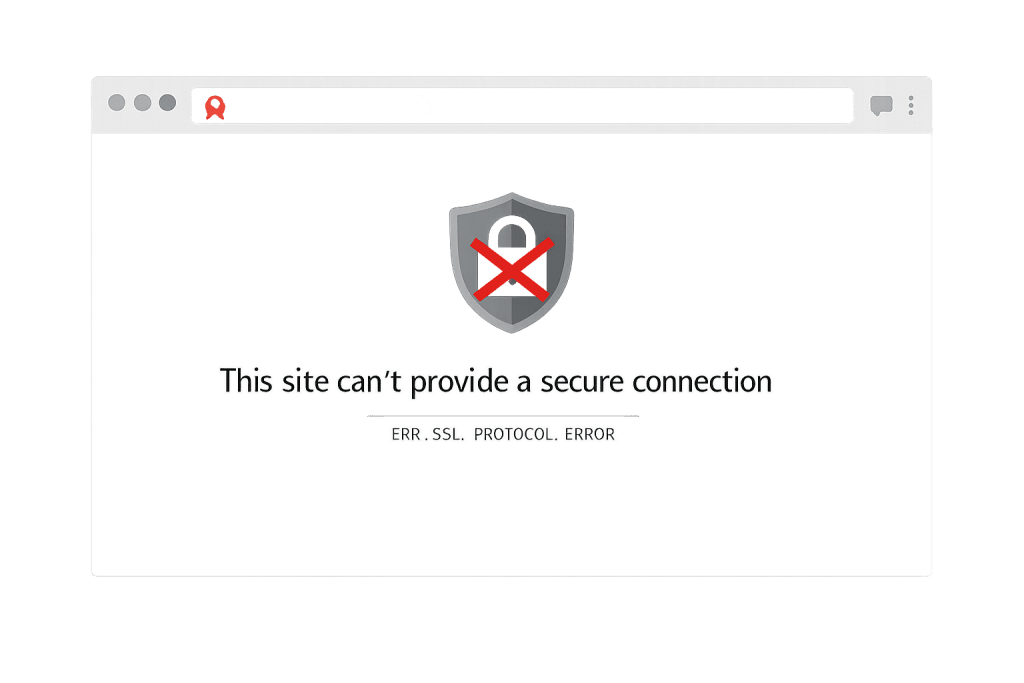
How Chrome’s SSL Error Page Works
Chrome uses one heading for all TLS-level failures, then appends a specific sub-code identifying the exact failure. The sub-code alone determines the fix path.
Certificate-related sub-codes:
NET::ERR_CERT_DATE_INVALID— The certificate has expired or isn’t yet valid. Check the “Valid until” date via the lock/warning icon in the address bar.NET::ERR_CERT_AUTHORITY_INVALID— Chrome doesn’t trust the certificate authority. Common with self-signed certificates or CAs outside Chrome’s trust store.NET::ERR_CERT_COMMON_NAME_INVALID— The certificate covers a different domain than the one being accessed. A certificate forexample.comdoesn’t automatically coverwww.example.comunless the SAN includes both.NET::ERR_CERT_REVOKED— The certificate was explicitly revoked by the issuing CA. Requires obtaining and installing a new certificate.
Protocol/negotiation sub-codes:
ERR_SSL_PROTOCOL_ERROR— Generic TLS handshake failure not covered by the more specific codes. Can be server-side or Chrome-specific (SSL state cache, QUIC issues).ERR_SSL_VERSION_OR_CIPHER_MISMATCH— The server and Chrome couldn’t agree on a mutually supported TLS version or cipher suite.
For WordPress sites, NET::ERR_CERT_DATE_INVALID (expired certificate) and ERR_SSL_PROTOCOL_ERROR are by far the most frequent sub-codes.
Check This First — 2-Minute Diagnostic
- Read the sub-code — Expand “Advanced” on Chrome’s error page. The specific sub-code determines your entire diagnostic path. Note it before doing anything else.
- Check certificate expiry — Click the warning icon → “Certificate is not valid.” Review the validity dates. Expired certificates are the most common cause and have an immediate fix.
- Test from another browser — Open Firefox or Edge. If the same error appears, the issue is server-side. If only Chrome fails, it may be Chrome-specific (SSL state cache, QUIC, or an extension).
- Verify the system date and time — An incorrect device clock causes Chrome to calculate that a valid certificate falls outside its validity window, triggering
NET::ERR_CERT_DATE_INVALIDeven for currently valid certificates. - Run SSL Labs — Navigate to ssllabs.com/ssltest and enter your domain. This tells you exactly which sub-code the configuration triggers and why.
Purpose & Benefits
1. Reading the Sub-Code Before Attempting Any Fix
“This site can’t provide a secure connection” without the sub-code is essentially meaningless as a diagnostic signal — it’s the same heading for an expired certificate, a self-signed certificate, a domain mismatch, and a TLS protocol failure. Reading the sub-code narrows a potentially large solution space down to one or two specific fixes. Understanding how to decode Chrome’s SSL error page cuts resolution time significantly.
2. Protecting Revenue and User Trust
Chrome shows this message as a full-page red warning with no easy way for visitors to proceed. For eCommerce and professional services sites, this is effectively a complete site outage — conversion drops to near zero while the warning is active. Our WordPress maintenance services include SSL certificate monitoring to catch expiry before it becomes a visitor-facing crisis.
3. Keeping Up With Chrome’s Evolving SSL Standards
Chrome has tightened SSL requirements over the years — adding certificate transparency requirements, expanding sub-code specificity, and removing trust for certain certificate authorities. A site that worked fine three years ago may trigger NET::ERR_CERT_AUTHORITY_INVALID today if the issuing CA’s root certificate has been removed from Chrome’s trust store. This is not a one-time configuration task.
Examples
1. NET::ERR_CERT_DATE_INVALID — Auto-Renewal Failure
A WordPress site’s Let’s Encrypt certificate expired after Certbot’s renewal failed because the hosting firewall blocked the ACME HTTP-01 challenge from Let’s Encrypt servers. Chrome shows NET::ERR_CERT_DATE_INVALID. Fix:
# Verify certificate status
sudo certbot certificates

# Identify the renewal failure with a dry run
sudo certbot renew --dry-run

# After resolving the firewall issue, force renewal
sudo certbot renew --force-renewal

# Reload web server
sudo systemctl reload nginx
2. NET::ERR_CERT_COMMON_NAME_INVALID — Domain Mismatch
A business installs an SSL certificate for example.com but visitors access the site at www.example.com. The certificate doesn’t include a Subject Alternative Name for the www subdomain. Fix: obtain a certificate that covers both. With Let’s Encrypt:
# Issue a certificate covering both apex domain and www
sudo certbot --nginx -d example.com -d www.example.com

# This creates a SAN certificate valid for both domains
# Certbot writes fullchain.pem with both domains in the SAN field
Verify in SSL Labs before pointing live traffic to the renewed certificate.
3. ERR_SSL_VERSION_OR_CIPHER_MISMATCH — Legacy Server Configuration
After Chrome 131 dropped support for certain legacy cipher suites in late 2024, a WordPress site on a five-year-old managed hosting plan began showing ERR_SSL_VERSION_OR_CIPHER_MISMATCH. SSL Labs confirmed deprecated cipher suites. For self-managed Apache servers:
# Disable TLS 1.0 and 1.1, enable 1.2 and 1.3 only
SSLProtocol -all +TLSv1.2 +TLSv1.3
SSLCipherSuite HIGH:!aNULL:!MD5:!3DES:!RC4
SSLHonorCipherOrder off
On managed hosting, contact your provider with the SSL Labs report — TLS configuration requires server-level access.
Common Mistakes to Avoid
- Acting on the heading without reading the sub-code — The heading alone means only that Chrome’s TLS handshake failed. The sub-code tells you whether the fix is a certificate renewal, a domain SAN update, a trust store issue, or a protocol configuration change. Reading it costs 10 seconds.
- Renewing the certificate when the issue is a domain mismatch —
NET::ERR_CERT_COMMON_NAME_INVALIDis not fixed by renewing the same certificate. You need a certificate that covers the domain actually being accessed. - Assuming the system clock is correct — An incorrect device date/time causes Chrome to produce
NET::ERR_CERT_DATE_INVALIDfor a valid, live certificate. Verify the reporting device’s clock before touching the server. - Using Cloudflare “Flexible” SSL — Flexible SSL means Cloudflare-to-origin traffic is unencrypted. Combined with WordPress’s HTTPS redirect, this creates a redirect loop. Some Chrome configurations detect the lack of end-to-end encryption and trigger SSL errors. Use “Full (Strict)” with a valid origin certificate.
Best Practices
1. Install Certificates Covering All Domains You Serve Over HTTPS
Before installing any certificate, list every domain and subdomain that will carry HTTPS traffic. Include all of them as Subject Alternative Names. With Let’s Encrypt, use multiple -d flags in the Certbot command. Verify coverage on the installed certificate before pointing live traffic to it.
2. Set WordPress URLs to HTTPS Consistently in wp-config.php
After SSL is confirmed working, ensure WordPress uses HTTPS for all internal URLs. Inconsistent HTTP/HTTPS settings produce mixed content warnings and redirect loops. In wp-config.php:
define( 'WP_HOME', 'https://yourdomain.com' );
define( 'WP_SITEURL', 'https://yourdomain.com' );
define( 'FORCE_SSL_ADMIN', true );
3. Add HTTPS Redirect at the Server Level
A reliable HTTPS redirect belongs in your web server configuration or .htaccess — not solely in a WordPress plugin. For Apache:
# Place before WordPress rewrite rules in .htaccess
RewriteEngine On
RewriteCond %{HTTPS} off
RewriteRule ^ https://%{HTTP_HOST}%{REQUEST_URI} [L,R=301]
Remove this block if you’re using Cloudflare Full/Strict — the redirect is already handled at the CDN layer.
4. Monitor Certificate Expiry With External Alerts
Configure external monitoring (UptimeRobot, Pingdom) to alert at 30 days before certificate expiry — separate from auto-renewal. Renewal processes can fail silently due to firewall changes, cron issues, or web server misconfigurations. An alert at 30 days gives you time to diagnose and fix before visitors see the Chrome warning.
5. Run SSL Labs After Every Certificate Change
Test your domain at ssllabs.com/ssltest immediately after any certificate installation, renewal, or server configuration change. SSL Labs covers all the sub-codes Chrome uses under “This site can’t provide a secure connection” — a passing A or A+ result means Chrome, Firefox, and Safari will all connect without errors.
Frequently Asked Questions
What causes “This site can’t provide a secure connection” most often in WordPress?
An expired SSL certificate — especially on sites using Let’s Encrypt, where certificates expire every 90 days and auto-renewal can fail silently. The sub-code NET::ERR_CERT_DATE_INVALID confirms this. Read the sub-code before attempting any fix; it determines the entire solution path.
How is this different from ERR_SSL_PROTOCOL_ERROR?
“This site can’t provide a secure connection” is always the heading. ERR_SSL_PROTOCOL_ERROR is one specific sub-code that can appear beneath it — covering generic handshake failures. The heading also appears with NET::ERR_CERT_DATE_INVALID, NET::ERR_CERT_AUTHORITY_INVALID, and others. See our ERR_SSL_PROTOCOL_ERROR entry for that specific sub-code’s diagnosis.
Does this error affect all browsers or just Chrome?
Chrome’s specific heading and sub-code format is unique to Chrome and Chrome-based browsers. Firefox shows “Secure Connection Failed” for the same server-side TLS failures. Safari shows “Safari Can’t Establish a Secure Connection.” The underlying causes are identical — but Chrome-specific issues (SSL state cache, QUIC) only appear in Chrome. See our Secure Connection Failed / SSL Handshake Failed entry for the Firefox presentation of these same failures.
Can I fix this without server access on shared hosting?
For certificate sub-codes (NET::ERR_CERT_DATE_INVALID, NET::ERR_CERT_COMMON_NAME_INVALID), you can often fix the issue through your hosting control panel’s SSL manager without raw server access. For protocol/cipher sub-codes (ERR_SSL_VERSION_OR_CIPHER_MISMATCH), TLS configuration is server-level and requires your hosting provider’s involvement — contact them with your SSL Labs report as documentation.
Related Glossary Terms
- SSL Certificate
- HTTPS (Hypertext Transfer Protocol Secure)
- ERR_SSL_PROTOCOL_ERROR
- Secure Connection Failed / SSL Handshake Failed
- Mixed Content Warning
- DNS (Domain Name System)
- .htaccess
- wp-config
How CyberOptik Can Help
Still broken? Our team fixes WordPress errors like this in under 30 minutes for maintenance clients. “This site can’t provide a secure connection” blocks all Chrome visitors with a full-page security warning — regardless of whether the cause is an expired certificate, a domain mismatch, or a TLS configuration Chrome no longer accepts. We handle SSL certificate installation, renewal automation, certificate chain verification, and TLS configuration updates as part of our WordPress maintenance services. Contact us to restore secure access to your site.


