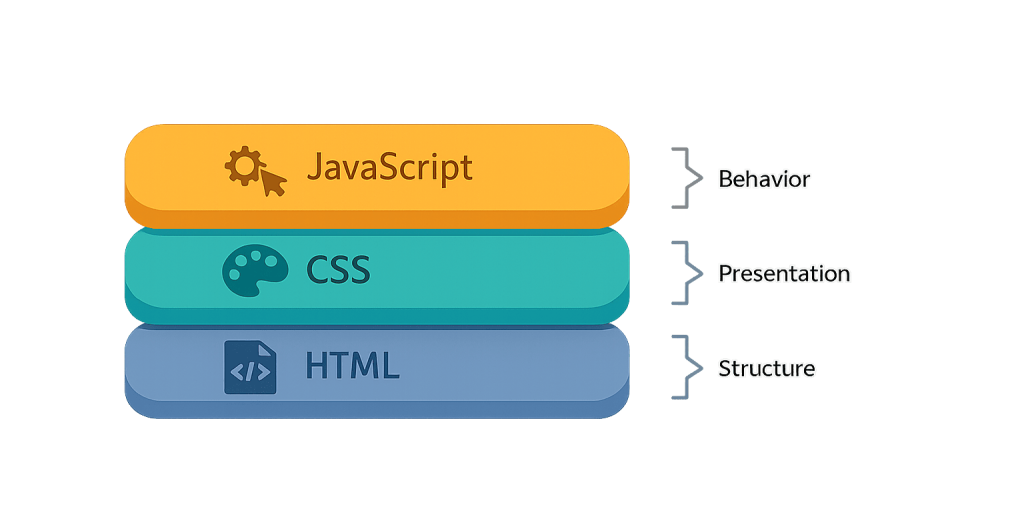
JavaScript is a programming language that runs in web browsers and enables dynamic, interactive behavior on web pages. While HTML structures content and CSS controls appearance, JavaScript controls behavior — responding to user actions, updating content without page reloads, validating forms, animating elements, and communicating with servers in the background. It’s the third foundational layer of modern web development, and virtually every functional website you interact with today uses it.
JavaScript was created in 1995 and has grown into one of the most widely used programming languages in the world. In the WordPress ecosystem specifically, JavaScript powers everything from the block editor interface to contact form validation to dynamic product filters on e-commerce sites. As a business owner, you may never write a line of JavaScript — but the quality and efficiency of the JavaScript on your site directly affects your visitors’ experience and your site’s performance.
[Image: Diagram showing the three layers of web development: HTML (structure), CSS (presentation), JavaScript (behavior)]
How JavaScript Works in WordPress
JavaScript runs in the browser, executing after the HTML page has loaded. In WordPress, JavaScript is loaded through the wp_enqueue_script() function, which registers and queues script files so they load in the correct order with the correct dependencies. The WordPress block editor (Gutenberg) is itself a JavaScript application built with React.
Key ways JavaScript is used in WordPress:
- Block editor (Gutenberg) — The entire editor interface is built in JavaScript, using React to render the editing experience
- AJAX requests — WordPress uses JavaScript to submit data and receive responses from the server without page reloads (search, form submission, cart updates)
- jQuery — WordPress bundles jQuery, a popular JavaScript library, and many themes and plugins depend on it for animations, UI interactions, and DOM manipulation
- Third-party integrations — Analytics, chat widgets, advertising tags, and heatmap tools all inject JavaScript into WordPress pages
- Theme interactions — Mobile menus, accordions, tabs, carousels, and other UI elements are typically powered by JavaScript
Purpose & Benefits
1. Dynamic User Experiences
Without JavaScript, every user interaction that requires new data would require a full page reload. With it, sites can update content, respond to input, and display information in real time. Contact forms that validate before submission, product configurators that update prices instantly, and search fields that show results as you type all rely on JavaScript. This interactivity is a direct user experience investment, keeping visitors engaged rather than waiting for page loads.
2. WordPress Block Editor and Theme Functionality
The WordPress block editor, all its blocks, and the full-site editing interface are built in JavaScript. Understanding that JavaScript is what makes the editor work — and what makes custom blocks possible — helps you communicate more effectively with your development team about what’s feasible and what requires custom code. Our WordPress development services include building custom blocks and JavaScript-powered functionality tailored to specific business needs.
3. Performance Considerations and Technical SEO
JavaScript’s power comes with responsibility. Excessive, unoptimized JavaScript is one of the leading causes of poor PageSpeed scores and Core Web Vitals failures. Every JavaScript file a page loads requires downloading, parsing, and executing — each of which takes time and competes for browser resources. Properly loading JavaScript (deferred or async where appropriate), removing unused scripts, and minimizing third-party JavaScript are core technical SEO and performance practices.
Examples
1. Adding an Event Listener to a Button
This JavaScript adds behavior to a button when clicked — the simplest type of interactivity:
// Add a click event to a button by its ID
document.getElementById('submit-btn').addEventListener('click', function() {
    alert('Form submitted!');
});
In practice, event listeners like this power every interactive element on a page — from toggling mobile menus to tracking clicks for analytics.
2. Enqueuing a JavaScript File in WordPress
In WordPress, scripts should be loaded through wp_enqueue_script(), not added directly to HTML. This ensures proper dependency management and load order:
// Enqueue a custom JavaScript file in WordPress
function cyberoptik_enqueue_scripts() {
    wp_enqueue_script(
        'cyberoptik-main',               // Handle
        get_template_directory_uri() . '/js/main.js', // URL
        array( 'jquery' ),               // Dependencies
        '1.0.0',                         // Version
        true                             // Load in footer
    );
}
add_action( 'wp_enqueue_scripts', 'cyberoptik_enqueue_scripts' );
The true parameter loads the script in the footer rather than the <head>, which improves page rendering performance.
3. Fetching Data via AJAX in WordPress
This pattern allows JavaScript to request data from WordPress without reloading the page:
// Fetch posts via WordPress AJAX
jQuery.ajax({
    url: cyberoptik_ajax.ajax_url,
    type: 'POST',
    data: {
        action: 'load_more_posts',
        nonce: cyberoptik_ajax.nonce,
        page: currentPage
    },
    success: function( response ) {
        jQuery('#post-container').append( response.data );
    }
});
This is how features like “Load More” buttons, live search, and dynamic cart updates work in WordPress — AJAX requests handled by PHP on the server, returned as data to JavaScript in the browser.
Common Mistakes to Avoid
- Loading too many third-party scripts — Every analytics tool, chat widget, ad network, and social sharing button adds JavaScript to your pages. Each one increases load time. Audit what’s actually running on your pages and remove scripts that don’t serve a clear business purpose.
- Not deferring or async-loading non-critical scripts — Scripts loaded in the
<head>withoutdeferorasyncattributes block page rendering. Most JavaScript should load in the footer or with a defer attribute so it doesn’t delay the initial page display. - Using jQuery when it isn’t necessary — jQuery is powerful but adds file weight. Modern JavaScript (ES6+) can accomplish many tasks jQuery was needed for previously, without the overhead. For new custom scripts, consider whether jQuery is actually required.
- Hardcoding AJAX URLs instead of using
wp_localize_script()— The WordPress AJAX endpoint URL can change based on configuration. Always pass the URL to JavaScript usingwp_localize_script()rather than hardcoding it, as shown in the example above.
Best Practices
1. Load Scripts in the Footer and Use Defer/Async
Always load non-critical JavaScript in the footer (pass true as the last parameter in wp_enqueue_script()). For third-party scripts, use the defer attribute so they don’t block rendering. Scripts that need to run before page content is visible (like above-the-fold animations) can remain in the <head>, but these should be exceptions, not the rule.
2. Audit and Remove Unused JavaScript
Use Google PageSpeed Insights or Chrome DevTools’ Coverage tab to identify JavaScript that’s loaded but never executed on a given page. Unused scripts — especially from plugins that load their scripts sitewide when they’re only needed on specific pages — are one of the most common sources of avoidable page weight.
// Example: Check if an element exists before running code on it
const element = document.getElementById('contact-form');
if ( element ) {
    // Only run this code on pages with the contact form
    element.addEventListener('submit', handleFormSubmit);
}
3. Use WordPress Hooks to Manage Script Dependencies
WordPress’s script dependency system (the array( 'jquery' ) parameter in wp_enqueue_script()) ensures scripts load in the correct order. If your script requires jQuery, declare it as a dependency rather than assuming jQuery is already loaded. This prevents errors from scripts executing before their dependencies are available.
Frequently Asked Questions
Do I need to know JavaScript to manage a WordPress site?
No. Most WordPress administration — content editing, plugin configuration, settings — requires no JavaScript knowledge. You’ll encounter JavaScript when customizing theme behavior, building custom functionality, or debugging performance issues. That’s where a developer is valuable. You need enough familiarity to understand what your developer is talking about, not to write the code yourself.
How does JavaScript affect WordPress SEO?
JavaScript can help and hurt SEO. Well-implemented JavaScript powers helpful features without affecting content indexability. Poorly implemented JavaScript can hide content from crawlers, cause Cumulative Layout Shift (CLS) as elements load, and add render-blocking scripts that worsen PageSpeed scores. Google can execute JavaScript, but its crawl budget for JS rendering is limited — server-rendered content is generally safer for SEO-critical pages.
What’s the difference between JavaScript and jQuery?
JavaScript is the programming language. jQuery is a library written in JavaScript that simplifies common tasks (DOM manipulation, event handling, AJAX requests). jQuery was created to smooth out browser compatibility differences that existed in the early 2000s. WordPress bundles jQuery, and many plugins and themes use it. For new projects, modern JavaScript often handles what jQuery used to be needed for.
What is JavaScript used for in the WordPress block editor?
The block editor (Gutenberg) is entirely built in JavaScript, using the React library. When you drag a block, type in the editor, or configure block settings, JavaScript is handling every interaction. Custom blocks — for testimonials, team members, pricing tables, etc. — are also built in JavaScript, which is why custom block development requires JavaScript proficiency.
Can too much JavaScript break my WordPress site?
Yes. JavaScript conflicts between plugins or between a plugin and a theme are common. Symptoms include broken menus, non-functioning forms, console errors, or a completely non-interactive editor. Debug JavaScript errors using your browser’s developer console (F12 in most browsers) or by temporarily deactivating plugins to isolate the conflict.
Related Glossary Terms
- HTML (Hypertext Markup Language)
- CSS (Cascading Style Sheets)
- AJAX (Asynchronous JavaScript and XML)
- jQuery
- wp_enqueue
- PageSpeed
- Core Web Vitals
- Frontend Development
How CyberOptik Can Help
As a WordPress-focused agency, JavaScript is part of every project we build — from block editor customizations to custom AJAX interactions to performance optimization. Whether you need custom functionality developed, a JavaScript conflict diagnosed, or a site audit to identify scripts slowing you down, our developers can help. You don’t need to write this code — that’s what we’re here for. Get in touch to discuss your project or explore our WordPress development services.