
Severity: Critical · Fix time: 15–60 min · Skill level: Intermediate
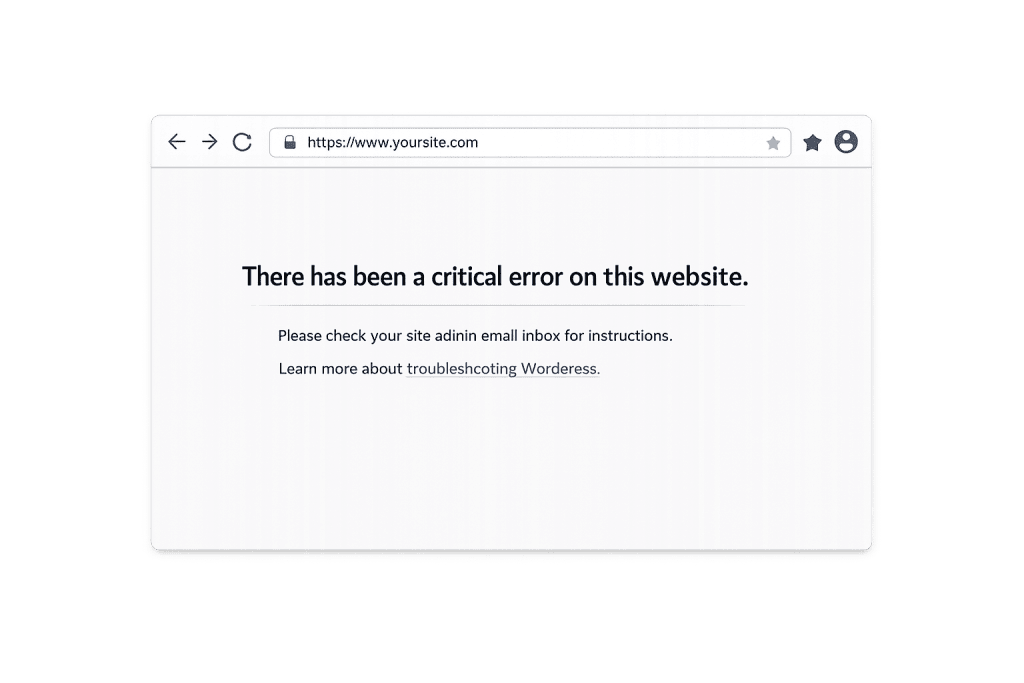
“There has been a critical error on this website” is a WordPress error message introduced in version 5.2 that replaces the blank white screen with a more informative notice when PHP encounters a fatal error. It signals that a plugin, theme, or custom code caused an unrecoverable PHP failure — and WordPress entered recovery mode to prevent further damage.
Before WordPress 5.2, this same failure showed the White Screen of Death — a blank page with no explanation. The current message is an improvement: WordPress detected the problem, emailed the admin, and is holding the site in a protected state until you resolve it.
Need a quick map of every WordPress error? See our 70+ WordPress Errors Guide → for a categorized reference of every common WordPress issue.
[Image: Browser showing the “There has been a critical error on this website” message with the note about checking admin email]
How “Critical Error on This Website” Works
When WordPress detects a fatal PHP error during a page request, it does two things simultaneously: it shows visitors the critical error message and sends the site administrator an email with the subject line “Your Site Is Experiencing a Technical Issue.” That email contains a special one-time link to WordPress Recovery Mode.
Recovery Mode lets you log into a limited dashboard with the failing plugin or theme temporarily paused, so you can safely deactivate it without SFTP access. The link expires after 60 minutes; WordPress resends a new one the next time the error triggers.
Common causes of this error include:
- Plugin or theme fatal errors — The most frequent trigger. A PHP coding mistake in a plugin or theme causes the entire WordPress execution to halt. This often happens immediately after an update.
- PHP version incompatibility — A plugin or theme built for PHP 7.x may fail with fatal errors on PHP 8.x. Mismatched PHP versions are increasingly common as hosts upgrade their default PHP version.
- PHP memory exhaustion — When WordPress runs out of allocated PHP memory mid-execution, PHP terminates the script and triggers a fatal error.
- Corrupted core files — Incomplete updates or malware can corrupt WordPress core PHP files, causing critical errors on every page load.
- Custom code errors — A syntax error or logic problem in a child theme’s
functions.phpor a custom plugin will trigger this message immediately on save.
Check This First — 2-Minute Diagnostic
- Check your admin email — Look for the “Your Site Is Experiencing a Technical Issue” email. It should arrive within a minute of the error occurring.
- Click the recovery mode link — It takes you to a special login page. After logging in, WordPress displays which plugin or theme caused the error at the top of the dashboard.
- Check wp-config.php for the admin email — If you’re not receiving the recovery email, confirm the admin email in Settings → General is correct and that your hosting server sends outbound email.
- Check PHP error logs — In cPanel, go to Logs → Error Log. Look for “Fatal error” entries with a file path and line number — this is the fastest way to identify the culprit.
- Check if it appeared after an update — Most critical errors appear within seconds of a plugin, theme, or WordPress core update.
Purpose & Benefits
1. Recovery Mode Saves Time Compared to the Old WSOD
Before WordPress 5.2, a fatal error required SFTP access to diagnose and fix. Recovery Mode lets site owners use a single email link to access the dashboard, identify the broken plugin, and deactivate it — often in under five minutes, no FTP client needed.
2. The Error Protects Visitors from a Broken Experience
While the message isn’t pretty, it’s better than a half-loaded broken page. WordPress holds the site in a stable error state rather than partially executing broken code, so visitors see a clear message rather than a garbled layout.
3. The Admin Email Is Your First Line of Defense
Recovery Mode only works if your admin email is current and your host sends outbound mail. Keeping both in order means that when a critical error occurs — and it will at some point — you’ll have immediate Recovery Mode access without needing FTP. Our WordPress maintenance services include monitoring that flags these failures before they persist.
Examples
1. Plugin Update Introduces a PHP 8 Compatibility Error
A site running PHP 8.1 installs an update for a popular form plugin. The update introduced a function deprecated in PHP 8.x, causing a fatal error on every page. The admin receives the recovery email, logs into Recovery Mode, sees the plugin flagged at the top of the dashboard, deactivates it, and restores the site in four minutes. The plugin developer releases a patch the next day.
2. Custom Code in functions.php Breaks the Site
A developer adds a new function to the child theme’s functions.php but makes a syntax error — a missing semicolon. WordPress can’t parse the file and throws a critical error. The recovery email isn’t helpful here because theme files aren’t covered by Recovery Mode in the same way plugins are. The fix: connect via SFTP, edit functions.php to correct the syntax error, and reload.
3. PHP Memory Exhaustion During Heavy Page Build
A page builder renders a complex homepage with 40+ blocks and multiple dynamic queries. PHP exhausts its memory limit mid-render and throws a fatal error. The fix: increase the PHP memory limit in wp-config.php:
// Increase WordPress memory limit to 256MB
define('WP_MEMORY_LIMIT', '256M');
After the memory limit increase, the page renders without error.
Common Mistakes to Avoid
- Ignoring the recovery email — Some site owners dismiss the email as spam or don’t notice it for hours. Check immediately — the link expires after 60 minutes, and every minute the site shows this error is a minute it’s unavailable to visitors.
- Clicking “Exit Recovery Mode” before fixing the problem — Exiting Recovery Mode before deactivating or fixing the broken plugin/theme restores the error for all visitors. Fix the issue first, then exit.
- Reinstalling WordPress without diagnosing — Reinstalling core fixes corrupted files, but if a plugin or custom code caused the error, reinstalling doesn’t help. Diagnose first.
- Keeping a broken plugin active — If a plugin causes a critical error after an update, deactivate it and check the plugin’s support forum before reactivating. Running broken code risks broader instability.
Best Practices
1. Use Recovery Mode Before Anything Else
Check your admin email as soon as the error appears. The recovery mode link is the safest, fastest path to resolution — it lets WordPress guide you directly to the failing code. You don’t need FTP access, and the failing plugin is automatically identified. If the link has expired, trigger a new one by refreshing the broken page, which causes WordPress to resend the email.
2. Deactivate Plugins and Switch Theme via SFTP if Locked Out
If the recovery email doesn’t arrive or the link expires, connect via SFTP and rename /wp-content/plugins/ to /wp-content/plugins-disabled/. If the site loads, rename it back and deactivate plugins one by one from wp-admin. If errors persist, rename your active theme folder to force a fallback to a default theme. Check PHP error logs to identify the specific failing file.
# Via WP-CLI — deactivate all plugins and switch to default theme
wp plugin deactivate --all
wp theme activate twentytwentyfour
3. Enable WP_DEBUG to Pinpoint the Error
When the cause isn’t obvious, enabling debug mode writes the exact fatal error — including file name and line number — to a log file. Add these lines to wp-config.php temporarily:
// Enable debug logging — disable again before going live
define('WP_DEBUG', true);
define('WP_DEBUG_LOG', true);
define('WP_DEBUG_DISPLAY', false);
Check /wp-content/debug.log to find the error. Disable WP_DEBUG once the issue is resolved.
Frequently Asked Questions
What causes “critical error on this website” most often?
The most common cause by far is a plugin or theme update that introduced a PHP fatal error — either a coding mistake, a function that no longer exists in the current PHP version, or an incompatibility with another plugin. Check which plugin or theme was updated most recently; it’s usually the culprit.
How do I fix the critical error when locked out of wp-admin?
Check your admin email for the WordPress recovery mode link and use it to log in safely. If the link is expired or you don’t receive the email, connect via SFTP and rename the plugins folder to deactivate all plugins at once. If the site loads, reactivate plugins individually to find the problem. Enable WP_DEBUG temporarily to read the exact error from the debug log.
Can the critical error hurt my SEO?
Yes, if it persists. Pages returning this error are inaccessible to crawlers. Google’s crawler will temporarily suppress affected pages if failures are consistent over several days. Resolving quickly and resubmitting your sitemap in Google Search Console limits the damage.
What is the difference between the critical error and the White Screen of Death?
The White Screen of Death (WSOD) was WordPress’s previous response to fatal PHP errors — a completely blank white page with no message. The “critical error” message introduced in WordPress 5.2 replaced it with an informative notice and the Recovery Mode email system. The underlying cause is often identical; the difference is that Recovery Mode gives you a structured path to resolution.
What if I fix the plugin but the critical error keeps appearing?
If the error returns after deactivating the culprit, a PHP version mismatch, corrupted core files, or a second conflicting plugin may be responsible. Enable WP_DEBUG temporarily to read the error log. If the error references a core WordPress file, reinstall WordPress core via the Dashboard or WP-CLI.
Related Glossary Terms
- White Screen of Death (WSOD)
- 500 Internal Server Error
- Parse or Syntax Errors
- Memory Exhausted Error
- Debug Mode (WP_DEBUG)
- PHP
- Plugin
- SFTP (Secure File Transfer Protocol)
How CyberOptik Can Help
Still broken? Our team fixes WordPress errors like this in under 30 minutes for maintenance clients. Critical errors — especially those that lock you out of wp-admin — are exactly the kind of emergencies that WordPress maintenance plans are built to handle. We diagnose the root cause rather than just clearing the error, so it doesn’t return after the next update. Contact us to discuss your site or explore our WordPress support services.


