
Severity: Critical · Fix time: 15–60 min · Skill level: Intermediate
A 500 Internal Server Error is an HTTP status code indicating that something went wrong on the web server while trying to fulfill a request, but the server couldn’t identify what specifically failed. It’s a catch-all error in the 5xx range — server-side failures, as opposed to the 4xx range that covers client-side issues. From the visitor’s perspective, the page simply doesn’t load. From the server’s perspective, an unexpected condition prevented it from generating any response.
For WordPress site owners, a 500 error is one of the more alarming things to encounter — the site may appear completely blank or show a cryptic message with no clear explanation. The good news is that these errors almost always have identifiable causes, and most can be resolved without advanced server administration skills. The critical tool is your server’s error log, which records what actually broke rather than just reporting that something did.
Need a quick map of every WordPress error? See our 70+ WordPress Errors Guide → for a categorized reference of every common WordPress issue.
[Image: Browser showing a “500 Internal Server Error” message on a white or gray page]
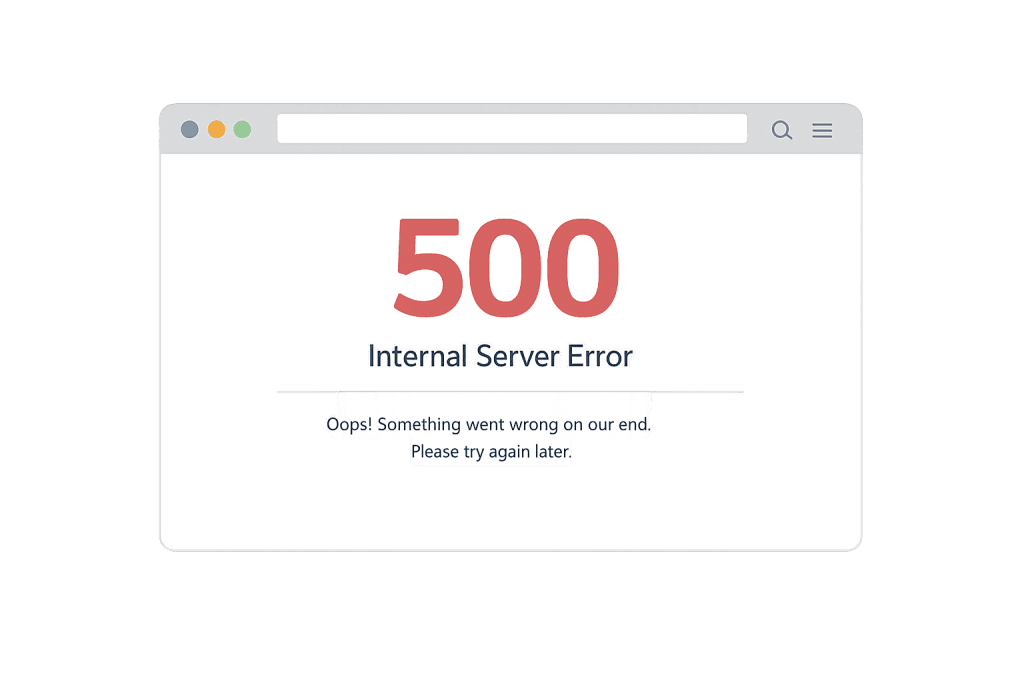
How a 500 Internal Server Error Works
When a browser requests a page, the server processes that request through several layers: the web server software (Apache or Nginx), PHP, the WordPress application itself, and the database. A 500 error can originate at any of these layers. Because the error is nonspecific by design — the server knows something failed but doesn’t share details publicly — the most useful information lives in the server’s error logs, not the browser.
Common triggers on WordPress sites include:
- Plugin or theme PHP fatal error — A PHP error in a plugin or theme file causes a fatal exception that halts execution entirely. This is the most frequent cause on WordPress sites, especially immediately after a plugin or WordPress core update.
- Corrupted
.htaccessfile — An invalid rewrite rule or syntax error in.htaccessprevents the server from processing any requests correctly. This typically produces a site-wide 500, affecting every page simultaneously. - PHP memory limit exceeded — When a process exceeds the server’s configured PHP memory limit, the server terminates it and returns a 500. The default limit on many shared hosts is 64MB or 128MB; complex WordPress sites typically need 256MB.
- Corrupted WordPress core files — If core files are modified, deleted, or corrupted — through a failed update, incomplete upload, or malware infection — the application can’t function correctly.
- PHP version incompatibility — A plugin or theme written for an older PHP version may produce fatal errors on a newer PHP version, generating 500 errors immediately after a host upgrades PHP.
- Server resource exhaustion — On shared hosting, CPU limits or process limits can cause requests to fail during high-traffic periods, producing 500 errors that appear and disappear with load.
Check This First — 2-Minute Diagnostic
- Check your server error logs — In cPanel, go to Logs → Error Log. The log entry for a 500 error identifies the specific file, line number, and error type — transforming a blank page into an addressable problem. This is always step one.
- Test if it’s site-wide or page-specific — Load several pages including the homepage and a simple post. If only one page 500s, the cause is likely a specific plugin or widget on that page. A site-wide 500 points to
.htaccess, a core file, or a plugin active across all pages. - Check for a recent update — Did a plugin, theme, or WordPress core update within the last few hours? Updates are the most common immediate trigger for 500 errors.
- Enable WP_DEBUG — Add
define('WP_DEBUG', true);anddefine('WP_DEBUG_LOG', true);towp-config.php. This writes error details to/wp-content/debug.logwithout displaying them to visitors. - Try renaming
.htaccess— Connect via SFTP and rename.htaccessto.htaccess_old. If the site loads, the.htaccesswas the cause.
Purpose & Benefits
1. Fast Diagnosis Minimizes Downtime Cost
A 500 error makes your site completely inaccessible for the duration it persists. An eCommerce store losing access during a busy period can lose revenue by the minute. Knowing that your server error log contains the specific cause — and knowing how to read it — compresses recovery time from hours of guesswork to minutes of targeted action. This is why treating a 500 as a diagnostic signal rather than an emergency is the faster path to resolution.
2. Identifying the Root Cause Prevents Recurrence
Restoring a backup to get the site back online is a valid emergency step. But if the backup is restored without identifying why the 500 occurred, the same trigger — a plugin conflict, a memory limit, a corrupted core file — will likely cause the problem again. Checking the error log before and after a restore reveals whether the underlying issue is resolved or just temporarily masked. Our WordPress maintenance services include error log review as a standard part of incident response.
3. Protecting Search Rankings During Extended Outages
When Google crawls a page returning 500 errors, it records the URL as temporarily unavailable. A brief outage — under a few hours — rarely causes lasting ranking damage. But persistent 500s over several days can lead Google to reduce crawl frequency or temporarily suppress affected pages from search results. Fast resolution protects the SEO work already invested in those pages.
Examples
1. Plugin Update Introduces a PHP Fatal Error
A WordPress site runs smoothly until a plugin author pushes an update containing a PHP compatibility issue. The moment the plugin updates, the site returns a 500 error for every visitor. Recovery path: connect via SFTP and rename /wp-content/plugins/ to /wp-content/plugins-disabled/. If the site loads, a plugin is the cause — rename the folder back and deactivate plugins one at a time from the dashboard to find the culprit.
# Via SFTP: bulk-deactivate all plugins to isolate a 500 error
# Navigate to /wp-content/ and rename the plugins directory
# mv plugins plugins-disabled
# Test the site. If it loads, the cause is a plugin conflict.
# Rename back to plugins, then deactivate individually from wp-admin.
2. PHP Memory Exhaustion During WooCommerce Traffic Peak
A WooCommerce store running multiple extensions begins throwing intermittent 500 errors during checkout — but only during high-traffic periods. The error log shows “Allowed memory size exhausted” entries. The fix: increase the PHP memory limit in wp-config.php:
// Add before "That's all, stop editing!" in wp-config.php
// Use 256M as the standard — not 512M
define('WP_MEMORY_LIMIT', '256M');
After adding this, test checkout under normal and simulated peak conditions. If the error persists, the hosting plan’s server-level PHP limit may be capping the request — contact your host to confirm the server-level cap.
3. Malware Corrupts .htaccess Repeatedly
A site infected with malware has its .htaccess file repeatedly modified to add malicious redirect rules. Each time the file is restored, the malware rewrites it, causing recurring 500 errors. Resolving this requires running a full malware scan (via Wordfence or Sucuri), removing the infection completely, restoring clean files from a pre-infection backup, and hardening the site against reinfection — not just fixing the .htaccess file in isolation.
Common Mistakes to Avoid
- Enabling WP_DEBUG on a live site without log-only mode — WP_DEBUG with
WP_DEBUG_DISPLAYset to true shows detailed PHP error messages to visitors, exposing file paths and code details. Always pair debug mode withdefine('WP_DEBUG_LOG', true)anddefine('WP_DEBUG_DISPLAY', false)on production sites. Check the log file, not the browser. - Fixing the symptom without fixing the cause — Restoring a backup gets the site back online quickly, which is the right emergency step. But the underlying issue — a conflicting plugin, a memory limit, corrupted files — will likely trigger the error again on the next update or traffic spike. Use the backup as a bridge while you investigate.
- Not having a current backup before making diagnostic changes — Diagnosing a 500 involves modifying files directly. If a change worsens the situation, a recent backup is your safety net. Always download a copy of any file you’re about to edit before making changes.
- Assuming all 500 errors are the same — The 500 code covers many different failure types. A 500 caused by a memory limit needs a different fix than one caused by a
.htaccesssyntax error or a PHP version incompatibility. Read the error log before touching anything — each type of 500 has a distinct fix path.
Best Practices
1. Check Server Error Logs Before Making Any Changes
Before touching any files, access your hosting account’s error logs. cPanel users find them under Logs → Error Log. Most managed WordPress hosts provide log access through their dashboards. The log entry for a 500 error typically identifies the exact file, line number, and error type — transforming a confusing blank page into a specific, addressable problem. This single step eliminates the need to guess.
# Reading error logs via SSH (if your host provides SSH access)
# View the last 50 lines of the Apache error log
tail -50 /var/log/apache2/error.log

# Or for Nginx
tail -50 /var/log/nginx/error.log
2. Use a Staging Environment for All Updates
A staging site lets you test plugin updates, theme changes, and PHP version upgrades before applying them to your live site. Most 500 errors on WordPress sites are triggered by updates — and catching a fatal PHP error on staging means your visitors never see it. This is one of the most effective preventive measures for sites that receive regular updates. If your host doesn’t offer staging, a separate development environment on a local machine serves the same purpose.
3. Set an Appropriate PHP Memory Limit
Review your site’s PHP memory limit and compare it to what your plugins and theme actually require. In WordPress, set the limit in wp-config.php:
// Standard memory limit for most WordPress sites
define('WP_MEMORY_LIMIT', '256M');

// Higher admin limit for resource-intensive backend operations
define('WP_MAX_MEMORY_LIMIT', '256M');
For sites running WooCommerce, page builders, or multiple active plugins, 256M is a reasonable baseline. Confirm with your host that the server-level PHP limit supports this allocation — wp-config.php can only request up to what the server allows.
4. Restore WordPress Core Files from a Clean Source
If core file corruption is suspected, download a fresh copy of WordPress from WordPress.org and replace all core files except wp-content/ and wp-config.php via SFTP. This overwrites any modified or corrupted core files without affecting your content, plugins, themes, or configuration.
5. Implement Proactive Error Log Monitoring
Don’t wait for a 500 to discover PHP errors on your site. Enabling WP_DEBUG_LOG with WP_DEBUG_DISPLAY set to false writes PHP errors and notices to /wp-content/debug.log silently. Reviewing this log periodically reveals plugin errors, deprecated functions, and memory warnings before they escalate to site-breaking 500 errors.
Frequently Asked Questions
What causes a 500 Internal Server Error most often in WordPress?
The most common cause is a plugin or theme PHP error — specifically, a fatal error introduced by a recent update. After plugin conflicts, the next most common causes are a corrupted .htaccess file and an exceeded PHP memory limit. The server error log identifies which of these is responsible in your specific case. Check it before touching any files.
How do I fix a 500 Internal Server Error when locked out of wp-admin?
Connect via SFTP or your hosting file manager. Start by renaming .htaccess to .htaccess_old — if the site loads, regenerate .htaccess via Settings → Permalinks. If that doesn’t help, rename /wp-content/plugins/ to /wp-content/plugins-disabled/ to deactivate all plugins. If the site loads, reactivate plugins one at a time to find the culprit. If still 500, check your error log for a memory exhaustion message and add define('WP_MEMORY_LIMIT', '256M'); to wp-config.php.
Can a 500 error hurt my SEO?
Yes, if it persists. Search engines are generally forgiving about brief outages — a 500 that resolves within a few hours typically doesn’t cause lasting ranking damage. But if pages consistently return 500 errors over several days, search engines may temporarily lower those pages in rankings or remove them from the index entirely. Getting the site back online quickly is the priority. Submit your XML sitemap through Google Search Console after recovery to prompt faster reindexing.
What is the difference between a 500 error and a 503 error?
A 500 error means the server encountered an unexpected internal failure — broken code, a corrupted configuration, or a fatal PHP error. A 503 Service Unavailable means the server is temporarily unable to handle requests due to overload or planned maintenance. A 500 usually requires a code or configuration fix; a 503 often resolves once overload clears or maintenance ends. Check your error log — it specifies which type of failure is occurring.
How long does it take Google to reindex pages after a 500 error is resolved?
Once the site returns 200 OK responses consistently, Google will reindex affected pages during its next crawl. For sites with good crawl frequency, recovery typically happens within days to a couple of weeks. Submitting your XML sitemap through Google Search Console after the site is stable can prompt a faster recrawl of affected URLs.
Related Glossary Terms
- 502 Bad Gateway
- 503 Service Unavailable
- 504 Gateway Timeout
- 501 Not Implemented
- Memory Exhausted Error
- White Screen of Death (WSOD)
- .htaccess
- wp-config
How CyberOptik Can Help
Still broken? Our team fixes WordPress errors like this in under 30 minutes for maintenance clients. A 500 Internal Server Error on a live site requires fast, methodical diagnosis — reading error logs, isolating plugin conflicts, checking memory limits, and verifying core file integrity. Whether your site is down right now or you want proactive WordPress maintenance that catches these issues before visitors see them, we can help. Contact us to discuss your site or learn about our WordPress maintenance services.


