
Severity: Critical · Fix time: 15–60 min · Skill level: Advanced
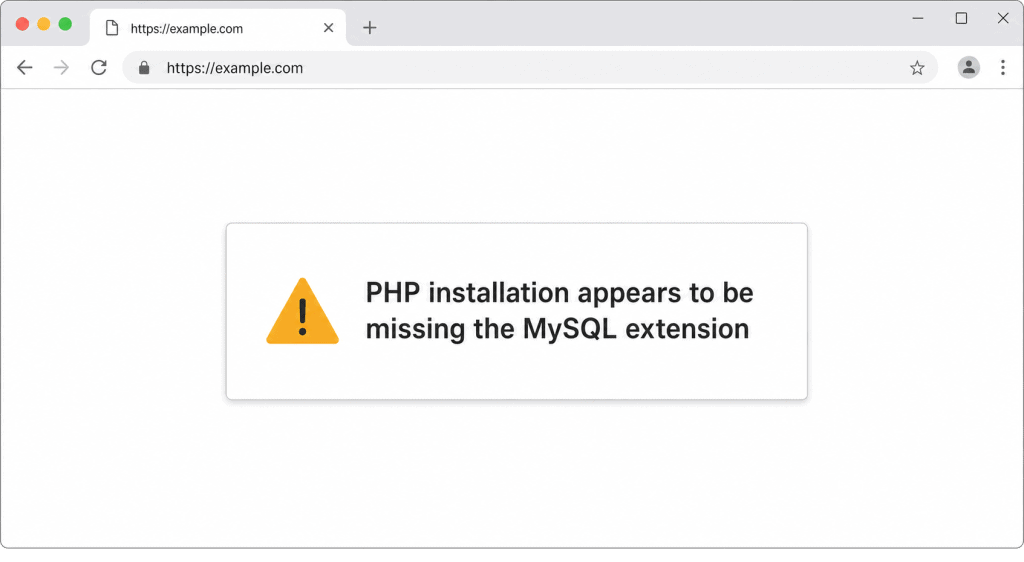
“Your PHP installation appears to be missing the MySQL extension which is required by WordPress” is a critical startup error that prevents WordPress from initializing its database connection entirely. The site displays this message instead of loading because WordPress cannot find the PHP extension it needs to communicate with MySQL or MariaDB.
What makes this error confusing is that the wording hasn’t kept pace with modern PHP. The mysql extension was removed in PHP 7.0. What WordPress actually needs is mysqli (MySQL Improved) or PDO_MySQL. When neither is available to the PHP runtime serving your site, WordPress throws this error using its original, now-misleading message text.
Need a quick map of every WordPress error? See our 70+ WordPress Errors Guide → for a categorized reference of every common WordPress issue.
How This Error Works
WordPress checks for MySQL connectivity at bootstrap — before loading themes, plugins, or any content. It checks whether the PHP runtime it’s running under has a working MySQL extension loaded. In modern WordPress (5.0+), the check looks for mysqli or PDO_MySQL. If neither is found, WordPress halts and displays the missing MySQL extension message.
The critical nuance: this check runs against the PHP runtime that your web server is actually using — which may differ from the PHP version you see in the control panel or run from the command line (CLI). This is the source of the most common false diagnosis: you verify that PHP 8.2 is installed and has mysqli enabled, but the web server is still routing requests to an older PHP-FPM pool. The extension exists, but not in the runtime WordPress is actually running under.
Root causes fall into three categories:
PHP is installed but the extension isn’t enabled: extension=mysqli is missing in php.ini, the extension exists on disk but extension_dir points incorrectly, or on Windows php_mysqli.dll requires uncommenting.
The wrong PHP runtime is serving the site: Domain assigned to an older PHP version after a panel upgrade, Nginx or Apache routing requests to a PHP-FPM pool for a different PHP version, Docker containers rebuilt without explicitly installing MySQL extension support, or multiple PHP versions on a VPS with the web server pointing to the wrong socket.
The extension is installed but can’t load: A dependency library (libmysqlclient, mysqlnd) is missing at the OS level, or a socket path mismatch between PHP and where MySQL/MariaDB is listening.
Check This First — 2-Minute Diagnostic
- Create a temporary phpinfo() page — Upload a file containing
to your web root and load it in a browser. Search for “mysqli” in the output. If it appears, the extension is loaded for the web server. If not, the web server’s PHP lacks it or is using a different PHP version. - Compare web server PHP version with CLI PHP version — The phpinfo() page shows what the web server uses. Run
php -vfrom the command line. If these differ, you’re not debugging the same runtime. - Check the active PHP version in cPanel — Under MultiPHP Manager or PHP Version selector, confirm which PHP version your domain is assigned to and verify
mysqliis checked in the extensions list. - Check your wp-config.php DB_HOST value — A socket path mismatch between PHP and MySQL can sometimes manifest as this error rather than the standard Error Establishing a Database Connection.
- Delete the phpinfo() file immediately after checking — It exposes server configuration. Remove it within minutes of use.
Purpose & Benefits
1. Diagnosing Web Server vs. CLI PHP Discrepancies
This error surfaces an invisible problem: the PHP version your terminal shows is not the PHP version your web server uses. Distinguishing these two runtimes prevents this class of problem from recurring after future upgrades. Our WordPress maintenance plans include post-upgrade verification that catches this mismatch before visitors encounter it.
2. The Error Text Is Outdated — the Real Fix Has Changed
The old mysql_* PHP extension was removed in PHP 7.0. Outdated guides still recommend installing the php-mysql package — which no longer exists in PHP 7+ environments. The correct packages on modern systems are php-mysqli or php-mysqlnd. Knowing this keeps you from following advice that cannot work on your PHP version.
3. This Error Frequently Appears After a Routine PHP Upgrade
A PHP upgrade can trigger this error if the new version is installed without its MySQL extension package. On Ubuntu/Debian, each PHP version requires separate extension packages (php8.2-mysql). On cPanel, an EasyApache upgrade sometimes omits previously selected extensions. Knowing where to re-enable mysqli saves significant recovery time.
Examples
1. Shared Hosting PHP Version Mismatch After cPanel Upgrade
A hosting provider installs PHP 8.3 alongside existing PHP 7.4. The domain remains assigned to PHP 7.4 with mysqli disabled in the new extension list. WordPress shows the missing MySQL extension error even though it was working yesterday.
Fix: log into cPanel → PHP Selector → select PHP 8.2 → Extensions tab → check mysqli, mysqlnd, pdo_mysql → Save. Reload WordPress — the error disappears immediately.
2. VPS PHP-FPM Pool Mismatch After PHP Upgrade
A VPS running Nginx is upgraded from PHP 8.1 to PHP 8.2. PHP 8.2 is installed correctly, but Nginx still references the 8.1 FPM socket. Update the Nginx site config and restart:
# Updated — reference PHP 8.2 socket
fastcgi_pass unix:/run/php/php8.2-fpm.sock;
sudo apt-get install php8.2-mysql
sudo systemctl restart php8.2-fpm && sudo systemctl restart nginx3. Docker Container Missing MySQL Extension After Image Rebuild
A WordPress site in Docker is rebuilt after a base image update. The Dockerfile doesn’t install the MySQL extension:
# Incorrect — missing MySQL extension
FROM php:8.2-fpm
COPY . /var/www/html/

# Correct — explicitly install mysqli and PDO_MySQL
FROM php:8.2-fpm
RUN docker-php-ext-install mysqli pdo pdo_mysql
COPY . /var/www/html/
Rebuilding with the docker-php-ext-install line resolves the error.
Common Mistakes to Avoid
- Searching for how to install the “mysql” PHP extension — The
mysql_*extension was removed in PHP 7.0. The correct package on Ubuntu/Debian isphp8.x-mysql, which installs bothmysqliandPDO_MySQL. - Checking PHP extensions via CLI and assuming that confirms the web server’s config —
php -m | grep mysqlichecks the CLI PHP binary. Your web server may use a different PHP binary, differentphp.ini, and different loaded extensions. Always verify via phpinfo() in a browser. - Not removing phpinfo() files after use — A phpinfo() file exposes your server’s full configuration, installed extensions, and environment variables. Delete it immediately after use.
- Reinstalling WordPress without fixing the PHP configuration — The fix is always at the PHP or server configuration level, not the WordPress level. Reinstalling only wastes time and can overwrite custom configuration.
Best Practices
1. Verify mysqli Is Enabled After Any PHP Version Change
Whenever you upgrade PHP, verify mysqli is enabled for the web server’s runtime before reloading WordPress. Create a temporary file, upload to web root, check in browser, then delete immediately:
<?php
echo 'PHP: ' . PHP_VERSION . ' | mysqli: ' . (extension_loaded('mysqli') ? 'YES' : 'NO');
?>
If mysqli or pdo_mysql shows YES, WordPress can connect to the database.
2. Enable mysqli Through Your Hosting Control Panel
On shared hosting, MySQL extension availability is managed through a PHP extensions list. On cPanel: PHP Selector → Extensions → enable mysqli and mysqlnd. On Plesk: PHP Settings → enable mysqli. Changes take effect immediately — no server restart required on most shared hosts.
3. Confirm DB_HOST Socket Path Matches Your MySQL Configuration
On servers that upgraded from MySQL to MariaDB, the socket file path sometimes changes. A socket path mismatch causes this error even when mysqli is loaded.
// In wp-config.php — common DB_HOST values
define('DB_HOST', 'localhost');           // Standard TCP
define('DB_HOST', '127.0.0.1');          // TCP on localhost
define('DB_HOST', 'localhost:/var/run/mysqld/mysqld.sock'); // Socket path
Use phpMyAdmin to confirm the database is reachable independently — if phpMyAdmin connects but WordPress can’t, the issue is in the web server’s PHP runtime.
Frequently Asked Questions
What causes this error most often?
The most common cause is a PHP version mismatch between what the control panel shows and what the web server actually routes requests to. Second is a PHP upgrade that installed the core binary but omitted the MySQL extension package. Third is a Docker environment where the MySQL extension wasn’t included in the container build.
How do I fix this when locked out of wp-admin?
This error appears before WordPress loads — wp-admin is inaccessible. Fix PHP first. On shared hosting, log into cPanel and check the PHP extensions list for your domain. On a VPS, SSH in and run sudo apt-get install php8.x-mysql then restart PHP-FPM. Once mysqli is enabled, WordPress loads immediately if the database credentials in wp-config.php are correct.
Can this error occur even if PHP is correctly configured?
Yes — when the web server’s PHP-FPM pool points to the wrong socket. PHP 8.2 may have mysqli enabled, but if Nginx routes requests to a PHP 8.1 pool that lacks it, the error appears. Check the PHP-FPM socket in your web server config against the available FPM sockets.
What is the difference between mysqli and PDO_MySQL?
mysqli (MySQL Improved) is a PHP extension specific to MySQL/MariaDB. PDO_MySQL is a driver for PHP’s PDO abstraction layer supporting multiple database backends. WordPress supports both. mysqli is the default that most shared hosts enable — either one present and loaded satisfies WordPress’s requirement.
Does modern PHP (8.x) still support MySQL connections?
Yes. PHP 8.x supports MySQL through mysqli and PDO_MySQL. If you’re seeing this error on PHP 8.x, it’s a configuration or runtime issue — not missing support in PHP itself. See also: Error Establishing a Database Connection.
Related Glossary Terms
- PHP
- MySQL
- MariaDB
- Database
- Error Establishing a Database Connection
- wp-config
- phpMyAdmin
- 500 Internal Server Error
How CyberOptik Can Help
Still broken? Our team fixes WordPress errors like this in under 30 minutes for maintenance clients. PHP extension issues involve multiple layers — cPanel settings, server configuration, PHP-FPM pools — that interact in ways not visible from the WordPress admin. We work directly with hosting environments at the server level to verify extension loading, confirm the correct PHP runtime is active, and resolve configuration mismatches without guessing. Our WordPress maintenance plans include PHP upgrade support and post-upgrade verification to prevent this error from reaching your visitors. Contact us to get your site back online.


