Severity: Minor · Fix time: 15–60 min · Skill level: Intermediate
WP-Cron Not Running describes a state where WordPress’s built-in scheduled task system is failing to execute events reliably or at all. Unlike Scheduled Post Missed — which is the symptom of a single post failing to publish on time — WP-Cron Not Running is the underlying pattern: the entire task queue is unreliable. Automatic updates, backup jobs, email queues, WooCommerce order processing, and scheduled content publication all depend on the same mechanism.
WP-Cron is not a real cron job. It is a pseudo-cron that fires only when a visitor loads a page. If no one visits the site, no tasks run. If the loopback HTTP request WP-Cron depends on is blocked, tasks also don’t run. Disabling WP-Cron and replacing it with a real server cron permanently resolves both problems.
Need a quick map of every WordPress error? See our 70+ WordPress Errors Guide → for a categorized reference of every common WordPress issue.
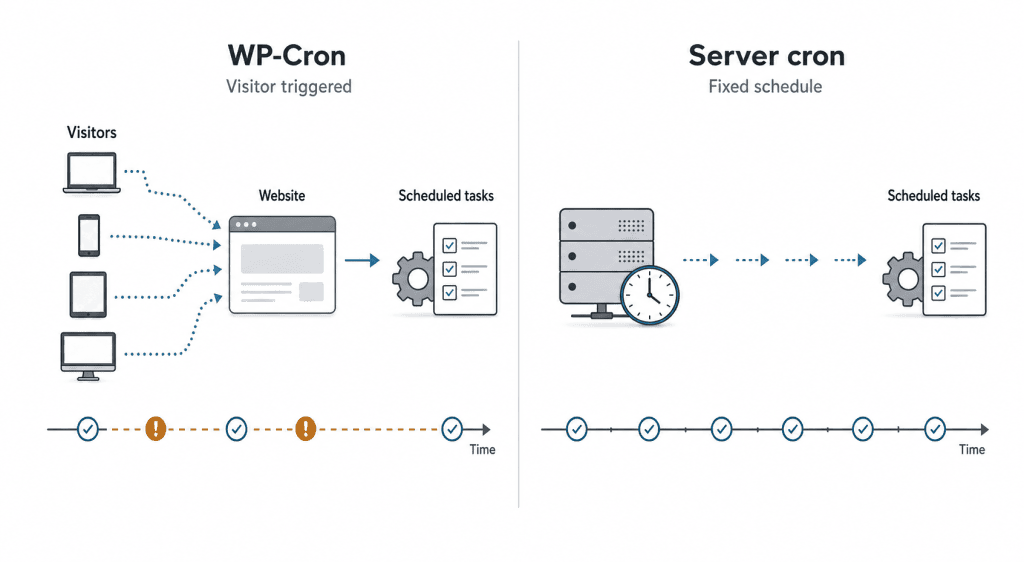
How WP-Cron Not Running Works
WP-Cron works by attaching a task check to every page load. When a visitor requests any page on your WordPress site, WordPress executes the following sequence:
- Check the
wp_cronoption in the database for any due scheduled events - If events are due, fire a non-blocking HTTP request back to
/wp-cron.php?doing_wp_cronon your own domain - That request executes the queued tasks asynchronously
This design means WP-Cron has no guaranteed execution window. It runs when traffic arrives. A busy site with consistent traffic throughout the day may rarely notice problems. A site with sporadic traffic — or one with a caching layer that serves pages without executing PHP — can have scheduled tasks delayed by hours.
WP-Cron breaks under several specific conditions:
- Low traffic — No page load means no cron trigger. A site receiving a handful of visits per day may go six or more hours between cron executions.
- Loopback request blocked — WP-Cron makes an HTTP request back to itself (
https://yourdomain.com/wp-cron.php). Security plugins, firewalls, WAFs, or server configurations that block loopback connections prevent WP-Cron from running even when traffic is present. Tools → Site Health → Status will flag this as a “Loopback requests” warning. - Full-page caching — Caching plugins that serve cached HTML without executing PHP skip the WP-Cron hook entirely. A site with aggressive full-page caching may have cron fire only when the cache is being warmed on the few uncached pages.
- DISABLE_WP_CRON set without a replacement — If
define('DISABLE_WP_CRON', true)is present inwp-config.phpwithout a corresponding server cron job, all scheduled tasks are disabled outright. - PHP memory or execution time limits — Tasks that hit the PHP memory limit mid-execution fail silently. The event remains in the queue and may retry, but complex tasks like large backup jobs may never complete if the resource limit is too low.
The difference between this entry and Scheduled Post Missed is scope: a missed post is the symptom you notice. WP-Cron Not Running is the diagnosis — the system-level problem that causes missed posts, missed updates, and every other scheduled task failure across your site.
Check This First — 2-Minute Diagnostic
- Check Tools → Site Health → Status — A “Loopback requests” warning here confirms WP-Cron cannot fire. This single check identifies the majority of WP-Cron problems.
- Install WP Crontrol — This free plugin (Tools → Cron Events) shows every registered scheduled event, its next scheduled run, and its recurrence interval. Look for events that are overdue by hours or days.
- Search
wp-config.phpfor DISABLE_WP_CRON — Openwp-config.phpvia SFTP and check whetherDISABLE_WP_CRONis set totruewithout a server cron job configured to replace it. - Check your server’s cron job list — In cPanel → Cron Jobs, or via
crontab -lvia SSH, look for an existing job that callswp-cron.php. If one exists, confirm the URL or path is correct. - Check PHP error logs for memory errors — Review
wp-content/debug.logor your server error log for “Allowed memory size exhausted” messages. These indicate cron tasks failing mid-execution due to resource limits.
Purpose & Benefits
1. Every Automated WordPress Task Depends on Cron
WP-Cron is not just about publishing posts. WordPress core uses it for plugin/theme update checks, session cleanup, and email delivery. Plugins use it for WooCommerce abandoned cart emails, backup jobs, and scheduled social sharing. When WP-Cron is unreliable, all of these run late — or not at all — with no visible error to warn you.
2. A Reliable Cron System Prevents Cascading Failures
When scheduled tasks accumulate unrun for days, WP-Cron eventually tries to process all of them at once when triggered, potentially exhausting PHP memory and causing a memory exhausted error or a 500 internal server error.
Examples
1. Setting Up a Server Cron Job via cPanel
For sites on cPanel-based hosting, the server cron interface is straightforward:
- Log into cPanel and go to Advanced → Cron Jobs.
- Under “Add New Cron Job,” select frequency settings or enter
*/15in the Minute field and*in all other fields (Hour, Day, Month, Weekday). - In the Command field, enter:
# Trigger WordPress cron via curl every 15 minutes
# Replace yourdomain.com with your actual domain
curl -s https://yourdomain.com/wp-cron.php?doing_wp_cron >/dev/null 2>&1- Click Add New Cron Job.
Pair this with adding define('DISABLE_WP_CRON', true); to wp-config.php to prevent double-execution when visitors trigger a page load.
2. Configuring the Server Cron via SSH Crontab
For VPS or dedicated servers with SSH access, run crontab -e and add:
# Using curl (preferred)
*/15 * * * * curl -s https://yourdomain.com/wp-cron.php?doing_wp_cron >/dev/null 2>&1

# Or with wget if curl is unavailable
*/15 * * * * wget -q -O - https://yourdomain.com/wp-cron.php?doing_wp_cron >/dev/null 2>&1
Verify the entry was saved with crontab -l. The >/dev/null 2>&1 redirects output to null so you don’t receive an email on every execution.
3. Disabling WP-Cron in wp-config.php
Once a server cron job is in place, disable WordPress’s visitor-triggered behavior:
// Add to wp-config.php above "That's all, stop editing!"
// ONLY after confirming the server cron job is working
define( 'DISABLE_WP_CRON', true );
After adding this constant, use WP Crontrol (Tools → Cron Events) to manually trigger a cron run and confirm events are processing.
Common Mistakes to Avoid
- Setting DISABLE_WP_CRON to true without configuring a server cron first — This is the single most common cause of WP-Cron Not Running that we see. Someone followed a performance guide, added the constant, but never set up the replacement. The result: all scheduled tasks stop silently. Always configure the server cron job first, verify it works, then add DISABLE_WP_CRON.
- Using the wrong URL in the cron job — The cron command URL must match your site’s actual domain exactly, including
https://vshttp://and anywww.prefix. A URL that redirects will add latency; a URL that resolves to the wrong site will do nothing. - Running the server cron too frequently — Setting cron to fire every minute on a large site with many scheduled events can create overlapping execution windows where multiple cron processes run simultaneously. Every 5 to 15 minutes is the right balance for most sites.
- Not verifying the server cron is actually running — Adding a crontab entry doesn’t guarantee the cron job executes. Confirm via WP Crontrol that events are being processed at roughly 15-minute intervals. A typo in the command, a wrong file path, or an incorrect URL means the job is scheduled but does nothing.
- Ignoring the Site Health loopback warning — A loopback request failure means WP-Cron cannot trigger itself. This warning persists until either the loopback connection is restored or WP-Cron is replaced with a server cron. Don’t dismiss it as cosmetic.
Best Practices
1. Disable WP-Cron and Replace with a Server Cron Job
The permanent, correct fix for WP-Cron unreliability is to disable the visitor-triggered behavior and replace it with a real server cron job. This two-step process — add define('DISABLE_WP_CRON', true) to wp-config.php after configuring a server cron — makes your cron system reliable, predictable, and independent of traffic patterns. This is the approach we use on every WordPress site we manage.
2. Use curl Over wget for Cron HTTP Requests
Both curl and wget work for triggering wp-cron.php via HTTP, but curl handles HTTPS redirects and SSL certificate verification more reliably in this context. Use curl with the -s (silent) flag to suppress output. If your server doesn’t have curl available, wget with -q -O - (quiet, output to stdout) is the alternative.
3. Verify Cron Health with WP Crontrol After Setup
After configuring your server cron and adding DISABLE_WP_CRON, install WP Crontrol (free plugin) and go to Tools → Cron Events. Check that events are processing — look at the “Next Run” timestamps. Events that should run every 15 minutes or every hour should show recent “Last Run” timestamps. If events haven’t run recently, your cron command has a problem. WP Crontrol also lets you manually trigger any event for immediate testing.
Frequently Asked Questions
What causes WP-Cron not running most often?
Either a loopback request block (something preventing WordPress from making an HTTP request back to itself) or low site traffic meaning WP-Cron never fires. The Site Health loopback warning catches the first cause. The second is solved by replacing WP-Cron with a server cron job, which runs on a fixed schedule regardless of traffic.
How do I fix WP-Cron not running when locked out of wp-admin?
WP-Cron unreliability doesn’t lock you out of wp-admin. Log in and check Tools → Site Health for the loopback warning, then follow the server cron replacement steps. To set up a server cron without wp-admin, use cPanel or SSH — neither requires a WordPress login.
Can WP-Cron not running hurt my SEO?
Yes, indirectly. WP-Cron handles automatic updates; deferred security updates leave vulnerabilities open. Some SEO plugins schedule sitemap regeneration and crawl tasks via WP-Cron. For an active publishing site, missed scheduled posts also delay content output.
What’s the difference between WP-Cron Not Running and Scheduled Post Missed?
Scheduled Post Missed is a specific symptom — one post didn’t publish on time. WP-Cron Not Running is the system-level diagnosis: the entire cron infrastructure is unreliable. Regular missed posts, deferred updates, and accumulated queued events confirm the cron system needs to be replaced.
Related Glossary Terms
- Cron Job
- Scheduled Post Missed
- wp-config
- SFTP (Secure File Transfer Protocol)
- Memory Exhausted Error
- 500 Internal Server Error
- PHP
- WordPress REST API
How CyberOptik Can Help
Still broken? Our team fixes WordPress errors like this in under 30 minutes for maintenance clients. Setting up and verifying a server cron replacement requires access to cPanel or SSH, knowing your site’s exact URL structure, and confirming the cron is firing correctly via WordPress — not just trusting that the crontab entry looks right. Our WordPress maintenance services include cron system setup and ongoing health monitoring, so every scheduled task on your site runs reliably without requiring your manual attention. Contact us to discuss your site or review what our maintenance plans cover.