Severity: Minor · Fix time: 5–15 min · Skill level: Intermediate
Scheduled Post Missed is a WordPress status that appears in the post list when a post scheduled for future publication did not publish at the designated time. The root cause is almost always WP-Cron’s dependency on site traffic — if no visitor loads your site at or after the scheduled time, WordPress never checks its task queue and the post stays in “Missed Schedule” status indefinitely.
Your content is safe and intact. The post simply wasn’t triggered because WordPress’s scheduling mechanism requires a real-world page request to fire — and if your site is low-traffic or the cron system is blocked, that request never came.
Need a quick map of every WordPress error? See our 70+ WordPress Errors Guide → for a categorized reference of every common WordPress issue.
[Image: WordPress post list showing a post with “Missed Schedule” status label beneath the post title]
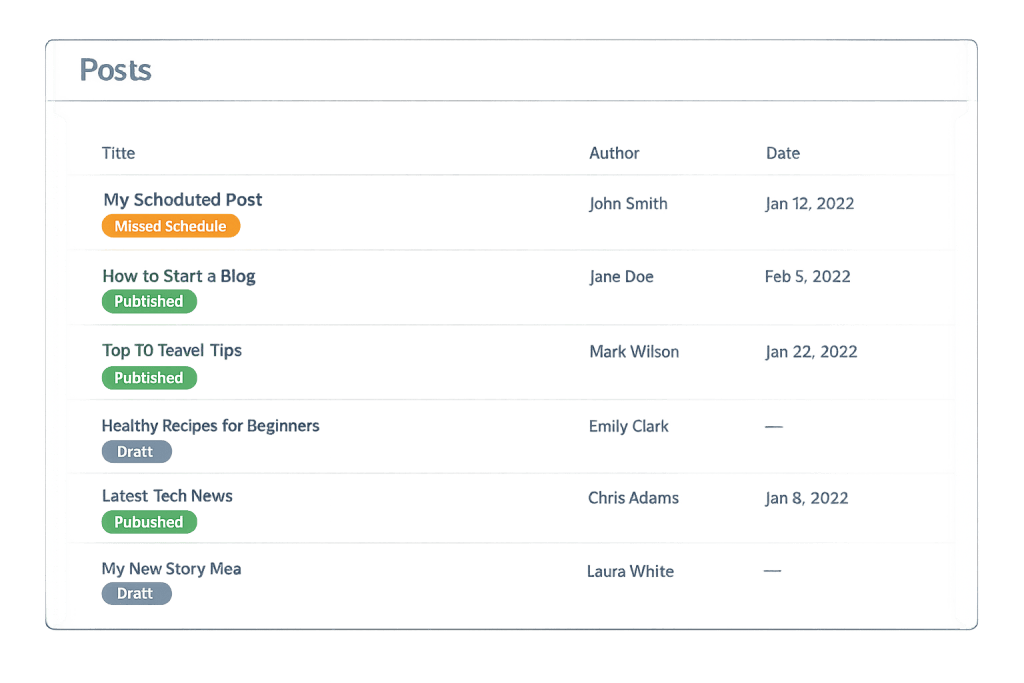
How Scheduled Post Missed Works
WordPress does not use a real server-based scheduler. It uses a system called WP-Cron — a pseudo-cron that works by piggybacking on site visits. Every time someone loads a page on your WordPress site, WordPress silently checks whether any scheduled tasks are due. If your post was scheduled for 9:00 AM and a visitor loads any page at 9:02 AM, the post publishes. If no one visits the site between 8:59 AM and 10:00 AM, the task never fires and the post stays unpublished, flagged as “Missed Schedule.”
Several conditions cause this to fail predictably:
- Low-traffic sites — If your site receives only a handful of visits per day, hours can pass between page loads. The cron check never runs during the window when the post should have published.
- Caching plugins — Full-page caching tools often serve cached HTML without triggering a new PHP process. Some caching implementations completely skip the WP-Cron hook, meaning even active sites with caching may miss scheduled posts.
- Security plugins or server firewalls — Tools like Wordfence, Cloudflare, or server-level WAFs can block the loopback request that WP-Cron relies on. WordPress fires cron by making a non-blocking HTTP request back to itself — if that request is blocked, cron never runs.
- WP_CRON already disabled — If a previous administrator or plugin added
define('DISABLE_WP_CRON', true)towp-config.phpwithout setting up a real server cron as a replacement, every scheduled task will fail.
The broader pattern — WP-Cron not running reliably at all — is covered in WP-Cron Not Running. This page focuses specifically on the Missed Schedule symptom and the fastest path to recovering and preventing it.
Check This First — 2-Minute Diagnostic
- Check the post status — Go to Posts → All Posts and look for posts labeled “Missed Schedule.” Hover over the title and click “Edit” to confirm the post is still in scheduled status.
- Verify your site’s timezone — Go to Settings → General and check the Timezone setting. If WordPress and your server are in different timezones, posts may appear to be scheduled for the wrong time.
- Search
wp-config.phpfor DISABLE_WP_CRON — Openwp-config.phpvia SFTP and search forDISABLE_WP_CRON. If it’s set totrueand no server cron job exists, that’s your cause. - Check for a loopback connection error — Go to Tools → Site Health → Status. A warning about “loopback requests” means WP-Cron cannot make the self-referencing HTTP call it needs to function.
- Install WP Crontrol — This free plugin shows you every registered cron event and when it last ran. It also lets you manually trigger a cron run to test the system immediately.
Purpose & Benefits
1. Reliable Publishing Supports Your Content Schedule
Publishing delays damage editorial credibility and content calendars. If you announce a product launch, a newsletter pointing readers to a post that hasn’t gone live yet sends them to a 404 or an incomplete page. Our WordPress maintenance services include cron health monitoring so scheduled posts publish when they are supposed to — not hours later.
2. Diagnosing the Root Cause Prevents Every Future Missed Post
A one-time “Missed Schedule” on a low-traffic day is benign. But if missed schedules happen repeatedly, the cron system itself is broken and every scheduled event on your site is affected — automatic updates, backup jobs, WooCommerce order processing, and transient cache clearing all depend on the same mechanism. Fixing the root cause protects the entire task queue, not just future posts.
3. The Fix Doubles as a Performance Improvement
Replacing WP-Cron with a server cron job removes cron processing from your visitors’ page loads. When WP-Cron fires during a user’s request, it adds overhead — sometimes noticeable latency on servers that are already under load. Moving cron to the server level eliminates this entirely while also making your scheduling reliable.
Examples
1. Low-Traffic Blog with Overnight Scheduled Posts
A business blog publishes two posts per week, scheduled for 7:00 AM. The site averages 40 visitors per day, mostly during business hours. Posts scheduled for early morning consistently show “Missed Schedule” because no one visits the site between midnight and 9:00 AM. The fix: set up a server cron to call wp-cron.php every 15 minutes. After setup, every post published at exactly its scheduled time.
# Add this line to your server crontab (via cPanel or SSH)
# Fires wp-cron.php every 15 minutes, redirects output to null
*/15 * * * * curl -s https://yourdomain.com/wp-cron.php?doing_wp_cron >/dev/null 2>&1
Pair this with adding define('DISABLE_WP_CRON', true); to wp-config.php to prevent double-execution.
2. Caching Plugin Blocking the Cron Hook
A site running WP Rocket had its “Enable WP-Cron via a separate process” option disabled, and the caching layer was serving pages without executing PHP. Scheduled posts from the past two weeks were all marked “Missed Schedule.” Enabling the WP Rocket option that fires cron via a separate HTTP request — or better, disabling WP-Cron in wp-config.php and configuring a server cron — resolved the backlog immediately.
3. Manually Publishing a Missed Schedule Post
When you find a “Missed Schedule” post, you do not need to reschedule it. Open the post editor, find the publication date/time in the sidebar, and click “Publish” directly. WordPress will publish it immediately. Alternatively, in the All Posts list, hover over the post title and click “Quick Edit,” then change the status to “Published” and click Update.
Common Mistakes to Avoid
- Rescheduling the post to a future time instead of publishing it directly — If you reschedule a missed post to the future and the underlying cron problem isn’t fixed, it will miss again. Publish it immediately or fix cron first.
- Assuming the problem is a plugin conflict — Missed Schedule is almost always a cron infrastructure problem, not a conflict. Disabling plugins rarely helps unless a specific plugin is blocking the loopback request.
- Setting DISABLE_WP_CRON without adding a server cron — Disabling the built-in WP-Cron without replacing it with a server cron job stops all scheduling entirely. Always set up a replacement before disabling.
- Ignoring the loopback warning in Site Health — A “loopback requests” error in Tools → Site Health is a direct indicator that WP-Cron cannot function. Address it before trying other fixes.
- Using a timezone mismatch as a workaround — Some guides suggest adjusting the WordPress timezone setting to compensate for apparent timing problems. This masks the issue and creates other inconsistencies. Fix the cron system instead.
Best Practices
1. Disable WP-Cron and Replace with a Server Cron Job
The permanent fix for missed scheduled posts is to disable WordPress’s built-in pseudo-cron and replace it with a real server-level cron job. Add this to wp-config.php above the “That’s all, stop editing!” line, then configure a cron job in cPanel or via SSH crontab:
// Disable WP-Cron's visitor-triggered behavior
// Add to wp-config.php above "That's all, stop editing!" line
define( 'DISABLE_WP_CRON', true );
Then in cPanel → Cron Jobs, or via crontab -e via SSH, add:
# Run WordPress cron every 15 minutes via curl
*/15 * * * * curl -s https://yourdomain.com/wp-cron.php?doing_wp_cron >/dev/null 2>&1
2. Verify the Server Cron Is Actually Running
After setting up the server cron job, verify it by installing the WP Crontrol plugin (free, from the WordPress plugin directory). Under Tools → Cron Events, check the “Last Run” column for your cron events. If events show recent timestamps at 15-minute intervals, your server cron is working. If they all show timestamps from hours ago, your crontab entry may have a syntax error or the wrong URL.
3. Use WP Crontrol to Recover Missed Posts Without Rescheduling
If you have multiple missed posts, WP Crontrol lets you manually trigger a cron run to process any overdue events. Under Tools → Cron Events, click “Run Now” on any overdue event. For missed posts specifically, the publish_future_post event handles the actual publishing — triggering it manually processes all overdue scheduled posts in one step.
4. Confirm Your WordPress Timezone Is Set Correctly
Go to Settings → General → Timezone and confirm it matches your intended publish timezone. WordPress schedules posts based on this value. A timezone misconfigured during a migration can cause posts to appear scheduled for times that have already passed — meaning they’ll never publish through the normal cron trigger.
Frequently Asked Questions
What causes Scheduled Post Missed most often?
The most common cause is WP-Cron’s traffic dependency on low-traffic sites. If no one visits your site around the scheduled publish time, the cron check never fires. The second most common cause is a caching plugin that serves pages without running PHP, which prevents the WP-Cron hook from executing during that page load.
How do I fix Scheduled Post Missed when locked out of wp-admin?
This error doesn’t lock you out of wp-admin. Log in normally, find the missed post under Posts → All Posts, and either quick-edit its status to “Published” or open and publish it manually. If you can’t access wp-admin at all, that’s a separate issue.
Can Scheduled Post Missed hurt my SEO?
Not directly. Google doesn’t index posts before they’re published. The indirect risk is linking to the post from newsletters or social media before it goes live. For time-sensitive campaigns, a missed schedule can create gaps in your content rollout.
What’s the difference between Scheduled Post Missed and WP-Cron Not Running?
Scheduled Post Missed is the symptom: a specific post didn’t publish on time. WP-Cron Not Running is the broader pattern: the entire WP-Cron system is unreliable, affecting scheduled posts, automatic updates, email queues, and every other time-based task. If you’re seeing one missed post, you may have hit an edge case. If you see missed posts regularly, you have a WP-Cron reliability problem.
Related Glossary Terms
- Cron Job
- WP-Cron Not Running
- wp-config
- WordPress REST API
- SFTP (Secure File Transfer Protocol)
- Memory Exhausted Error
- Debug Mode (WP_DEBUG)
How CyberOptik Can Help
Still broken? Our team fixes WordPress errors like this in under 30 minutes for maintenance clients. Missed scheduled posts are usually a sign that the WP-Cron infrastructure needs a proper server-level replacement — a one-time configuration that permanently prevents the issue across posts, updates, and every other scheduled task. Our WordPress maintenance services include cron health monitoring and proactive fixes so your content calendar runs on schedule. Contact us to discuss your site or review what our maintenance plans cover.