Severity: Major · Fix time: 15–60 min · Skill level: Advanced
The REST API Cookie Check Failed error — displayed as rest_cookie_invalid_nonce in the browser console or as “Cookie check failed” in the WordPress editor — occurs when the WordPress REST API cannot verify the authentication nonce attached to a logged-in request. The Gutenberg block editor, live previews, widget management, and many plugins rely on the REST API for real-time server communication. When nonce verification fails, these features break: the editor shows “Updating failed,” auto-saves stop working, or admin features become partially non-functional.
This error sits at the intersection of authentication, caching, CORS headers, and server configuration. The root cause is almost always one of three things: a caching layer serving a stale nonce, a CORS misconfiguration blocking the REST API response, or a cookie domain mismatch.
Need a quick map of every WordPress error? See our 70+ WordPress Errors Guide → for a categorized reference of every common WordPress issue.
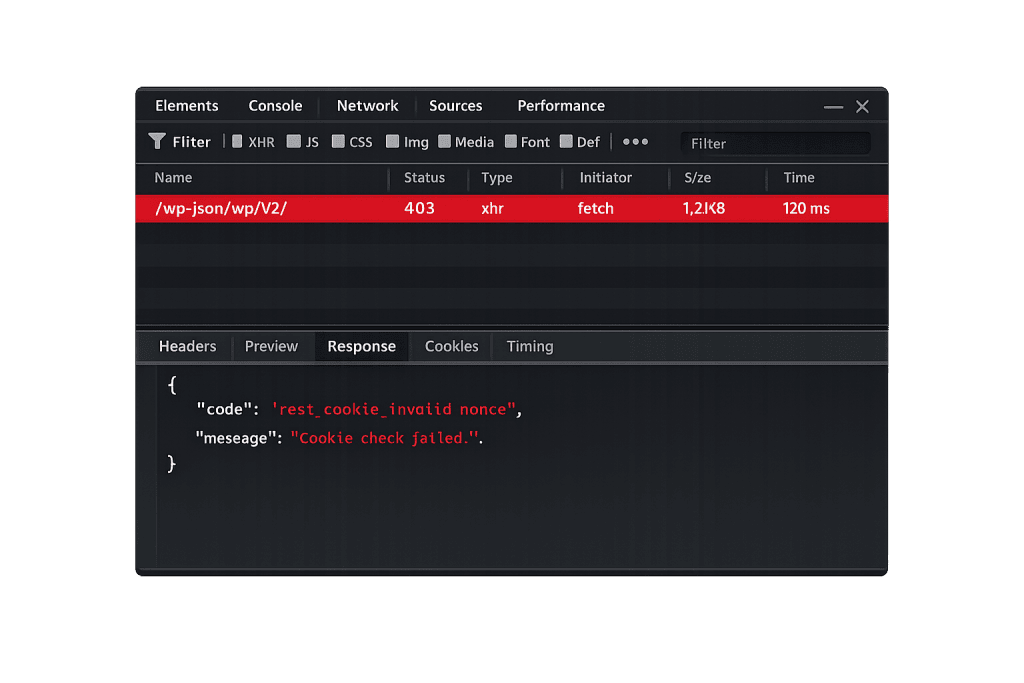
[Image: Browser developer tools console showing a REST API 403 response with error code “rest_cookie_invalid_nonce” in the JSON body]
How the REST API Cookie Check Works
WordPress generates a nonce (a time-limited hash) when you log in and embeds it in the page HTML as wpApiSettings.nonce. Every REST API request from the browser includes this nonce in the X-WP-Nonce header. The server validates the nonce against the current user session before processing the request.
Validation fails when the nonce and session are out of sync:
- A caching plugin served a stale nonce — Nonces expire every 12–24 hours. If a caching plugin serves a cached page with an expired nonce, your browser sends that expired nonce with every API request.
- A page cache served the wrong nonce for your session — Full-page caches that don’t exclude logged-in users can serve nonces generated for a different user or anonymous session. The server correctly rejects this.
- CORS headers are misconfigured — In multisite, headless, or CDN setups where the API endpoint is on a different domain, the browser’s CORS policy may block the
X-WP-Nonceheader or prevent the response from being read. - A load balancer or reverse proxy strips cookie headers — In environments with load balancers, the login session cookie may not be forwarded correctly to the PHP process.
- Cookie domain mismatch — If
COOKIE_DOMAINis defined inwp-config.phpand doesn’t match the domain the browser is using (www.example.comvs.example.com), cookies won’t be sent with API requests.
Check This First — 2-Minute Diagnostic
- Open browser developer tools — Press F12, go to the Network tab, then try to save a block. Look for REST API requests to
/wp-json/returning 403 status. Click the response body to see if the error code isrest_cookie_invalid_nonce. - Check your caching plugin settings — The most common fix is excluding logged-in users from the page cache. WP Rocket, W3 Total Cache, WP Super Cache, and WP Fastest Cache all have a dedicated setting for this.
- Test in an incognito window with cookies cleared — Log out, clear cookies, log back in, and test immediately. If it works right after login but breaks later, a stale cached nonce is almost certainly the cause.
- Check COOKIE_DOMAIN in wp-config.php — If this constant is defined, verify it matches the exact domain you’re logged into, including or excluding
www. - Test on a different browser — Rules out browser-specific cookie blocking or extension interference.
Purpose & Benefits
1. The REST API Powers the Gutenberg Editor
Every block you add, every attribute change, every auto-save in Gutenberg is an API call authenticated by the nonce. If the cookie check fails, the editor can’t communicate with the server — content editing becomes unreliable and auto-saves fail silently. For teams that publish frequently, a broken editor is a full productivity stop.
2. Many Plugins Depend on Authenticated REST API Requests
WooCommerce, Jetpack, and dozens of plugins use the REST API for real-time features: product management, form submissions, and plugin settings saves. A rest_cookie_invalid_nonce error manifests as settings that appear to save but don’t persist, or features that stop working without obvious explanation.
3. This Error Reveals Gaps in Your Caching Strategy
A caching plugin that doesn’t exclude logged-in users from its page cache is misconfigured for any site with active wp-admin usage. Resolving this error usually means correcting that configuration, which also prevents stale admin notices, broken form tokens, and other cache-related issues.
Examples
1. Excluding Logged-In Users from Page Cache
The most common fix. Configure your caching plugin to bypass the cache for logged-in users. In WP Rocket: Settings → Cache → Enable caching for logged-in WordPress users — uncheck this. In W3 Total Cache: Page Cache → Don’t cache pages for logged in users — enable this.
// If your cache plugin doesn't have a UI setting, you can force no-cache for logged-in users:
define('DONOTCACHEPAGE', true); // Respected by some caching plugins
After saving cache settings, log out, clear all caches, log back in, and test the editor.
2. Fixing a Cookie Domain Mismatch
A site migrated from http://example.com to https://www.example.com has this leftover in wp-config.php:
// Incorrect: cookie domain doesn't match the current site URL
// define('COOKIE_DOMAIN', 'example.com');

// Correct for a www site:
define('COOKIE_DOMAIN', 'www.example.com');

// Or: comment it out entirely and let WordPress derive the domain automatically
// WordPress handles this correctly without the constant in most single-site setups.
Mismatched cookie domains prevent the auth cookie from being sent with REST API requests, causing every nonce check to fail.
3. Resolving Multisite Cookie Path Issues
On a WordPress multisite installation behind a load balancer, REST API requests fail for all subsites because cookie scope is misconfigured:
// wp-config.php — Multisite cookie path configuration
// Ensures cookies are valid across all subsites and REST API calls work correctly
define('ADMIN_COOKIE_PATH', '/');
define('COOKIE_DOMAIN',     $_SERVER['HTTP_HOST']);
define('COOKIEPATH',        '/');
define('SITECOOKIEPATH',    '/');
After adding these constants, flush all server-side caches and log in fresh.
Common Mistakes to Avoid
- Disabling the REST API entirely — Blocking the REST API for logged-in users breaks Gutenberg and many plugins. This is not the fix.
- Increasing nonce lifetime without fixing the caching root cause — Extending the nonce TTL delays the problem but doesn’t resolve it. The caching layer will still serve stale nonces.
- Not clearing all cache layers after making changes — WordPress has multiple cache layers: browser, page cache, object cache (Redis/Memcached), and CDN edge cache. Changes don’t take effect until all layers are flushed.
- Ignoring HTTPS/HTTP mismatches — A site with
siteurlusinghttp://while the browser is onhttps://causes cookies to fail. Verify Settings → General showshttps://in both URL fields. - Overlooking proxy or CDN header stripping — Cloudflare and load balancers can strip the
X-WP-Noncerequest header or blockSet-Cookieresponse headers. Review your CDN or server configuration if other fixes haven’t worked.
Best Practices
1. Always Configure Caching to Exclude Logged-In Users
Every caching plugin serving full-page HTML should bypass the cache for logged-in users. Full-page caching for logged-in users serves stale nonces and stale admin states. Configure this exclusion during initial caching setup, not after the REST API cookie check fails.
2. Verify siteurl and home Match Your Active Domain
Consistent URLs between wp-config.php, database settings, and your SSL certificate are foundational to correct cookie behavior. Mismatches between http and https or www and non-www affect cookie scope.
// If WordPress URL settings are causing cookie domain mismatches, override temporarily:
define('WP_SITEURL', 'https://www.example.com');
define('WP_HOME',    'https://www.example.com');
// Remove these once Settings > General is corrected.
3. Test REST API Authentication After Major Changes
After any hosting environment change — new CDN, SSL update, server migration, or URL change — test the REST API immediately:
# Test REST API availability (unauthenticated)
curl -I https://www.example.com/wp-json/wp/v2/posts
# A 200 response confirms the REST API is reachable.
Then log in to wp-admin, open the block editor, and make a test save to confirm authenticated calls are working.
4. Use Debug Mode to Surface the Full Error
Enable WP_DEBUG temporarily:
// Temporary debug settings — remove after diagnosis
define('WP_DEBUG', true);
define('WP_DEBUG_LOG', true);
define('WP_DEBUG_DISPLAY', false);
define('SCRIPT_DEBUG', true);
Check the browser Network tab for detailed REST API error responses, and /wp-content/debug.log for PHP-level errors.
Frequently Asked Questions
What causes REST API cookie check failed most often?
A caching plugin serving a stale nonce to logged-in users. When the page cache serves HTML with an expired or wrong-user nonce, every REST API call fails authentication. The second most common cause is a cookie domain mismatch — usually after a site migration that changed the domain, protocol, or www prefix.
How do I fix this when locked out of wp-admin?
This error manifests inside wp-admin (broken editor, failing saves), not as a login lockout. If you can log in but admin features are broken, check wp-config.php for incorrect COOKIE_DOMAIN constants via SFTP. Clear server-side cache files from the hosting control panel if you can’t reach the caching plugin settings.
Can this error hurt my SEO?
Indirectly. If the editor is broken, your team can’t publish or update content. The error is confined to wp-admin sessions and doesn’t affect front-end pages or crawlers directly. Prolonged inability to update content affects freshness signals over time.
Does this error affect WooCommerce?
Yes. WooCommerce relies on the REST API for product management, order updates, and settings. This error can cause product saves to fail and settings not to persist. The fix is the same: correct caching configuration and cookie domain settings.
Is this error related to the “Cookies are blocked” error?
They share some overlap — both involve WordPress cookie handling — but they’re distinct. The Cookies Are Blocked or Not Supported error prevents login from completing at all. The REST API cookie check error assumes you’re already logged in but the nonce verification fails, typically due to a stale cache or domain mismatch.
Related Glossary Terms
- Cookies Are Blocked or Not Supported
- WordPress Login Redirect Loop
- SSL Certificate
- wp-config
- Caching
- PHP
- 500 Internal Server Error
- WordPress REST API
How CyberOptik Can Help
Still broken? Our team fixes WordPress errors like this in under 30 minutes for maintenance clients. The REST API cookie check error involves caching layers, server configuration, and WordPress authentication all at once — diagnosing it requires checking each layer systematically. Our WordPress maintenance plans include environment audits that catch caching misconfigurations and cookie domain issues before they break your editor. Contact us to get your site working correctly.