Severity: Minor · Fix time: Under 5 min · Skill level: Beginner
Image Rotation Incorrect is a WordPress display issue where an uploaded photo appears sideways or upside down in the media library and on the front end of the site, even though the image looks correctly oriented on your phone or computer. The cause is almost always EXIF orientation metadata — a flag embedded in the image file that tells compatible software how to rotate the display, which WordPress occasionally misreads or fails to apply during processing.
This issue is most common with smartphone photos, which store a rotation flag in metadata rather than physically rotating the pixels. The fix takes under five minutes and your original file is never damaged.
Need a quick map of every WordPress error? See our 70+ WordPress Errors Guide → for a categorized reference of every common WordPress issue.
[Image: Side-by-side comparison of a landscape photo appearing sideways in WordPress vs. correctly oriented after EXIF fix]
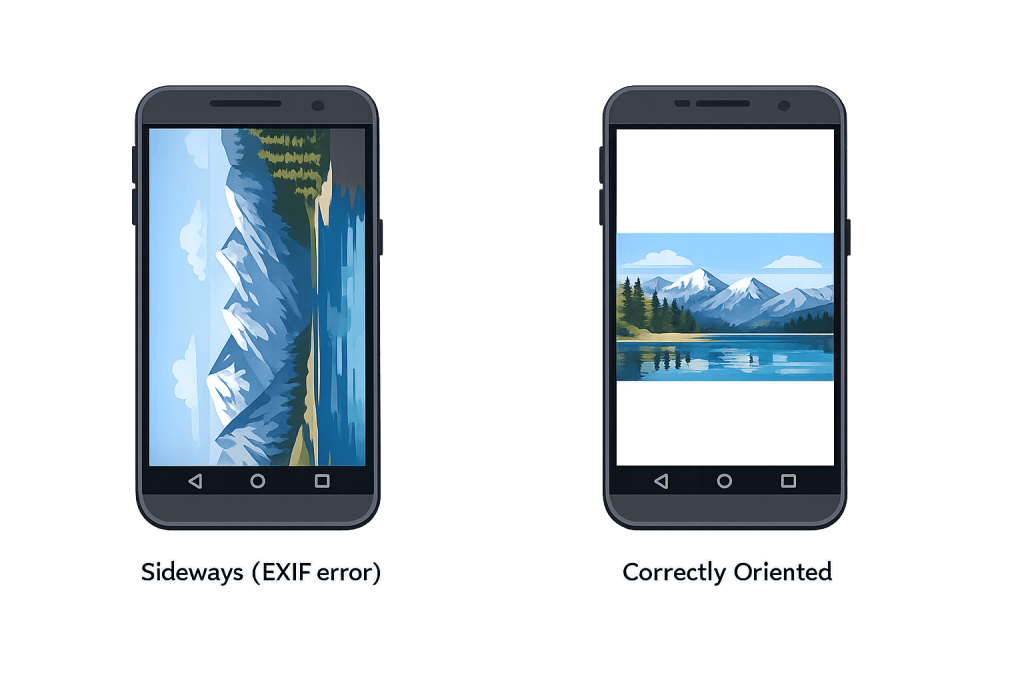
How Image Rotation Incorrect Works
Every digital photo contains a small block of metadata called EXIF data — short for Exchangeable Image File Format. This metadata stores information like the camera model, shutter speed, GPS coordinates, and importantly, the orientation at the time of capture. When you take a portrait-mode photo with your phone, the camera sensor captures the image rotated 90 degrees. Rather than physically rearranging every pixel, it simply writes an orientation flag in the EXIF data: “display this rotated 90 degrees clockwise.”
Modern operating systems and photo apps read this flag and rotate the display automatically, so the photo always looks correct on your device. WordPress reads EXIF data too — since version 5.3, it auto-rotates images during upload by applying the EXIF orientation flag. However, this auto-rotation can fail under several conditions:
- Imagick not available — WordPress uses the Imagick or GD image library to physically rotate the pixels during upload. If neither library handles EXIF correctly on your server, the orientation flag is ignored and the raw image is displayed. This is closely related to the Imagick Not Available error.
- Images pre-processed by another tool — Some image optimization plugins, CDNs, or export tools strip EXIF data or apply their own rotation incorrectly before WordPress processes the file.
- Older WordPress versions — WordPress’s auto-rotation was introduced in version 5.3. Sites running older versions do not auto-rotate — though at this point, staying below 5.3 is itself a security risk.
- Uploading via third-party tools — HTTP errors during upload that result in partial processing can leave image metadata in an inconsistent state.
Check This First — 2-Minute Diagnostic
- Check the image in the Media Library — Go to Media → Library and open the image. If it appears rotated in the media library thumbnail, the issue is at the server level, not a browser display quirk.
- Try uploading the same image on a different site or local WordPress install — If it rotates correctly elsewhere, the issue is specific to your server’s image processing setup.
- Check your WordPress version — Go to Dashboard → Updates. If you’re running below WordPress 5.3, update immediately — EXIF auto-rotation is a core feature from that version.
- Check Tools → Site Health — Look for any warnings about image processing libraries. A missing Imagick or GD configuration will sometimes surface here.
- Inspect the original file — View the image properties on your computer. If the “Orientation” field in the EXIF data shows anything other than “Normal” or “Horizontal (normal),” the EXIF flag is the cause.
Purpose & Benefits
1. First Impressions Depend on Images Displaying Correctly
A sideways photo on a product page, team bio, or blog post signals an unfinished, unprofessional site. Visitors don’t know or care about EXIF metadata — they see a broken-looking image. Fixing rotation issues immediately keeps your visual presentation consistent with the effort you put into your content and design, supporting the user experience goals your web design depends on.
2. Understanding the Cause Prevents Recurring Issues
Without knowing about EXIF orientation, business owners often try uploading different file sizes, changing image settings in WordPress, or rotating images manually — and then the rotated version goes sideways again after a future upload. Understanding that the EXIF flag is the root cause means you can address it once (at the source file level or via a plugin) rather than fixing individual images indefinitely.
3. Image Library Configuration Affects More Than Rotation
The Imagick and GD libraries that handle EXIF rotation also handle every other image transformation in WordPress: resizing thumbnails, creating WebP versions, generating srcset images for responsive layouts, and processing images uploaded via WooCommerce. If the image library configuration on your server is the cause of rotation problems, other image-related functionality may also be degraded. Diagnosing this properly fixes the whole pipeline.
Examples
1. Portrait Photo from iPhone Appearing Sideways
A client uploaded a headshot taken in portrait mode on an iPhone. The photo looked correct in iOS Photos but appeared rotated 90 degrees counterclockwise in WordPress. The EXIF orientation flag was set to “Rotate 90 CW” — WordPress should have auto-rotated during upload, but Imagick was returning errors on the server. After the hosting provider enabled the PHP Imagick extension, subsequent uploads auto-rotated correctly. The existing image was fixed by re-uploading or by using WordPress’s built-in image editor.
2. Fixing a Rotated Image Using the WordPress Image Editor
For a single image that’s already uploaded incorrectly, you do not need to re-upload. Open the Media Library, click on the image, and click “Edit Image.” Use the rotation buttons (clockwise or counterclockwise arrow icons) to correct the orientation, then click “Save.” WordPress creates a new version of the edited image and updates all existing usages automatically.
# EXIF data check using command line (for diagnosis only)
# exiftool shows the orientation flag embedded in the file
exiftool -Orientation yourphoto.jpg
# Output example: Orientation: Rotate 90 CW
# This means the raw pixels are sideways; EXIF tells viewers to rotate them
3. Using a Plugin to Batch-Fix Rotation on Upload
If you upload many phone photos regularly, the free “Fix Image Rotation” plugin from the WordPress.org plugin directory automatically reads EXIF orientation data on upload and physically rotates the pixels — removing the dependency on the server’s Imagick configuration. After installing and activating the plugin, new uploads will rotate automatically. For existing incorrectly-rotated images, use the plugin’s bulk-fix tool under Media → Fix Rotations.
Common Mistakes to Avoid
- Rotating the image in an external editor and re-uploading without stripping EXIF data — If you open a sideways photo in an editor, rotate it, and save it, many editors preserve the original EXIF orientation flag. When you upload the “corrected” version, WordPress reads the old flag and rotates it again, putting it back sideways. Save without EXIF data, or explicitly set the EXIF orientation to “Normal.”
- Setting file permissions to 777 to fix the issue — Incorrect rotation has nothing to do with file permissions. Setting permissions to 777 is a security risk and will not fix the display problem.
- Rotating manually in the WordPress editor without saving — The rotation buttons in the media library Image Editor are only applied when you click “Save.” Leaving the editor without saving means the rotation won’t persist.
- Assuming the issue is theme-specific — EXIF rotation happens at the server level during upload processing, not at the display layer. Switching themes will not fix a rotated image; the underlying file in the media library is what’s wrong.
Best Practices
1. Strip EXIF Orientation Before Uploading Problem Images
The most reliable long-term fix for persistent rotation problems is to remove the EXIF orientation flag before uploading. Open the image in any basic photo editor — Windows Photos, macOS Preview, Pixlr — make any minor edit (a small crop works), and export. Most editors will write the rotated pixels physically and reset the EXIF orientation flag to “Normal.” The image will always display correctly regardless of the server’s Imagick configuration.
2. Use the WordPress Image Editor for Individual Quick Fixes
For a single already-uploaded image, go to Media → Library, click the image, click “Edit Image,” use the rotation arrows to correct orientation, and click “Save.” This is the fastest fix for one-off issues and requires no plugins, no SFTP access, and no server changes. WordPress regenerates all thumbnail sizes at the same time, so every version of the image updates in one step.
3. Install Fix Image Rotation for Ongoing Prevention
If your workflow involves regularly uploading photos from smartphones, installing the “Fix Image Rotation” plugin from the WordPress plugin directory automates EXIF correction on every upload. It physically rotates the pixels and strips the problematic orientation flag, making the fix transparent. This is particularly useful for team blogs, news sites, or any WordPress site where multiple contributors upload mobile photos.
Frequently Asked Questions
What causes incorrect image rotation in WordPress most often?
EXIF orientation metadata in smartphone photos. Your phone stores images with the sensor’s native rotation and uses an EXIF flag to tell software how to display them upright. When WordPress’s image processing library doesn’t correctly apply or strip that flag during upload, the raw rotated pixels are displayed without correction.
How do I fix image rotation when locked out of wp-admin?
This issue doesn’t lock you out of wp-admin. If you cannot access wp-admin at all, you’re dealing with a separate problem. To fix rotation without wp-admin, you’d need to replace the image file via SFTP with a version that has correct EXIF orientation — but the easier path is almost always to fix it through the Media Library once you’re logged in.
Can incorrect image rotation hurt my SEO?
Not directly. Sideways images don’t affect your search rankings at the algorithm level. The indirect impact is on user experience — visitors encountering a sideways photo on a product page or landing page are less likely to engage with the content, which can affect time-on-page and conversion metrics over time.
Does this happen to all image formats or just JPEGs?
EXIF orientation data is a JPEG feature specifically. PNG, WebP, and GIF files do not store orientation via EXIF in the same way. If you’re seeing rotation issues, the problematic files are almost certainly JPEG images — most commonly from smartphones or DSLR cameras.
Related Glossary Terms
- Media Library
- Imagick Not Available
- HTTP Error Uploading Images
- Image Upload Failed
- PHP
- SFTP (Secure File Transfer Protocol)
How CyberOptik Can Help
Still broken? Our team fixes WordPress errors like this in under 30 minutes for maintenance clients. Persistent image rotation problems often point to a server-level image library configuration that affects all image processing on your site — including thumbnail generation, WebP conversion, and responsive image sets. Our WordPress maintenance services include server environment audits that catch these issues before they affect your media library at scale. Contact us to discuss your site or review what our maintenance plans include.