Severity: Major · Fix time: 15–60 min · Skill level: Advanced
Imagick Not Available is a WordPress error or warning indicating that the PHP Imagick extension — WordPress’s preferred image processing library — is either not installed on the server or not enabled for your PHP version. WordPress falls back to the GD library when Imagick is unavailable, but image processing features may be degraded, producing lower-quality thumbnails, failed WebP generation, or incorrect EXIF-based rotation.
Need a quick map of every WordPress error? See our 70+ WordPress Errors Guide → for a categorized reference of every common WordPress issue.
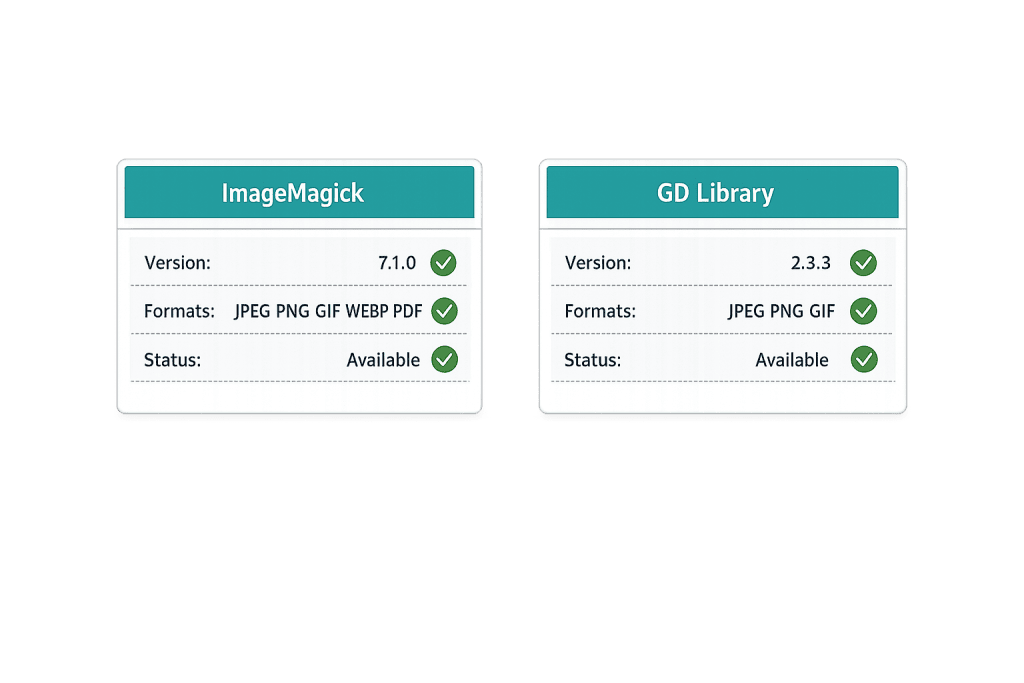
[Image: phpinfo() output showing ImageMagick section and GD section side by side, with version and format support details]
How Imagick Not Available Works
WordPress handles all image manipulation — resizing uploaded photos, generating thumbnail sizes, stripping EXIF metadata, creating WebP versions, and applying rotation corrections — through one of two PHP image processing libraries: Imagick or GD.
Imagick is a PHP extension that wraps the ImageMagick C library. It supports over 200 image formats, produces high-quality resizing, handles EXIF rotation reliably, and supports layer-based operations. WordPress prefers Imagick when available.
GD (Graphics Draw) is a simpler image library that ships bundled with PHP by default. It supports JPEG, PNG, GIF, WebP, and a handful of other formats. GD is available on virtually every PHP installation. It handles basic resizing and image manipulation adequately for most sites.
WordPress selects which library to use through a priority filter. As of WordPress 3.5, Imagick is checked first. If it’s available and functional, WordPress uses it. If not, it falls back to GD. The Imagick Not Available error appears when:
- The Imagick PHP extension is not installed at the server level
- Imagick is installed but not enabled for the PHP version your site is running
- Imagick is enabled but its version is incompatible with your PHP version
- A security configuration restricts PHP from loading the Imagick extension
On most managed WordPress hosts and quality shared hosts, both Imagick and GD are available by default. The error is more common on VPS setups where PHP extensions are managed manually, budget shared hosts with minimal extension support, or after a PHP version upgrade that doesn’t automatically carry over previously-installed extensions.
Check This First — 2-Minute Diagnostic
- Check via Site Health — Go to Tools → Site Health → Info → Media Handling. This section shows which image library WordPress is currently using (Imagick or GD) and the active version.
- Check via a phpinfo() page — Create a temporary PHP file in your WordPress root with
, visit it in a browser, and search for “imagick” and “GD”. Remove the file immediately after checking — leaving a phpinfo page publicly accessible is a security risk. - Check the PHP error log — Look for messages like
PHP Fatal error: Class 'Imagick' not foundorPHP Warning: PHP startup: Unable to load dynamic library 'imagick.so'. - Ask your hosting provider — For shared and managed hosts, the fastest resolution is contacting support and asking them to enable the Imagick extension for your PHP version. This is a standard request they handle routinely.
- Test image upload quality — Upload a high-resolution JPEG and check the thumbnail quality in the Media Library. Noticeably poor quality or incorrect rotation (see Image Rotation Incorrect) can indicate Imagick is absent and GD is handling uploads with different settings.
Purpose & Benefits
1. Imagick Produces Higher-Quality Image Transformations
For sites where image quality matters — portfolios, product photography, photography blogs, real estate listings — Imagick’s superior resampling algorithms produce sharper thumbnails and more accurate color reproduction than GD. The difference is most visible in thumbnails generated from high-resolution source images. Our WordPress development services always verify image library availability during site builds to ensure image quality meets the client’s visual standards from day one.
2. Imagick Is Required for Some Image Features WordPress Depends On
Reliable EXIF-based auto-rotation (the fix for Image Rotation Incorrect) depends on Imagick processing the image correctly during upload. WebP generation for performance optimization also works more reliably with Imagick. Certain PDF thumbnail generation features in plugins require Imagick specifically — GD doesn’t support PDF rendering. If these features are failing silently, Imagick’s absence may be the undiagnosed root cause.
3. GD Is a Reliable Fallback for Most Sites — But Worth Confirming
For straightforward sites with standard image usage — blog photos, service page images, team headshots — GD handles image processing adequately. Knowing that your site is running on GD by design (not by accident) is the important thing. A site confidently running GD with good results is fine. A site expecting Imagick and silently falling back to GD with degraded output is a problem worth addressing.
Examples
1. Enabling Imagick on cPanel/Shared Hosting
Most cPanel-based shared hosts allow you to select PHP extensions per site through the hosting control panel:
- Log into cPanel and find Select PHP Version or PHP Selector (MultiPHP Manager or CloudLinux PHP Selector, depending on your host).
- Find the
imagickextension in the list — it may also appear asphp-imagickorphp-imagick83depending on your PHP version. - Check the box to enable it and click Save or Apply.
- Return to WordPress → Tools → Site Health → Info → Media Handling to confirm Imagick is now listed.
// Verify Imagick availability in PHP (add temporarily to functions.php for testing)
// Remove after verification
add_action( 'admin_notices', function() {
    if ( extension_loaded( 'imagick' ) ) {
        $imagick = new Imagick();
        $version = $imagick->getVersion();
        echo '<div class="notice notice-success"><p>Imagick available: '
             . esc_html( $version['versionString'] ) . '</p></div>';
    } else {
        echo '<div class="notice notice-error"><p>Imagick is NOT available. WordPress is using GD.</p></div>';
    }
} );
2. Installing Imagick on a VPS via SSH
On a VPS running Ubuntu/Debian with Apache and PHP, Imagick can be installed and enabled with a few commands. The exact package name depends on your PHP version:
# Ubuntu/Debian — replace "8.2" with your actual PHP version
sudo apt-get update
sudo apt-get install php8.2-imagick

# After installation, restart the web server to load the new extension
sudo systemctl restart apache2
# or for Nginx/PHP-FPM:
sudo systemctl restart php8.2-fpm

# Verify the extension loaded
php -m | grep imagick
# Should output: imagick
After running these commands, return to Tools → Site Health → Info → Media Handling to confirm WordPress detects Imagick.
3. Forcing WordPress to Use GD When Imagick Has Configuration Issues
In some cases, Imagick is installed but causing PHP errors or producing incorrect output (a common issue with certain Imagick/PHP version combinations). You can force WordPress to use GD instead by adding a filter to your theme’s functions.php or a small plugin:
<?php
// Force WordPress to use GD instead of Imagick for image processing
// Add to functions.php or a custom plugin
// Useful when Imagick is installed but misconfigured or causing errors
add_filter( 'wp_image_editors', function( $editors ) {
    return array( 'WP_Image_Editor_GD', 'WP_Image_Editor_Imagick' );
} );
This reverses the priority, making GD the first choice. WordPress falls back to Imagick only if GD fails. This is a valid configuration when your hosting environment’s Imagick installation is unreliable.
Common Mistakes to Avoid
- Leaving a phpinfo() file in your web root — The diagnostic step of creating a phpinfo page is useful, but the file must be deleted immediately after use. A publicly accessible phpinfo page exposes your PHP version, loaded modules, server paths, and configuration details to anyone who visits it.
- Assuming GD is “broken” because Imagick isn’t available — GD is a functional fallback for most image processing tasks. The error message “Imagick Not Available” doesn’t mean image processing is broken — it means WordPress is using the secondary library. Confirm GD is working before declaring image processing broken.
- Enabling Imagick without checking PHP version compatibility — Imagick version requirements vary by PHP version. Installing a mismatched Imagick extension can cause PHP to fail to start entirely. Confirm your PHP version first and install the matching
php[version]-imagickpackage. - Expecting Imagick installation to retroactively fix existing images — Installing Imagick affects new uploads, not images already in the Media Library. Previously uploaded images with incorrect rotation or poor thumbnail quality need to be reprocessed using the “Regenerate Thumbnails” plugin or re-uploaded from source.
Best Practices
1. Confirm Your Current Image Library via Site Health Before Changing Anything
Before installing, enabling, or changing anything related to image libraries, go to Tools → Site Health → Info → Media Handling. This shows you exactly what WordPress is using today — Imagick version number, GD version, and active image editing class. If Imagick is already active and functioning, there is nothing to fix. If GD is active and your images look fine, evaluate whether the effort of enabling Imagick is worthwhile for your site’s use case.
2. Request Imagick Enabling Through Your Host for Shared Environments
For shared hosting, don’t try to install PHP extensions yourself — the server-level installation is managed by the host. Contact support with a specific request: “Please enable the PHP Imagick extension for my account. My site is running PHP [your version].” Most quality hosts enable this within minutes. Hosts that don’t support Imagick at all are worth reconsidering for WordPress sites with heavy image requirements.
3. Use the Force-GD Filter When Imagick Causes Errors
If your server has Imagick installed but it’s producing PHP errors, incorrect output, or causing upload failures, the force-GD filter above is a clean, reversible solution. It doesn’t uninstall Imagick — it simply tells WordPress to prefer GD. This is preferable to disabling Imagick at the server level, which may affect other applications, and reversible when you upgrade Imagick or resolve the underlying configuration issue.
Frequently Asked Questions
What causes Imagick Not Available most often?
The Imagick PHP extension isn’t installed or isn’t enabled for the PHP version your site is running. This is most common after a PHP version upgrade (the new version starts without previously-enabled extensions), on budget hosting that doesn’t include Imagick by default, or on self-managed VPS servers where PHP extensions are configured manually.
How do I fix Imagick Not Available when locked out of wp-admin?
Imagick availability is a server-level issue, not a WordPress login issue — this error doesn’t lock you out of wp-admin. Log in normally, go to Tools → Site Health → Info → Media Handling to confirm the issue, then enable Imagick through your hosting control panel or contact your host’s support team.
Can Imagick Not Available hurt my SEO?
Indirectly, yes. If Imagick’s absence causes incorrect image rotation (see Image Rotation Incorrect), poor thumbnail quality, or failed WebP generation, these degrade user experience and page performance metrics — both factors in search ranking. WebP images are significantly smaller than JPEG, so if WebP generation is failing because Imagick is unavailable, your page speed and Core Web Vitals scores may be lower than they could be.
Related Glossary Terms
- PHP
- Image Rotation Incorrect
- Image Upload Failed
- HTTP Error Uploading Images
- Media Library
- PageSpeed
- wp-config
How CyberOptik Can Help
Still broken? Our team fixes WordPress errors like this in under 30 minutes for maintenance clients. Imagick configuration issues on VPS environments often require coordinating PHP extension installation with web server restarts and WordPress verification — a multi-step process that’s easy to get wrong without server-level experience. Our WordPress maintenance services include server environment audits that verify image processing library availability and configuration as part of ongoing site health monitoring. Contact us to discuss your site or review what our maintenance plans include.