
Severity: Major · Fix time: 5–15 min · Skill level: Beginner
Image Upload Failed is a WordPress error displayed in the Media Library when an uploaded image cannot be processed or saved. It manifests in several forms: a broken thumbnail with no file name, the upload progress bar completing but the file not appearing, or the image appearing in the library but displaying as a broken icon. Unlike the generic HTTP Error when uploading images, this error category covers cases where the file itself is the problem — corrupted data, an unsupported format, missing server-side image processing libraries, or permission blocks on the destination directory.
Most image upload failures resolve in under five minutes once you identify which of the three main causes applies: a server-side image library problem (GD Library or Imagick), a file permissions error on the uploads directory, or a genuinely corrupt source file.
Need a quick map of every WordPress error? See our 70+ WordPress Errors Guide → for a categorized reference of every common WordPress issue.
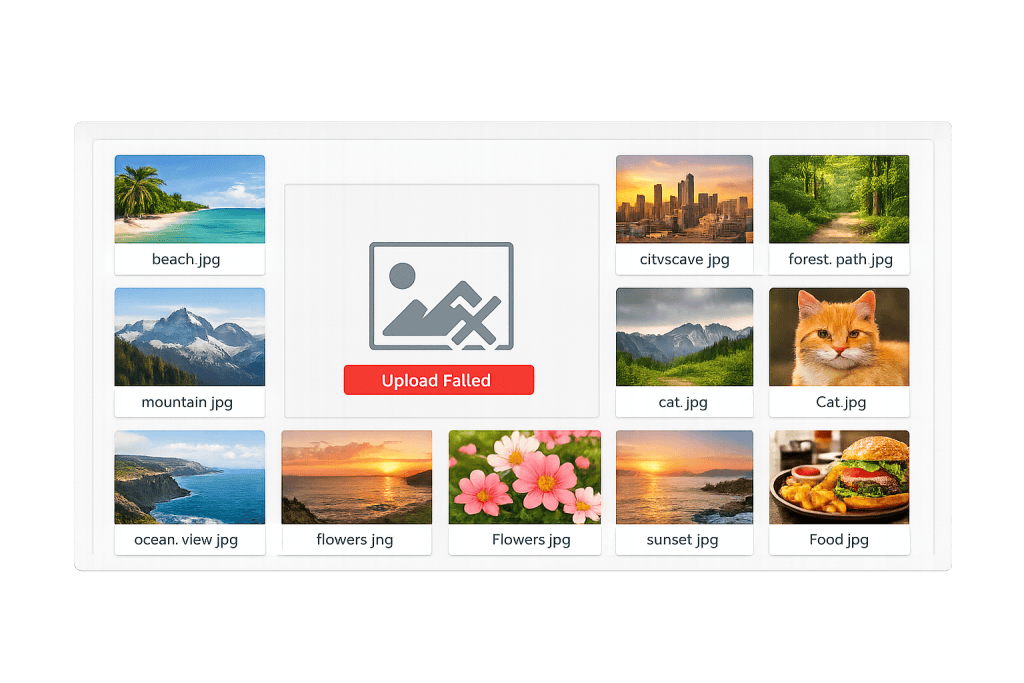
[Image: WordPress media library showing a broken thumbnail icon with “Upload Failed” notice for a file that did not complete processing]
How Image Upload Failures Work
WordPress processes every uploaded image through a specific pipeline: receive the file via PHP, validate the MIME type against an allowlist, pass it to an image processing library (Imagick or GD Library) to generate thumbnail sizes, then save all versions to /wp-content/uploads/[year]/[month]/. A failure at any stage produces an “upload failed” result.
The distinct causes and their signatures:
- Missing or broken GD Library / Imagick — WordPress cannot generate thumbnails without one of these libraries. The image may upload but display as a broken file. GD Library is bundled with most PHP installations; Imagick is optional and must be enabled by the host.
- Corrupt source file — A file with corrupted image data passes format validation but fails when the image library tries to decode it. This produces an error specific to that file — other images upload fine.
- File permissions on /wp-content/uploads/ — If the uploads directory isn’t writable by the web server process, WordPress can’t save the processed file. The error applies to all uploads, not just specific files. See File Permissions Error.
- Unsupported file type — WordPress maintains an allowlist of permitted MIME types. SVG, AVIF (in older WordPress versions), and certain RAW formats are blocked by default.
- PHP memory limit too low — Large images require significant memory to decode and resize. A memory limit too low (often 64MB on shared hosting) causes image processing to fail mid-upload.
This error is distinct from the upload exceeds maximum file size error (which blocks the upload before processing) and the link you followed has expired error (which occurs when post_max_size is too small and the entire form submission fails silently).
Check This First — 2-Minute Diagnostic
- Try a different image — Upload a simple small JPEG under 500KB. If it succeeds, your original file is likely corrupt or in an unsupported format.
- Check the file type — Try converting the image to JPEG or PNG and re-uploading.
- Check uploads directory permissions — Go to Tools → Site Health → Info → Filesystem Permissions and confirm the uploads directory is listed as “writable.”
- Increase PHP memory temporarily — Add
define('WP_MEMORY_LIMIT', '256M');towp-config.phpand retry. If this resolves it, PHP memory was the constraint. - Deactivate image optimization plugins — Plugins like Smush, ShortPixel, or Imagify interact with the upload process. Temporarily deactivate them and test.
Purpose & Benefits
1. Images Drive Engagement on Every Content Type
Blog posts with images receive significantly more engagement than text-only content. Product pages without quality images lose conversions. A broken image upload workflow affects content quality across your entire site. Resolving it quickly keeps your publishing momentum intact.
2. Understanding the Image Pipeline Helps With Performance
The same image library settings that affect upload reliability — Imagick vs. GD Library, memory allocation, thumbnail generation — also affect page performance. Diagnosing upload failures often reveals optimization opportunities in how your server handles image processing.
3. Corrupt Files Signal a Broader Workflow Problem
When multiple team members are contributing images and corrupt uploads become a pattern, files are likely being processed before upload with tools that corrupt metadata or produce invalid file structures. Identifying this and standardizing the image preparation workflow prevents ongoing failures.
Examples
1. Restoring Upload Functionality When GD Library Is Missing
A site migrated to a new server starts producing broken thumbnail icons for every uploaded image. Images appear in the media library with no preview and “File could not be processed.” Checking the server via phpinfo() reveals GD Library is disabled on the new server. Enabling it through the hosting control panel (under PHP Extensions in cPanel) immediately restores thumbnail generation.
2. Fixing Permissions on the Uploads Directory
All image uploads fail silently — the progress bar completes but nothing appears in the media library. Connecting via SFTP reveals /wp-content/uploads/ is set to 555 (read and execute only). Setting it to 755 restores write access:
# Fix permissions on the uploads directory and all subdirectories
find /var/www/html/wp-content/uploads/ -type d -exec chmod 755 {} \;
find /var/www/html/wp-content/uploads/ -type f -exec chmod 644 {} \;
3. Allowing SVG Uploads for a Design-Heavy Site
WordPress blocks SVG by default because SVG files can contain embedded JavaScript. To allow SVG uploads safely on a site with trusted uploaders:
// Allow SVG uploads with MIME type registration
// Add to functions.php — ensure only trusted users upload SVGs
function allow_svg_uploads( $mimes ) {
    $mimes['svg']  = 'image/svg+xml';
    $mimes['svgz'] = 'image/svg+xml';
    return $mimes;
}
add_filter( 'upload_mimes', 'allow_svg_uploads' );
Consider pairing this with an SVG sanitization plugin to strip any embedded scripts before files are saved.
Common Mistakes to Avoid
- Retrying a corrupt file repeatedly — If a specific image fails consistently while others succeed, the source file is damaged. Re-export it from the original application rather than retrying the same file.
- Ignoring Site Health warnings about image processing — WordPress’s Site Health tool reports if GD Library or Imagick is missing. A monthly review catches these issues before they affect content publishing.
- Setting /wp-content/uploads/ to 777 — World-writable permissions fix the upload error but open a significant security hole. Set to 755 instead.
- Confusing this error with the HTTP error when uploading images — The HTTP Error when uploading images is a specific message in the media uploader UI. “Upload failed” messages can appear in different contexts and may indicate file corruption, MIME type blocks, or permission failures rather than memory issues.
Best Practices
1. Set the PHP Memory Limit to 256M
PHP memory below 128MB frequently causes image processing failures on large uploads:
// Increase WordPress memory limit to 256MB for reliable image processing
define('WP_MEMORY_LIMIT', '256M');
If the server’s PHP memory_limit is lower than 256M, the server limit takes precedence — check with your host to raise it at the server level.
2. Verify Image Processing Libraries via Site Health
Go to Tools → Site Health → Info → Media Handling and confirm Imagick or GD Library is active. WordPress reports the active image editor and available extensions. If neither is available, contact your host — they can enable these PHP extensions without requiring access to server files on your part.
3. Check Permissions After Every Migration
Include an uploads directory permission check in your post-migration checklist. Set all subdirectories under /wp-content/uploads/ to 755 and all files to 644 via SFTP. Verify these manually rather than relying on the migration tool.
4. Prepare Images Before Upload
Resize images to the largest dimension they’ll actually be displayed at (typically 1200–2000px wide for full-width images) before uploading. Aim for files under 2MB before WordPress’s own optimization runs. This reduces processing demands and prevents PHP memory failures on oversized source files.
Frequently Asked Questions
What causes image upload failed most often?
In our experience, the most common causes on shared hosting are PHP memory limits too low for image processing and file permissions errors on /wp-content/uploads/. Corrupt source files and missing GD Library or Imagick come up regularly on newly migrated sites. Plugin conflicts are most common on established sites.
How do I fix this when locked out of wp-admin?
If you can log in but uploads fail, connect via SFTP to check directory permissions and add the WP_MEMORY_LIMIT constant to wp-config.php. If you can’t reach wp-admin at all, the image upload error isn’t the lockout cause — look at file permissions errors or database issues instead.
Can failed image uploads hurt my SEO?
Indirectly. Images you can’t upload can’t contribute alt text, structured data, or visual engagement signals to your content. A broken media upload workflow also slows content production, reducing publishing frequency. The failed uploads themselves don’t create front-end errors visible to crawlers.
Why does my image upload but display as broken?
This almost always means the image uploaded successfully but thumbnail generation failed. GD Library or Imagick couldn’t process the file to generate the smaller sizes WordPress needs. Check Site Health → Info → Media Handling for library availability, and check whether the specific image format is supported by the library version your server has installed.
Is there a size limit for image uploads in WordPress?
Yes. WordPress enforces upload_max_filesize from PHP settings (often 2MB–32MB depending on the host). You can check the current limit in Media → Add New — it displays below the upload area. See Upload Exceeds Maximum File Size for the full guide on increasing this limit.
Related Glossary Terms
- HTTP Error Uploading Images
- Upload Exceeds Maximum File Size
- Link You Followed Has Expired
- File Permissions Error
- Memory Exhausted Error
- SFTP (Secure File Transfer Protocol)
- PHP
- Media Library
How CyberOptik Can Help
Still broken? Our team fixes WordPress errors like this in under 30 minutes for maintenance clients. Image upload failures often sit at the intersection of PHP configuration, file permissions, and image library availability — three layers that are easy to overlook individually but compound quickly. Our WordPress maintenance plans include regular environment health checks and post-update testing that catch upload problems before they interrupt your content workflow. Contact us to get your media library working correctly.


