The WordPress Plugin Directory is the official public interface at WordPress.org where anyone can browse, search, and download free WordPress plugins. It serves as the front-end presentation layer for what is technically called the plugin repository — the underlying storage system where plugin files are hosted. When you install a plugin directly from your WordPress dashboard (Plugins → Add New), you’re browsing and installing from the Plugin Directory.
Every plugin listed in the WordPress Plugin Directory has passed an initial review by the WordPress.org team, must comply with GPL licensing requirements, and must adhere to community guidelines around honest marketing, code quality, and user data handling. This review process — while not a comprehensive security audit — provides a baseline level of screening that distinguishes the Plugin Directory from arbitrary third-party download sites.
The directory currently hosts over 60,000 free plugins, with millions of downloads happening every day across the WordPress ecosystem.
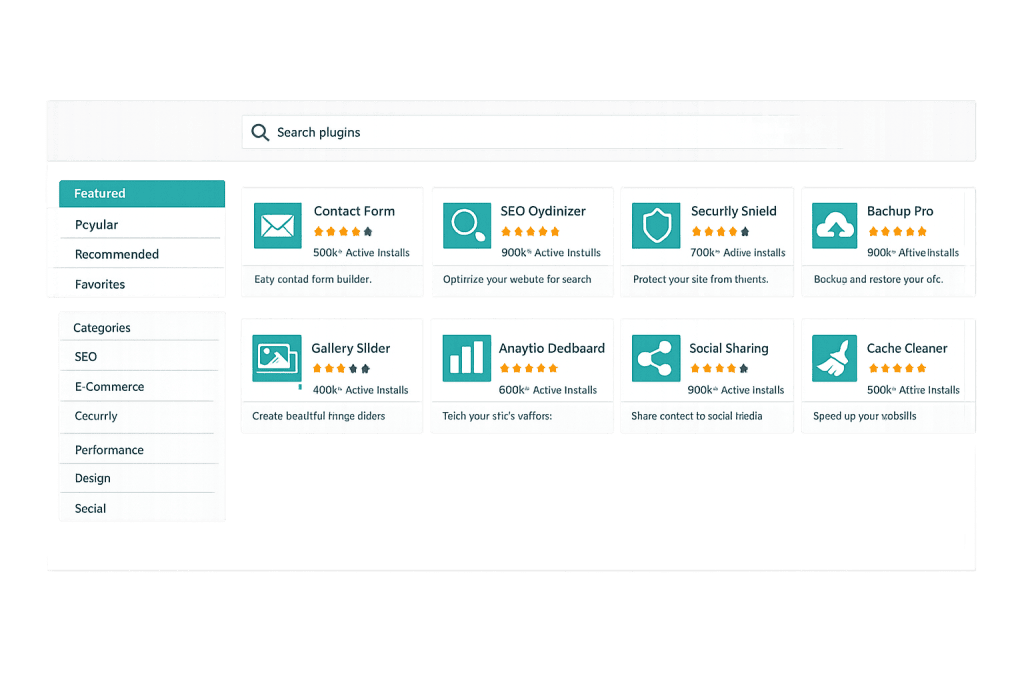
[Image: Screenshot of the WordPress.org Plugin Directory homepage showing featured plugins, search bar, and category browsing options]
What the Plugin Directory Shows
Each plugin’s page in the directory provides key information for evaluating whether a plugin is appropriate for your site:
- Active installations — How many WordPress sites currently have the plugin installed and active
- Star rating and reviews — Community ratings and written reviews from users
- Last updated — When the plugin developer last pushed an update
- WordPress version compatibility — The versions of WordPress the plugin has been tested with
- Requires PHP — Minimum PHP version needed
- Description and screenshots — What the plugin does and how it looks
- Changelog — History of updates, which reveals how actively maintained the plugin is
- Support forum — Threads where users report bugs and developers respond
These signals collectively help you evaluate a plugin before installing it on your site.
Purpose & Benefits
1. A Trusted Starting Point for Plugin Discovery
The Plugin Directory provides a curated, reviewed catalog of free plugins — a significant advantage over downloading plugins from random websites. Plugins listed here have been screened for obvious malware, GPL violations, and deceptive practices. While the review process isn’t a comprehensive code audit, it’s meaningfully safer than arbitrary third-party sources. For standard functionality needs (SEO, forms, caching, security), the Plugin Directory is almost always the right starting point.
2. Quality Signals Available Before You Install
Unlike searching Google and hoping a random download link is trustworthy, the Plugin Directory surfaces concrete quality signals — active install count, star rating, update recency, and developer responsiveness in the support forum. A plugin with 2 million active installs, a 4.8-star rating, and a recent update is a fundamentally different risk profile than one with 50 installs and a three-year-old update. These signals make informed plugin selection possible.
3. Direct Integration with the WordPress Admin Dashboard
The Plugin Directory is integrated into every WordPress installation. From your admin dashboard at Plugins → Add New, you’re browsing the same directory available on WordPress.org. You can search, review plugin information, and install with a single click — without leaving your admin panel. This seamless integration makes it the default and most accessible plugin source for site owners at every technical level. Our WordPress development clients access it the same way.
Examples
1. Finding a Contact Form Plugin
A business owner wants to add a contact form to their site. They navigate to Plugins → Add New in their WordPress dashboard, search “contact form,” and see results ranked by relevance and popularity. WPForms, Contact Form 7, and Gravity Forms Lite all appear near the top. They check active installs, ratings, and last update dates for each, read a few reviews, and make an informed choice before installing.
2. Evaluating a Plugin’s Maintenance History
Before installing a plugin to handle a critical function (payment integration, membership system, security), a developer checks the Changelog tab on the Plugin Directory page. A plugin with regular, dated updates spanning the past two years signals active maintenance. One with no update since 2021 and open support tickets with no developer response is a warning sign — regardless of its star rating.
3. Using the Directory for Plugin Research Without Installing
A developer uses the WordPress.org Plugin Directory as a research tool — not to install from the dashboard, but to check whether a premium plugin’s free version (often listed in the directory) is worth the upgrade. The free version’s review count, update frequency, and support forum responsiveness all inform the purchase decision before committing to a premium license.
Common Mistakes to Avoid
- Installing plugins solely based on install count — High install counts indicate popularity, not quality or current maintenance status. A plugin installed 5 years ago by 2 million sites may have stagnated since. Check the last updated date alongside the install count.
- Ignoring the support forum before installing — The support forum on a Plugin Directory page is often the most revealing indicator of plugin health. If the developer isn’t responding to bug reports or compatibility questions, that’s meaningful signal.
- Treating “Listed in the Directory” as a security guarantee — The WordPress Plugin Directory reviews plugins but doesn’t perform deep security audits. Malicious or vulnerable code occasionally appears and is removed, but “it’s in the directory” is not equivalent to “it’s secure.” Keep plugins updated and monitor security advisories.
- Not reading the Changelog before updating — A plugin update from version 3.x to 4.0 (a major version bump) may include breaking changes. Read the Changelog before updating major versions, especially for business-critical plugins.
Best Practices
1. Evaluate Multiple Signals Before Installing Any Plugin
Don’t install a plugin after checking only the name and description. Before adding any plugin to a production site, review: active install count (higher is generally safer), star rating (4.0+ is a reasonable baseline), last updated date (within the past 6–12 months), WordPress version compatibility, and a quick scan of recent support forum threads. Five minutes of due diligence saves hours of troubleshooting.
2. Prefer Plugins with Active Developer Communities
The best indicator of a plugin’s long-term reliability is developer responsiveness. Scan the support forum: are questions being answered? Are reported bugs being addressed? A developer who actively monitors and responds to their plugin’s support forum is far more likely to patch security issues promptly than one who’s essentially abandoned a project. This matters especially for security, form, and WooCommerce-related plugins.
3. Distinguish Free Plugins from Freemium Plugins
Many plugins in the directory are freemium — the free version listed in the directory provides basic functionality, with a premium upsell for advanced features. This is a legitimate and common model. Understand which features you need before installing the free version, and evaluate whether the premium version’s price point makes sense for your use case. A premium plugin with great support may deliver better value than a free alternative with poor maintenance.
Frequently Asked Questions
What is the difference between the Plugin Directory and the Plugin Repository?
They’re closely related but technically distinct. The Plugin Repository is the underlying SVN-based file storage system where plugin code is actually hosted. The Plugin Directory is the public-facing website and search interface on WordPress.org that makes the repository browsable. Most users interact only with the directory; the repository distinction matters mainly to developers who submit plugins.
Can I trust every plugin in the WordPress Plugin Directory?
The directory provides a meaningful level of screening, but it’s not a security guarantee. Plugins are reviewed for guideline compliance before listing and monitored for major issues. However, vulnerabilities can exist in approved plugins, and the review doesn’t catch everything. Keep all plugins updated, remove ones you’re not actively using, and follow security advisories for plugins you rely on.
How do I install a plugin from the directory?
From your WordPress admin dashboard, go to Plugins → Add New. Search for the plugin by name or functionality. When you find it, click “Install Now,” then “Activate.” The plugin is downloaded from the directory and activated on your site in seconds. For premium plugins not listed in the directory, you download a .zip file from the developer and install via Plugins → Add New → Upload Plugin.
What happens to sites when a plugin is removed from the directory?
Plugins are occasionally removed from the WordPress Plugin Directory for security issues, guideline violations, or developer request. Removal doesn’t automatically uninstall the plugin from sites where it’s already active. Sites running a removed plugin typically stop receiving updates through the dashboard, which is a security concern for actively maintained functionality. Monitor plugin status for any critical plugins you depend on.
How many plugins can a WordPress site have?
There’s no hard limit, but more plugins means more code running on every page load. The practical limit is determined by performance — a site with 50 active plugins will almost certainly be slower than one with 15, assuming similar code quality. Audit your active plugins regularly, remove unused ones, and monitor PageSpeed scores when adding new plugins. Quality and necessity matter far more than count.
Related Glossary Terms
How CyberOptik Can Help
Understanding how WordPress works under the hood — including how to evaluate and manage plugins — helps you make better decisions about your site. Our team handles plugin selection, vetting, configuration, and updates for clients as part of ongoing WordPress maintenance and new site builds. If you need a plugin audit or want to ensure your plugin setup is optimized and secure, we can help. Get in touch to discuss your project or explore our WordPress development services.