Severity: Minor · Fix time: Under 5 min · Skill level: Beginner
A 404 Error is an HTTP status code that a web server returns when it cannot find the requested page or resource at the given URL. When a visitor — or a search engine crawler — requests a URL that doesn’t exist on the server, the server responds with a 404 status code, and the browser typically displays a “Page Not Found” message. The 404 code belongs to the 4xx class of HTTP responses, which indicate client-side errors — meaning the problem is with the URL being requested, not the server fulfilling it.
404 errors are among the most common issues affecting websites of every size. They occur naturally when content is moved or deleted, when URLs are restructured, or when external sites link to pages that no longer exist. A small number of 404s is normal. A high volume of unmanaged 404s can damage user experience, waste crawl budget, and erode the link equity your site has built through inbound links over time.
Need a quick map of every WordPress error? See our 70+ WordPress Errors Guide → for a categorized reference of every common WordPress issue.
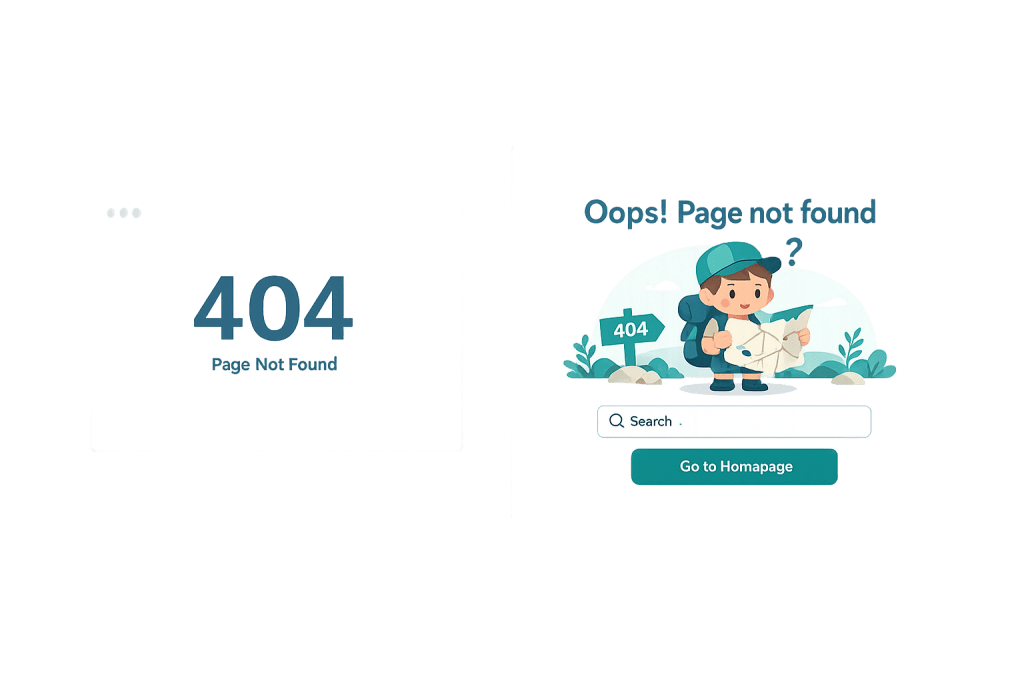
[Image: Browser showing a “Page Not Found” 404 message alongside an example of a well-designed custom WordPress 404 page]
How a 404 Error Works
When someone types a URL into their browser or clicks a link, the browser sends a request to the web server hosting the site. The server looks for the resource at that address. If it finds it, it returns a 200 (OK) status and delivers the page. If it doesn’t find it, it returns a 404 status code.
From an SEO perspective, understanding how search engines handle 404s matters:
- Googlebot discovers a 404 — If Google crawls a URL and receives a 404 response, it notes that the page doesn’t exist. After encountering the 404 repeatedly over subsequent crawls, Google removes the URL from its index.
- Soft 404s — A soft 404 occurs when a server returns a 200 OK status but the page content indicates the resource doesn’t exist — such as a page that says “No results found” but still returns a success code. Search engines treat these as content quality issues, distinct from a genuine 404.
- 410 Gone — A 410 response signals that a page is permanently gone, rather than possibly missing. For SEO, Google treats 404 and 410 similarly, though a 410 may result in faster deindexing when you want a page removed quickly.
- 301 Redirect — When content moves to a new URL, a 301 redirect preserves the SEO value of inbound links and sends both visitors and crawlers to the correct destination. This is the right approach whenever content moves, not disappears.
Check This First — 2-Minute Diagnostic
- Confirm the URL is correct — Check for typos, missing letters, or incorrect capitalization. WordPress URLs are case-sensitive in some configurations.
- Search for the content — Use site search or navigate through the site’s menu structure to find whether the page exists under a different URL.
- Check Google Search Console — Navigate to Coverage → Excluded → Not Found (404) to see which URLs Googlebot has encountered as 404s and when they were last crawled.
- Check for recent site changes — Was a page deleted, a URL restructured, or a permalink setting changed recently? These are the most common triggers.
- Verify permalink settings in WordPress — Go to Settings → Permalinks and click Save Changes without changing anything. This regenerates
.htaccessand can fix 404s caused by a corrupted rewrite rule.
Purpose & Benefits
1. Protecting Crawl Efficiency
Search engines have a limited crawl budget for each site. When Googlebot spends time requesting pages that return 404 errors — especially from broken internal links — it’s using crawl resources on dead ends instead of discovering and indexing real content. Regularly auditing for 404s and fixing broken internal links keeps crawl budget focused on pages that matter, which directly supports SEO performance over time.
2. Preserving Link Equity from Inbound Links
Inbound links from other websites pass authority — often called link equity — to the pages they point to. If a high-authority page gets deleted or its URL changes without a redirect, that link equity disappears. Setting up 301 redirects from old URLs to new, relevant destinations preserves the SEO value of existing backlinks and ensures that the authority accumulated over time continues to benefit your site rather than flowing to a dead URL.
3. Improving User Experience at a Dead End
A visitor who clicks a link expecting specific content and lands on an error page has a poor experience. Well-designed custom 404 pages mitigate this by acknowledging the error, offering navigation options, and suggesting related content — turning a dead end into an opportunity to keep the visitor engaged. In WordPress, custom 404 pages are controlled through your theme’s 404.php template or a page builder equivalent.
Examples
1. Product Page Deleted Without a Redirect
An eCommerce business discontinues a product and deletes its page without setting up a redirect. The product page had accumulated backlinks from review sites over two years. Every visitor who follows those links now hits a 404, and the link equity from those external sites is lost. The fix: a 301 redirect pointing the old URL to the nearest equivalent product or the product category page — preserving both traffic and SEO value.
In WordPress, manage this with a redirect plugin or directly in .htaccess:
# Redirect deleted product page to its category
Redirect 301 /products/discontinued-widget/ /products/widgets/
2. URL Structure Changes During a Site Redesign
A professional services firm redesigns their website and changes their URL structure. Blog posts that were at /blog/post-title/ are now at /insights/post-title/. Without 301 redirects mapping each old URL to its new equivalent, every old URL in search results, email campaigns, and social posts becomes a 404. Google Search Console quickly surfaces hundreds of crawl errors, and rankings for affected posts drop as link equity dissipates.
The correct approach: export the full list of old URLs before the migration, map each one to its new destination, and implement the redirects before the new site goes live — not after.
3. Mistyped Internal Link Creates a Silent 404
A content editor updates a page and accidentally types /services/web-desgin/ instead of /services/web-design/. Visitors who click that internal link get a 404. This is easy to overlook manually but shows up immediately in a site audit using Google Search Console or a crawl tool. Catching it early — through regular audits rather than visitor complaints — prevents the error from accumulating in crawl data.
Common Mistakes to Avoid
- Deleting pages without setting up redirects — When content is removed or restructured, always check whether the old URL has inbound links or organic traffic before leaving it as a 404. For high-value pages, a 301 redirect to a relevant destination protects what you’ve built. Check your analytics for traffic data and an SEO tool for backlinks before deletion.
- Ignoring Google Search Console’s Coverage report — Search Console surfaces 404 errors that Googlebot encounters during site crawls. Many site owners never check this report, allowing 404s to accumulate unnoticed for months. Set a monthly reminder to review it.
- Redirecting all 404s to the homepage — A blanket redirect that sends every 404 to the homepage is a poor practice. Search engines may treat these as soft 404s — they receive a 200 OK response on a page that clearly isn’t the resource they requested. Redirect to the most contextually relevant destination instead.
- Not running a crawl immediately after a site migration — Any time you restructure URLs, migrate to a new platform, or change permalink settings, run a site crawl immediately using Google Search Console or a tool like Screaming Frog. Catching broken links before visitors or crawlers encounter them takes minutes; fixing ranking drops after the fact takes months.
Best Practices
1. Build and Maintain a Helpful Custom 404 Page
A default server 404 page is an abrupt dead end that communicates nothing about your brand. A custom 404 page keeps your design intact, acknowledges the error, and gives visitors options: a search bar, links to popular pages, navigation to main sections. This reduces bounce rate and keeps visitors engaged rather than sending them back to search results. In WordPress, the custom 404 page is controlled through your theme’s 404.php template.
2. Monitor for New 404s After Every Site Change
Establish a habit: any time you restructure pages, update URLs, modify permalink settings, or migrate your site, run a crawl immediately after. Google Search Console’s Coverage report and URL Inspection tool catch broken links before they affect rankings. Connecting Search Console to Google Analytics provides a combined view of which 404 pages visitors are actually landing on — prioritize fixing those first.
3. Set Up 301 Redirects Before Deleting or Moving Content
Before removing or moving any page, check its traffic data in analytics and its backlink profile in an SEO tool. For pages with meaningful organic traffic or inbound links, create a 301 redirect to the closest relevant page. In WordPress, redirect management plugins handle this without requiring direct .htaccess edits — useful for content editors who don’t have server access.
4. Fix Broken Internal Links Promptly
Internal links pointing to 404 pages waste crawl budget and degrade user experience. Use Google Search Console’s Link report or a crawl tool to identify internal links pointing to 404 pages, then correct the links at their source. Fixing the link is better than setting up a redirect for an internal URL — it removes the wasted crawl step entirely.
5. Use a Sitemap to Help Google Find Your Real Content
An up-to-date XML sitemap submitted to Google Search Console tells Googlebot which URLs are real and worth crawling. After a major site change or 404 cleanup, re-submit your sitemap to prompt a faster recrawl of your active pages. This helps Google replace 404 records with correct 200 responses more quickly than waiting for its next natural crawl cycle.
Frequently Asked Questions
What causes 404 errors most often in WordPress?
The most common causes are deleted pages without redirects, URL structure changes during a site redesign or migration, and broken internal links created by editing mistakes. In WordPress specifically, misconfigured permalink settings can cause sudden site-wide 404 errors — if this happens, going to Settings → Permalinks and clicking Save Changes (without changing the structure) usually resolves it immediately by regenerating the rewrite rules.
How do I fix a 404 error when locked out of wp-admin?
A 404 on wp-admin itself is uncommon but does occur after permalink corruption. Connect via SFTP or your hosting file manager. Delete or rename the existing .htaccess file in the WordPress root — a corrupted .htaccess can produce 404s on admin pages. WordPress will generate a new clean .htaccess when you save Permalinks settings. If you still can’t access admin, check that WordPress core files are intact and the wp-admin directory exists with correct permissions.
Can 404 errors hurt my SEO?
Not directly, and not immediately. Google treats 404s as a normal part of the web — content comes and goes. However, a high volume of 404s signals poor maintenance to search engines, wastes crawl budget on dead ends, and destroys link equity from any inbound links pointing to those URLs. The SEO impact grows over time if 404s from moved or deleted high-value content aren’t addressed with redirects. Monitor Google Search Console’s Coverage report as your primary 404 tracking tool.
What is the difference between a 404 and a soft 404?
A 404 is a proper HTTP response code telling browsers and search engines the page doesn’t exist. A soft 404 returns a 200 OK status code while the page content indicates nothing was found — for example, a search results page showing “No results” or a category archive with no posts. Soft 404s are more problematic for SEO because they waste crawl budget on pages that appear to exist but offer no useful content.
Should I redirect a 404 to my homepage?
Generally, no. A blanket redirect to the homepage is a better user experience than a raw 404, but search engines may treat it as a soft 404 — they receive a 200 OK response on a page that clearly isn’t the resource they requested. Instead, redirect to the most contextually relevant content. If no equivalent page exists, let the 404 stand with a helpful custom error page rather than sending every broken URL to the homepage.
Related Glossary Terms
- 301 Redirect
- 400 Bad Request
- 401 Unauthorized
- 403 Forbidden
- 405 Method Not Allowed
- 413 Request Entity Too Large
- Website Crawling
- XML Sitemap
How CyberOptik Can Help
Still broken? Our team fixes WordPress errors like this in under 30 minutes for maintenance clients. 404 errors sit at the intersection of SEO and site maintenance — and left unmanaged, they quietly erode rankings and user trust. Our team conducts thorough site audits that surface 404s, broken redirects, and crawl issues, then implements the fixes needed to keep your site clean and well-indexed. If your site has gone through a redesign, migration, or URL restructure, we can map old URLs to new destinations and verify everything is working correctly. Contact us for a website review or learn more about our WordPress maintenance services.