
Severity: Minor · Fix time: Under 5 min · Skill level: Beginner
A 400 Bad Request is an HTTP status code indicating that the server could not process a request because what was sent didn’t make sense — malformed syntax, an invalid URL, oversized data, or corrupted cookies. Unlike server-side 5xx errors, a 400 signals that the problem originates with the request itself, not the infrastructure receiving it. For most visitors, clearing browser cookies and retrying resolves it in under a minute.
That said, a 400 error showing up repeatedly on a specific form, checkout page, or media upload is a site-configuration problem that needs your attention. Left unaddressed, recurring 400s silently drop form submissions, block file uploads, and frustrate customers trying to complete transactions.
Need a quick map of every WordPress error? See our 70+ WordPress Errors Guide → for a categorized reference of every common WordPress issue.
[Image: Browser tab showing a “400 Bad Request” error page with the HTTP status code visible]
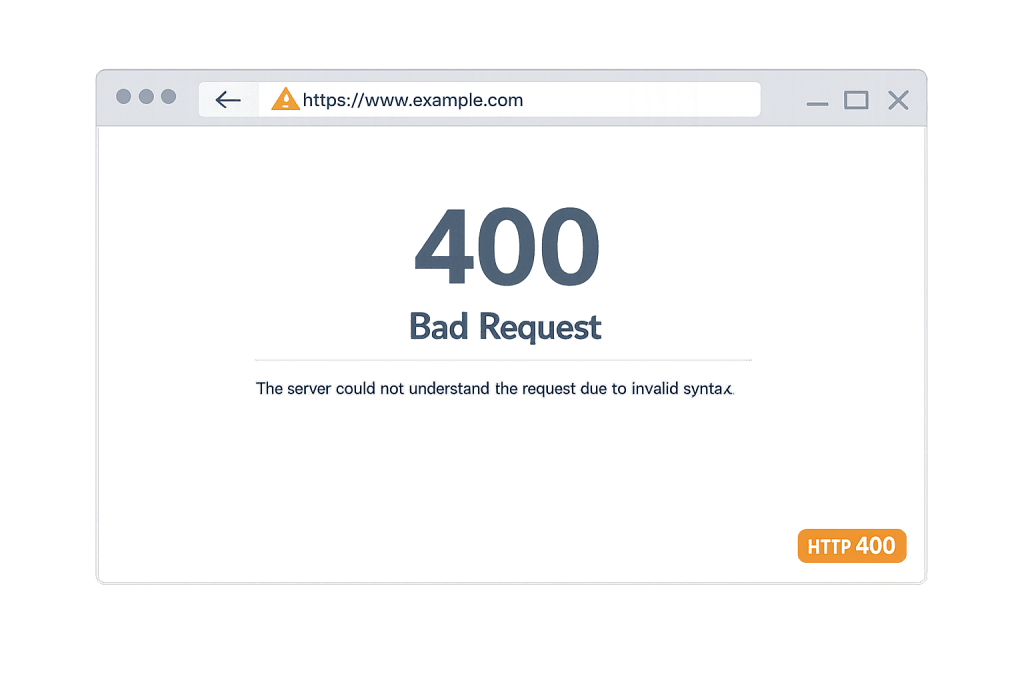
How 400 Bad Request Works
The HTTP request cycle is straightforward: a browser sends a request to a server, the server processes it, and returns a response. A 200 means success. A 400 means the server received something it couldn’t parse — and stopped before even trying to fulfill the request.
This places 400 in an important category: it is a client-side error. The problem is with what was sent, not with the server receiving it. That’s useful diagnostic information, because it narrows your first steps to the request itself rather than to server logs or hosting settings.
Common technical causes on WordPress sites include:
- Corrupted or expired browser cookies — Cookies that no longer match what the server expects cause the server to reject the session entirely. This is the most frequent cause of 400 errors visitors report.
- Invalid URL characters — Special characters, double slashes, or unencoded spaces in a URL can make the request unparseable. WordPress sites with complex permalink structures or search queries are particularly susceptible.
- File upload exceeding server limits — Every server has a maximum upload size. When a visitor tries to upload a file larger than that limit — a large product image, a PDF, a video — the server returns a 400 rather than processing the oversized request.
- Plugin-generated malformed request headers — Security plugins, REST API-dependent plugins, and form plugins can generate request headers that conflict with server-level rules, triggering a 400 on what should be a routine action.
- DNS cache mismatch — Stale DNS data on a visitor’s device can direct requests to the wrong destination, producing a malformed request before it even reaches your server.
Check This First — 2-Minute Diagnostic
Before adjusting any server settings, run through this checklist:
- Clear browser cookies and retry — Open the URL again after clearing cookies for your site’s domain. This resolves the majority of visitor-facing 400 errors instantly.
- Try an incognito or private window — A fresh session with no stored cookies isolates whether the issue is session-specific.
- Check the URL for unusual characters — Spaces, double
%%, or special symbols in the URL can trigger a 400. Copy the URL, decode it, and check for anything unexpected. - Try a file upload with a smaller file — If the error appears during a media upload, test with a small file (under 1MB) to determine whether size limits are the cause.
- Deactivate recently updated plugins — If the 400 appeared after a plugin update, deactivate that plugin and test again. Security and form plugins are the most common culprits.
Purpose & Benefits
1. Faster Diagnosis Saves Conversions
Knowing that a 400 is a client-side error immediately focuses troubleshooting. You’re not waiting for a host to investigate server infrastructure — you’re checking browser state, URL formatting, or server upload limits. That distinction compresses recovery time from hours to minutes, which matters most when the 400 is blocking a checkout or contact form submission.
2. Correct Server Configuration Prevents Recurring Errors
Recurring 400 errors on media uploads or form submissions almost always trace back to PHP upload limits set too low for the site’s actual use case. Configuring upload_max_filesize and post_max_size appropriately for a site that handles product images, PDFs, or customer uploads is a one-time fix that eliminates an entire class of 400 errors. Our WordPress hosting configurations are tuned with these limits set appropriately from the start.
3. Monitoring Catches Silent Failures Before They Compound
A form intermittently returning 400 errors may be silently dropping submissions. A URL pattern generating recurring 400s may indicate a broken integration sending malformed requests. Proactive log monitoring via Google Search Console and server error logs surfaces these issues before they accumulate into a measurable conversion problem.
Examples
1. Visitor Gets a 400 on a WooCommerce Checkout
A returning customer attempts to complete a purchase on a WooCommerce store. They see a 400 Bad Request error when they submit payment. The cause: a stored session cookie from their last visit no longer matches the server’s session data — the checkout can’t proceed with a mismatched session. Clearing the browser cookies for the site resolves the issue immediately. From the store owner’s perspective, this error appears sporadically and is difficult to reproduce because it only affects users with stale sessions.
2. Image Upload Fails in WordPress Media Library
A team member uploads a 45MB product image through the WordPress media library and receives a 400 error. The server’s upload size limit is set to 32MB — lower than the file size. The fix requires adjusting PHP settings:
// Add to wp-config.php or php.ini to increase upload limits
// upload_max_filesize controls individual file size
// post_max_size must be larger than upload_max_filesize
@ini_set( 'upload_max_size', '64M' );
@ini_set( 'post_max_size', '64M' );
Alternatively, add these to .htaccess on Apache servers:
# Increase PHP upload limits via .htaccess
php_value upload_max_filesize 64M
php_value post_max_size 64M
After adjusting the limit, the upload succeeds without error.
3. Contact Form Returns 400 After a Security Plugin Update
A business’s contact form begins returning 400 errors immediately after a security plugin update. The plugin’s updated firewall rules now flag the form’s POST request as a malformed input. Temporarily deactivating the security plugin confirms the cause — the form submits correctly. The fix involves adding the form’s submission URL to the plugin’s whitelist or rolling back the plugin version while the conflict is reported to the plugin developer.
Common Mistakes to Avoid
- Escalating to hosting support before checking the browser — Because 400 is a client-side error, the majority of visitor-reported 400s resolve with a cookie clear or browser change. Involving your host before checking these basics wastes time on both sides.
- Ignoring patterns in server logs — A single 400 error is usually a visitor issue. Twenty 400 errors in an hour on the same URL is a site configuration problem. Review your hosting error logs and Google Search Console’s Coverage report for recurring patterns rather than treating each occurrence as isolated.
- Setting upload limits without adjusting both values — Increasing
upload_max_filesizewithout also increasingpost_max_sizeto a larger value still triggers 400 errors on large uploads. Both values need to be set correctly, withpost_max_sizeset higher thanupload_max_filesize. - Not testing forms after plugin updates — Security plugins, caching plugins, and form plugins all affect how requests are processed. After any significant plugin update, run through your key user flows — contact forms, checkout, login — to catch newly introduced 400 errors before visitors do.
- Overlooking URL encoding issues in integrations — Third-party tools that build URLs dynamically (email platforms, marketing automation, CRMs) sometimes produce URLs with improperly encoded characters that trigger 400 errors. If 400s appear on landing pages linked from campaigns, inspect the URL for encoding problems.
Best Practices
1. Set Appropriate PHP Upload and Post Limits
Work with your hosting provider to configure upload and request size limits appropriate for your site’s actual use. Most WordPress sites benefit from upload_max_filesize of at least 32MB–64MB, with post_max_size set higher. Sites with WooCommerce product uploads, media-heavy workflows, or document submissions may need higher limits. Setting these correctly eliminates the most common category of recurring 400 errors.
2. Monitor Error Logs and Google Search Console Regularly
Set up Google Search Console and review your hosting error logs on a regular schedule. Errors that appear sporadically often go unreported by visitors — they simply abandon the action they were trying to complete. The Coverage report in Search Console surfaces 400 errors that Googlebot encounters, which is a signal that crawlers are also hitting dead ends. Proactive monitoring is standard practice in any WordPress maintenance workflow.
3. Test Key User Flows After Every Major Update
Any time you update WordPress core, a security plugin, a form plugin, or a caching tool, run through your key user flows: contact forms, checkout, login, file uploads. A five-minute post-update check catches 400 errors before real visitors encounter them. This is especially important after security plugin updates, which frequently adjust request validation behavior.
4. Validate URLs in Email Campaigns Before Sending
Before sending emails that link to specific URLs — particularly landing pages, product pages, or checkout flows — test each link manually in a fresh browser session. Campaign links built by marketing automation platforms occasionally include unencoded special characters that trigger 400 errors on arrival. Catching this before a campaign sends saves the embarrassment of a broken link reaching thousands of subscribers.
5. Use a Staging Environment for Configuration Changes
If you’re adjusting server upload limits, modifying .htaccess, or changing PHP settings, test these changes on a staging site first. A misconfigured .htaccess can turn a targeted fix into a site-wide 400 error. Testing in staging first confirms the change works as intended before it reaches production.
Frequently Asked Questions
What causes a 400 Bad Request error most often?
Corrupted or expired browser cookies are the single most common cause of visitor-reported 400 errors. After cookies, the next most frequent causes are file uploads that exceed the server’s size limit and malformed URLs containing special characters that the server can’t parse. If you’re seeing 400 errors only during specific actions — uploads, form submissions, checkout — the cause is almost certainly a server configuration limit rather than a visitor-side issue.
How do I fix a 400 Bad Request when locked out of wp-admin?
A 400 error on the wp-admin login page is unusual but does happen after security plugin updates or .htaccess changes. Connect to your site via SFTP or your hosting file manager. Rename .htaccess to .htaccess_old temporarily — this rules out a corrupted rewrite rule. If you regain access, regenerate .htaccess via Settings → Permalinks → Save Changes. If the 400 persists, rename /wp-content/plugins/ to deactivate all plugins and test again.
Can a 400 Bad Request hurt my SEO?
A single, isolated 400 error has minimal SEO impact. A recurring 400 on an important page — one that search engine bots encounter consistently — can prevent that page from being indexed or cause it to be marked as problematic in Google Search Console’s Coverage report. Monitor Search Console’s Coverage and Crawl Stats reports for patterns of 400 errors affecting crawlable URLs. Address any recurring 400 on indexable pages promptly.
What is the difference between a 400 error and a 404 error?
A 404 error means the server understood the request but couldn’t find the resource — the page doesn’t exist at that URL. A 400 error means the server couldn’t understand the request itself — the request was malformed before the server could look for anything. Different causes, different fixes. A 404 is usually a missing page; a 400 is usually a browser, cookie, or configuration issue.
Can a WordPress plugin cause 400 Bad Request errors?
Yes, and it’s one of the more common causes on WordPress sites. Security plugins that implement firewall rules, rate limiting, or request validation can incorrectly flag legitimate requests as malformed. Form plugins and REST API-dependent tools can also generate 400 errors if their request formatting conflicts with server-level rules. Deactivating plugins one at a time is the standard diagnostic approach when you’ve ruled out browser cookies and URL issues.
Related Glossary Terms
- 401 Unauthorized
- 403 Forbidden
- 404 Error
- 405 Method Not Allowed
- 413 Request Entity Too Large
- 429 Too Many Requests
- HTTPS (Hypertext Transfer Protocol Secure)
- Caching
How CyberOptik Can Help
Still broken? Our team fixes WordPress errors like this in under 30 minutes for maintenance clients. Recurring 400 errors — whether from misconfigured upload limits, conflicting plugin firewall rules, or URL encoding issues — often point to site configuration gaps that a quick audit can resolve for good. Our WordPress maintenance plans include server configuration review, error log monitoring, and rapid troubleshooting so these issues get caught and fixed before they cost you conversions. Contact us to discuss your site or learn about our WordPress maintenance services.


