
Severity: Major · Fix time: 15–60 min · Skill level: Intermediate
405 Method Not Allowed is an HTTP status code that tells you the server found the URL you requested but refused to process the HTTP method — POST, PUT, DELETE, or PATCH — used to make the request. In WordPress, this error surfaces most often when a Web Application Firewall (WAF), a misconfigured .htaccess file, or a conflicting plugin blocks legitimate form submissions, REST API calls, or checkout requests.
Unlike a 404 error, the 405 doesn’t mean the resource is missing. The server knows exactly where it is — it just won’t accept the type of request you’re making. That distinction matters: a 404 sends you hunting for broken URLs, while a 405 sends you into server configuration and plugin settings.
For business owners, the practical impact is immediate. Contact forms stop working. WooCommerce checkout pages fail. REST API integrations break. Any feature on your site that submits data to the server can be silently blocked until the underlying method restriction is removed.
Need a quick map of every WordPress error? See our 70+ WordPress Errors Guide → for a categorized reference of every common WordPress issue.
[Image: Browser showing a 405 Method Not Allowed response with the HTTP method and URL displayed]
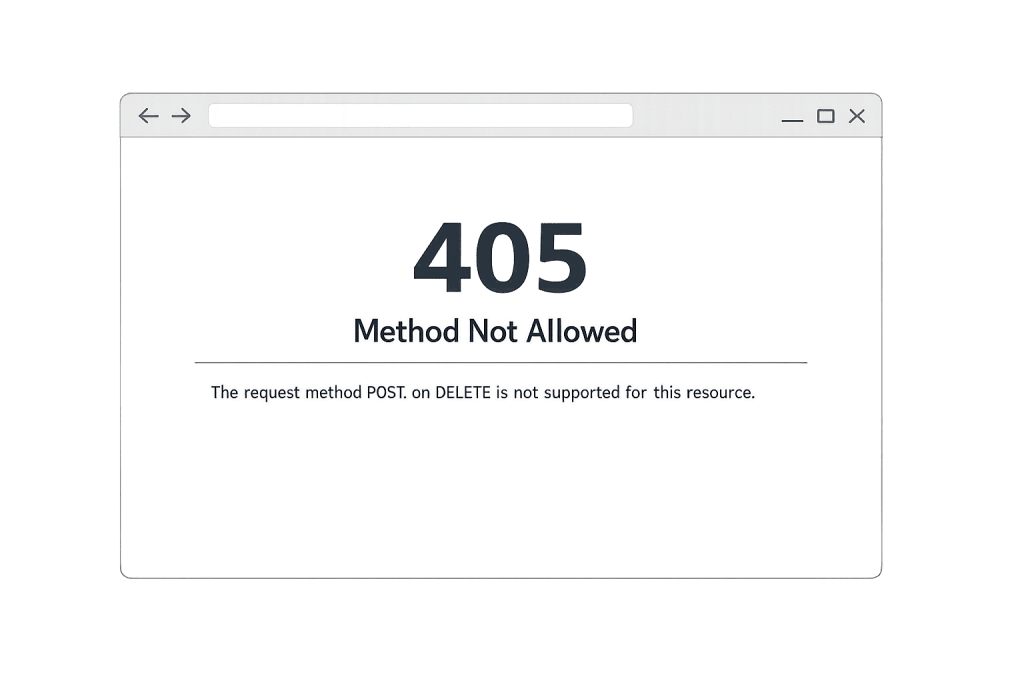
How 405 Method Not Allowed Works
HTTP requests come in several methods — GET retrieves content, POST submits data, PUT and PATCH update it, DELETE removes it. Most of the time, visitors load pages using GET, and everything works fine. The 405 appears the moment a different method — most often POST — gets sent to a resource that the server has been told not to accept it from.
In WordPress, the specific triggers break into four categories:
- WAF or security plugin rules — Tools like Wordfence, Sucuri, or a hosting-level firewall can be configured to block non-GET requests on specific paths. A rule intended to lock down the admin area can accidentally block REST API endpoints or checkout forms on the front end.
- Misconfigured
.htaccess— ALimitdirective in Apache’s.htaccessfile explicitly controls which HTTP methods are allowed on a given path. A copy-pasted security hardening snippet can restrict POST to the entire site root without the site owner realizing it. - Nginx
locationblock errors — On Nginx servers, alocationblock that only handles GET requests will reject POST silently. Anerror_page 405directive that redirects to a static page compounds the problem by turning one error into a cascade. - Plugin or theme conflicts — A plugin that registers custom REST API routes or rewrite rules can collide with existing server configuration, causing method restrictions to apply where they weren’t intended.
The 405 response always includes an Allow header that lists which methods the server will accept for that resource. That header is your fastest diagnostic clue.
Check This First — 2-Minute Diagnostic
Before editing any files, run through this checklist:
- Read the
Allowheader — Open browser DevTools (F12), go to the Network tab, trigger the error, and click the failed request. The response headers will show something likeAllow: GET, HEAD. That tells you exactly what the server permits. - Check if it’s form-specific or site-wide — Try loading a different page that uses POST (login form, contact form, checkout). If only one form is affected, the issue is likely route-specific. If all POST requests fail, suspect a site-wide rule in
.htaccessor a WAF. - Note any recent changes — Did you install or update a plugin, add a security hardening rule, or change your hosting firewall settings in the last 48 hours? The 405 is almost always introduced by a change.
- Deactivate security plugins temporarily — From wp-admin, deactivate Wordfence, Sucuri, or any WAF plugin and test the failing form again. If the error clears, the plugin’s method-blocking rules are the cause.
- Check your hosting firewall dashboard — Many managed hosts (WP Engine, Kinsta, SiteGround) have server-level WAF rules in their control panels, separate from WordPress plugins. Log in and check for recently triggered rules.
Purpose & Benefits
1. Protecting Revenue by Restoring Broken Forms
Every form submission on your site — contact, checkout, login, search — relies on POST requests. A 405 error on a checkout page is a direct revenue loss. Understanding what the error means lets you triage it in minutes rather than hours, and distinguishes a configuration issue from an attack. Our WordPress maintenance services include proactive monitoring that catches broken form submissions before they cost you customers.
2. Diagnosing Root Cause Prevents Repeat Failures
A 405 traced to a WAF rule that’s too aggressive will recur every time a security plugin auto-updates its ruleset unless the underlying configuration is corrected. Identifying the specific rule or directive — and adjusting it surgically rather than disabling the entire firewall — gives you the security benefit without the breakage. Reading server error logs alongside the Allow response header is the fastest path to that diagnosis.
3. REST API Health Directly Affects WordPress Functionality
WordPress relies on its REST API for block editor functionality, plugin integrations, and headless setups. A 405 error on the REST API endpoint (/wp-json/) breaks the block editor’s ability to save posts, prevents Gutenberg blocks from loading dynamic data, and breaks any plugin that uses the REST API to communicate. The SEO implications extend to structured data plugins that push data through the API.
Examples
1. Contact Form Stops Working After Security Plugin Update
A professional services firm notices that their contact form stopped submitting after a Wordfence update. Visitors fill out the form and see a blank page or an error. The Wordfence firewall log shows the POST request to /contact/ was blocked by a newly tightened “Allowed HTTP Methods” rule. The fix: in Wordfence → Firewall → Advanced Firewall Options, review and adjust method-blocking rules, or add the contact form path to the exclusion list.
2. WooCommerce Checkout Fails on Nginx Server
An eCommerce store migrates from Apache to Nginx hosting. Immediately after the migration, the checkout page returns a 405 when customers click “Place Order.” The Nginx configuration carried over from a template only explicitly handles GET and HEAD requests inside the main location block. Adding limit_except configuration or removing the method restriction from the checkout path resolves it. Code fix in nginx.conf:
# Allow POST requests on the checkout endpoint
location /checkout/ {
    # Remove or expand any limit_except block restricting methods
    limit_except GET HEAD POST { deny all; }
    try_files $uri $uri/ /index.php?$args;
}
After editing, validate with nginx -t before reloading.
3. REST API 405 Blocking Block Editor Saves
A site owner reports that the WordPress block editor throws “Updating failed” on every post save. Browser DevTools reveals POST requests to /wp-json/wp/v2/posts/ returning 405. An .htaccess hardening snippet added weeks earlier included
Common Mistakes to Avoid
- Disabling your entire WAF to fix a 405 — The correct fix is adjusting the specific rule that’s too aggressive, not turning off your security layer entirely. Audit the WAF logs to find the exact rule triggering the block, then whitelist the affected path or method.
- Assuming it’s always a server config issue — Plugins and themes can introduce 405 errors through broken REST API route registrations or form handling hooks. Always check the plugin list for recent changes before touching server files.
- Editing
.htaccesswithout a backup — A syntax error in.htaccesscan white-screen your entire site. Download a copy via SFTP before making any changes, and keep the original stored locally. - Ignoring the
Allowheader in the response — The server tells you exactly which methods it accepts in theAllowheader of the 405 response. Not reading it means you’re diagnosing blind. Open DevTools first; then decide what to fix. - Copy-pasting security hardening guides without understanding the directives — Many
Best Practices
1. Audit .htaccess for Overly Broad Method Restrictions
Review your .htaccess for any .htaccess rewrite block doesn’t include method restrictions by default; any that exist were added manually or by a plugin. Cross-reference with your htaccess documentation before removing anything. If in doubt, test on a staging site first.
# Correct: WordPress default .htaccess — no Limit directives
# BEGIN WordPress
<IfModule mod_rewrite.c>
RewriteEngine On
RewriteBase /
RewriteRule ^index\.php$ - [L]
RewriteCond %{REQUEST_FILENAME} !-f
RewriteCond %{REQUEST_FILENAME} !-d
RewriteRule . /index.php [L]
</IfModule>
# END WordPress
2. Whitelist Cloudflare and WAF IPs at the Server Level
If your hosting firewall or .htaccess uses IP-based allow lists for API endpoints, ensure Cloudflare’s published IP ranges are included. A Cloudflare-proxied REST API request arrives from a Cloudflare IP, not the visitor’s IP — blocking those ranges causes 405 and 403 errors on all API and form endpoints. Update your allowlist whenever Cloudflare publishes updated IP ranges.
3. Test HTTP Methods Before Going Live After a Migration
After any hosting migration or major server configuration change, explicitly test POST submissions on contact forms, login forms, and checkout flows before considering the migration complete. A simple curl test verifies method acceptance without a browser:
# Test that POST is accepted on your contact form endpoint
curl -X POST https://yourdomain.com/contact/ \
  -d "test=1" \
  -v 2>&1 | grep "< HTTP"
# A 200 or 302 response means POST is accepted
# A 405 response means POST is blocked at that path
4. Keep REST API Endpoints Accessible
The WordPress REST API at /wp-json/ requires GET, POST, PUT, PATCH, and DELETE to be fully functional. Scope any method-blocking rules to exclude this path explicitly. In Wordfence or your hosting WAF, add /wp-json/ as an exclusion for method restrictions. Blocking these methods on the REST API breaks not just plugins — it breaks core WordPress functionality in the block editor.
5. Log and Monitor 405 Errors in Real Time
Configure your server error logging to capture 405 responses and route them to your monitoring tool. A spike in 405 errors on your checkout or contact path is a leading indicator of a security plugin misconfiguration or WAF rule change. Catching it within minutes of a plugin update — rather than after customers report failures — protects both revenue and user experience. Pair this with uptime monitoring at your WordPress maintenance level.
Frequently Asked Questions
What causes a 405 Method Not Allowed most often in WordPress?
The most common cause is an overly aggressive WAF or security plugin rule that blocks POST requests on specific paths — usually triggered by a plugin update that tightens its default ruleset. The second most common cause is a misconfigured .htaccess snippet, often copied from a security hardening guide, that restricts HTTP methods site-wide.
How do I fix a 405 error when locked out of wp-admin?
If your wp-admin itself is returning 405 on login (a POST request), connect via SFTP and download your .htaccess file. Look for any
Can a 405 error hurt my SEO?
A 405 affecting front-end page loads can hurt SEO if Googlebot encounters it. However, most 405 errors occur on POST requests — form submissions and API calls — which Googlebot doesn’t make. The bigger SEO risk is indirect: a broken checkout or contact form degrades user experience and reduces conversions, which can affect engagement signals over time.
What’s the difference between a 405 and a 403 Forbidden error?
A 403 Forbidden means the server understood the request but refuses access entirely — usually due to permissions or IP blocking. A 405 means the server accepted the request but not the specific HTTP method used. In practice: 403 = “you can’t access this at all”; 405 = “you can access this, but not with POST/PUT/DELETE.”
Does the 405 error mean my site is under attack?
Not typically. A 405 is a server-configuration issue, not a sign of an attack. That said, a WAF triggering 405 responses can be a sign that it’s actively blocking what it perceives as suspicious request patterns — including legitimate ones. Review your WAF logs for context: if the blocks are genuinely malicious, tighten the rules; if they’re catching legitimate traffic, adjust the thresholds.
Related Glossary Terms
- 403 Forbidden
- 500 Internal Server Error
- htaccess
- WordPress REST API
- PHP
- SFTP
- Staging Site
- 429 Too Many Requests
How CyberOptik Can Help
Still broken? Our team fixes WordPress errors like this in under 30 minutes for maintenance clients. A 405 Method Not Allowed on a checkout page, contact form, or REST API endpoint can silently block revenue-generating actions on your site for hours before anyone notices. We diagnose WAF rules, server configuration files, and plugin conflicts methodically — no guesswork, no trial and error. Whether you need an immediate fix or ongoing WordPress maintenance that catches these issues before your visitors see them, we can help. Contact us to discuss your site or learn about our WordPress maintenance plans.


