Severity: Major · Fix time: 5–15 min · Skill level: Beginner
A 401 Unauthorized is an HTTP status code indicating that a request could not be completed because valid authentication credentials were not provided. The server received and understood the request, but it requires the user to prove who they are before granting access — and either no credentials were sent, or the ones sent were incorrect or expired. Until valid credentials are provided, the server won’t serve the requested resource.
The name is technically a slight misnomer: 401 is really about authentication, not authorization. The distinction matters practically. A 401 means the server needs to know who you are before deciding whether you can access something. A 403 Forbidden means the server already knows who you are but has decided you don’t have permission. With a 401, providing valid credentials resolves the issue. With a 403, credentials alone won’t help.
Need a quick map of every WordPress error? See our 70+ WordPress Errors Guide → for a categorized reference of every common WordPress issue.
[Image: Browser showing a 401 Unauthorized error dialog, or a WordPress login page with an authentication warning]
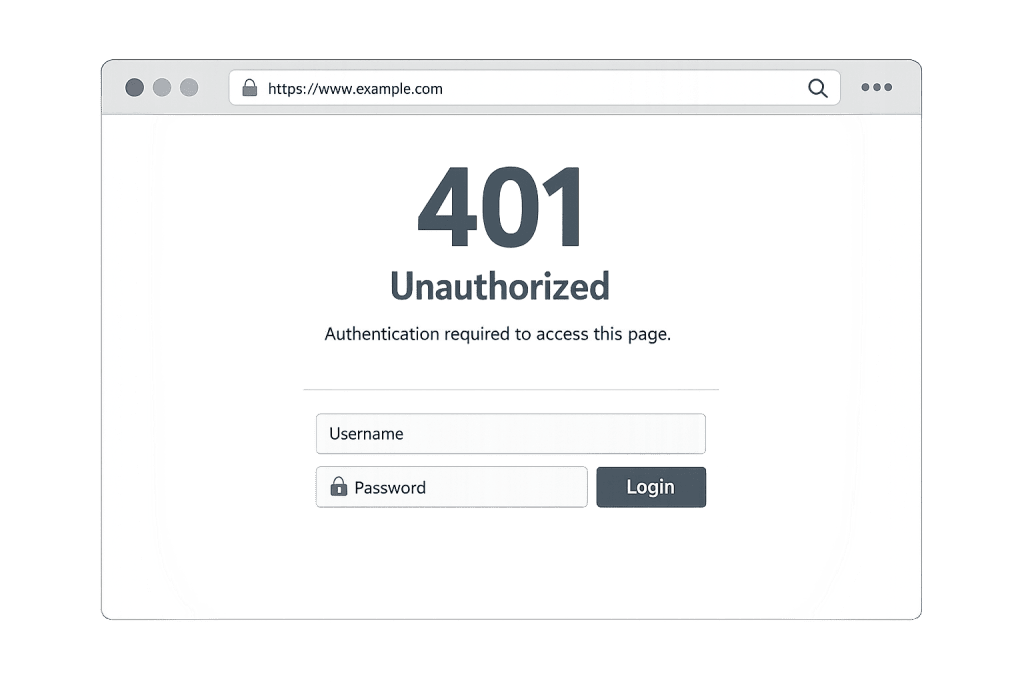
How 401 Unauthorized Works
The HTTP authentication flow works through a structured exchange:
- Browser requests a protected resource — A visitor or application tries to access a page or endpoint that requires authentication.
- Server responds with 401 — The server returns a 401 status code along with a
WWW-Authenticateheader specifying what type of authentication is required (Basic, Bearer token, Digest, etc.). - Browser prompts for credentials — The browser shows a login dialog, or the application includes credentials in its next request.
- Server validates and responds — If the credentials are correct, the server delivers the resource. If still wrong, another 401 is returned.
On WordPress sites, 401 errors most commonly appear in these contexts:
- Incorrect login credentials — Wrong username, password, or both on
wp-login.php. This is the most straightforward cause. - Expired browser session or cookies — An authentication session that has timed out requires the user to log in again. Stale cookies can cause repeat 401 prompts even with correct credentials.
- Security plugin conflicts — Security plugins implementing login protection, two-factor authentication, or rate limiting can block legitimate authentication attempts, especially after an update changes the plugin’s rule set.
- Corrupted
.htaccessfile — Invalid rules in.htaccesscan apply authentication requirements to pages that shouldn’t have them, or disrupt existing authentication flows unexpectedly. - REST API authentication failures — WordPress’s REST API requires authentication for protected endpoints. Plugins or integrations making REST requests with missing, expired, or rotated credentials receive 401 responses.
- Moved or renamed login URL — If a security plugin has relocated the WordPress login URL and a user navigates to the default
/wp-admin/address, a 401 may appear.
Check This First — 2-Minute Diagnostic
- Verify your credentials — Double-check username and password, including caps lock. Try a password reset before assuming the error is technical.
- Clear browser cookies and retry — Stale authentication cookies are a frequent silent cause. Clear cookies for your site’s domain and try logging in fresh.
- Try an incognito window — A clean session with no stored cookies rules out browser-side authentication state as the cause.
- Check if others can log in — Ask a colleague to attempt login. If they can access the site, the issue is isolated to your browser session or account.
- Check for a recent plugin update — Did a security plugin update recently? Security plugins can change authentication behavior without obvious warnings. Deactivating it via SFTP is the next step if you suspect this.
Purpose & Benefits
1. Faster Lockout Resolution Without Guessing
For administrators who encounter a 401 on their own WordPress login, understanding the likely causes enables faster diagnosis. The issue is almost always one of a short list — wrong credentials, a recently updated security plugin creating a conflict, or a corrupted .htaccess file applying authentication rules incorrectly. Knowing which to check first eliminates the guesswork that extends lockout time from minutes to hours.
2. Proper REST API Security Configuration
WordPress REST API endpoints returning 401 responses for unauthenticated requests are working correctly — they’re protecting data that shouldn’t be publicly accessible. Understanding 401 responses helps developers and site managers correctly configure authentication for integrations, ensuring that external tools and headless setups authenticate properly rather than failing silently. Our WordPress development team handles these API configurations for clients regularly.
3. Recognizing and Resolving Security Plugin Conflicts
Security plugins that implement login protection, two-factor authentication, or rate limiting can generate 401 errors when they misidentify legitimate requests as threats. Recognizing this pattern helps you diagnose plugin conflicts quickly — particularly after an update — rather than assuming a server or hosting infrastructure problem. The fix is usually a whitelist entry or a plugin rollback, not a hosting ticket.
Examples
1. Administrator Locked Out After Security Plugin Activation
A site owner activates a new security plugin that implements HTTP authentication on the WordPress admin directory. Their own login now returns a 401 — the plugin is applying authentication at the server level, before WordPress even loads its login form. Resolution requires connecting via SFTP to deactivate the plugin by renaming its folder in /wp-content/plugins/. After deactivation and login, the plugin can be reconfigured to exclude the site owner’s IP or adjusted to work with WordPress’s native authentication instead of overlapping with it.
2. REST API Integration Fails After a Password Change
A third-party email marketing tool connects to WordPress via the REST API, authenticating with stored application credentials. After the site owner changes their main WordPress password, the integration begins returning 401 errors — the stored application password tied to the old account state is no longer valid. The fix: navigate to Users → Profile → Application Passwords in WordPress, generate a new application password, and update the credential in the marketing tool’s settings. REST API integrations should always use application passwords rather than the main account password.
3. Security Plugin Rate-Limits a Legitimate Administrator
After several failed login attempts — from an administrator who forgot their password after a vacation — a security plugin triggers a lockout and returns 401 responses for all subsequent login attempts from that IP address. The administrator’s IP is now temporarily blocked. Resolution options include: waiting out the lockout period, temporarily adding the IP to the security plugin’s whitelist via the hosting control panel or another admin account, or disabling the plugin temporarily via SFTP to regain access.
Common Mistakes to Avoid
- Confusing 401 with 403 — A 401 means the server needs you to authenticate. A 403 Forbidden means you’re authenticated but still don’t have permission. The troubleshooting paths diverge completely. If you’re already logged in as an administrator and seeing a 403, the problem is permissions, not credentials.
- Disabling security plugins as the first response — If a security plugin is generating 401 errors, the instinct is to disable it immediately. But if the 401 is a legitimate response to a brute-force attack, disabling the plugin removes real protection while the attack continues. Diagnose before disabling.
- Leaving REST API endpoints open to resolve 401 errors — Seeing 401 errors on protected REST API endpoints is not a problem — it’s the server working correctly. Attempting to “fix” these by removing authentication requirements exposes sensitive data unnecessarily.
- Overlooking
.htaccessafter updates or migrations — Plugin updates, server migrations, and permalink changes can modify or corrupt.htaccess, adding authentication rules where none were intended. Checking.htaccessis a standard step in 401 troubleshooting that gets skipped more often than it should. - Not documenting which application passwords belong to which integration — WordPress allows multiple application passwords per user, but they’re not labeled automatically. When a 401 appears on an integration, knowing which application password it uses — and being able to revoke and regenerate just that one — is much faster than troubleshooting blind.
Best Practices
1. Use Application Passwords for All Third-Party Integrations
WordPress includes a built-in Application Passwords feature that generates dedicated credentials for external tools, plugins, and integrations. These passwords are separate from your main login credentials and can be revoked individually without affecting other access. Using application passwords prevents REST API 401 errors when your main password changes and limits the blast radius if an integration credential is ever compromised.
// Application passwords are managed in the WordPress admin, not code.
// Access via: Users → Your Profile → Application Passwords
// Generate a unique password for each integration (e.g., "Mailchimp API", "Zapier")
// Copy the generated password immediately — it's only shown once.
2. Maintain SFTP Access Independent of WordPress Dashboard
When a 401 error locks you out of the WordPress dashboard, you need a recovery path that doesn’t go through the blocked login page. Ensure SFTP credentials are documented and accessible separately from your WordPress admin credentials. With SFTP access, you can deactivate plugins by renaming their folders, edit .htaccess directly, and restore access without needing an active admin session.
# Via SFTP: deactivate all plugins by renaming the plugins directory
# Connect to your server via SFTP client (FileZilla, Cyberduck, etc.)
# Navigate to: /wp-content/
# Rename: plugins → plugins-disabled
# This deactivates all plugins without WordPress admin access
# Rename back to "plugins" after login to re-enable
3. Test Authentication After Every Security Plugin Update
Security plugins — especially those managing login protection, two-factor authentication, or REST API access — can change authentication behavior with each update. After any security plugin update, verify that you can log into WordPress normally, that REST API integrations are still functioning, and that any password-protected pages or directories are behaving as expected. A five-minute check after each update prevents 401 errors from silently accumulating.
4. Set Up Two-Factor Authentication Carefully
Two-factor authentication (2FA) adds a meaningful security layer to WordPress logins. However, 2FA plugins that are configured incorrectly or applied to server-level authentication (rather than WordPress-level) can generate 401 errors that lock out administrators. Always test 2FA configuration in a non-admin account before applying it to the primary administrator account, and ensure you have a backup access method before enabling it.
5. Monitor REST API 401 Responses in Error Logs
Review your server error logs and any REST API monitoring for patterns of 401 responses on endpoints that should be publicly accessible. A page or endpoint returning 401 unexpectedly — not on a protected resource — signals a misconfigured security rule or an unintended authentication requirement. Catching this early, before it affects integrations or content delivery, is much simpler than tracing it after the fact.
Frequently Asked Questions
What causes a 401 Unauthorized error most often?
On WordPress sites, the most frequent causes are incorrect login credentials, expired session cookies, and security plugin conflicts. For REST API 401 errors, the most common cause is outdated or rotated application passwords — the integration is authenticating with credentials that are no longer valid. Start by clearing browser cookies and retrying. If that doesn’t work, check whether a security plugin was recently updated.
How do I fix a 401 Unauthorized when locked out of wp-admin?
Connect to your site via SFTP or your hosting file manager. Rename /wp-content/plugins/ to /wp-content/plugins-disabled/ to deactivate all plugins at once. If login works after that, a plugin is causing the 401 — rename the folder back, then reactivate plugins one at a time to identify the culprit. If you’re still locked out, check .htaccess for any HTTP authentication rules (AuthType Basic, Require valid-user) that shouldn’t be there.
Can a 401 Unauthorized error hurt my SEO?
A 401 on a page that should be publicly accessible prevents search engines from crawling and indexing that page. If Googlebot encounters a persistent 401 on important pages, those pages will not appear in search results. Monitor Google Search Console’s Coverage report for unexpected 401 errors on pages that should be publicly indexed. A 401 on properly protected pages (admin areas, private content) has no negative SEO impact.
What is the difference between a 401 Unauthorized and a 403 Forbidden?
A 401 means: “I don’t know who you are — please provide credentials.” A 403 Forbidden means: “I know who you are, but you don’t have permission to access this.” If you’re not authenticated and you get a 401, logging in with valid credentials may resolve it. If you’re already logged in as an administrator and you get a 403, the problem is with permission settings or WordPress hardening rules — not authentication.
Why does my 401 error only appear on some pages?
This pattern typically indicates a plugin or server rule applying authentication requirements selectively. A security plugin may be protecting specific URL patterns, or an .htaccess rule may be applying HTTP Basic authentication to a specific directory. Check your security plugin settings and .htaccess file for rules that might be targeting the affected URLs. The pages generating 401 errors should give you a clear pattern to investigate.
Related Glossary Terms
- 400 Bad Request
- 403 Forbidden
- 404 Error
- 405 Method Not Allowed
- 429 Too Many Requests
- WordPress Hardening
- Two-Factor Authentication (2FA)
- SFTP (Secure File Transfer Protocol)
How CyberOptik Can Help
Still broken? Our team fixes WordPress errors like this in under 30 minutes for maintenance clients. A 401 lockout — whether from a security plugin conflict, a misconfigured .htaccess, or a REST API credential issue — requires methodical diagnosis with file-level access. Our WordPress maintenance plans include security configuration reviews, plugin conflict resolution, and rapid lockout recovery so your team can get back to work without waiting on a support ticket queue. Contact us immediately if you’re locked out or learn about our WordPress maintenance services.