Severity: Major · Fix time: Under 5 min · Skill level: Beginner
“Unable to create directory wp-content/uploads/[year]/[month]; is its parent directory writable by the server?” is a WordPress error that appears when you attempt to upload a file and WordPress cannot create the year/month subfolder inside the uploads directory. The cause is almost always file permission settings — specifically, the wp-content/uploads directory is not writable by the web server user. Setting the correct permissions resolves this in under five minutes.
This error blocks all media uploads — affecting your media library, WooCommerce product images, and any plugin that writes to the uploads folder. Front-end visitors are unaffected, but no new files can be added until the permission is corrected.
Need a quick map of every WordPress error? See our 70+ WordPress Errors Guide → for a categorized reference of every common WordPress issue.
[Image: WordPress media upload screen showing the “Unable to Create Directory wp-content/uploads” error message with the writable server warning]
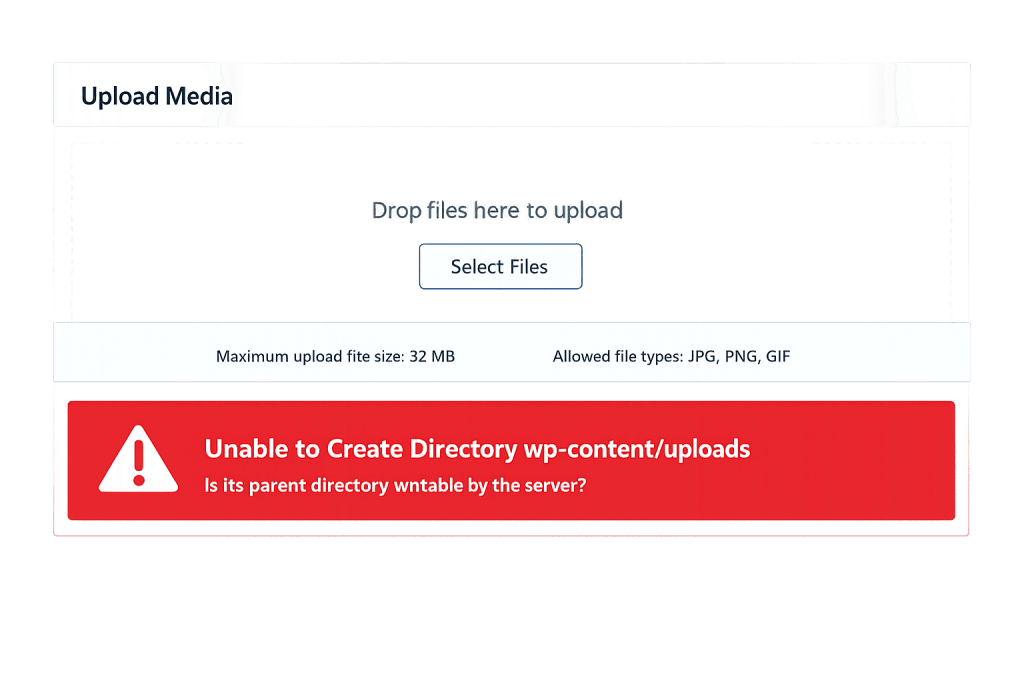
How Unable to Create Directory Works
When you upload a file through the WordPress Media Library or any plugin that handles file uploads, WordPress needs to:
- Determine the destination path — typically
wp-content/uploads/2024/11/for a file uploaded in November 2024 - Check whether the year and month subdirectories already exist
- Create them if they don’t exist
- Write the uploaded file into the new directory
Step 3 fails when the web server process — running as a system user like www-data, apache, or nobody — does not have write permission on the wp-content/uploads directory. Without write permission on the parent directory, the web server cannot create subdirectories inside it.
This can happen for several reasons:
- Incorrect permissions were set during site migration — Moving files via SFTP or cPanel sometimes resets permissions to more restrictive values than WordPress requires.
- A security audit or hardening plugin overwrote permissions — Some WordPress hardening tools set all directories to 755 and all files to 644, which is correct for most directories but can occasionally be applied in ways that affect server user ownership.
- File ownership changed — If the uploads directory is owned by a different system user than the one running your web server (e.g., root instead of www-data), even correct numeric permissions won’t grant the web server write access.
- Disk space exhausted — In rare cases, the server has no space left on the filesystem. WordPress cannot create the directory because the filesystem itself is full. This produces the same error message.
- Incorrect
UPLOADSconstant in wp-config.php — If a customUPLOADSpath was defined inwp-config.phpand that path doesn’t exist or has wrong permissions, this error appears even when the defaultwp-content/uploads/directory is fine.
Related issue: if you’re seeing the file upload appear to start but fail partway through with a different message, check Image Upload Failed or HTTP Error Uploading Images instead — those cover upload failures that aren’t about directory creation.
Check This First — 2-Minute Diagnostic
- Verify in Settings → Media — Go to Settings → Media in wp-admin. Look at the “Store uploads in this folder” field. It should say
wp-content/uploads. If it shows a custom path, verify that path exists and has correct permissions. - Check disk space — In cPanel, check the Disk Usage meter. If it shows 100% or near 100%, disk space exhaustion may be the real cause.
- Check the exact error message path — The error shows the specific directory path WordPress tried to create. That path tells you exactly which directory to inspect for permissions.
- Try the permission fix first — For 90% of cases, setting the uploads folder to 755 via your hosting control panel’s File Manager resolves this immediately.
- Confirm your hosting setup — On shared hosting, the file manager or FTP method below is the right approach. On a VPS or dedicated server, you may also need to check file ownership via SSH.
Purpose & Benefits
1. Media Uploads Are Central to WordPress Publishing
Every image on your site passes through wp-content/uploads. Product photos, blog post images, PDF downloads, team headshots — all of them are stored here. When this directory becomes unwritable, your entire media workflow stops. Understanding that this is a permissions issue — not a WordPress bug or a database problem — means you can resolve it quickly without involving your hosting provider in most cases.
2. Correct Permissions Are a Security Balance, Not Just a Fix
The standard WordPress permission model (755 for directories, 644 for files) balances accessibility with security. Setting permissions to 777 to “fix” this error opens every file in that directory to modification by any process on the server — a meaningful security risk on shared hosting environments. Our WordPress maintenance services include file permission audits that ensure your site runs with the most secure permissions that still allow normal operation.
3. This Error Also Affects Plugins, Themes, and Backups
Any plugin that writes to wp-content/uploads will fail with the same error — form submission attachments, WooCommerce download files, backup plugins storing archives in uploads, PDF generators, and image optimization plugins that cache transformed files. Fixing the permission once fixes all of these simultaneously.
Examples
1. Fixing Permissions via cPanel File Manager (Shared Hosting)
This is the most common scenario: a site on shared hosting where the uploads folder has incorrect permissions set during a migration.
- Log into your hosting control panel (typically cPanel).
- Open File Manager and navigate to your WordPress root directory (
public_htmlor your site’s subfolder). - Navigate into
wp-content/. - Right-click on the
uploadsfolder and select Change Permissions (or “Chmod”). - Set the permissions to 755: Owner = Read/Write/Execute, Group = Read/Execute, Other = Read/Execute.
- Check “Recurse into subdirectories” and select “Apply to directories only.”
- Click OK.
- Return to WordPress and try uploading a file again.
# If you have SSH access, the equivalent command is:
# Sets all directories inside wp-content/uploads to 755
find /path/to/wp-content/uploads -type d -exec chmod 755 {} \;

# Sets all files inside wp-content/uploads to 644
find /path/to/wp-content/uploads -type f -exec chmod 644 {} \;
2. Fixing File Ownership on a VPS or Dedicated Server
On a VPS, the uploads directory may be correctly set to 755 but owned by root instead of the web server user. The web server (typically www-data on Ubuntu/Debian, or apache on CentOS) cannot write to a directory owned by root even with 755 permissions.
# Check current ownership of the uploads directory
ls -la /path/to/wp-content/

# If uploads is owned by root, change ownership to the web server user
# Replace www-data with your actual web server user (may be apache, nobody, etc.)
sudo chown -R www-data:www-data /path/to/wp-content/uploads/

# Confirm the change
ls -la /path/to/wp-content/
After changing ownership, test an upload immediately.
3. Verifying and Fixing the Uploads Path in wp-config.php
If the File Manager shows correct permissions but the error persists, check wp-config.php for a custom uploads path. Open the file via SFTP or File Manager and search for UPLOADS:
// Look for this line in wp-config.php
// If it exists and points to a non-existent or restricted path, update or remove it
define( 'UPLOADS', 'wp-content/uploads' ); // This is the default — safe to keep or remove

// A custom path that doesn't exist would look like:
// define( 'UPLOADS', 'files/media' ); // Only valid if /files/media/ directory exists with correct permissions
If the path is wrong, correct it. If the constant isn’t present, the issue is elsewhere.
Common Mistakes to Avoid
- Setting permissions to 777 — 777 grants write access to every process on the server, not just WordPress. On shared hosting, this means other accounts on the same server could potentially modify your uploads. Always use 755 for directories and 644 for files.
- Only fixing the uploads directory root without recursing into subdirectories — Year and month subdirectories inside
wp-content/uploads/inherit permissions from the parent when they’re created, but existing subdirectories may still have wrong permissions. Apply the permission fix recursively. - Assuming this is a WordPress bug — This error is always an environment issue — permissions, ownership, or disk space. Reinstalling WordPress or updating plugins will not fix it.
- Not checking disk space — Full disk space produces this exact error message but requires a completely different fix (deleting old files or upgrading hosting storage). Check disk usage before making any permission changes if you’re on a heavily used server.
Best Practices
1. Set Directories to 755, Files to 644 — Every Time
The correct permission model for WordPress is 755 for all directories and 644 for all files. When applying a permission fix, always apply it recursively and separately for directories vs. files — using Apply to directories only in cPanel or find -type d vs. find -type f via SSH. This prevents accidentally making files executable or giving write access beyond what WordPress needs.
2. Use SFTP or cPanel File Manager — Not FTP — for Permission Changes
Plain FTP transfers files but provides limited control over server-side permissions. SFTP clients like FileZilla or Cyberduck allow you to right-click any file or directory and set permissions numerically. cPanel’s File Manager provides the same ability through a web interface. Either is appropriate — what matters is setting 755 precisely rather than guessing with radio buttons.
Frequently Asked Questions
What causes “Unable to create directory wp-content/uploads” most often?
Incorrect directory permissions — specifically, the wp-content/uploads folder is not writable by the web server process. The standard fix is setting the directory permissions to 755. This most commonly occurs after a site migration where file permissions weren’t explicitly preserved during the transfer.
How do I fix this when locked out of wp-admin?
This error doesn’t lock you out of wp-admin. Use your hosting control panel’s File Manager or SFTP to change the wp-content/uploads directory permissions to 755 without needing a WordPress login.
Can this error hurt my SEO?
Not directly — existing images continue to display normally. The indirect impact is that you cannot add new images to new or updated content until the error is resolved. For an active publishing workflow or an e-commerce site adding new products, this is a meaningful operational blocker that affects your ability to maintain and grow your content.
Is it safe to set wp-content/uploads to 755?
Yes, 755 is the recommended setting. It allows the web server user (owner) to read, write, and create files and directories, while other users on the server can only read and execute. This is the correct security balance for an uploads directory. Setting it to 777 is unnecessary and a security risk on shared hosting.
Related Glossary Terms
- Media Library
- SFTP (Secure File Transfer Protocol)
- Image Upload Failed
- HTTP Error Uploading Images
- File Permissions Error
- wp-config
- PHP
How CyberOptik Can Help
Still broken? Our team fixes WordPress errors like this in under 30 minutes for maintenance clients. While the permissions fix itself is straightforward, persistent “Unable to Create Directory” errors sometimes point to a hosting environment that needs a deeper configuration review — ownership settings, server user mismatches, or disk space issues that keep coming back. Our WordPress maintenance services include environment audits and proactive monitoring so upload errors get caught before they interrupt your content workflow. Contact us to discuss your site or review what our maintenance plans cover.