Severity: Major · Fix time: 5–15 min · Skill level: Intermediate
A File Permissions Error in WordPress occurs when the server’s operating system denies read or write access to a file or directory because the permission settings are incorrect. WordPress needs specific permission levels to install plugins, update themes, write to the uploads folder, and modify configuration files — when those permissions are wrong, routine admin tasks fail with cryptic error messages.
Most file permission problems stem from one of two situations: files uploaded via FTP with the wrong ownership settings, or a server migration that didn’t carry permissions over correctly. The fix is almost always setting files to 644 and directories to 755 — a five-minute task once you know where to look.
Need a quick map of every WordPress error? See our 70+ WordPress Errors Guide → for a categorized reference of every common WordPress issue.
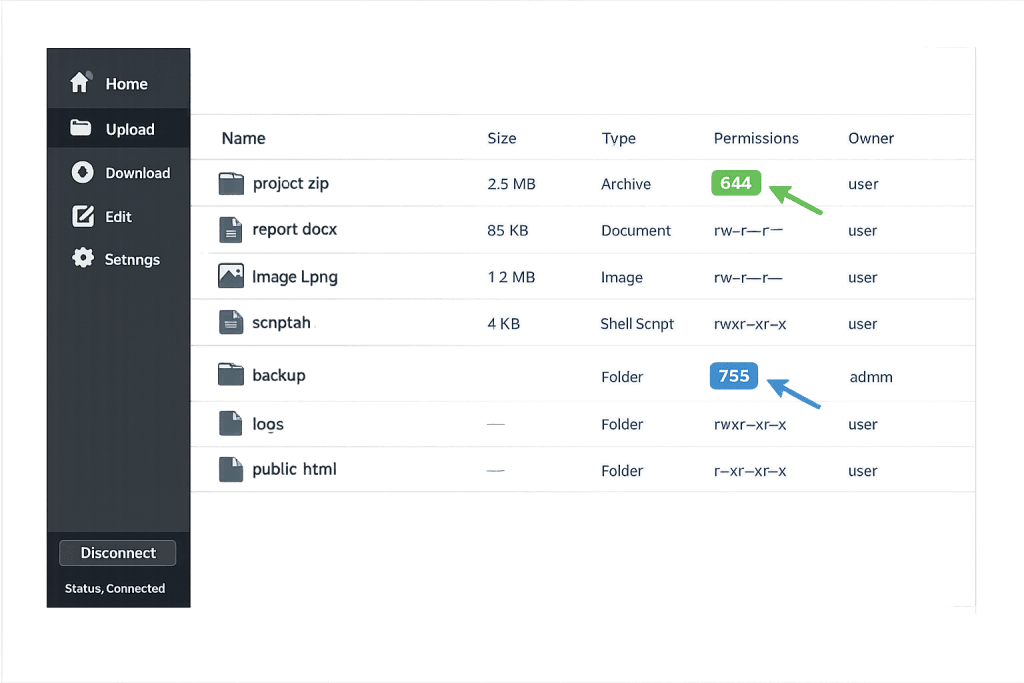
[Image: Screenshot of an SFTP client showing file permission columns with 644 and 755 values highlighted]
How File Permissions Errors Work
Every file on a Linux server has three permission layers: owner, group, and everyone else (world). Each layer controls whether that class of user can read, write, or execute the file. Permissions are expressed as a three-digit number: 755, 644, 777, and so on.
WordPress runs as a PHP process on the server. That process needs specific access to do its job:
- 644 for files — The server process can read the file but cannot execute it. Correct for PHP files, CSS, JavaScript, and configuration files.
- 755 for directories — The server process can read and traverse directories, which lets WordPress navigate the file system to install updates and save uploads.
- 600 or 640 for wp-config.php — Many security guides recommend tighter permissions on
wp-config.phpspecifically, since it contains database credentials.
The problem arises when permissions deviate from these standards. Files set to 777 (world-writable) are a security risk — any process on the server can write to them. Files set to 400 (read-only for owner) block WordPress from updating them. Directories set to 644 prevent traversal, which breaks plugin installs and file uploads.
WordPress itself will tell you when permissions are wrong: you’ll see errors like “Unable to create directory,” “Installation failed: Could not create directory,” or no error at all — just a blank result where update output should appear.
Check This First — 2-Minute Diagnostic
- Try a plugin update — Go to Dashboard → Updates and attempt to update any plugin. If it fails with “Could not create directory” or asks for FTP credentials, permissions are likely the issue.
- Check Site Health — Go to Tools → Site Health → Info → Filesystem Permissions. WordPress reports whether key directories are writable.
- Check the uploads folder — Try uploading an image via Media → Add New. If uploads fail but dashboard updates work, the issue is isolated to
/wp-content/uploads/. - Connect via SFTP — Use SFTP to check the current permissions on
/wp-content/,/wp-content/uploads/, and/wp-content/plugins/. Compare against 755. - Check file ownership — Mismatched ownership (files owned by
rootinstead of the web server user likewww-data) causes the same symptoms as wrong permissions.
Purpose & Benefits
1. Correct Permissions Keep Your Site Updatable
WordPress requires write access to install plugin and theme updates — the single most important security practice for any WordPress site. If permissions are too restrictive, you lose the ability to apply security patches through the dashboard. Our WordPress maintenance plans include regular environment checks that catch permission drift before it blocks updates.
2. Tight Permissions Are a Real Security Layer
Setting files to 644 and directories to 755 is not just convention — it is a genuine security control. World-writable files (777) allow any process running on a shared server to modify your WordPress installation. Malware frequently targets 777 permissions to inject code into theme and plugin files. Proper permissions limit the blast radius if another site on the server is compromised.
3. Permission Errors Expose Deeper Hosting Issues
When file permissions break without an obvious cause — no recent FTP upload, no server migration — it often signals a deeper problem: a security plugin that modified .htaccess and cascaded changes, a server update that changed the web process user, or a misconfigured deployment pipeline. Diagnosing the root cause prevents the same error from recurring.
Examples
1. Plugin Installation Fails After a Server Migration
A business moves its WordPress site to a new hosting provider. Everything appears to work until the site owner tries to install a new plugin — WordPress asks for FTP credentials or shows “Installation failed: Could not create directory.” The migration copied files as root rather than the web server user, leaving /wp-content/plugins/ owned by root. Connecting via SFTP and running a recursive ownership fix resolves the issue immediately.
# Fix ownership and permissions for a standard WordPress installation
# Replace www-data with your server's web process user
sudo chown -R www-data:www-data /var/www/html/wp-content/
sudo find /var/www/html/wp-content/ -type d -exec chmod 755 {} \;
sudo find /var/www/html/wp-content/ -type f -exec chmod 644 {} \;
2. Image Uploads Break After a Security Plugin Hardening
A site owner activates a security plugin and runs its “harden WordPress” feature. Afterward, uploading images fails silently. The plugin set /wp-content/uploads/ to 555 (read and execute only). Setting the uploads directory back to 755 restores uploads. The plugin’s hardening feature is better suited to directories that never need to be written to, not the uploads folder.
3. wp-config.php Permissions Block Automatic Updates
A site running WordPress automatic background updates stops updating after a server configuration change. WordPress needs to briefly write to wp-config.php during certain updates. If the file is set to 400 (owner read-only), this write fails and the update aborts. Setting wp-config.php to 644 restores automatic updates while still being reasonably secure.
Common Mistakes to Avoid
- Setting everything to 777 — World-writable permissions “fix” the error but eliminate a layer of security. Any process on the server can modify your files. This is especially dangerous on shared hosting.
- Fixing permissions without checking ownership — A file owned by root with 755 permissions still blocks the web server user. Confirm the correct owner before adjusting chmod values.
- Using recursive chmod on all files, not just directories — Running chmod 755 on all files (not just directories) makes PHP files executable, which is unnecessary. Use separate commands for files (644) and directories (755).
- Ignoring wp-config.php —
wp-config.phpcontains your database credentials. Leave it at 644 at minimum, or tighten to 640 or 600. Never set it to 777.
Best Practices
1. Apply the Standard Permission Set After Every Migration
Any time you move a WordPress site, run a permission reset immediately. Set all files to 644 and all directories to 755 via SFTP or your hosting file manager. Do this before testing anything else.
# Standard WordPress permission reset from your WordPress root
find . -type f -exec chmod 644 {} \;
find . -type d -exec chmod 755 {} \;
chmod 640 wp-config.php
2. Use FS_METHOD in wp-config.php
If WordPress prompts for FTP credentials when installing updates, telling WordPress to use direct file access is the fastest fix. This works when the web server user already owns the WordPress files.
// Tell WordPress to write files directly without FTP
define('FS_METHOD', 'direct');
3. Lock Down wp-config.php
Tighten wp-config.php permissions beyond the default. On servers where the web user owns the file, 640 or 600 prevents other processes from reading your credentials.
# Restrict wp-config.php access
chmod 640 wp-config.php
4. Check Site Health Regularly for Permission Warnings
WordPress 5.2+ includes a Site Health tool that reports on filesystem permissions under Tools → Site Health → Info → Filesystem Permissions. Schedule a monthly check. Catching permission drift proactively means you fix it on your schedule, not when a plugin update breaks.
Frequently Asked Questions
What causes file permissions errors in WordPress most often?
The most common causes are FTP uploads that set incorrect permissions, server migrations that change file ownership, and security plugin hardening routines that over-restrict directories WordPress needs to write to. Shared hosting environment changes — a host updating server configuration — can also affect permissions without any action on your part.
How do I fix file permissions when locked out of wp-admin?
Connect via SFTP and manually set the correct permissions on /wp-content/ and its subdirectories. Most hosting providers also offer a File Manager in the control panel where you can right-click any directory and set permissions without an SFTP client.
Can file permissions errors hurt my SEO?
Indirectly, yes. If permissions block updates, your site may run outdated code with known security vulnerabilities, which can lead to a site compromise that Google flags as harmful. Correct permissions are part of a healthy, well-maintained site.
What is the difference between 755 and 777 permissions?
755 allows the file owner to read, write, and execute; the group and others can only read and execute. 777 allows everyone to read, write, and execute. On shared hosting, 777 means any other site on the same server can write to your files. 755 is correct for WordPress directories.
Does WordPress automatically fix permission errors?
No. WordPress can detect and report permission problems via Site Health and error messages, but it cannot change its own file permissions. Fixes must be applied at the server level via SFTP or the hosting file manager.
Related Glossary Terms
- SFTP (Secure File Transfer Protocol)
- wp-config
- .htaccess
- 500 Internal Server Error
- White Screen of Death (WSOD)
- PHP
- Image Upload Failed
- WordPress Hosting
How CyberOptik Can Help
Still broken? Our team fixes WordPress errors like this in under 30 minutes for maintenance clients. File permission issues look simple in a tutorial but get complicated when ownership, server configuration, and security plugin settings all interact. Our WordPress maintenance plans include environment health checks that catch permission drift before it blocks your updates or uploads. Contact us and we’ll take a look.