Severity: Major · Fix time: 15–60 min · Skill level: Advanced
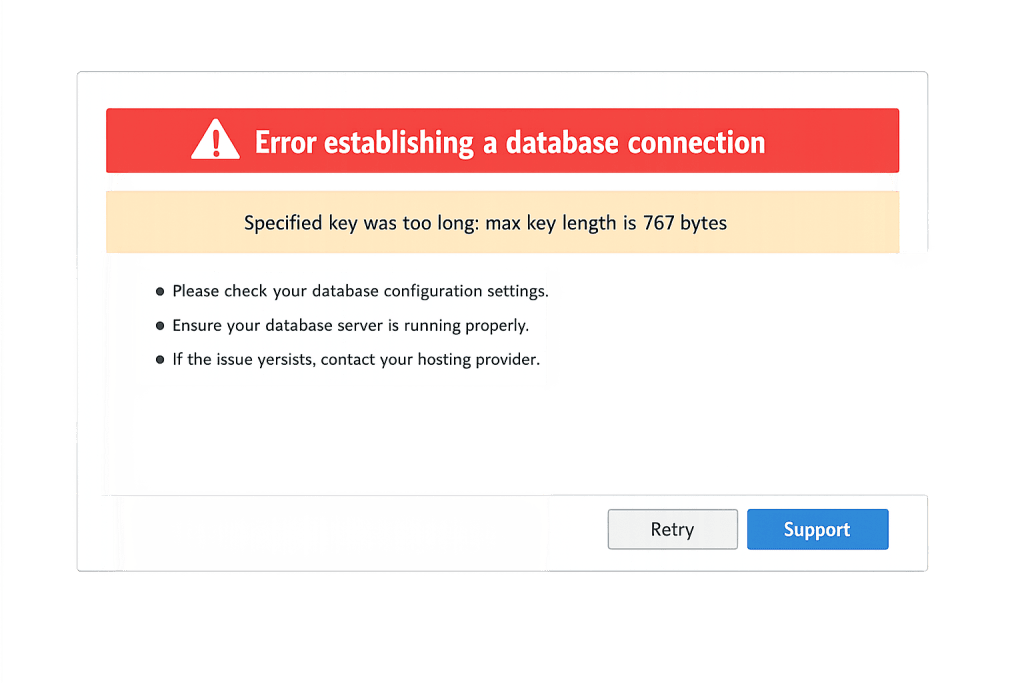
The Specified Key Was Too Long error is a MySQL or MariaDB database error that prevents WordPress from completing table creation or modification during installation, migration, or plugin activation. The full message reads: Specified key was too long; max key length is 767 bytes. It appears because the index WordPress is trying to create uses a character set where each character occupies more bytes than the InnoDB format supports on older database configurations.
This error is most common when WordPress attempts to create tables using utf8mb4 character encoding — which requires 4 bytes per character — on a database server running MySQL 5.6 or older with default InnoDB settings, where the index key length cap is 767 bytes. A VARCHAR(255) column in utf8mb4 requires 1,020 bytes per index — nearly 33% over the limit.
Need a quick map of every WordPress error? See our 70+ WordPress Errors Guide → for a categorized reference of every common WordPress issue.
[Image: WordPress installation or database error screen showing the “Specified key was too long” message]
How the Specified Key Was Too Long Error Works
MySQL’s InnoDB storage engine enforces a maximum index prefix length: 767 bytes by default on older configurations. This limit exists because the on-disk format used by older InnoDB versions allocates fixed-size index blocks.
The math is straightforward:
utf8(MySQL’s 3-byte UTF-8 variant):VARCHAR(255)× 3 bytes = 765 bytes — just under the limitutf8mb4(true 4-byte UTF-8, supports emoji):VARCHAR(255)× 4 bytes = 1,020 bytes — 253 bytes over the limit
WordPress adopted utf8mb4 as its default character set in version 4.2 to support emoji and the full Unicode character set. On MySQL 5.7.7+ or MySQL 8.0, this isn’t a problem because innodb_large_prefix is enabled by default, extending the maximum key length to 3,072 bytes. On older server configurations, the 767-byte wall is a hard stop.
Scenarios that trigger this error:
- Installing WordPress on shared hosting running MySQL 5.5 or 5.6 with default InnoDB settings
- Migrating a WordPress database from a modern server to an older one
- Activating a plugin that creates new database tables using
utf8mb4columns withVARCHAR(191)or larger indexes - Running a WordPress database upgrade on a server that wasn’t updated alongside the software
Check This First — 2-Minute Diagnostic
- Confirm your MySQL version — In phpMyAdmin, click your server name and check the version, or run
SELECT VERSION();in the SQL tab. - Check the InnoDB file format — Run
SHOW VARIABLES LIKE 'innodb_file_format';. If the result is “Antelope” (not “Barracuda”), you’re on the restricted format. - Check innodb_large_prefix — Run
SHOW VARIABLES LIKE 'innodb_large_prefix';. If OFF or the variable doesn’t exist, you need to enable it. - Identify the failing table — The error message usually names the table. Note it — you may need to create it manually with a reduced key length.
- Check DB_CHARSET in wp-config.php — If it’s
utf8mb4, the issue is server-side, not WordPress-side.
Purpose & Benefits
1. Understanding This Error Prevents Data Loss During Migrations
A failed table creation during migration can leave the database in a partial state — some tables created, others missing. Understanding the root cause (InnoDB key length restriction) means you address it before running the migration rather than discovering half your tables didn’t import. Proactively checking MySQL version compatibility prevents the Error Establishing a Database Connection and related errors that follow a botched import.
2. utf8mb4 Is Non-Negotiable for Modern WordPress Sites
WordPress uses utf8mb4 because it supports the full Unicode character set, including emoji and non-Latin scripts that utf8 silently discards or corrupts. Downgrading to utf8 to avoid this error is not a valid long-term solution — it creates a different class of database problems. The correct fix is making the server support utf8mb4 properly.
3. MySQL Version Compatibility Signals Infrastructure Risk
A server running MySQL 5.5 or 5.6 is well past end-of-life and no longer receives security patches. This error is often a useful signal: the underlying infrastructure needs an upgrade, not just a configuration workaround. Our WordPress maintenance plans include infrastructure reviews that flag these compatibility gaps before they cause installation or migration failures.
Examples
1. Fresh WordPress Installation on Shared Hosting Fails
A business owner installs WordPress through the automated installer on a shared hosting plan running MySQL 5.6. The installation stops partway through with the “Specified key was too long” error. Quickest fix without server access: ask the hosting provider to enable innodb_large_prefix server-side, or add the following to wp-config.php as a temporary workaround:
// Temporary workaround — only if you cannot upgrade MySQL or enable innodb_large_prefix
// Revisit once MySQL is upgraded
define('DB_CHARSET', 'utf8');
define('DB_COLLATE', 'utf8_unicode_ci');
2. Plugin Activation Fails With Key Length Error
A WooCommerce extension creates a database table on activation. On MySQL 5.6, it fails with the key length error. The fix enables innodb_large_prefix in the MySQL server configuration:
-- Run in phpMyAdmin SQL tab — requires server-level access (MySQL 5.6)
SET GLOBAL innodb_file_format = Barracuda;
SET GLOBAL innodb_file_per_table = ON;
SET GLOBAL innodb_large_prefix = ON;
Add these to my.cnf to persist across server restarts:
# Add to [mysqld] section in /etc/mysql/my.cnf
innodb_file_format = Barracuda
innodb_file_per_table = ON
innodb_large_prefix = ON
3. Migration From Modern Host to Legacy Server Breaks Database
A site is migrated from MySQL 8.0 to MySQL 5.6. Rather than downgrading the character set, add ROW_FORMAT=DYNAMIC to CREATE TABLE statements in the SQL dump before importing. This enables extended key length on MySQL 5.6 when used with Barracuda format and innodb_large_prefix.
WordPress core itself uses VARCHAR(191) for indexed columns — exactly 191 × 4 bytes = 764 bytes, staying just under the 767-byte limit. Following this pattern in any custom table creation keeps compatibility with older MySQL configurations:
-- Best practice: VARCHAR(191) for indexed utf8mb4 columns
CREATE TABLE `wp_custom_table` (
  `id` bigint(20) unsigned NOT NULL AUTO_INCREMENT,
  `unique_key` varchar(191) NOT NULL DEFAULT '',
  PRIMARY KEY (`id`),
  UNIQUE KEY `unique_key` (`unique_key`)
) ENGINE=InnoDB DEFAULT CHARSET=utf8mb4 COLLATE=utf8mb4_unicode_ci;
Common Mistakes to Avoid
- Permanently switching to utf8 to avoid the error — Switching charset to
utf8means WordPress silently strips emoji, certain CJK characters, and other 4-byte Unicode characters. This creates data integrity problems harder to diagnose than the original error. - Not persisting innodb_large_prefix in my.cnf — The
SET GLOBALcommands take effect immediately but reset on MySQL restart. Always add them tomy.cnformy.inito persist the settings. - Not applying ROW_FORMAT=DYNAMIC to existing tables — Enabling
innodb_large_prefixonly helps tables usingROW_FORMAT=DYNAMIC. Existing Antelope-format tables remain subject to the 767-byte limit until altered. - Running MySQL 5.6 fixes on MySQL 8.0 — MySQL 8.0 removed
innodb_file_formatandinnodb_large_prefixentirely. Setting them on 8.0 generates a different error. On MySQL 8.0, extended key length is always enabled.
Best Practices
1. Verify MySQL Version Before Any Migration or Installation
Before migrating or installing WordPress on a new server, run a quick compatibility check:
-- Check MySQL version and InnoDB settings before migration
SELECT VERSION();
SHOW VARIABLES LIKE 'innodb_large_prefix';
SHOW VARIABLES LIKE 'innodb_file_format';
If innodb_large_prefix is OFF or MySQL is below 5.7.7, apply the Barracuda configuration before importing WordPress tables.
2. Use VARCHAR(191) for Indexed utf8mb4 Columns in Custom Code
If you write custom database queries or plugins that create tables, follow WordPress core’s convention. 191 × 4 bytes = 764 bytes — just under the 767-byte limit on older InnoDB configurations.
3. Upgrade MySQL as the Durable Long-Term Fix
The most durable solution is running MySQL 5.7.7+ or MySQL 8.0. Both support utf8mb4 with extended key lengths by default, eliminating the Barracuda/innodb_large_prefix requirement entirely. If your hosting provider still runs MySQL 5.5 or 5.6, request an upgrade or evaluate a host that maintains current software versions.
Frequently Asked Questions
What causes the “specified key was too long” error most often?
A MySQL server running version 5.6 or older without innodb_large_prefix enabled. When WordPress tries to create a VARCHAR(255) column with a unique index in utf8mb4, the 4-bytes-per-character requirement pushes the index beyond the 767-byte InnoDB limit. Modern MySQL (5.7.7+ and 8.0) doesn’t have this problem.
How do I fix this when locked out of wp-admin?
If WordPress installation failed partway through, connect to your database via phpMyAdmin and run the SET GLOBAL commands to enable Barracuda and innodb_large_prefix. Then re-run the WordPress installation. On shared hosting without direct MySQL access, contact your host and request they enable innodb_large_prefix — it’s a standard request.
What is the difference between utf8 and utf8mb4 in MySQL?
MySQL’s utf8 is a 3-byte variant that covers most common characters but cannot store 4-byte Unicode code points — including emoji, many Tibetan and Mongolian characters, and some rare CJK characters. utf8mb4 is true 4-byte UTF-8 that covers the full Unicode standard. WordPress switched to utf8mb4 in version 4.2 to stop silently discarding characters users legitimately want to store.
Does this error affect MariaDB as well?
Yes. MariaDB before version 10.2.2 has the same default InnoDB behavior as MySQL 5.6, with innodb_large_prefix off by default. MariaDB 10.2.2+ and 10.3+ have it enabled by default. Check your MariaDB version — 10.2.2 or later resolves the issue without manual configuration.
Can this error hurt my SEO?
Directly, no — it prevents database tables from being created, meaning WordPress either won’t install or a plugin won’t activate. The SEO impact depends on what the failed plugin provides. Fix the underlying MySQL configuration and the plugin activates normally.
Related Glossary Terms
- MySQL
- MariaDB
- Database
- Error Establishing a Database Connection
- phpMyAdmin
- wp-config
- Table Doesn’t Exist
- 500 Internal Server Error
How CyberOptik Can Help
Still broken? Our team fixes WordPress errors like this in under 30 minutes for maintenance clients. Database compatibility issues sit at the intersection of WordPress configuration and server infrastructure — requiring hands-on access to both layers. Our WordPress maintenance plans include server compatibility reviews during migrations and the technical depth to work through MySQL configuration issues without risking your data. Contact us to discuss your migration or installation.