
A database is an organized collection of data stored and accessed electronically. In the context of WordPress, the database is where virtually everything on your site lives — posts, pages, comments, user accounts, settings, theme options, and plugin data. WordPress uses a relational database management system, specifically MySQL or MariaDB, to store and retrieve this information on demand.
Every time someone visits your WordPress site, dozens of database queries run in the background to pull together the content your visitor sees. If the database is slow, misconfigured, or bloated, your pages load slowly — even if your hosting hardware is fast. Understanding what the database does and how to keep it healthy is a core part of maintaining a high-performing website.
As of 2025, MariaDB has surpassed MySQL as the most common database engine powering WordPress sites, accounting for over 53% of WordPress installations. Both engines are fully supported by WordPress and functionally similar for most website owners.
[Image: Diagram showing how WordPress themes, plugins, and users all write/read from a single MySQL/MariaDB database]
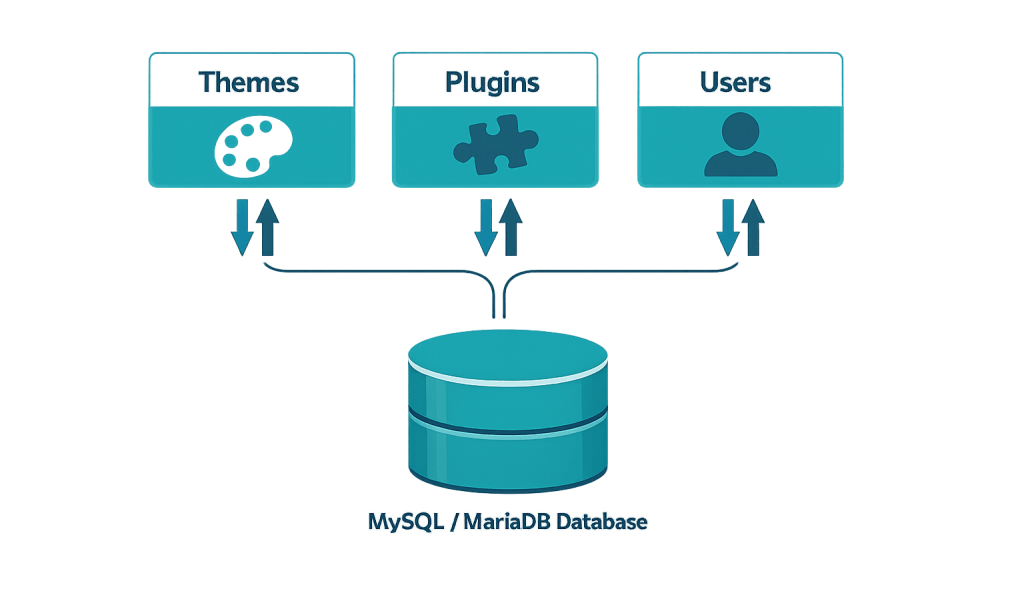
How WordPress Uses the Database
WordPress stores all dynamic content in a set of database tables. By default, a fresh WordPress installation creates 12 core tables, each with a specific purpose:
- wp_posts — Stores all posts, pages, custom post types, and revisions
- wp_postmeta — Stores metadata attached to posts (custom fields, featured images, etc.)
- wp_options — Stores site settings and plugin configuration data
- wp_users — Stores user account information
- wp_usermeta — Stores additional user data and permissions
- wp_comments and wp_commentmeta — Stores comments and comment metadata
- wp_terms, wp_term_taxonomy, wp_term_relationships — Stores categories, tags, and taxonomies
- wp_links — Legacy blogroll links
- wp_termmeta — Stores metadata for terms
Every time you publish a post, change a setting, or install a plugin, WordPress writes to these tables. Every page load reads from them. The speed of these operations directly affects your site’s performance.
Purpose & Benefits
1. Centralized Content Storage
The database gives WordPress a single source of truth for all site content. Rather than storing content in static files, WordPress retrieves it dynamically — which means you can update a page or post, and every visitor immediately sees the new version. This architecture powers the real-time editing experience inside the WordPress dashboard.
2. Enables Dynamic Functionality
Plugins and themes extend the database by adding their own tables or using existing ones to store data. A contact form plugin stores submissions in the database. A membership plugin stores subscriber records. An e-commerce setup stores orders, products, and customer data. Without the database, WordPress would be a static file system with no way to handle dynamic content.
3. Foundation for Performance Optimization
Understanding your database structure opens the door to meaningful performance improvements. A well-maintained database with clean tables and optimized queries is fundamental to fast page loads — which directly affects your PageSpeed scores and search rankings. Proper database optimization can dramatically reduce query times on sites that have been running for years and accumulated significant data bloat.
Examples
1. A Growing Blog with Revision Bloat
A business blog has published 400 posts over three years. With WordPress’s default settings, every time a post is edited and saved, a new revision is stored in the wp_posts table. After hundreds of edits, the table may contain thousands of revision rows that are never displayed to visitors but must be scanned during every database query. Cleaning up these revisions is a common and effective database optimization step.
2. Plugin Data Left Behind
A plugin installed two years ago stored configuration data and log entries in wp_options and its own custom table. After the plugin was deleted, the data remained. Over time, dozens of deactivated or removed plugins leave orphaned data behind, inflating the database and slowing down queries against the wp_options table — one of the most frequently queried tables on any WordPress site.
3. High-Traffic Site Needing Database Scaling
An e-commerce site processing hundreds of orders per day generates substantial database activity — every order, customer record, and inventory update writes to the database. At high volume, this can strain a standard shared hosting database. The solution is often moving to dedicated hosting or a managed WordPress hosting environment with optimized database configurations, or implementing caching to reduce the number of live queries.
Common Mistakes to Avoid
- Editing the database directly without a backup — Direct database edits through phpMyAdmin or similar tools bypass WordPress’s validation layer. One incorrect edit can break the site entirely. Always take a full backup before touching the database.
- Ignoring the wp_options table — This table is loaded on every page request. Plugins that write frequently to wp_options or that leave behind data after deletion can significantly slow down your site. Regular audits of this table are worth doing.
- Assuming the database doesn’t need maintenance — Unlike server files, the database accumulates bloat over time through revisions, transients, spam comments, and orphaned metadata. Without periodic database optimization, performance degrades gradually and often goes unnoticed until it becomes a real problem.
- Using outdated database software — Over 37% of WordPress sites run database software past its end-of-life date. Outdated database versions miss security patches and performance improvements. Your host should be running at least MySQL 8.0 or MariaDB 10.6.
Best Practices
1. Keep the Database Clean and Current
Schedule regular database cleanup — removing post revisions beyond a reasonable limit, clearing spam and unapproved comments, deleting transient records, and removing orphaned metadata. Plugins like WP-Optimize or WP-Sweep automate this process. Pair cleanup with your hosting provider’s recommendation for database optimization frequency.
2. Use Caching to Reduce Query Load
Not every page visit should require live database queries. Implementing a caching layer — whether through a plugin or at the server level — serves pre-built pages to repeat visitors without touching the database. For high-traffic sites, an object cache stores frequently requested database results in memory, dramatically reducing query volume.
3. Ensure Proper Backups Include the Database
A WordPress backup is incomplete without the database. Your files without the database means no content. Your database without the files means no themes or plugins. Verify your backup solution captures both, and test database restores periodically — not just file restores.
Frequently Asked Questions
Can I see my WordPress database without a developer?
Yes. Your hosting control panel typically includes access to phpMyAdmin, a visual database management tool. You can browse tables, run simple queries, and perform cleanups through the interface — though direct edits should only be made if you understand what you’re changing and have a current backup.
What’s the difference between MySQL and MariaDB for WordPress?
Both work with WordPress and are functionally similar for most use cases. MariaDB is a community-developed fork of MySQL that offers performance improvements, better concurrency handling, and fully open-source licensing. As of 2025, it powers the majority of WordPress installations. Your hosting provider typically handles which database engine your site uses.
How big should a WordPress database be?
There’s no universal answer, but a typical small-to-medium business site without major bloat might have a database under 100MB. Databases in the gigabytes are common for high-volume e-commerce or news sites. Size alone doesn’t indicate a problem — a clean, well-indexed 500MB database performs better than a bloated, unoptimized 50MB one.
Does the database affect site speed?
Directly, yes. Slow database queries are one of the primary causes of slow page load times. Uncached WordPress pages can require 20–100+ database queries per load. Query optimization, proper indexing, and reducing table bloat all contribute to faster database response times.
What happens if the database goes down?
If WordPress can’t connect to its database, visitors see a critical error message — the site is effectively down. This can happen due to server issues, incorrect database credentials in wp-config.php, or database server overload. Your hosting provider’s support team can typically diagnose and restore database connectivity quickly.
Related Glossary Terms
How CyberOptik Can Help
Site performance directly impacts your search rankings and user experience. A slow or bloated database is often the hidden culprit behind sluggish load times — and it’s something we address as part of every hosting and maintenance engagement. We offer managed WordPress hosting and speed optimization services to keep your site fast and reliable. Learn about our hosting solutions or our speed optimization services, or contact us.


