Severity: Major · Fix time: 5–15 min · Skill level: Intermediate
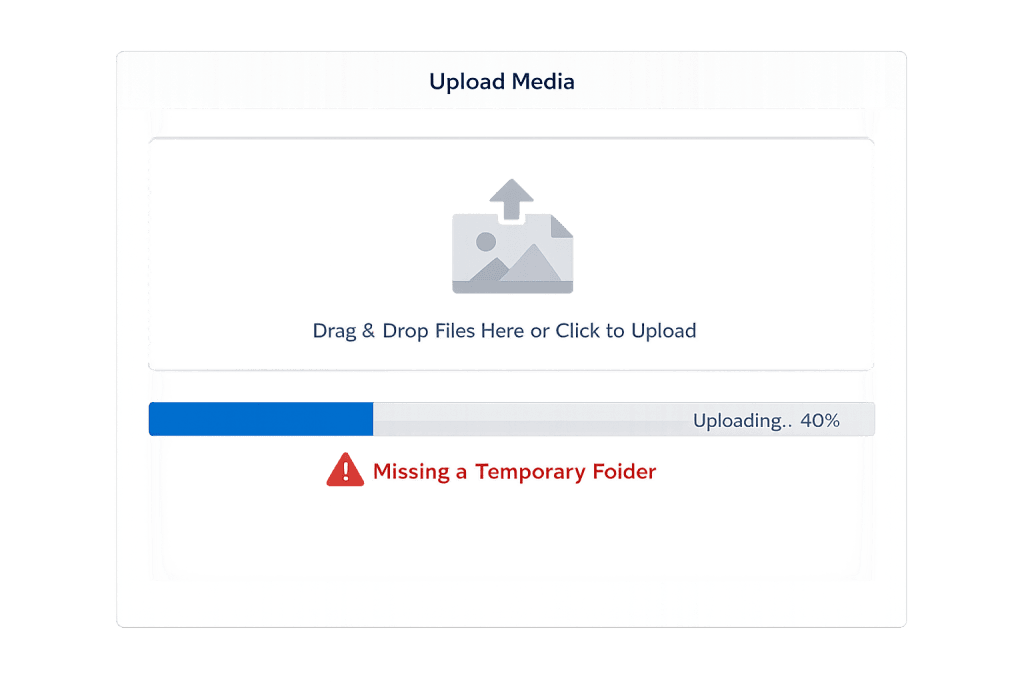
Missing a Temporary Folder is a WordPress error that appears in the Media Library when PHP cannot locate a writable temporary directory on the server. WordPress relies on PHP’s temporary directory to stage uploaded files before moving them to the permanent /wp-content/uploads/ location — if that temp directory is undefined or inaccessible, the upload fails before it even begins.
This error is most common on shared hosting environments where the server’s default PHP temporary directory (/tmp) is restricted or inaccessible to the web process. The fix involves pointing WordPress to a custom temp directory using a single constant in wp-config.php, then creating that directory with the correct permissions.
Need a quick map of every WordPress error? See our 70+ WordPress Errors Guide → for a categorized reference of every common WordPress issue.
[Image: WordPress media upload screen showing the “Missing a Temporary Folder” error message below the upload progress bar]
How the Missing Temporary Folder Error Works
When you upload a file through WordPress, PHP receives the incoming data and writes it to a staging area — the temporary directory — before WordPress moves it to its final destination. This two-step process is standard PHP behavior for file uploads.
The temporary directory is controlled by PHP’s upload_tmp_dir setting in php.ini. On most standard hosting environments, this points to /tmp. The error appears when:
- The default
/tmpdirectory is restricted — Some hardened hosting environments block web processes from accessing the global/tmpfolder for security reasons. - The
upload_tmp_diris undefined or points to a non-existent path — A misconfigured or upgraded PHP install sometimes leaves this setting blank. - The server-level
/tmpis full — Rare but possible on low-resource shared hosting; a full temp partition causes all temporary file operations to fail. - File permissions on the temp directory are wrong — If the defined temp path isn’t writable by the web server process, PHP can’t stage the file.
The error message is specific enough to diagnose quickly: WordPress surfaces “Missing a temporary folder” rather than a generic HTTP error, making the fix path straightforward.
Check This First — 2-Minute Diagnostic
- Confirm the error — Go to Media → Add New and try uploading a small image. “Missing a temporary folder” confirms the issue.
- Check PHP temp directory in Site Health — Go to Tools → Site Health → Info → Server and look for “PHP temporary directory.” If it’s blank or shows an invalid path, that’s your culprit.
- Check if a temp folder exists in /wp-content/ — Connect via SFTP and look for a
tempfolder inside/wp-content/. If you’ve already added theWP_TEMP_DIRconstant but the folder doesn’t exist, creating it is the missing step. - Check folder permissions — The temp folder needs to be writable. Permissions should be 755.
- Contact your host — Ask whether
upload_tmp_diris configured and writable. This is a one-question ticket that often resolves faster than a DIY fix.
Purpose & Benefits
1. Understanding This Error Prevents Upload Workflow Disruptions
For sites that regularly publish image-heavy content — product pages, blog posts, galleries — a broken upload workflow stops content production cold. Knowing the temp folder is the cause gets you to the right fix faster. Our WordPress maintenance plans monitor upload functionality so these errors don’t catch you off guard mid-publish.
2. The Fix Teaches You Something Useful About PHP Configuration
Resolving this error requires understanding how PHP handles file uploads at the server level — context that’s also useful for troubleshooting memory exhausted errors, file permissions errors, and other server-level issues affecting your site’s ability to process files.
3. A Custom Temp Directory Is a Reliable Long-Term Solution
Defining WP_TEMP_DIR in wp-config.php doesn’t just fix the current error — it insulates your site from server-level changes to the PHP temp directory in the future. If your host reconfigures their PHP environment or migrates your account, your WordPress installation already knows exactly where to write temporary files.
Examples
1. Defining WP_TEMP_DIR in wp-config.php
The primary fix. Connect to your site via SFTP or your hosting control panel’s File Manager, then add this line before the /* That's all, stop editing! */ comment:
// Define a custom temporary directory for WordPress file uploads
// Create the /wp-content/temp/ folder manually after adding this line
define('WP_TEMP_DIR', dirname(__FILE__) . '/wp-content/temp/');
After saving wp-config.php, create the temp folder inside /wp-content/ and set its permissions to 755. Return to the media library and retry the upload.
2. Setting upload_tmp_dir in php.ini
On servers where you have access to a custom php.ini file (common on shared cPanel hosting), you can define the PHP-level temp directory directly:
; Set the PHP upload temporary directory to a writable path
; Replace "username" with your actual hosting account username
upload_tmp_dir = /home/username/public_html/wp-content/temp/
Create the /wp-content/temp/ folder and set it to 755. This approach also benefits non-WordPress PHP processes on the same account.
3. Server-Level Resolution via Hosting Support
A WooCommerce store on a managed hosting platform starts throwing “Missing a temporary folder” errors after a server maintenance window. None of the /wp-content/ directories changed — the host reconfigured the server’s global /tmp directory during maintenance. The fastest resolution: open a support ticket asking them to verify upload_tmp_dir is configured and writable. A hosting support team with server access resolves this in minutes.
Common Mistakes to Avoid
- Adding the WP_TEMP_DIR constant without creating the folder — The constant tells WordPress where the temp directory is, but WordPress won’t create the folder for you. The upload will still fail until you manually create
/wp-content/temp/with permissions 755. - Setting the temp folder to 777 — World-writable permissions are unnecessary and create a security risk. The folder only needs to be writable by the web server process, which 755 accomplishes.
- Forgetting to check after a host migration — Server migrations are the most common trigger for this error on sites that worked fine before. Add a test upload to your post-migration checklist.
- Confusing this error with the upload file size limit — “Missing a temporary folder” appears even for small files; the size limit error is proportional to file size. They have different causes and different fixes.
Best Practices
1. Define WP_TEMP_DIR Proactively on Shared Hosting
If your site is on shared hosting, add the WP_TEMP_DIR constant during initial setup rather than waiting for the error. Shared hosts frequently restrict access to the server’s global /tmp directory. Defining your own temp path in /wp-content/temp/ gives WordPress a reliable, controlled location.
// Add to wp-config.php before the "stop editing" comment
define('WP_TEMP_DIR', dirname(__FILE__) . '/wp-content/temp/');
2. Verify the Temp Folder Exists and Has Correct Permissions
After adding the constant, confirm the folder exists and is writable via SFTP or File Manager:
# Create the temp directory and set correct permissions
mkdir -p /home/username/public_html/wp-content/temp
chmod 755 /home/username/public_html/wp-content/temp
A folder with 755 permissions allows the web server process to read and write while preventing unauthorized modifications.
3. Include a Test Upload in Your Migration Checklist
Whenever you migrate a WordPress site, include a test upload as one of the first post-migration verification steps. Upload a small image via Media → Add New and confirm it saves successfully. This catches temp folder issues — along with file permissions errors and upload size limit problems — in 30 seconds.
4. Back Up wp-config.php Before Making Changes
wp-config.php contains your database credentials, security keys, and environment configuration. A typo that breaks PHP syntax can take down your entire site. Download a copy before editing it. If something goes wrong, replacing it with the backup via SFTP restores your site immediately.
Frequently Asked Questions
What causes the missing temporary folder error in WordPress?
PHP’s upload_tmp_dir setting is either undefined, points to a directory that doesn’t exist, or points to a directory the web server process can’t write to. On shared hosting, the server’s global /tmp directory is often restricted for security, and WordPress isn’t told about an alternative. Defining WP_TEMP_DIR in wp-config.php provides a workaround without touching server-level PHP settings.
How do I fix this error when locked out of wp-admin?
This error typically doesn’t lock you out of wp-admin — it only surfaces when attempting to upload files. If you can log in but not upload, connect via SFTP to edit wp-config.php and add the WP_TEMP_DIR constant, then create the temp folder manually.
Can the missing temp folder error affect SEO?
Directly, no — this error occurs in wp-admin and doesn’t affect your front-end pages. Indirectly, if the error blocks image uploads, you can’t add new visual content to pages and posts, which limits your ability to update and enrich content over time.
Does this error only affect image uploads?
No. The temp folder is used for any file PHP processes — images, PDFs, plugin zip files uploaded manually, and WordPress core update packages. Any operation that requires PHP to receive and stage a file will fail if the temp directory is inaccessible.
Will adding WP_TEMP_DIR to wp-config.php affect anything else on my site?
No negative effects. The constant simply tells WordPress where to write temporary files. It doesn’t change how files are processed, where they’re ultimately stored, or any other aspect of WordPress behavior. It’s a targeted, low-risk configuration change.
Related Glossary Terms
- File Permissions Error
- SFTP (Secure File Transfer Protocol)
- wp-config
- PHP
- Image Upload Failed
- Memory Exhausted Error
- HTTP Error Uploading Images
- WordPress Hosting
How CyberOptik Can Help
Still broken? Our team fixes WordPress errors like this in under 30 minutes for maintenance clients. The missing temp folder error is a quick fix when you know exactly what to change — but it can be baffling the first time you encounter it. Our WordPress maintenance plans include server environment checks that catch configuration issues like this before they disrupt your workflow. Contact us to discuss your site or explore our managed hosting options.