
Severity: Critical · Fix time: 15–60 min · Skill level: Advanced
The Cloudflare 520 error — officially titled “Web Server Returned an Unknown Error” — means Cloudflare successfully connected to your origin server but received a response it couldn’t parse or interpret: an empty body, a reset connection, malformed headers, or an HTTP response without a status code. Unlike a Cloudflare 521 error (where the origin refuses the connection entirely) or a Cloudflare 522 error (where no response arrives within the timeout window), the 520 is the ghost in the machine — the origin answered, but what it said was unintelligible.
This is not a standard HTTP status code. It’s Cloudflare-proprietary, generated by Cloudflare itself when it encounters an anomalous origin response. The 520 error page includes a Cloudflare Ray ID, which is critical for advanced troubleshooting — that ID maps to the exact request log in Cloudflare’s infrastructure and is the most useful piece of information to have when contacting support.
For WordPress sites, the 520 almost always points to a resource-exhausted server, a blocked IP from Cloudflare’s network, a TCP idle timeout misconfiguration, or oversized response headers caused by excessive cookie accumulation.
Need a quick map of every WordPress error? See our 70+ WordPress Errors Guide → for a categorized reference of every common WordPress issue.
[Image: Cloudflare’s branded 520 error page showing the Ray ID and “Web Server Returned an Unknown Error” message]
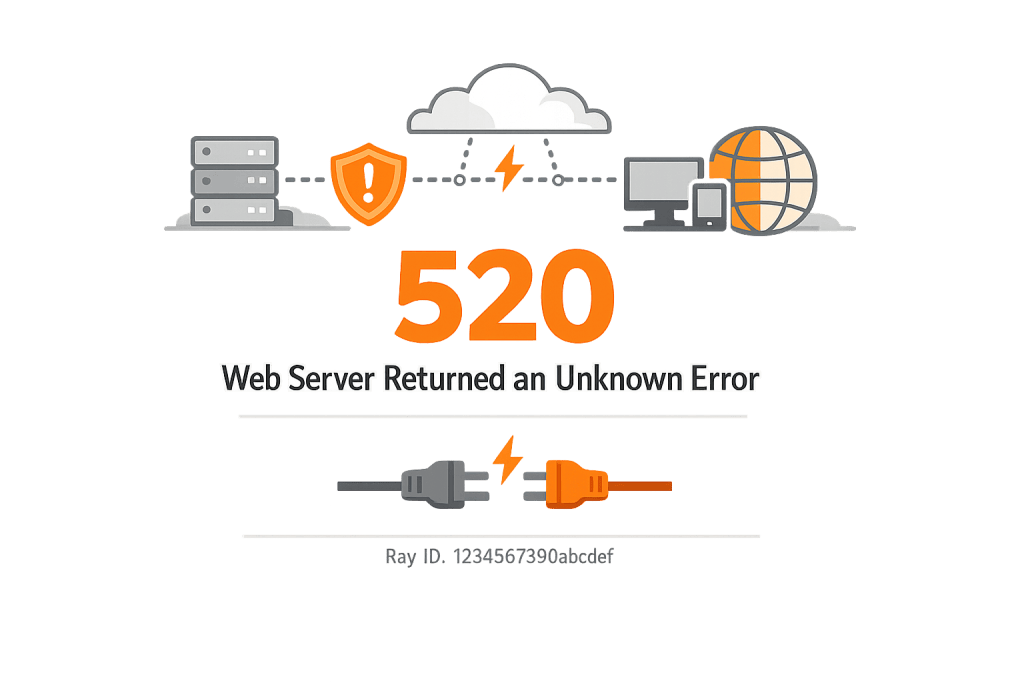
How Cloudflare 520 Error Works
Cloudflare sits as a reverse proxy between your visitors and your origin web server. When a visitor requests your site, Cloudflare accepts that request, forwards it to your origin server, and relays the origin’s response back to the visitor. A 520 occurs at the “relaying the response” step — Cloudflare reached your origin, but the origin’s response was so anomalous that Cloudflare couldn’t relay it.
Specifically, Cloudflare’s documentation identifies these as the primary triggers:
- Origin server crashes or crashes mid-response — If a PHP process runs out of memory, gets killed by the OS, or crashes due to a fatal error while generating a response, it may close the TCP connection without sending valid HTTP. Cloudflare sees the connection drop and returns 520.
- Cloudflare IPs blocked at the origin — Your server’s firewall, a security plugin, or iptables rules may be blocking Cloudflare’s IP ranges. When Cloudflare makes a request, the origin’s firewall drops the packets, closes the connection, or returns a TCP reset — which Cloudflare interprets as an unknown response.
- TCP idle timeout below 300 seconds — Cloudflare requires origin servers to maintain TCP keepalive connections for at least 300 seconds. If your server’s keepalive timeout is lower — say, 60 or 75 seconds — Cloudflare may send a request on a connection the server has already considered dead. The origin’s response to that “dead” connection is a reset, which Cloudflare reports as 520.
- Response headers exceeding 128 KB — Usually caused by excessive cookie accumulation. If your WordPress site writes dozens of cookies — from multiple tracking plugins, WooCommerce session cookies, caching layers, and analytics tools — the combined header size can exceed Cloudflare’s 128 KB limit, causing the response to be rejected.
- Incorrect HTTP/2 configuration at the origin — Cloudflare negotiates HTTP/2 with origin servers that advertise support via ALPN. If the origin announces HTTP/2 support but then doesn’t properly implement the protocol, Cloudflare returns 520.
- Empty responses — A PHP script that produces no output (due to a fatal error with output buffering active, an empty response from a misconfigured endpoint, or a REST API route that returns nothing) causes Cloudflare to receive a connectionless void and report 520.
Check This First — 2-Minute Diagnostic
- Check Cloudflare’s status page — Visit cloudflarestatus.com first. If there’s an active Cloudflare incident, the 520s are on Cloudflare’s side — wait it out.
- Pause Cloudflare temporarily — In your Cloudflare dashboard: Overview → scroll to Advanced Actions → Pause Cloudflare on Site. If your site loads after pausing Cloudflare, the issue is in the Cloudflare-to-origin communication, not your origin server itself.
- Check server CPU and memory usage — High resource usage (CPU >90%, memory near exhausted) is the most common cause. Check via your hosting control panel’s metrics or SSH with
toporhtop. - Review PHP error logs — In cPanel: Logs → Error Log. Look for PHP fatal errors, memory exhausted messages, or segmentation faults that correlate with the timestamp of the 520 events.
- Note the Cloudflare Ray ID — Copy it from the 520 error page. You’ll need it if you escalate to Cloudflare support or dig into Cloudflare Logs.
Purpose & Benefits
1. Distinguishing 520 From Other Cloudflare Errors
The 520, 521, 522, and 524 errors each identify a distinct failure mode in the Cloudflare-to-origin relationship. The 520 specifically means “connection reached origin, but response was malformed or empty” — which narrows the culprit to what’s happening at the PHP or application layer, not at the TCP connection layer. Accurately identifying the specific Cloudflare error code compresses diagnostic time significantly.
2. Surfacing Hidden Resource Exhaustion Problems
A 520 caused by a PHP process crashing mid-response is often a symptom of a deeper server resource problem: a runaway PHP process, a memory leak in a plugin, or a hosting plan that’s been outgrown. The 520 is the visible failure, but the underlying cause — resource exhaustion — will continue to degrade performance even on requests that don’t result in 520. Diagnosing the 520 often leads to discovering and fixing performance problems that were quietly affecting the site before the error appeared.
3. Identifying Cookie and Header Bloat
Cloudflare’s 128 KB response header limit acts as a forcing function that surfaces a common but often invisible WordPress problem: cookie accumulation from too many plugins. A site with Yoast SEO, WooCommerce, Google Site Kit, a chat widget, a marketing automation tool, and a caching plugin can easily accumulate headers that exceed reasonable sizes. Cleaning up unnecessary cookies improves performance, reduces Cloudflare 520 risk, and can improve page load times measurably.
Examples
1. Runaway PHP Process Causes Intermittent 520s
A WooCommerce store starts showing intermittent 520 errors during peak shopping hours. The pattern: the errors appear on product pages but not on the homepage. Server logs show PHP-FPM processes being killed by the OS (OOM killer) when memory exceeds the server’s limit. A recently installed product recommendation plugin is calculating personalized recommendations on every product page load, consuming 120MB of memory per request. With eight concurrent requests, the server hits its memory ceiling and PHP processes crash mid-execution, producing empty responses that Cloudflare reports as 520.
The fix: disable the recommendation plugin and identify a caching-compatible alternative. Add memory_limit = 256M to php.ini, configure PHP-FPM to limit concurrent workers so total memory never exceeds available RAM, and set up object caching to reduce per-request computation.
2. Security Plugin Blocks Cloudflare IPs
After installing a new firewall plugin, a site owner starts seeing 520 errors for all visitors. The plugin’s default configuration blocked all non-whitelisted IP ranges — including Cloudflare’s. Cloudflare’s requests to the origin are rejected at the firewall level, producing a TCP reset that Cloudflare reports as 520. The fix: navigate to the security plugin’s IP allowlist and add all of Cloudflare’s published IP ranges. In .htaccess, this can be implemented as:
# Whitelist Cloudflare IPv4 ranges (as of 2024 — check cloudflare.com/ips for current list)
# Place in .htaccess if using IP-based access restrictions
Allow from 103.21.244.0/22
Allow from 103.22.200.0/22
Allow from 103.31.4.0/22
Allow from 104.16.0.0/13
Allow from 104.24.0.0/14
Allow from 108.162.192.0/18
Allow from 131.0.72.0/22
Allow from 141.101.64.0/18
Allow from 162.158.0.0/15
Allow from 172.64.0.0/13
Allow from 173.245.48.0/20
Allow from 188.114.96.0/20
Allow from 190.93.240.0/20
Allow from 197.234.240.0/22
Allow from 198.41.128.0/17
3. Short Keepalive Timeout Causes Intermittent 520s
A site experiences random 520 errors with no obvious pattern — they appear a few times per hour, seemingly at random, affecting different pages each time. No PHP errors appear in the logs. The server is not under load. Investigation reveals the Nginx keepalive timeout is set to 65 seconds — below Cloudflare’s 300-second requirement. When Cloudflare reuses a connection that the server has already closed after 65 seconds, the origin responds with a TCP reset, producing a 520.
The fix: update the Nginx configuration to raise the keepalive timeout:
# In nginx.conf, inside the http {} block
http {
    # Raise keepalive timeout above Cloudflare's 300-second requirement
    keepalive_timeout 310;
    keepalive_requests 1000;
}
After saving, run nginx -t to validate and systemctl reload nginx to apply.
Common Mistakes to Avoid
- Assuming every 520 has the same cause — The 520 is a catch-all for “unknown origin response.” It can be caused by resource exhaustion, a blocked IP, header bloat, or a protocol mismatch. Don’t start tuning keepalive timeouts if your logs show PHP memory exhaustion — diagnose first, fix second.
- Not checking Cloudflare’s status page first — Cloudflare itself occasionally experiences incidents that cause widespread 520 errors across many sites. Before spending an hour debugging your origin server, verify at cloudflarestatus.com that there’s no active Cloudflare incident.
- Disabling Cloudflare permanently as the fix — Pausing Cloudflare is a valid diagnostic step, but it removes DDoS protection, SSL termination, and CDN caching. It’s a temporary measure while you fix the origin, not the solution itself.
- Ignoring the Ray ID — The Cloudflare Ray ID on the 520 error page is a unique identifier that Cloudflare support can use to look up the exact request log. Not recording it before the page refreshes means losing your best forensic tool.
- Not testing after whitelisting Cloudflare IPs — After adding Cloudflare’s IP ranges to your allowlist, verify that the origin server is now receiving and responding to requests from those IPs correctly. Use
curlfrom your server to test connectivity.
Best Practices
1. Monitor Server Resource Usage Alongside Cloudflare Error Rates
Set up alerting for both PHP-FPM worker saturation and Cloudflare 520 events simultaneously. A correlation between high memory usage and 520 spikes points directly to resource exhaustion as the cause. In Cloudflare: Security → Events → filter by status code 520. On the server: enable caching and configure PHP-FPM’s pm.max_children to a value that keeps total memory usage below 80% of available RAM.
2. Audit Cookie Usage to Prevent Header Bloat
Run a header size check using curl -I https://yourdomain.com and review the output. Cloudflare’s 128 KB header limit is generous, but it’s reachable on sites with many marketing and analytics plugins. Audit which plugins are setting cookies, remove those that aren’t necessary, and configure essential ones to use fewer or smaller cookies. A content delivery network like Cloudflare that processes billions of requests benefits from lean headers — so does your page load time.
3. Set TCP Keepalive Timeout Above Cloudflare’s 300-Second Threshold
Verify your web server’s keepalive timeout is set to at least 310 seconds. This is a common source of intermittent, seemingly random 520 errors that are hard to trace because they produce no PHP error logs. On Apache, the directive is in httpd.conf:
# Apache: raise keepalive timeout above Cloudflare's 300-second minimum
KeepAlive On
KeepAliveTimeout 310
MaxKeepAliveRequests 1000
4. Use Cloudflare’s Development Mode for Safe Debugging
When debugging a 520, enable Cloudflare Development Mode (Caching → Configuration → Development Mode) to bypass cache and get fresh responses from your origin on every request. This isolates whether a stale cached response is contributing to the issue. Development mode automatically disables after 3 hours, so it’s safe to enable while you investigate without forgetting to turn it off.
5. Collect HAR Files When the Cause Isn’t Clear
When the cause of a 520 is not apparent from server logs alone, collect a HAR (HTTP Archive) file from Chrome DevTools while the error is occurring. The HAR captures the complete request/response cycle, including headers. Share this with your hosting provider (after redacting any cookies or auth headers) along with the Cloudflare Ray ID. This combination gives support engineers everything they need to identify the root cause.
Frequently Asked Questions
What causes a Cloudflare 520 error most often?
The most common causes are: a PHP process crashing due to memory exhaustion, a security plugin or firewall blocking Cloudflare’s IP addresses, or a TCP keepalive timeout set below Cloudflare’s 300-second minimum. Review your server error logs for PHP fatal errors or OOM (out of memory) kills first — resource exhaustion is the most frequent culprit on WordPress sites.
How do I fix a Cloudflare 520 when locked out of wp-admin?
If you can’t reach wp-admin through the Cloudflare proxy, pause Cloudflare in your Cloudflare dashboard (Overview → Pause Cloudflare on Site). This routes traffic directly to your origin, bypassing Cloudflare. If your origin is accessible without Cloudflare, you can access wp-admin, diagnose the issue, and re-enable Cloudflare after fixing it. If the origin is also unreachable, connect via SFTP to review logs and configuration files.
Can a Cloudflare 520 error hurt my SEO?
Yes. Cloudflare 520 errors return a 5xx status code to both visitors and search engine crawlers. Search engines treat 5xx errors as temporary server failures. Brief 520 events have minimal SEO impact, but persistent 520 errors over hours or days can cause SEO ranking drops and reduced crawl frequency. Resolve 520 errors quickly and submit your sitemap via Google Search Console after any extended outage.
What’s the difference between a Cloudflare 520 and a 521?
A Cloudflare 521 means the origin refused the connection entirely — nothing is listening on port 80 or 443, or a firewall blocked Cloudflare before the connection was established. A 520 means the connection reached the origin but the origin returned something Cloudflare couldn’t interpret. The 521 is a connection failure; the 520 is a communication failure after connection.
How do I find my Cloudflare Ray ID from a 520 error?
The Ray ID appears at the bottom of every Cloudflare error page in the format: Ray ID: 8f1a2b3c4d5e6f78. Copy it immediately — if you reload the page, a new Ray ID is generated. You can also find recent Ray IDs in your Cloudflare dashboard under Security → Events. The Ray ID links to the exact request in Cloudflare’s logs and is essential information when contacting Cloudflare support or your hosting provider.
Related Glossary Terms
- Cloudflare 521 Error
- Cloudflare 522 Error
- Cloudflare 524 Error
- 500 Internal Server Error
- 504 Gateway Timeout
- PHP
- Content Delivery Network (CDN)
- SSL Certificate
How CyberOptik Can Help
Still broken? Our team fixes WordPress errors like this in under 30 minutes for maintenance clients. Cloudflare 520 errors require diagnosis at multiple layers simultaneously — PHP configuration, server resources, firewall rules, and TCP configuration — which is difficult to do under time pressure on a live site. We work with both Cloudflare and your hosting environment to identify the root cause quickly, implement the fix, and ensure the error doesn’t recur. Contact us to discuss your site or learn about our WordPress maintenance plans.


