
Severity: Critical · Fix time: 15–60 min · Skill level: Intermediate
The Cloudflare 522 error — “Connection Timed Out” — means Cloudflare was unable to complete a TCP connection to your origin web server within the allowed time window. Unlike a Cloudflare 521 error, where the origin actively refuses the connection with a RST packet, a 522 means Cloudflare’s SYN packet went out and simply never received a SYN+ACK back — the server accepted the packet at the IP level but couldn’t acknowledge it in time, or a firewall accepted the SYN but then dropped the handshake packets.
The Cloudflare documentation is specific about the timing: Cloudflare triggers a 522 if the origin doesn’t return a SYN+ACK within 19 seconds (using a SYN retry backoff of 1,1,1,1,1,2,4,8 seconds), or if the origin doesn’t acknowledge a resource request within 90 seconds of a connection being established. Two distinct timeout thresholds, both covered by the same error code.
In WordPress terms, this typically means the server is under heavy load, the web server process is technically running but too saturated to respond in time, or a firewall is accepting TCP connections but silently dropping further packets — a condition sometimes called a “half-open connection” that’s especially difficult to detect.
Need a quick map of every WordPress error? See our 70+ WordPress Errors Guide → for a categorized reference of every common WordPress issue.
[Image: Cloudflare’s branded 522 error page showing “Connection Timed Out” and the Cloudflare Ray ID]
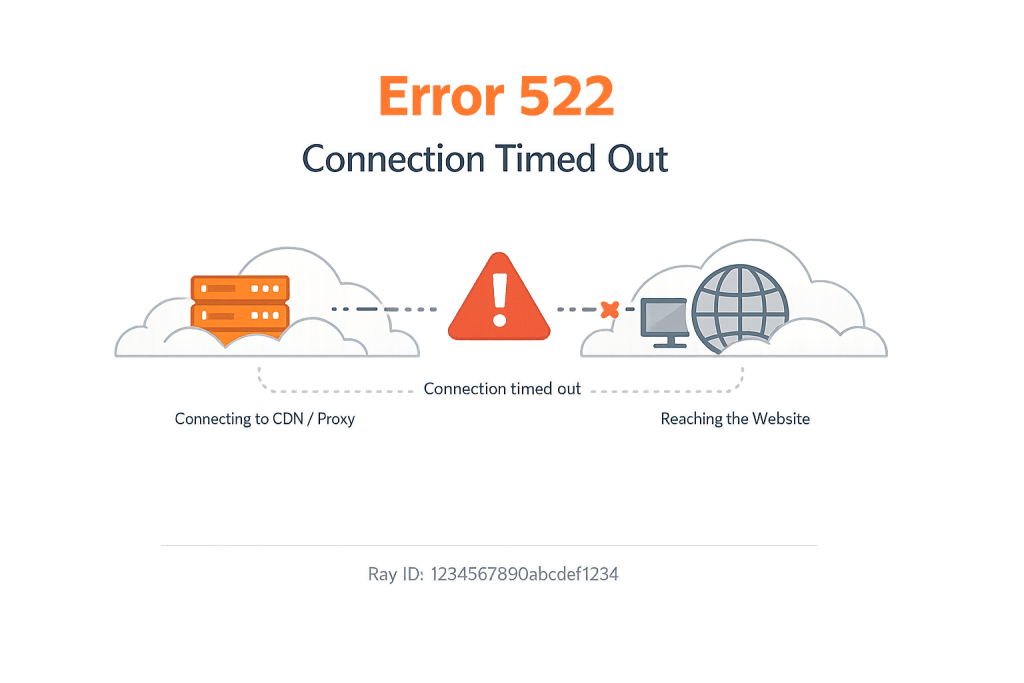
How Cloudflare 522 Error Works
The TCP handshake has three steps: SYN (client to server), SYN+ACK (server to client), ACK (client to server). A 522 means Cloudflare sent the SYN and never received the SYN+ACK. Or it means the connection was established (all three steps completed), but then the server went quiet and didn’t acknowledge the actual HTTP request within 90 seconds.
The specific causes that produce a 522 on WordPress sites:
- Cloudflare IPs blocked in iptables,
.htaccess, or a firewall — The most common cause. A firewall rule accepts the initial TCP SYN (so no RST is sent, preventing a 521) but then drops subsequent packets. This creates a “connection timed out” scenario where Cloudflare waits for a SYN+ACK that never arrives. The server appears to acknowledge the connection attempt but then falls silent. - Origin server CPU or memory exhausted — When a server is under extreme load, it may accept TCP connections into a queue but be too busy to process them. The connections sit in LISTEN state without progressing. This is common on shared hosting during traffic spikes or when a runaway PHP process consumes all available resources.
- Keepalives disabled on the origin web server — Cloudflare relies on HTTP keep-alive connections to efficiently reuse TCP connections across multiple requests. If keepalives are disabled at the origin, Cloudflare must initiate a fresh TCP connection for every request — and if the server is under load, some of those new connections time out.
- DNS pointing to wrong or stale IP — If your Cloudflare DNS record points to an old server IP that no longer hosts your site, Cloudflare may reach an IP where something does listen on port 80/443 (a default hosting page, another site) but doesn’t respond correctly to your domain.
- Overly aggressive rate limiting or packet filtering — Some hosting environments implement packet-level rate limiting that drops packets above a certain rate. Under legitimate traffic spikes, Cloudflare’s aggregate request volume from its edge nodes can trigger this, causing individual connections to time out.
Check This First — 2-Minute Diagnostic
- Check server load immediately — SSH into your server and run
uptimeortop. If the load average is above the number of CPU cores, the server is overloaded. On shared hosting, check the control panel’s CPU/memory usage graphs. - Verify Cloudflare IP allowlisting — Run
iptables -L -n | grep -E 'DROP|REJECT'on a VPS to check for DROP rules that might be silently discarding Cloudflare’s packets. A 522 (rather than 521) often means a firewall is dropping packets rather than actively refusing the connection. - Pause Cloudflare and test origin directly — If the site loads when you bypass Cloudflare (Overview → Pause Cloudflare on Site in the Cloudflare dashboard), the web server is running. If it also times out with Cloudflare paused, the server itself is the problem.
- Check the DNS A record — Verify that your Cloudflare DNS record for the domain points to your current server’s IP. After a hosting migration or IP change, stale records are a common 522 cause.
- Look for concurrent connection limits — Some hosts cap simultaneous PHP-FPM workers. If all workers are busy (handling other requests, waiting on database queries), new connections queue and may time out before a worker becomes available.
Purpose & Benefits
1. Distinguishing Overloaded From Offline
A 522 tells you something important that a 521 doesn’t: the server is reachable at the network level. The IP is live, the port has something listening, but it can’t complete the handshake in time. This distinction means you’re dealing with a performance or capacity problem, not a “server is completely down” situation. For a site owner, that changes the response — instead of calling emergency hosting support for a downed server, you’re looking at PHP-FPM worker saturation, database query bottlenecks, or a traffic spike that needs a caching layer engaged.
2. Identifying Firewall Misconfiguration That Bypasses Obvious Symptoms
A firewall that drops packets after an initial SYN acceptance produces no obvious error on the server side — it doesn’t log a refused connection because it accepted the SYN. This kind of misconfiguration is invisible to normal server-side diagnostics. The Cloudflare 522 surfaces it because Cloudflare waits for the SYN+ACK that never comes. Understanding the 522 mechanics helps you look for DROP rules in iptables rather than searching for REJECT rules, which produce the more obvious 521 failure mode.
3. Triggering Infrastructure Scaling Decisions
Persistent 522 errors during peak traffic periods are a clear signal that the current hosting plan is undersized for actual demand. When a server consistently saturates PHP-FPM workers and can’t complete TCP handshakes during traffic spikes, enabling caching provides immediate relief, but the underlying infrastructure may need to scale. Our WordPress hosting services are sized for actual WordPress workloads, with resource headroom for traffic spikes rather than running at the edge of capacity under normal load.
Examples
1. PHP-FPM Worker Saturation During Peak Traffic
An eCommerce store’s hosting plan provisions 8 PHP-FPM workers. During a flash sale, 50 concurrent visitors arrive simultaneously. Each generates multiple PHP requests (page render, cart calculation, session handling). With only 8 workers available, 42 connections queue. Cloudflare’s 90-second timeout fires before many of those queued connections are served, producing a wave of 522 errors. The server isn’t crashed — the workers that are active are working correctly — but capacity is exhausted.
Immediate fix: enable a full-page caching plugin (WP Rocket, LiteSpeed Cache) to serve static HTML to unauthenticated visitors, reducing PHP worker demand. The homepage and product pages become static responses; only authenticated cart/checkout pages require PHP workers. Long-term fix: upgrade to a hosting plan with more PHP-FPM workers or migrate to VPS hosting where these limits are configurable.
2. Firewall DROP Rule Silently Blocking Cloudflare
After a VPS is hardened using an automated security script, the administrator notices intermittent 522 errors on the Cloudflare-proxied site. The site loads fine when tested directly via the origin IP. The script added a blanket DROP rule for all IP ranges above a certain geographic threshold. Cloudflare’s IP ranges match this rule and are silently dropped. Unlike a REJECT rule that sends RST (which would cause a 521), the DROP rule produces no response — Cloudflare times out waiting for the SYN+ACK.
# Check for DROP rules in iptables
sudo iptables -L INPUT -n --line-numbers | grep DROP

# Remove a specific DROP rule (replace X with line number)
sudo iptables -D INPUT X

# Add Cloudflare IPs to ACCEPT before the DROP rules
sudo iptables -I INPUT 1 -s 103.21.244.0/22 -j ACCEPT
# Repeat for each Cloudflare IP range from cloudflare.com/ips
3. DNS A Record Pointing to Decommissioned Server IP
A site migrated from one VPS to another three months ago. The site works, but occasionally Cloudflare returns 522 on certain requests. Investigation reveals that the Cloudflare DNS record still has the old server’s IP as a secondary A record. Requests that route through Cloudflare to the old IP time out — the old server is still powered on (preventing a 521 from a refused connection) but no longer serves the site. Removing the stale A record from Cloudflare DNS eliminates the intermittent 522.
Common Mistakes to Avoid
- Confusing a 522 with a 521 and treating them the same way — A 521 (connection refused) often means restarting a stopped web server process. A 522 (connection timed out) more often means addressing a firewall DROP rule or server capacity issue. The fix path is different. Read the error code carefully.
- Increasing PHP-FPM workers without checking available RAM — Adding more PHP-FPM workers helps with connection saturation, but each worker consumes memory. If you raise
pm.max_childrento 20 on a server with 512MB RAM and each worker uses 30MB, you’ll trigger PHP memory exhaustion — trading 522 errors for 500 errors or memory exhaustion errors. - Not checking keepalive settings — Disabled keepalives mean Cloudflare opens a fresh TCP connection for every HTTP request. Under moderate load, this can cause connection saturation and 522 timeouts. Verify
KeepAlive On(Apache) orkeepalive_timeout 310(Nginx) is configured. - Treating a 522 as a Cloudflare problem — Cloudflare’s documentation is explicit: 521, 522, and 524 all indicate origin server problems, not Cloudflare infrastructure problems. Cloudflare is working correctly — it’s waiting for your origin. Fix the origin.
- Only fixing the Nginx/Apache configuration without addressing the underlying load — If the 522 is caused by CPU saturation, raising keepalive timeouts provides minimal benefit. The server is still overloaded. Address the root cause of the resource exhaustion — slow database queries, too many concurrent PHP workers, a runaway cron job.
Best Practices
1. Enable and Configure HTTP Keepalives Above Cloudflare’s Minimum
Cloudflare requires keepalive connections to remain open for at least 300 seconds. Configure your web server accordingly:
# Nginx: set keepalive above Cloudflare's 300s requirement
http {
    keepalive_timeout 310;
    keepalive_requests 100;
}
# Apache: enable keepalive with sufficient timeout
KeepAlive On
KeepAliveTimeout 310
MaxKeepAliveRequests 100This prevents the intermittent 522 pattern caused by Cloudflare attempting to reuse connections the server has already closed.
2. Size PHP-FPM Workers Based on Available Memory
Calculate the maximum safe number of PHP-FPM workers by dividing available RAM by average PHP process size. Check average PHP process size with: ps --no-headers -o rss -C php-fpm | awk '{sum+=$1} END {print sum/NR/1024 " MB"}'. If the average is 40MB and you have 1GB of RAM, a safe maximum is around 20 workers, leaving headroom for the OS and other processes. Set pm.max_children in /etc/php/8.x/fpm/pool.d/www.conf to this calculated value.
3. Add Caching to Reduce PHP Worker Demand
The fastest way to prevent 522s during traffic spikes is to serve cached HTML pages to unauthenticated visitors, eliminating the PHP worker requirement for those requests entirely. WP Rocket, LiteSpeed Cache, or a server-level full-page cache can typically serve 95% of page views as static files. Only authenticated users (logged-in visitors, customers with active carts) need to consume PHP workers. With caching properly configured, your PHP-FPM capacity goes entirely toward requests that actually need dynamic processing.
4. Verify DNS Records After Every Hosting Change
After any hosting migration, IP address change, or server reconfiguration, verify every DNS record in your Cloudflare dashboard against your current server’s actual IP. Stale A records pointing to old IPs are a silent cause of intermittent 522 errors that can persist for weeks after a migration. Keep a record of your current server IP and audit DNS records against it at least once after any infrastructure change.
5. Monitor Connection Queue Depth Alongside Uptime
Standard uptime monitoring checks whether a port accepts connections — but a 522 scenario can pass an uptime check (connection accepted) while still failing to deliver responses. Configure monitoring that checks actual HTTP response codes, not just TCP availability. This catches the “server accepts connections but doesn’t serve responses” condition that produces 522 before visitors start reporting it.
Frequently Asked Questions
What causes a Cloudflare 522 error most often?
The most common causes are: Cloudflare’s IP ranges being rate-limited or silently dropped by a firewall (iptables DROP rules), an overloaded origin server that accepts TCP connections but can’t process requests fast enough, and disabled keepalives that force Cloudflare to open fresh connections for every request. Check your server load, iptables DROP rules, and keepalive configuration — in that order.
How do I fix a Cloudflare 522 when locked out of wp-admin?
wp-admin isn’t accessible during a 522 because Cloudflare can’t reach the origin. On VPS hosting: SSH into the server and check server load (top) and iptables rules (iptables -L -n). On shared hosting: log into your hosting control panel to check server status and firewall settings. If the server is overloaded, work with your host to identify and kill runaway processes. If it’s a firewall DROP issue, add Cloudflare IP ranges to the allowlist.
Can a Cloudflare 522 hurt my SEO?
Yes. A 522 returns a 5xx status code to search engine crawlers. Brief 522 events have minimal SEO impact. Persistent 522 errors across key pages can reduce Googlebot’s crawl frequency and temporarily suppress rankings. After any significant 522 event, submit your sitemap via Google Search Console to accelerate reindexing and monitor Search Console’s Coverage report for any persistent crawl errors.
What’s the difference between a Cloudflare 522 and a 524?
A Cloudflare 524 means Cloudflare successfully established a full TCP connection to the origin and the origin accepted the HTTP request — but the origin took longer than 100 seconds to send a response. A 522 means the TCP handshake itself failed to complete within the timeout window. The 522 is a lower-level failure (connection layer); the 524 is a higher-level failure (response layer). A 522 often means the server is saturated and can’t accept new connections; a 524 often means the server accepted the connection but a specific long-running process is responsible.
My site works fine in testing but gets 522s under load — why?
This is a classic PHP-FPM worker saturation scenario. In testing (low concurrent traffic), all requests are served within Cloudflare’s timeout window. Under production load (many concurrent visitors), the PHP-FPM worker pool fills up, new connections queue, and Cloudflare’s timeout fires before workers become available. The fix is to increase PHP-FPM workers (if memory allows), enable full-page caching to reduce PHP demand, or upgrade to a hosting plan with more resources.
Related Glossary Terms
- Cloudflare 521 Error
- Cloudflare 520 Error
- Cloudflare 524 Error
- 504 Gateway Timeout
- 500 Internal Server Error
- Caching
- Memory Exhausted Error
- PHP
How CyberOptik Can Help
Still broken? Our team fixes WordPress errors like this in under 30 minutes for maintenance clients. Cloudflare 522 errors require diagnosing at the intersection of network configuration, server capacity, and PHP performance — and the cause isn’t always obvious from the error page alone. We identify whether your server is overloaded, firewall-blocked, or misconfigured, implement the right fix for each scenario, and help you build a hosting setup with the headroom to handle real traffic without timing out. Contact us to discuss your site or learn about our WordPress maintenance and hosting plans.


