
Severity: Critical · Fix time: 15–60 min · Skill level: Intermediate
The Cloudflare 524 error — “A Timeout Occurred” — means Cloudflare successfully established a TCP connection to your origin web server and the origin acknowledged the request, but the origin didn’t send back a complete HTTP response within Cloudflare’s timeout window. The default Proxy Read Timeout is 100 seconds for most Cloudflare plans; on Free and Pro plans, requests that take longer than that receive a 524 before WordPress can finish generating the response.
This is a fundamentally different failure from a Cloudflare 522 error — which times out during the TCP handshake before communication begins — or a Cloudflare 521 error, where the connection is refused outright. In a 524, the server is running, accepting connections, and processing the request. It’s just taking too long. The 524 is Cloudflare’s impatient timeout on a server that’s working but not working fast enough.
For WordPress sites, the 524 almost always points to a long-running PHP process: a database query taking 90+ seconds, a large WooCommerce export, a bulk import, a slow third-party API call that’s made synchronously, or an admin operation that should have been handled via background processing.
Need a quick map of every WordPress error? See our 70+ WordPress Errors Guide → for a categorized reference of every common WordPress issue.
[Image: Cloudflare’s branded 524 error page showing “A Timeout Occurred” and the Ray ID]
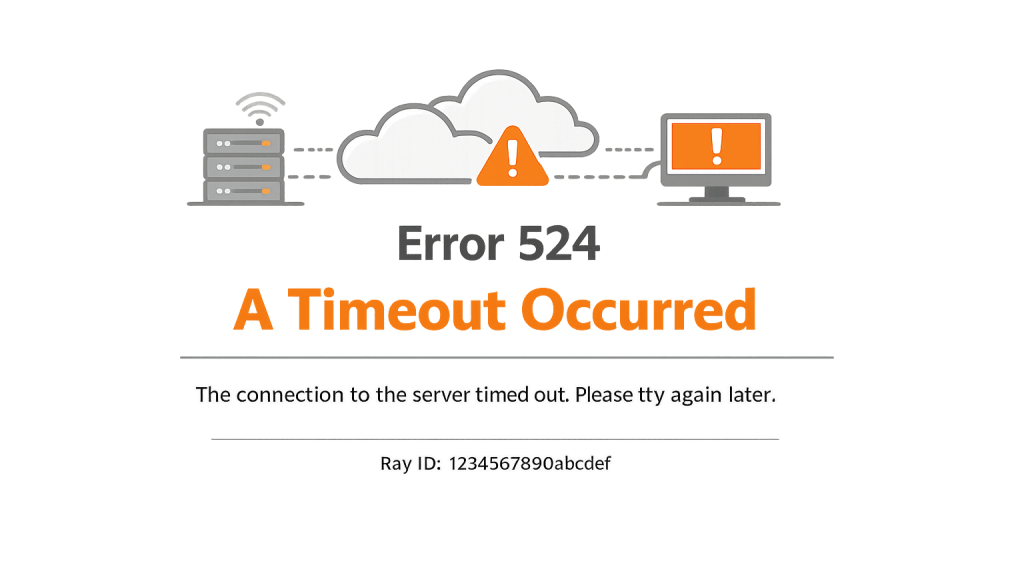
How Cloudflare 524 Error Works
According to Cloudflare’s official documentation, the 524 occurs when the origin web server acknowledges the resource request after the TCP connection is established, but does not send a timely response within the Proxy Read Timeout — 120 seconds by default on current Cloudflare infrastructure. (Note: some sources reference 100 seconds, which was the previous default; current documentation states 120 seconds for most plans, though this may vary.) The origin server is working on the request — it just hasn’t finished within that window.
Common triggers on WordPress sites include:
- Long-running database queries — A query hitting a bloated database table without proper indexes, running a complex JOIN across millions of rows, or generating a large report from WooCommerce order data can easily consume 90–150 seconds, blowing past Cloudflare’s timeout.
- Synchronous third-party API calls — A plugin that calls an external API (payment gateway, shipping calculator, stock feed, CRM) synchronously during a page request will make the entire response wait for the external API to respond. If the external API is slow or down, Cloudflare times out waiting for the response it’s holding hostage.
- Bulk operations triggered via HTTP — Running a bulk import, a product CSV upload, or a site-wide image regeneration via the browser (which triggers a WordPress admin AJAX request or REST API call) creates a long-running PHP process. Cloudflare’s timeout fires before the operation completes.
- Overloaded server under moderate load — A server that’s not saturated enough to trigger a 522 (TCP handshake timeout) but is still struggling with resources may take 110+ seconds to generate complex page responses, triggering a 524 instead.
- WP Cron running during a page request —
wp-cron.phpis triggered when visitors load pages and runs scheduled tasks synchronously as part of that request. A backlogged cron queue or a long-running scheduled task can add seconds or minutes to a visitor’s page load, occasionally pushing it past Cloudflare’s timeout.
Check This First — 2-Minute Diagnostic
- Reproduce the error in isolation — Which specific URL triggers the 524? If it’s only one page or admin action, the issue is isolated to that endpoint. If it’s site-wide, the server itself is struggling.
- Check the PHP execution time in error logs — In cPanel: Logs → Error Log. Look for entries timestamped during the 524 event. PHP
max_execution_time exceededentries confirm a long-running PHP process. The script name in the log entry identifies the culprit. - Run the operation with Cloudflare paused — Pause Cloudflare (Overview → Pause Cloudflare on Site) and try the operation that was producing the 524. Does it complete? If yes, the operation is slow but functional — you need to either speed it up or move it out of a synchronous HTTP request.
- Check your slow query log — If your hosting plan provides MySQL slow query logging, enable it and run the operation. Any query taking more than 5 seconds is a candidate for optimization and a likely contributor to the 524.
- Note whether the 524 occurs only in wp-admin — Admin-triggered bulk operations, imports, and plugin updates are the most common 524 sources. Front-end 524s indicate a more serious performance problem affecting all visitors.
Purpose & Benefits
1. Identifying Long-Running Processes That Need Architectural Fixes
A 524 is Cloudflare telling you that a specific operation is taking too long to run synchronously via an HTTP request. The correct long-term response isn’t to increase Cloudflare’s timeout (which only hides the symptom) — it’s to either optimize the operation so it completes faster or move it to a background process that doesn’t block an HTTP response. Understanding the 524 in this light transforms a frustrating error into a performance audit opportunity.
2. Protecting User Experience on Long Admin Operations
WooCommerce product exports, bulk order processing, database optimization runs, and image regeneration tasks are legitimately long-running — they’re supposed to take time. Running them via a browser-triggered HTTP request and hoping Cloudflare’s timeout doesn’t fire is fragile. The 524 motivates the right architectural pattern: these operations should run via cron jobs or queue processors that report progress to the browser without the browser waiting for the entire operation to complete.
3. Forcing Database Query Optimization
A single slow database query — missing an index, performing a full table scan across a large wp_posts or wp_postmeta table, or joining unindexed WooCommerce order tables — is often the root cause of a 524 on a specific page. The 524 is the symptom; the unindexed query is the disease. Optimizing the query (adding the index, rewriting the query, enabling object caching) fixes the 524 and improves the overall performance of every page that runs that query, not just the one that was timing out.
Examples
1. WooCommerce Order Export Times Out at 120 Seconds
A store manager triggers a WooCommerce order export from the admin dashboard for 18,000 orders. The export query runs across wp_posts, wp_postmeta, and wp_woocommerce_order_items — all large tables with millions of rows. At the 120-second mark, Cloudflare returns a 524 even though the server is still generating the CSV. The fix: use a background export plugin (WooCommerce Export Pro, or a WP-CLI export script scheduled via cron) that doesn’t depend on a browser HTTP request staying alive. The export runs server-side and sends the file to the user when complete, bypassing Cloudflare’s timeout entirely:
# Run WooCommerce export via WP-CLI, bypassing HTTP timeout
# SSH into server and run:
wp wc order list --format=csv > /home/user/exports/orders-$(date +%Y%m%d).csv

# Schedule this as a cron job for recurring exports:
# 0 2 * * * /usr/bin/wp --path=/var/www/html wc order list --format=csv > /exports/orders.csv
2. Slow Database Query on a Product Archive Page
A WooCommerce store’s product archive page starts returning 524s after reaching 50,000 products. The product query — filtering by multiple custom attributes and sorting by a calculated sales rank — performs a full table scan on wp_postmeta because the query isn’t using an available index effectively. The query takes 130 seconds on the production database. The fix involves two steps: enabling object caching (Redis or Memcached) to cache the query result after the first run, and adding a composite index to the wp_postmeta table on (meta_key, meta_value) to accelerate the attribute filter query.
3. Synchronous External API Call Holds Up Every Page
A plugin on a service company’s site calls a third-party appointment booking API on every page load to check slot availability. The external API normally responds in under 200ms, but during peak hours it slows to 90–150 seconds. Every visitor’s page load waits for the external API, and Cloudflare times out at 120 seconds. The 524 appears for all visitors during the external API’s slow periods.
The fix: implement asynchronous API calls with a short client-side timeout. Cache the availability result for 60 seconds so most page loads don’t call the external API at all. If the API is critical and cannot be cached, add explicit error handling so a slow API response degrades gracefully rather than blocking the entire page:
<?php
// Example: Fetch external API with a short timeout, fail gracefully
$response = wp_remote_get(
    'https://api.bookingservice.example.com/slots',
    array(
        'timeout'  => 5,   // 5-second hard timeout — never let this block a page
        'blocking' => true,
    )
);

if ( is_wp_error( $response ) || 200 !== wp_remote_retrieve_response_code( $response ) ) {
    // Fail gracefully — show a "check availability" button instead of inline slots
    return get_cached_slots_fallback();
}
Common Mistakes to Avoid
- Raising Cloudflare’s Proxy Read Timeout as the primary fix — Enterprise Cloudflare plans allow extending the Proxy Read Timeout beyond 100 seconds. While this eliminates the 524 symptom, it doesn’t fix the underlying slow process. A page that takes 200 seconds to generate is broken regardless of whether Cloudflare times out. Optimize the process first; increase the timeout only as a temporary measure while the fix is being implemented.
- Not distinguishing the 524 from a 504 Gateway Timeout — A 504 is generated by your web server (Apache or Nginx) timing out waiting for PHP or the database. A 524 is generated by Cloudflare timing out waiting for your web server. Both manifest as timeout errors, but the thresholds and fix locations differ. Check your web server error log: if you see gateway timeout entries there, it’s a 504 issue; if the web server log shows no timeout but Cloudflare returns 524, it’s a 524 issue.
- Running bulk operations from the browser without alternative tooling — Large imports, exports, and batch operations initiated via browser-triggered HTTP requests are fundamentally fragile on Cloudflare-proxied sites. Use server-side tooling (SFTP + command-line execution, scheduled server tasks) for anything expected to run for more than 30 seconds.
- Ignoring database query performance — A site that just started 524-ing on a page that previously loaded fine has usually experienced a change in data volume. A query that ran in 2 seconds against 10,000 posts may take 90 seconds against 200,000 posts. Don’t accept “it was fast before” as evidence that the query is well-written — test it against current data volume and optimize accordingly.
- Not checking WP-Cron backlog — A backlogged cron queue causes
wp-cron.phpto run many overdue tasks on the next visitor page load. If scheduled tasks have been queuing for hours, the first visitor who triggers cron faces a 524 while cron runs through the backlog. Monitor your cron queue health and consider migrating to a real server cron.
Best Practices
1. Increase PHP Execution Time for Long Admin Tasks
For intentionally long-running admin operations — imports, exports, regeneration tasks — increase the PHP execution time limit above Cloudflare’s 120-second timeout. Add this to wp-config.php before triggering the operation, then restore it afterward:
<?php
// Increase PHP execution time for long-running admin operations
// Add before the "stop editing" comment in wp-config.php
// Remove after the operation completes, or scope to admin-only
if ( is_admin() ) {
    @ini_set( 'max_execution_time', 300 );
    @ini_set( 'memory_limit', '256M' );
}
Note: even with a higher PHP execution time, Cloudflare will still return a 524 after 120 seconds (or the configured Proxy Read Timeout). For operations exceeding that, use server-side tooling rather than browser-initiated requests.
2. Move Long-Running Tasks to True Background Processing
Use a queue-based approach for any operation that might take more than 30 seconds. Action Scheduler (bundled with WooCommerce) is the most WordPress-native solution for background job processing. Register long-running tasks as Action Scheduler actions:
<?php
// Schedule a background task instead of running it during an HTTP request
function schedule_bulk_product_update() {
    // Queue the task — it runs in the background, not in the HTTP request
    as_schedule_single_action(
        time() + 10,          // Run 10 seconds from now
        'process_product_update_batch',
        array( 'batch_id' => 1 ),
        'my-plugin'
    );
}

// The actual long-running work happens here, outside any HTTP timeout
add_action( 'process_product_update_batch', 'run_product_update_batch' );
function run_product_update_batch( $batch_id ) {
    // Process 50 products at a time, re-queue for next batch if needed
}
3. Enable Object Caching for Expensive Database Queries
Redis or Memcached object caching stores the results of slow database queries in memory. After the first (potentially slow) request generates and caches a result, subsequent requests serve it from memory in milliseconds. For sites experiencing 524s on complex query pages, enabling object caching is often the highest-impact single change you can make:
// In wp-config.php — enable WordPress object caching
// (Requires Redis or Memcached server + corresponding WordPress plugin)
define( 'WP_CACHE', true );
define( 'WP_REDIS_HOST', '127.0.0.1' );
define( 'WP_REDIS_PORT', 6379 );
4. Set Explicit Short Timeouts on All External API Calls
Any plugin or custom code that calls an external API must set an explicit timeout value. WordPress’s default HTTP timeout is 5 seconds for non-remote requests, but plugins often override this with much longer values — or no timeout at all. Audit your plugins for external API calls and ensure none of them can block a page response for more than 10–15 seconds:
// Always set a timeout on external API calls to prevent 524s
$response = wp_remote_get( $api_url, array( 'timeout' => 10 ) );
5. Monitor Slow Query Log to Catch Database Degradation Early
Enable MySQL/MariaDB slow query logging at a 2-second threshold on your production server. Review the log weekly. A query that starts appearing in the slow query log is early warning that it will eventually become a 524-causing bottleneck as data volume grows. Catching and fixing slow queries early — before they hit Cloudflare’s timeout threshold — is far less disruptive than diagnosing them during an active outage.
Frequently Asked Questions
What causes a Cloudflare 524 error most often in WordPress?
The most common cause is a long-running PHP process — typically a database query that’s gotten slower as the database has grown, a bulk admin operation triggered via browser, or a synchronous external API call that’s taking too long. The 524 is almost always associated with a specific URL or admin action. Identify which request triggers it, then look at what PHP or database work that request performs.
How do I fix a Cloudflare 524 when locked out of wp-admin?
A 524 on the wp-admin login page itself is unusual — login is a fast operation. If you’re seeing it, your server is likely severely overloaded. Try accessing wp-admin via your origin IP directly (bypassing Cloudflare) by temporarily pausing Cloudflare. If wp-admin loads via origin IP, the server is functional but a runaway PHP process or database query is consuming all resources. Connect via SFTP to review PHP error logs, or use your hosting panel to kill runaway processes.
Can a Cloudflare 524 hurt my SEO?
Yes, especially if the 524 affects front-end pages rather than just admin operations. A 524 returns a 5xx status code to Googlebot. Brief, infrequent 524s on admin pages typically don’t affect SEO. Persistent 524s on front-end product or content pages are more serious — they prevent indexing, reduce crawl frequency, and can temporarily suppress rankings. Prioritize fixing any 524 that affects publicly accessible URLs.
What’s the difference between a Cloudflare 524 and a WordPress 504 Gateway Timeout?
A 504 Gateway Timeout is generated by your web server (Apache or Nginx) timing out while waiting for PHP or the database to respond. The timeout threshold is set in your server configuration. A Cloudflare 524 is generated by Cloudflare timing out while waiting for your web server to respond. The 524 fires at Cloudflare’s proxy timeout (120 seconds by default); the 504 fires at your server’s gateway timeout setting. You can get a 524 without a 504 if Cloudflare’s timeout is shorter than your server’s timeout.
Can I increase Cloudflare’s timeout to fix a 524?
On Enterprise plans, the Proxy Read Timeout can be increased via a Cloudflare support ticket. On Pro and Business plans, there’s a configurable “Proxy Read Timeout” setting in Cloudflare → Network. Increasing it delays the 524 but doesn’t fix the underlying slow operation. Use it only as a temporary stopgap while you optimize the long-running process. A page that takes 200 seconds to load is a poor user experience regardless of whether it eventually loads — the correct fix is optimizing the process to run faster.
Related Glossary Terms
- Cloudflare 522 Error
- Cloudflare 521 Error
- Cloudflare 520 Error
- 504 Gateway Timeout
- Memory Exhausted Error
- Caching
- PHP
- Cron Job
How CyberOptik Can Help
Still broken? Our team fixes WordPress errors like this in under 30 minutes for maintenance clients. A Cloudflare 524 almost always points to a specific slow process — a database query, a bulk operation, or an external API call — that needs to be found and optimized rather than masked by increasing timeout values. We identify the root cause using error logs and database query analysis, implement the right fix (query optimization, background processing, caching), and ensure your site serves responses well within Cloudflare’s timeout window. Contact us to discuss your site or learn about our WordPress maintenance plans.


