
Severity: Critical · Fix time: 15–60 min · Skill level: Intermediate
504 Gateway Timeout is an HTTP status code that appears when one server acting as a gateway or proxy doesn’t receive a timely response from an upstream server. In WordPress, this almost always means the web server (Apache or Nginx) timed out waiting for PHP or the database to finish processing a request.
Unlike a 500 Internal Server Error, which signals that something broke, a 504 specifically signals that a process started but ran too long. From a visitor’s perspective, the page never loads — they see a blank screen or a timeout message. From a business perspective, every minute of a 504 means lost visitors, lost conversions, and potential SEO damage.
Need a quick map of every WordPress error? See our 70+ WordPress Errors Guide → for a categorized reference of every common WordPress issue.
[Image: Browser tab showing “504 Gateway Timeout” message with the error code visible]
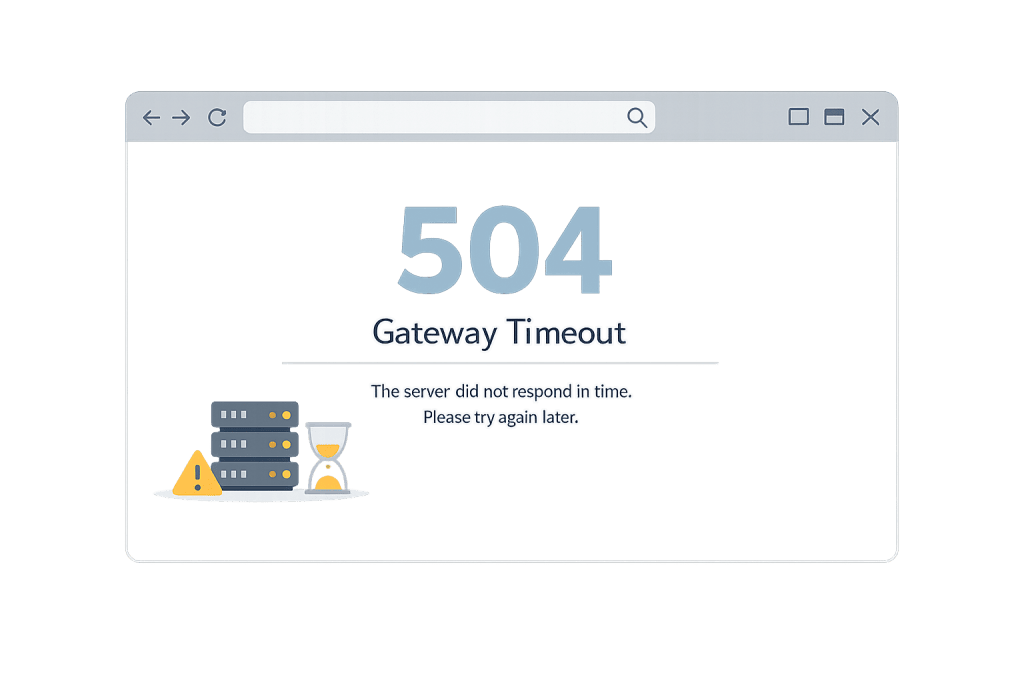
How 504 Gateway Timeout Works
The 504 error sits in the 5xx range — all server-side problems. Specifically, it means a “gateway” (the web server layer) sent a request upstream — to a PHP process, a database query, or an external API — and that upstream resource didn’t respond within the configured timeout window.
Common triggers on WordPress sites include:
- Long-running PHP processes — A plugin running a massive import, database backup, or WooCommerce bulk operation can exceed the server’s PHP timeout (often set to 30–60 seconds by default).
- Slow database queries — A bloated database with thousands of post revisions, orphaned metadata, or poorly optimized queries can cause individual requests to stall.
- Server overload — On shared hosting, resource competition during traffic spikes can cause every request to queue up until the gateway gives up.
- CDN or firewall misconfiguration — A CDN like Cloudflare relaying requests to your origin server may receive a timeout if the origin can’t respond fast enough.
- Plugin or theme conflicts — A plugin that fires on every page load and performs an intensive operation (an external API call, a complex shortcode render) can repeatedly push requests past the timeout threshold.
Check This First — 2-Minute Diagnostic
Before diving into files, run through this quick checklist:
- Reload the page once — A single 504 can be a momentary server hiccup.
- Check if it’s site-wide — Load several pages. If only one page 504s, the issue may be a specific plugin or widget on that page.
- Check your hosting dashboard — Many hosts show server load or resource usage graphs. A spike correlating with the error narrows the cause quickly.
- Review server error logs — In cPanel, go to Logs → Error Log. Look for entries with “timeout,” “timed out,” or “upstream.”
- Check for a recent update or import — Did someone run a plugin update, bulk product import, or backup job right before the 504s started?
Purpose & Benefits
1. Understanding the Error Protects Revenue
A 504 error makes your site completely inaccessible for the duration it persists. An eCommerce store losing checkout access during a busy period can lose hundreds or thousands of dollars per hour. Knowing what a 504 means — and having a diagnostic process — compresses recovery time from hours to minutes.
2. Identifying Resource Bottlenecks
Recurring 504 errors are rarely random. They indicate that your site is consistently pushing one resource (PHP execution time, database query time, server memory) to its limit. Diagnosing the cause often reveals a broader performance problem worth fixing — like a bloated database, a resource-hungry plugin, or a hosting plan that’s outgrown your needs. Our WordPress hosting services are configured to handle the demands of real WordPress workloads.
3. Protecting Search Rankings During Outages
When Google crawls a page returning 504 errors, it records the URL as temporarily unavailable. A brief outage rarely causes lasting ranking damage. But persistent 504s over several days can cause Google to reduce crawl frequency or temporarily suppress affected pages. Fast resolution protects the SEO work you’ve already done.
Examples
1. WooCommerce Import Triggers a Timeout
A store owner uploads a 5,000-row CSV product import through the WooCommerce import tool. The process takes longer than the server’s default 30-second PHP execution time, triggering a 504 mid-import. The fix: increasing max_execution_time in php.ini or wp-config.php before running large imports, or using WP-CLI for batch operations that avoid browser-session timeout limits.
2. Traffic Spike Overwhelms Shared Hosting
A blog post gets picked up by a high-traffic news site. The sudden surge of 1,000 simultaneous visitors overwhelms the shared hosting environment’s CPU allocation. The web server queues requests, and many time out waiting for a PHP worker to become available. Short-term fix: activate a caching layer (like WP Rocket or LiteSpeed Cache) to serve static pages without hitting PHP. Long-term fix: migrate to a hosting plan with dedicated resources.
3. Cloudflare SSL Misconfiguration Causes Intermittent 504s
A site using Cloudflare with the SSL setting on “Flexible” starts throwing 504s intermittently. The issue: Cloudflare is forwarding requests to the origin server, which responds slowly because of a mismatch between Cloudflare’s timeout and the origin’s PHP execution time. Switching Cloudflare SSL to “Full (Strict)” and increasing the origin server’s timeout resolves it.
Common Mistakes to Avoid
- Assuming it’s always the host’s fault — 504 errors are often caused by a specific plugin or misconfigured import rather than infrastructure. Check your own site first before escalating to hosting support.
- Only refreshing without diagnosing — If the 504 recurs after a reload, something structural is causing it. Check error logs immediately; each log entry narrows the cause significantly.
- Increasing timeout limits without finding the root cause — Raising
max_execution_timeto 300 seconds may mask a slow database query or inefficient plugin that should be fixed, not accommodated. - Ignoring Cloudflare or CDN settings — Many site owners forget that their CDN has its own timeout settings. If you use Cloudflare, review both origin server and CDN settings together.
Best Practices
1. Increase PHP Execution Time for Long-Running Tasks
If long imports or backup operations are triggering 504s, raise the execution time limit. Add the following to your wp-config.php before the “stop editing” line:
// Increase PHP max execution time to 300 seconds
set_time_limit(300);
Or set it in your php.ini file:
max_execution_time = 300This gives PHP-intensive processes five minutes to complete rather than 30 seconds. For shared hosting where you can’t edit php.ini, contact your host or use the .htaccess alternative: php_value max_execution_time 300.
2. Deactivate Plugins to Isolate the Cause
When you can access wp-admin, bulk-deactivate all plugins under Plugins → Installed Plugins → Bulk Actions → Deactivate. If the 504 clears, reactivate plugins one by one — reloading after each — until it returns. That last activated plugin is your culprit. If you can’t access wp-admin, connect via SFTP and rename the /wp-content/plugins/ folder to /wp-content/plugins-disabled/ to deactivate everything at once.
3. Optimize the Database and Review Hosting Resources
Run a database optimization using a tool like WP-Optimize to remove post revisions, transients, and orphaned metadata. Slow queries are a leading cause of gateway timeouts. If optimization doesn’t resolve recurring 504s, audit your hosting plan — a site that’s consistently pushing PHP and database limits has outgrown shared hosting. Upgrading to a managed WordPress host or VPS eliminates the resource contention behind most persistent 504 errors.
Frequently Asked Questions
What causes a 504 Gateway Timeout most often?
The most frequent cause is a PHP script or database query that exceeds the server’s timeout limit. On WordPress sites, this is usually triggered by a resource-heavy plugin, a large content import, or a database that’s grown bloated with unused data. Check your server error logs first — they often identify the specific script or query responsible.
How do I fix a 504 Gateway Timeout when locked out of wp-admin?
Connect to your site via SFTP or your hosting file manager. Rename /wp-content/plugins/ to /wp-content/plugins-disabled/ to deactivate all plugins at once, then reload the site. If it loads, you have a plugin conflict — rename the folder back, then deactivate plugins individually from wp-admin. If it’s still 504ing, check your server error logs for the specific process that’s timing out.
Can a 504 error hurt my SEO?
Yes, if it persists. Search engines like Google are forgiving of brief outages. But if your pages consistently return 504 errors over several days, Googlebot will record the URLs as unavailable, which can lead to temporary ranking drops or reduced crawl frequency. Submit your sitemap through Google Search Console once the site is stable to prompt faster reindexing.
What is the difference between a 504 and a 502 error?
A 502 Bad Gateway means the gateway received an invalid response from the upstream server — something responded, but wrongly. A 504 means no response came back within the time limit — the upstream server simply didn’t answer fast enough. In practice, both often stem from server overload or misconfiguration, but 504s are more commonly tied to slow PHP or database processes.
Does the 504 error appear the same in all browsers?
The error message varies by browser and server. Chrome shows “504 Gateway Timeout,” Nginx might show a plain “504 Gateway Time-out,” and Cloudflare has its own branded 504 error page. The underlying cause is the same regardless of how it’s displayed. If different users report different-looking error pages, the variation is cosmetic — the diagnosis and fix process is identical.
Related Glossary Terms
- 500 Internal Server Error
- 502 Bad Gateway
- 503 Service Unavailable
- Memory Exhausted Error
- Parse or Syntax Errors
- Caching
- PHP
- wp-config
How CyberOptik Can Help
Still broken? Our team fixes WordPress errors like this in under 30 minutes for maintenance clients. A 504 Gateway Timeout on a live site requires fast, methodical diagnosis — checking error logs, isolating plugins, and evaluating whether your hosting environment is the root cause. Whether you need an immediate fix or want proactive WordPress maintenance that catches these issues before visitors see them, we can help. Contact us to discuss your site or learn about our managed WordPress hosting.


