
A WooCommerce template is a PHP file that controls how a specific part of a WooCommerce store is displayed on the front end — product pages, the cart, checkout, order confirmation emails, account pages, and more. WooCommerce ships with dozens of these template files inside its plugin directory, each responsible for a distinct piece of the shopping experience.
What makes the WooCommerce template system particularly useful is that it’s designed to be overridden safely. Rather than editing plugin files directly (which would be overwritten on every update), developers copy the relevant template into the active theme’s directory, modify it there, and WooCommerce automatically uses the custom version. This gives stores full control over their layout and markup without touching a single line of core plugin code.
[Image: Diagram showing WooCommerce plugin template folder → copied to theme/woocommerce/ folder → rendered on front end]
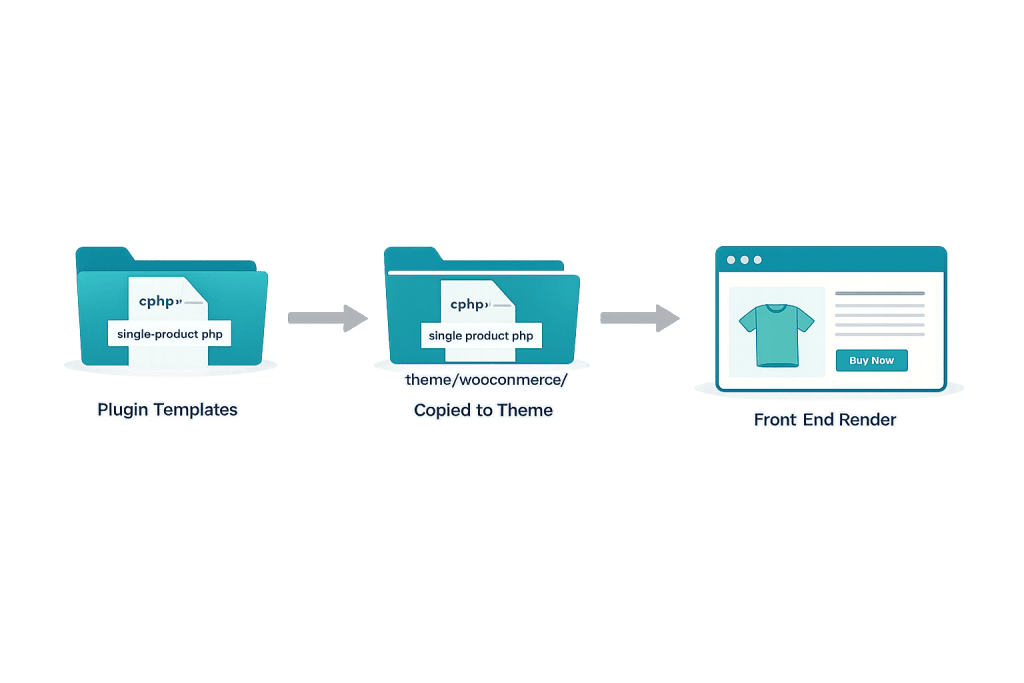
How WooCommerce Templates Work
WooCommerce follows a template hierarchy with a clear lookup order. When a page is requested, WooCommerce checks for a matching template in the active theme before falling back to its own plugin defaults:
- Theme override — WooCommerce looks in
/wp-content/themes/your-theme/woocommerce/first. - Plugin default — If no override exists, it uses
/wp-content/plugins/woocommerce/templates/.
The template files are organized into subfolders that mirror the plugin’s directory structure (minus the templates/ parent folder). For example, to override the single product page:
- Default location:
wp-content/plugins/woocommerce/templates/single-product.php - Override location:
wp-content/themes/your-theme/woocommerce/single-product.php
Common template categories include:
- Product templates —
single-product.php,archive-product.php,content-product.php - Cart & checkout —
cart/cart.php,checkout/form-checkout.php,checkout/thankyou.php - Account templates —
myaccount/my-account.php,myaccount/orders.php - Email templates —
emails/customer-completed-order.php,emails/admin-new-order.php
Hooks are embedded throughout every template file, allowing developers to inject or modify content at specific points without replacing entire templates — a cleaner approach for minor customizations.
Purpose & Benefits
1. Full Control Over Store Appearance
WooCommerce templates give developers complete control over the HTML structure and layout of every storefront element. Need to move the product gallery below the description, add a custom trust badge near the add-to-cart button, or restructure the checkout form? Template overrides make all of this possible through our WordPress development services.
2. Upgrade-Safe Customizations
Because overrides live in the theme directory (not the plugin), WooCommerce updates don’t wipe your customizations. Your modified files remain intact. The only maintenance task is periodically checking whether the upstream template has changed — something a developer handles during routine site maintenance.
3. Email Branding Consistency
WooCommerce’s email templates control every transactional message sent to customers: order confirmations, shipping notifications, refund receipts. Overriding these templates allows stores to apply consistent branding — logo, colors, font styles — to every automated email, turning functional notifications into brand touchpoints.
Examples
1. Overriding the Single Product Template
A furniture retailer wants to add a room-dimensions table and a “request a quote” button above the standard add-to-cart section. The developer copies the default template, places it in the theme, and modifies the markup:
// File: wp-content/themes/your-theme/woocommerce/single-product.php
// Adds a custom dimensions table before the cart form

defined( 'ABSPATH' ) || exit;

get_header( 'shop' );

// Custom hook to insert dimensions before product summary
do_action( 'mytheme_before_product_summary' );

woocommerce_content();

get_footer( 'shop' );
This override renders for every single product page while all other WooCommerce templates continue using defaults.
2. Customizing the Cart Template
A store wants to display a trust badge strip (SSL, returns policy, secure payment logos) immediately above the cart totals. Rather than using a page builder, the developer hooks into the cart template:
// File: wp-content/themes/your-theme/woocommerce/cart/cart.php
// Adds custom trust badges before cart totals — placed after cart table

add_action( 'woocommerce_after_cart_table', function() {
    echo '<div class="trust-badges">';
    echo '<img src="' . get_template_directory_uri() . '/images/secure-checkout.png" alt="Secure Checkout">';
    echo '</div>';
}, 10 );
The badge renders on the cart page only, keeping the modification scoped and maintainable.
3. Overriding an Email Template
A brand wants its order confirmation emails to match its website design. The developer copies the customer order email template into the theme and modifies the header section:
// File: wp-content/themes/your-theme/woocommerce/emails/email-header.php
// Custom branded email header

defined( 'ABSPATH' ) || exit;
?>
<!DOCTYPE html>
<html <?php language_attributes(); ?>>
<head>
    <meta http-equiv="Content-Type" content="text/html; charset=<?php bloginfo( 'charset' ); ?>" />
    <title><?php echo esc_html( get_bloginfo( 'name', 'display' ) ); ?></title>
</head>
<body>
<div id="wrapper" style="background-color: #1a1a2e; padding: 40px 0;">
    <div id="template_header" style="background: #ffffff; text-align: center; padding: 20px;">
        <img src="<?php echo esc_url( get_template_directory_uri() ); ?>/images/logo-email.png" alt="<?php bloginfo( 'name' ); ?>" />
    </div>
This template now renders for every transactional email WooCommerce sends, with consistent brand styling.
Common Mistakes to Avoid
- Editing plugin files directly — Any changes made inside
wp-content/plugins/woocommerce/templates/are overwritten whenever WooCommerce updates. Always copy files into your theme’swoocommerce/folder before modifying them. - Skipping outdated template warnings — WooCommerce flags templates that are older than the current plugin version in WooCommerce > Status > System Status. Outdated overrides can cause display errors or missing features after updates.
- Overriding entire templates for small changes — If you only need to add or remove a small element, use WooCommerce action and filter hooks instead of replacing the full template. Hooks are cleaner and less likely to break on updates.
- Not using a child theme — If you place template overrides in a parent theme, a theme update will delete them. Always override templates inside a child theme to protect your work.
Best Practices
1. Use Hooks Before Overriding Templates
Before copying and modifying a WooCommerce template, check whether a hook already exists for what you need. Most WooCommerce templates include do_action() and apply_filters() calls at key points. Using these is cleaner, requires less maintenance, and doesn’t require managing a copied file long-term.
2. Check Template Version Status Regularly
After every WooCommerce update, check WooCommerce > Status > System Status for any “outdated templates” warnings. If the upstream template changed, review the diff and update your override accordingly. This prevents layout bugs and missing functionality from accumulating unnoticed.
3. Organize Overrides in a Child Theme
Place all WooCommerce template overrides inside a child theme under the woocommerce/ subfolder. This keeps customizations isolated, survives parent theme updates, and makes it easy for any developer to locate your store’s custom templates in one predictable location.
Frequently Asked Questions
What is the difference between a WooCommerce template and a WordPress template?
A WordPress template controls the layout of a page or post type (like page.php or single.php). A WooCommerce template controls the specific markup inside store-related pages — product listings, cart, checkout, account. The two systems work alongside each other; WooCommerce templates handle the commerce-specific output within whatever WordPress page template is active.
Do WooCommerce templates work with block themes?
Block themes handle WooCommerce store pages differently. WooCommerce introduced dedicated block-based templates (like the Cart block and Checkout block) that integrate with the WordPress Site Editor. Classic PHP template overrides apply primarily to classic themes. When building with a WordPress block theme, WooCommerce’s block templates — editable inside the Site Editor — are the recommended approach.
How do I know which template file controls a specific page?
Enable WP_DEBUG and use WooCommerce’s built-in template debug mode, or install a helper plugin like “WooCommerce Template Debug.” You can also trace back from WooCommerce documentation: the Template Structure page in the WooCommerce developer docs maps every storefront area to its corresponding template file.
Will overriding a WooCommerce template break when I update WooCommerce?
The override itself won’t break — it will still load — but its output may be incorrect if the upstream template added or changed functionality. WooCommerce flags outdated overrides in the System Status screen. Reviewing and updating those files after major WooCommerce releases is standard maintenance.
Can I override WooCommerce email templates too?
Yes. WooCommerce email templates follow the same override pattern. Copy the email template from woocommerce/templates/emails/ into your-theme/woocommerce/emails/ and modify from there. This is the standard way to brand transactional emails with your store’s logo, colors, and tone.
Related Glossary Terms
- WooCommerce
- WooCommerce Extension / Add-on
- WordPress Theme
- Child Theme
- Hook
- WordPress Block Theme
- Full Site Editing (FSE)
- Custom Post Type Template
How CyberOptik Can Help
Building and customizing WooCommerce stores — including template overrides for product pages, checkout flows, and email branding — is a core part of the work we do every day. If your store’s default WooCommerce templates aren’t matching your brand or converting the way they should, we can build exactly what you need. You don’t need to manage PHP files and update cycles yourself — that’s what we’re here for. Contact us to discuss your eCommerce project or explore our eCommerce services.


