
Severity: Minor · Fix time: 5–15 min · Skill level: Intermediate
Auto-Update Failure occurs when WordPress’s background update system — which silently installs minor core releases, plugin updates, and theme updates without requiring manual action — fails to complete. The failure is often silent: no error page appears, no notification shows up in the dashboard, and visitors see the site normally. The consequence is that updates remain uninstalled, which creates security exposure when those updates contain patches. The most common causes are incorrect file permissions on the WordPress directory, a stuck maintenance lock from a previous failed attempt, or an outbound network restriction that prevents WordPress from reaching the WordPress.org update servers.
Need a quick map of every WordPress error? See our 70+ WordPress Errors Guide → for a categorized reference of every common WordPress issue.
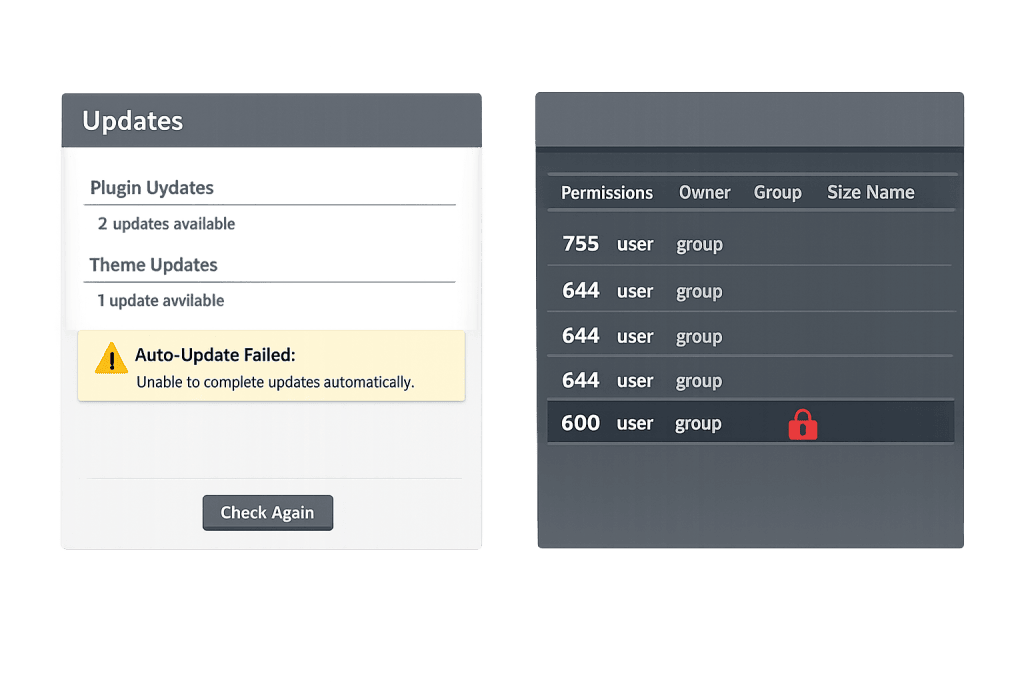
[Image: WordPress dashboard Updates screen showing an available update with no auto-update confirmation, alongside a server file permissions view]
How Auto-Update Failure Works
WordPress introduced automatic background updates in version 3.7. By default, minor core releases (e.g., 6.5.1 → 6.5.2) update automatically. Plugin and theme auto-updates must be individually enabled from the Plugins or Themes screen. When an auto-update triggers, WordPress:
- Downloads the update package from WordPress.org to the
/wp-content/upgrade/temporary directory - Extracts the package and copies updated files to the correct locations
- Runs any database upgrade routines if needed
- Sends a completion email to the admin email address and deletes the
.maintenancefile
If any step fails, the update either silently does nothing, leaves a .maintenance file in the webroot (triggering WordPress Stuck in Maintenance Mode), or leaves a core_updater.lock record in the database (triggering the Another Update Is Currently in Progress error).
Common failure causes:
- File permission errors — WordPress needs write access to
wp-content/,wp-content/plugins/,wp-content/themes/, and the temporarywp-content/upgrade/directory. If the web server process does not own or have write permission on these directories, the file copy step fails. The correct permissions for WordPress directories are 755, and for files, 644. - WP_AUTO_UPDATE_CORE disabled in wp-config.php — If
define('WP_AUTO_UPDATE_CORE', false);appears inwp-config.php, core auto-updates are explicitly disabled. Plugins and themes may still auto-update unless theauto_update_pluginandauto_update_themefilters are also set to false. - Outbound connection to WordPress.org blocked — Some server configurations block all outbound HTTP requests. If WordPress cannot reach
api.wordpress.orgto check for updates ordownloads.wordpress.orgto download packages, auto-updates fail silently. This is more common on VPS or dedicated servers with strict outbound firewall rules. - Insufficient disk space — If the server’s disk quota is full, WordPress cannot write the downloaded update package to the
/wp-content/upgrade/directory. - PHP execution time limit — Large plugin packages or slow connections occasionally cause the update download to exceed the PHP
max_execution_timelimit, killing the process mid-download.
Check This First — 2-Minute Diagnostic
- Check the admin email for update failure notifications — WordPress sends an email to the site’s admin email address when an auto-update fails. Check the inbox for messages from WordPress with subjects like “Some updates were not successfully installed.” The email names the specific plugin or component that failed.
- Look for a .maintenance file — Connect via SFTP and check your WordPress root directory for a file named
.maintenance. If it exists, a previous update was interrupted. Delete it to restore normal operation before retrying. - Check the Updates screen — In wp-admin, go to Dashboard → Updates. If updates that should have run automatically are showing as available, the auto-update either did not trigger or failed silently.
- Inspect wp-config.php for WP_AUTO_UPDATE_CORE — Open
wp-config.phpvia SFTP and search forWP_AUTO_UPDATE_CORE. If it is set tofalse, auto-updates for core are intentionally disabled. - Check available disk space — In cPanel or your hosting dashboard, verify that your disk quota is not full. A full disk prevents any file write operation including updates.
Purpose & Benefits
1. Auto-Updates Are the Simplest Line of Defense Against Security Vulnerabilities
The majority of WordPress security incidents involve vulnerabilities in plugins or themes that had a patch available but was not installed. Auto-updates exist specifically to close that gap — minor core releases and patched plugin versions get installed within hours of release, before most attackers have time to exploit the vulnerability at scale. When auto-updates fail silently, sites accumulate unpatched vulnerabilities without the owner knowing. Our WordPress maintenance services include active monitoring of update status to catch silent failures before they create security gaps.
2. Silent Failures Are More Dangerous Than Visible Errors
A visible error — a red notice in the dashboard, a site that won’t load — prompts immediate action. A silent auto-update failure produces no visible symptom. The site looks and functions normally while running unpatched plugin versions. This is why checking the admin email for update failure notifications and periodically reviewing the Updates screen are important habits, not optional housekeeping tasks.
3. Resolving File Permissions Fixes Multiple Issues at Once
Incorrect file permissions are the most common cause of auto-update failures — and the same permission problem causes plugin install failures, plugin update failures, and issues uploading media. Correcting permissions to the standard WordPress values (755 for directories, 644 for files) resolves auto-update failures and prevents a range of other file-write issues simultaneously.
Examples
1. Diagnosing and Fixing File Permission Errors
A site’s auto-updates had been silently failing for six weeks after a server migration. The admin email contained a backlog of “Some updates were not successfully installed” messages that had gone unread. The cause was that the migration had changed file ownership on the WordPress directory — the web server process no longer owned the files and could not write to them.
# Check current permissions on WordPress directories via SSH:
ls -la /var/www/html/wp-content/

# Correct ownership (replace www-data with your server's web process user):
# sudo chown -R www-data:www-data /var/www/html/

# Set correct directory permissions:
find /var/www/html/ -type d -exec chmod 755 {} \;

# Set correct file permissions:
find /var/www/html/ -type f -exec chmod 644 {} \;
After correcting ownership and permissions, the next scheduled auto-update cycle completed successfully within two hours.
2. Re-enabling Auto-Updates Disabled in wp-config.php
A client’s previous developer had disabled core auto-updates with a wp-config.php constant to prevent “surprise updates.” The site was running WordPress 6.3 while 6.5.x was current — missing several minor point releases that included security patches.
// Found in wp-config.php — disabling all core auto-updates:
define( 'WP_AUTO_UPDATE_CORE', false );

// Recommended fix — allow minor updates (security patches) but not major versions:
define( 'WP_AUTO_UPDATE_CORE', 'minor' );

// To also ensure plugin auto-updates are enabled (set per-plugin in dashboard),
// or control them programmatically:
add_filter( 'auto_update_plugin', '__return_true' );
// Use with care — test plugins on staging before enabling blanket auto-updates
Setting WP_AUTO_UPDATE_CORE to 'minor' (rather than true for all updates or false for none) is the most balanced approach: it installs security patches automatically while requiring manual confirmation for major version upgrades.
3. Whitelisting WordPress.org on a Restricted Server
A dedicated server with an outbound firewall that blocked all connections by default prevented WordPress from downloading update packages. The memory exhausted error and update failure notifications were ambiguous, but running wp core check-update via the server’s shell returned a connection timeout to api.wordpress.org. Adding an outbound firewall rule to allow connections to WordPress.org resolved the silent update failures.
# Test whether your server can reach WordPress.org update endpoints:
curl -I https://api.wordpress.org/

# If this returns "Could not resolve host" or connection timeout,
# your server's outbound firewall is blocking WordPress.org.

# Allow outbound HTTPS to WordPress.org IPs in your firewall config:
# ufw allow out to 198.143.164.0/24
# (WordPress.org uses Fastly CDN — actual IPs may vary, whitelist by hostname if possible)
Most shared hosting servers do not have this restriction, but VPS and dedicated servers with custom firewall configurations may.
Common Mistakes to Avoid
- Ignoring admin email notifications from WordPress — WordPress sends detailed failure emails to the site admin address. These emails name the exact plugin, theme, or core component that failed to update, along with the error message. Reading them eliminates guesswork. Set up email monitoring or check the admin inbox regularly.
- Setting file permissions to 777 — A world-writable
777permission on WordPress directories resolves the permission error immediately but creates a serious security vulnerability. Correct WordPress file permissions are 755 for directories and 644 for files. Never use 777 as a fix in production. - Disabling all auto-updates to avoid failures — The instinct to turn off auto-updates after a failure is understandable, but it trades a process problem for a security problem. Fix the underlying cause — permissions, disk space, or a locked maintenance file — rather than disabling the feature.
- Not checking disk space when updates fail — A full disk looks exactly like a permissions error from the update system’s perspective: both produce a “could not write file” failure. Always check disk space alongside permissions when diagnosing auto-update failures.
- Leaving a stuck .maintenance file — After any failed update, check for a
.maintenancefile in the WordPress root. A stuck maintenance file puts the site in maintenance mode for visitors and prevents new update attempts. It should be deleted manually after a failed update.
Best Practices
1. Verify File Permissions After Any Server Migration
After migrating a WordPress site to a new server, always verify that the web server process owns the WordPress directory and that permissions are set correctly. Migrations often change file ownership, especially when moving between different hosting providers or server types. A quick permissions check immediately after migration prevents silent auto-update failures for months afterward.
# Verify web server process user (typically www-data, apache, or nginx):
ps aux | grep apache
ps aux | grep nginx

# Verify ownership of wp-content directory:
ls -la wp-content/
# Should show the web server user as owner
2. Configure WP_AUTO_UPDATE_CORE to Allow Minor Releases
The recommended wp-config.php setting for most production sites is define('WP_AUTO_UPDATE_CORE', 'minor');. This ensures security patches (which are delivered as minor point releases like 6.5.1 → 6.5.2) install automatically, while major WordPress version upgrades (6.4 → 6.5) require manual confirmation. This is the correct balance between security and stability for sites where major version upgrades need testing before deployment.
3. Monitor the Admin Email Address for Update Failure Notifications
WordPress’s auto-update notification emails are the only active signal when a silent failure occurs. Ensure the admin email address in Settings → General is a monitored inbox, not an unread alias. For sites where the admin email is a shared mailbox, consider setting WPMS_ON or a notification plugin to route update failure emails to a monitored address. Our WordPress maintenance services include monitoring of update status as part of managed site operations.
4. Check and Clear the /wp-content/upgrade/ Directory Periodically
The wp-content/upgrade/ directory is used as a temporary staging area for update packages. Failed updates occasionally leave partial or corrupted files in this directory, which can interfere with subsequent update attempts. Connecting via SFTP and clearing the contents of this directory (not the directory itself) resolves update issues caused by corrupted temporary files. Do this after any failed update as a standard cleanup step.
5. Test Manual Updates Before Trusting Auto-Updates on a Given Server
When setting up WordPress on a new hosting environment, test the update mechanism manually before relying on auto-updates. Install a plugin, then go to Dashboard → Updates and manually update it. If this succeeds without prompting for FTP credentials, the server’s file permissions are correctly configured for WordPress auto-updates. If it prompts for FTP credentials, file ownership needs to be corrected — the web server process does not own the WordPress files.
Frequently Asked Questions
What causes WordPress auto-update failure most often?
File permission errors are the most common cause — the web server process does not own the WordPress files and cannot write updated files during the update process. The second most common cause is WP_AUTO_UPDATE_CORE being set to false in wp-config.php, which disables core auto-updates entirely. Check the admin email for failure notification messages; they usually name the specific cause.
How do I fix auto-update failure when locked out of wp-admin?
Auto-update failures do not lock you out of wp-admin — your dashboard remains accessible. You may see a “failed to update” notice in the Updates section, but the admin interface itself is functional. If you are locked out of wp-admin, you are dealing with a separate issue such as the White Admin Page or a login redirect loop. For auto-update fixes that require file access, use SFTP or your hosting file manager.
Can auto-update failure hurt my SEO?
Not directly. The site continues to function normally for visitors and search engines during an auto-update failure. The indirect risk is that uninstalled security patches leave vulnerabilities that could eventually lead to a site compromise — and a hacked site that serves spam content or gets blacklisted by Google has severe SEO consequences. Keeping updates current is part of maintaining search visibility long-term.
Is it safe to enable auto-updates for all plugins?
It depends on the site. For low-complexity sites with a small number of well-maintained plugins, blanket auto-updates for plugins are reasonably safe. For complex sites with WooCommerce, custom development, or plugins with known compatibility issues, it is better to enable auto-updates selectively — security plugins and minor releases — while testing major plugin updates on a staging site first. A failed plugin auto-update that breaks production is a more immediate problem than a missed security patch.
What’s the difference between auto-update failure and the “another update in progress” error?
Auto-update failure means the background update system either could not start or failed mid-process. The Another Update Is Currently in Progress error means a previous update left a database lock (core_updater.lock in wp_options) that prevents new updates from starting. Auto-update failure has several causes; the “another update in progress” error has one specific cause with a specific database fix.
Related Glossary Terms
- Another Update Is Currently in Progress
- WordPress Stuck in Maintenance Mode
- Plugin Install Failure
- Theme Update Failure
- SFTP (Secure File Transfer Protocol)
- wp-config
- Memory Exhausted Error
- Backup
How CyberOptik Can Help
Still broken? Our team fixes WordPress errors like this in under 30 minutes for maintenance clients. Silent auto-update failures are particularly hazardous because they create security gaps without any visible warning. Our WordPress maintenance services include active monitoring of update status, managed plugin and core updates with pre-update backups, and immediate response when the update system fails — so your site stays current without requiring you to check manually. Contact us to discuss your site or review how our maintenance plans handle updates proactively.


