
Severity: Minor · Fix time: 5–15 min · Skill level: Intermediate
Theme Update Failure occurs when a WordPress theme update stops partway through, leaving the theme in a broken or partially overwritten state. The dashboard update process may display “Update failed,” the theme may appear corrupted in Appearance → Themes, or the site may show an error after an update that appeared to complete. The most common causes are file permission errors that prevent WordPress from writing updated theme files, an interrupted connection mid-download, or a destination folder conflict from a previous failed update attempt.
Unlike most update errors, a failed theme update can break a site’s visual presentation mid-update if core template files are partially overwritten before the failure. Acting quickly and correctly — specifically, deleting and cleanly reinstalling the theme via SFTP — restores the site to a working state faster than troubleshooting the partial update in place.
Need a quick map of every WordPress error? See our 70+ WordPress Errors Guide → for a categorized reference of every common WordPress issue.
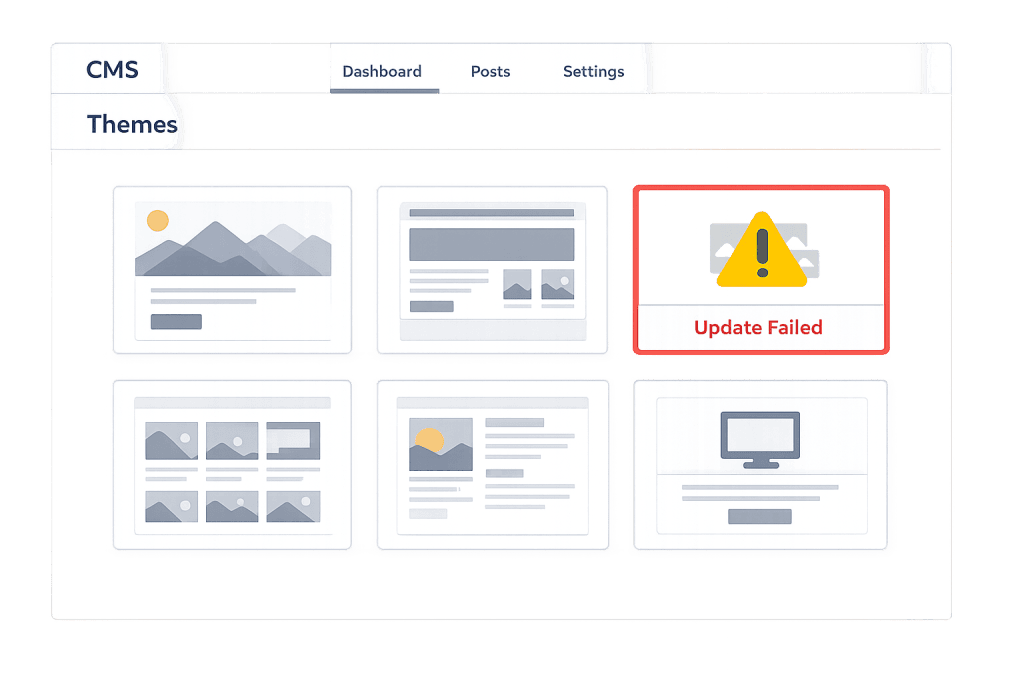
[Image: WordPress Appearance > Themes screen showing a theme update failure message, with the theme card displaying a broken state]
How Theme Update Failure Works
When WordPress updates a theme, it downloads the new theme package from WordPress.org (or the theme developer’s update server) into the /wp-content/upgrade/ temporary directory, extracts it, then copies the updated files into /wp-content/themes/[theme-name]/. If this copy process fails, the theme folder may contain a mix of old and new files — which is worse than either a clean old version or a clean new version, because the inconsistent file set can produce PHP errors on every page load.
The failure can happen at different stages:
- Download fails — WordPress cannot retrieve the update package from WordPress.org, usually due to network restrictions, a timeout, or insufficient disk space. In this case, the existing theme files are untouched. The update simply did not happen.
- Extraction or copy fails due to permissions — WordPress has the update package but cannot write the new files to the theme directory. File ownership or permission on
/wp-content/themes/does not allow the web server process to write. The result may be a partially updated theme folder. - Theme folder conflict — A previous failed update left a partial folder in
wp-content/themes/that interferes with the new installation. This is the Destination Folder Already Exists error in the context of an update. - Memory or execution time limit — A PHP memory exhaustion or timeout during the copy process kills the update mid-file, leaving corrupted theme files.
Check This First — 2-Minute Diagnostic
- Check whether the site front end is broken — Load the homepage. If the site looks wrong or shows a PHP error, the theme is partially updated and the front end is affected. This is more urgent than a failed update that left the theme intact.
- Look at Appearance → Themes — Does the theme show a version number consistent with the current release, or does it show an error state? A broken theme card suggests partial overwrite.
- Check for a .maintenance file — Connect via SFTP and look for a
.maintenancefile in the WordPress root. Delete it if present — it is a remnant of the failed update that puts the site into maintenance mode. - Check disk space — A full disk prevents file writes. Verify in cPanel or your hosting dashboard that disk space is not exhausted.
- Check file permissions on wp-content/themes/ — Via SFTP, verify that the web server process owns the themes directory and has write access. The correct permission for the themes directory is 755.
Purpose & Benefits
1. A Partially Updated Theme Is More Dangerous Than No Update
A theme that failed to update cleanly and left a mix of old and new files is less stable than a theme that simply did not update. PHP fatal errors from mismatched file versions are unpredictable — they may surface on specific page types, under specific conditions, or after a caching layer refreshes. Deleting the theme folder and reinstalling cleanly (from SFTP) takes five minutes and eliminates the partial-update risk entirely.
2. Understanding the Cause Determines Whether to Retry or Reinstall
If a theme update failed because of a temporary network issue or a brief server timeout, simply retrying the update from Dashboard → Updates is often sufficient. If the update failed because of file permissions, the retry will also fail — and may make things worse by attempting another partial overwrite. Diagnosing the cause first determines whether a retry, a permission fix plus retry, or a full delete-and-reinstall is the correct path.
3. Theme Updates Often Include More Than Design Changes
Theme updates can include security fixes, PHP 8 compatibility updates, or corrections to template logic. Skipping a theme update because the previous attempt failed — and then not following up — means the theme remains on an outdated version with known issues. The update process should always be completed, even if it requires the manual SFTP reinstall path.
Examples
1. Retrying the Update After a Temporary Connection Failure
A theme update failed with “Download failed: Could not connect to WordPress.org” during a brief server-side network interruption. The update was never started — the download did not begin — so the existing theme files were entirely intact. The fix was straightforward: wait a few minutes, go to Dashboard → Updates, and retry the theme update. It succeeded on the second attempt with no further action needed.
This is the most common and benign form of theme update failure. Before taking any file-system action, always try a simple retry from the Updates screen first. If it fails a second time with the same message, investigate the connection restriction. If it fails with a different message (file permissions, destination folder exists), escalate to SFTP-based recovery.
2. Deleting and Reinstalling via SFTP After Partial Overwrite
A theme update was interrupted by a server timeout, leaving the theme folder containing a mix of old and new template files. The site’s front end was showing PHP notice-level errors and some template sections were visually inconsistent. The clean fix was to delete the theme folder entirely via SFTP and reinstall from scratch:
# Via SFTP (FileZilla, Transmit, or Cyberduck):
# 1. Download a clean backup of the theme first (from the theme developer's site)
# 2. Connect to server via SFTP
# 3. Navigate to: /public_html/wp-content/themes/
# 4. Right-click the theme folder → Delete
#    (e.g., delete /wp-content/themes/your-theme-name/)
# 5. Upload the fresh theme folder (extracted from the downloaded zip)
# 6. In wp-admin > Appearance > Themes, verify the theme version is correct
# 7. Test the site front end to confirm clean state
If the theme has customizations in the theme folder itself (not a child theme), those customizations must be backed up before deleting. This is why all theme customizations should always be applied in a child theme — the child theme folder is separate and unaffected by deleting and reinstalling the parent theme.
3. Fixing File Permissions to Prevent Recurring Update Failures
A site consistently failed to update its theme via the dashboard, showing “Unable to copy theme files.” The cause was that the WordPress theme directory had incorrect ownership from a hosting migration. Correcting the file ownership allowed the update mechanism to write theme files normally.
# Check ownership of themes directory via SSH:
ls -la /var/www/html/wp-content/themes/

# If ownership is incorrect (not the web server process user),
# correct it (replace www-data with your server's web process user):
sudo chown -R www-data:www-data /var/www/html/wp-content/themes/

# Set correct directory permissions:
find /var/www/html/wp-content/themes/ -type d -exec chmod 755 {} \;
find /var/www/html/wp-content/themes/ -type f -exec chmod 644 {} \;
After correcting ownership, the theme update succeeded immediately via the dashboard. No SFTP reinstall was needed for subsequent updates.
Common Mistakes to Avoid
- Deleting the active theme without activating a backup first — Before deleting a theme to reinstall it, activate a default WordPress theme (Twenty Twenty-Four or similar) from Appearance → Themes. Deleting the only active theme folder while no other theme is activated can cause a white screen of death or blank front end. Always have a fallback theme ready.
- Making customizations directly in the parent theme folder — Any customization applied directly to the parent theme’s files is lost when you delete and reinstall the theme. All theme customizations should live in a child theme, which is unaffected by parent theme deletion and reinstallation.
- Not backing up before attempting a partial-update fix — Before deleting a partially updated theme folder, take a full site backup, including the database. If the reinstall introduces an unexpected issue, a current backup allows you to restore cleanly.
- Assuming a failed theme update means the theme is incompatible — Most theme update failures are infrastructure issues (permissions, disk space, network) rather than compatibility problems. Compatibility issues typically manifest after a successful update as visual or functional regressions, not as a failure to install the update at all.
- Not checking for child theme after reinstall — After reinstalling a parent theme, confirm that any active child theme is still active and functioning. Reinstalling a parent theme does not affect the child theme folder, but it is worth verifying in Appearance → Themes that the child theme is still shown as the active theme.
Best Practices
1. Always Back Up Before Running Theme Updates
Before updating any theme — whether manually or via the dashboard — take a full site backup. This is the single practice that makes every other fix attempt consequence-free: if something goes wrong during or after the update, you can restore to the pre-update state immediately. Most reputable managed hosts and WordPress maintenance services run pre-update backups automatically.
2. Use a Child Theme for All Customizations
Every customization to a WordPress theme — custom CSS, template modifications, added functions — should be applied in a child theme. The child theme folder is entirely separate from the parent theme and is unaffected by parent theme updates, reinstalls, or deletions. This is the fundamental protection against losing work during the theme update process and against the temptation to skip updates to preserve customizations.
3. Test Theme Updates on a Staging Site First
For themes that affect significant business functionality — custom templates, WooCommerce template overrides, heavily customized layouts — always test theme updates on a staging environment before applying to production. Theme updates occasionally change template structure in ways that break customized layouts or child theme overrides. A 10-minute staging test catches these regressions before they affect real visitors.
4. Use SFTP for Manual Theme Installation When Dashboard Fails
When the dashboard update consistently fails, download the updated theme zip file directly from the theme developer or WordPress.org theme repository, extract it on your local computer, and upload the extracted folder via SFTP to /wp-content/themes/, overwriting the existing theme folder. This bypasses the update mechanism entirely and produces a clean, known-good installation regardless of what caused the dashboard update to fail.
5. Verify the Update Completed Successfully
After a theme update (successful or apparently successful), check three things: (1) the version number shown in Appearance → Themes matches the current release, (2) the site front end loads without errors or visual regressions, and (3) Tools → Site Health shows no new warnings. A partial update that appears to have succeeded can sometimes pass a surface-level check while leaving inconsistent files. A quick Site Health review and front-end test confirm the update completed cleanly.
Frequently Asked Questions
What causes theme update failure most often?
File permission errors that prevent WordPress from writing updated theme files to /wp-content/themes/ — typically following a hosting migration that changed file ownership. The second most common cause is a temporary download failure due to a network interruption between the server and WordPress.org. Most cases are resolved by either retrying the update or fixing file permissions and retrying.
How do I fix a theme update failure when my site’s front end is broken?
If the theme update left the site visually broken, activate a default theme immediately via wp-admin (Appearance → Themes). This restores a working front end while you address the failed update. Then delete the broken theme folder via SFTP, upload a clean copy, and reactivate. If you cannot access wp-admin, rename the broken theme folder via SFTP — WordPress will fall back to a default theme automatically.
Can theme update failure hurt my SEO?
The update failure itself does not affect SEO — if the site continues to display correctly, search engines see no change. The risk is if the failed update leaves the site with visual errors or PHP errors that degrade the user experience or cause pages to return error codes. Resolve the failed update promptly to prevent user experience signals from degrading.
Is there a way to update a theme without deleting and reinstalling?
Yes — for most update failures, the cause is infrastructure, not file corruption. If the update failed because of a download error, retry from Dashboard → Updates. If it failed because of file permissions, fix the permissions and retry. Only proceed to the delete-and-reinstall path if retry attempts consistently fail or if the theme folder is visibly corrupted. A clean reinstall is always available as a fallback.
What happens to my theme customizations during a reinstall?
If your customizations are in a child theme, they are completely unaffected by deleting and reinstalling the parent theme. If your customizations are directly in the parent theme files, they will be lost when you delete the theme folder — this is why child themes are the correct approach. Before any theme deletion, connect via SFTP and review the theme folder for any custom files that need to be backed up.
Related Glossary Terms
- Child Theme
- Plugin Install Failure
- Destination Folder Already Exists
- Auto-Update Failure
- Another Update Is Currently in Progress
- SFTP (Secure File Transfer Protocol)
- Staging Site
- White Screen of Death (WSOD)
How CyberOptik Can Help
Still broken? Our team fixes WordPress errors like this in under 30 minutes for maintenance clients. Theme update failures that involve partial file overwrites require careful handling — deleting the wrong folder or missing a child theme backup can introduce new problems faster than the original error. Our WordPress maintenance services manage theme and plugin updates with pre-update backups and post-update verification, so you never have to manage a partial update state on a live site. Contact us to discuss your site or review what our managed update process covers.


