
Severity: Major · Fix time: 5–15 min · Skill level: Intermediate
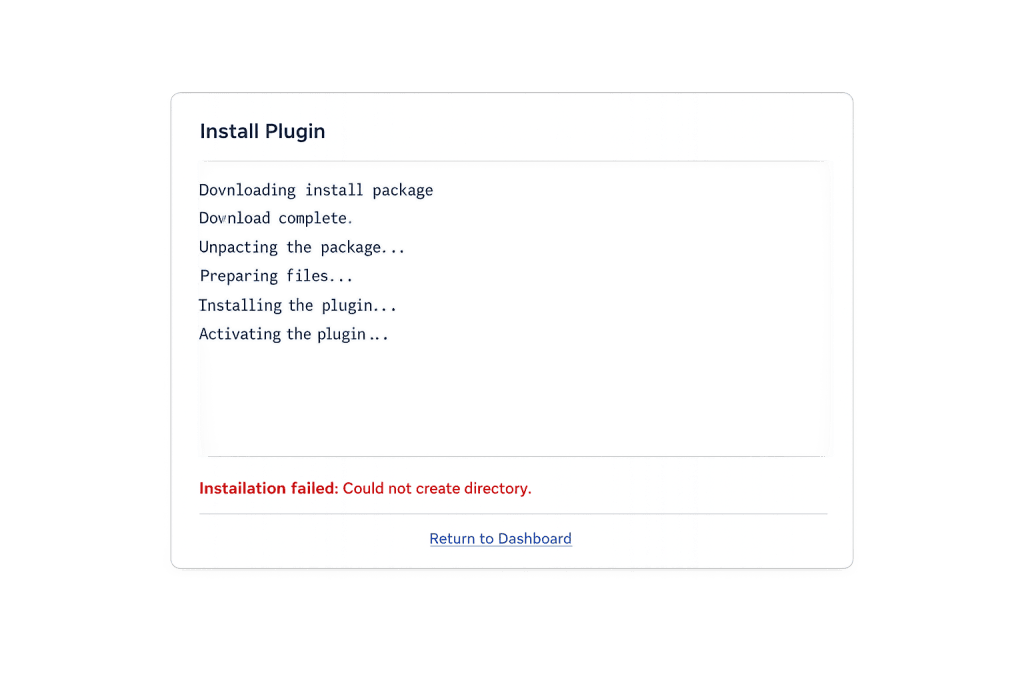
Plugin Install Failure — displayed as “Installation failed: Could not create directory” — is a WordPress error that appears when WordPress attempts to install or update a plugin but cannot create or write to the required directory inside wp-content/plugins/. The two dominant causes are incorrect file permissions (the web server process does not have write access to the plugins directory) and insufficient disk space on the hosting account. Resolving either cause allows plugin installations to proceed normally.
This error is one of the most direct indicators of a file system configuration problem, and the same underlying issue that causes it often also prevents media uploads, theme installations, and automatic updates from working correctly.
Need a quick map of every WordPress error? See our 70+ WordPress Errors Guide → for a categorized reference of every common WordPress issue.
[Image: WordPress plugin installation screen showing the “Installation failed: Could not create directory” error message in red]
How Plugin Install Failure Works
When you install a plugin from the WordPress dashboard, WordPress:
- Downloads the plugin’s
.zipfile from the WordPress plugin repository into a temporary directory - Extracts the
.zipcontents - Creates a new directory inside
wp-content/plugins/named after the plugin slug - Copies the extracted plugin files into that new directory
- Records the plugin in the database as installed but inactive
The “Could not create directory” error occurs at step 3 or 4 — WordPress is unable to create the new plugin directory or write files into it. This is always a server-side issue: either the web server process lacks the write permissions needed to create subdirectories inside wp-content/plugins/, the disk quota is full, or an incorrect ABSPATH constant in wp-config.php is pointing WordPress to the wrong directory.
The same error can also appear when:
- Uploading a plugin
.zipfile manually via Plugins → Add New → Upload Plugin - Updating an existing plugin (though the usual update path modifies an existing folder rather than creating a new one)
- Activating certain plugins that create their own subdirectories in
wp-content/on first activation
Check This First — 2-Minute Diagnostic
- Check disk space — In cPanel or your hosting dashboard, look at the disk usage meter. If it shows 95%+ or “Full,” disk space is the cause. Free up space or upgrade your hosting plan before attempting any further installs.
- Try installing a different plugin — Install a simple, small plugin (like “Hello Dolly”) to confirm the failure is consistent across all plugin installs, not specific to one plugin file.
- Check the plugins directory permissions — Connect via SFTP and navigate to
wp-content/. Right-click or view properties on thepluginsfolder. The permission should be 755. If it shows 444 or 555 (read-only), permissions are the cause. - Review Tools → Site Health → Info → Filesystem Permissions — WordPress’s built-in Site Health checks include a filesystem permissions section that explicitly flags whether WordPress can write to necessary directories. This is the fastest in-dashboard diagnostic.
- Check for FTP credential prompts — If WordPress prompts for FTP credentials when you attempt to install a plugin, the web server process does not own the WordPress files. This is a file ownership issue (not just permissions), which requires server-level correction.
Purpose & Benefits
1. Plugin Install Failure Signals a Systemic File System Problem
“Could not create directory” is rarely an isolated issue. If WordPress cannot write to wp-content/plugins/, it almost certainly also cannot write to wp-content/uploads/ (breaking media uploads), wp-content/themes/ (blocking theme installs), or the wp-content/upgrade/ directory (causing auto-update failures). Fixing the permissions or disk space issue restores all of these capabilities simultaneously — not just plugin installations.
2. A Plugin That Cannot Be Installed Cannot Protect Your Site
Security plugins, backup plugins, and performance plugins all require successful installation to function. If your hosting environment blocks plugin installations due to permissions, the site cannot easily be brought up to a standard security configuration. Resolving file permissions is a prerequisite for being able to manage the site effectively. Our WordPress maintenance services ensure the hosting environment is correctly configured so plugin management works without manual intervention.
3. Correct File Permissions Are a Security Baseline
WordPress has a documented standard for file permissions: 755 for directories and 644 for files. These permissions give the web server process exactly the access it needs without over-privileging. Servers with incorrect permissions — whether too restrictive (causing install failures) or too permissive (777 directories, which are a security risk) — represent a configuration gap that affects both functionality and security.
Examples
1. Fixing Permissions via Hosting File Manager
A client could not install any plugins after their site was migrated to a new shared hosting account. The wp-content/plugins/ directory had been assigned a permission of 555 (read and execute only, no write) by the migration process. Correcting this via the hosting file manager restored full plugin installation capability.
# Via cPanel File Manager:
# 1. Log into cPanel → File Manager
# 2. Navigate to: public_html/wp-content/
# 3. Right-click "plugins" folder → Change Permissions
# 4. Set permissions to: 755
#    - Owner: Read ✓, Write ✓, Execute ✓
#    - Group: Read ✓, Write ✗, Execute ✓
#    - World: Read ✓, Write ✗, Execute ✓
# 5. Check "Recurse into subdirectories" if subdirectories are also affected
# 6. Click "Change Permissions"
# Retry plugin installation from Dashboard → Plugins → Add New
The 755 permission gives the owner (the web server process) read, write, and execute access, while giving the group and others read and execute only. This is the standard WordPress configuration.
2. Resolving Disk Space Exhaustion
A busy eCommerce site’s hosting account ran out of disk space due to an accumulation of order logs, image uploads at full resolution, and undeleted plugin backups in the uploads directory. All plugin installations and WordPress updates began failing with “Could not create directory” simultaneously — the hallmark of a disk-full error rather than a permissions issue.
# Via SSH, check disk usage:
df -h /var/www/html/

# Find largest directories consuming space:
du -sh /var/www/html/wp-content/* | sort -rh | head -20

# Common space consumers to review:
# - /wp-content/uploads/ (large uncompressed images)
# - /wp-content/upgrade/ (leftover update packages — safe to empty)
# - /wp-content/backups/ (old backup archives)

# Safe cleanup — empty the upgrade temp directory:
rm -rf /var/www/html/wp-content/upgrade/*
After deleting old backup archives and clearing the wp-content/upgrade/ directory, sufficient disk space was recovered for installations to proceed. The client then upgraded their hosting plan to prevent recurrence.
3. Correcting File Ownership After a Server Migration
On VPS and dedicated servers, plugin install failures are often caused by a file ownership mismatch rather than a simple permissions issue. When WordPress files are owned by a different user than the web server process, the server cannot write to those directories even with correct permissions. This manifests as WordPress prompting for FTP credentials during plugin installation — a clear sign that file ownership is incorrect.
# Check current ownership of wp-content:
ls -la /var/www/html/wp-content/

# Example of incorrect ownership (files owned by root instead of www-data):
# drwxr-xr-x  root root  plugins/

# Correct ownership (replace www-data with your server's web process user):
sudo chown -R www-data:www-data /var/www/html/wp-content/

# Verify after correction:
ls -la /var/www/html/wp-content/
# Should now show: drwxr-xr-x  www-data www-data  plugins/
After correcting file ownership, WordPress no longer prompted for FTP credentials and plugin installations proceeded without the directory creation error.
Common Mistakes to Avoid
- Setting directory permissions to 777 — Setting
wp-content/plugins/orwp-content/to 777 (world-writable) resolves the install error immediately but creates a significant security vulnerability. Any file on the server can write to world-writable directories. The correct permission is 755, never 777. - Fixing only the plugins directory — If the cause is incorrect ownership or a disk-full condition, the same problem affects
wp-content/uploads/,wp-content/themes/, and thewp-content/upgrade/temp directory. Apply the fix to all ofwp-content/to prevent the issue from reappearing in a different form. - Installing plugins via FTP credentials workaround — WordPress will accept FTP credentials and install plugins using FTP as a workaround when the web server cannot write directly. This works, but it means every plugin installation, update, and media upload prompts for FTP credentials. It is a workaround, not a fix. Correct the underlying ownership issue so direct file write access works.
- Not checking Site Health first — WordPress’s Site Health tool at Tools → Site Health → Info explicitly reports whether WordPress can write to the plugins directory, uploads directory, and other critical paths. This check takes 10 seconds and either confirms the permissions issue or points to a different cause entirely.
- Confusing this error with the “Destination Folder Already Exists” error — “Could not create directory” means WordPress cannot create the plugin folder at all, usually due to permissions or disk space. “Destination Folder Already Exists” means the folder already exists (from a previous failed install) and is blocking a new one. The fix for each is different.
Best Practices
1. Verify File Permissions After Every Hosting Migration
Plugin install failures due to file permissions are most commonly introduced during hosting migrations. Immediately after any migration, go to Tools → Site Health → Info and review the Filesystem Permissions section. Alternatively, attempt a test plugin installation. If it fails, address permissions before doing anything else. This five-minute check prevents days of “I can’t install plugins” troubleshooting later.
2. Set and Maintain Standard WordPress Permissions
The WordPress documentation specifies 755 for directories and 644 for files as the standard configuration. Apply these permissions consistently to all of wp-content/ and verify them periodically. On shared hosting, your host may enforce correct permissions automatically. On VPS or dedicated servers, you are responsible for maintaining them after any file operations.
# Apply standard WordPress permissions to entire installation:
find /var/www/html/ -type d -exec chmod 755 {} \;
find /var/www/html/ -type f -exec chmod 644 {} \;
# WordPress-writable directories need 755 (wp-content/ subdirectories are already covered)
3. Monitor Disk Space Proactively
A hosting account that is approaching its disk quota will start producing sporadic “could not create directory” errors before it hits the limit completely. Set up disk usage alerts in your hosting dashboard if the option is available. Periodically review and clean up wp-content/uploads/ for oversized images, wp-content/upgrade/ for temporary update files, and any backup archives stored in wp-content/. Keeping at least 20% disk space available prevents update and install failures.
4. Upload Plugins via SFTP as a Fallback
When the dashboard plugin installation consistently fails and the cause is under investigation, install the plugin manually as a temporary measure. Download the plugin .zip from the WordPress plugin repository (wordpress.org/plugins), extract it on your local computer, and upload the extracted plugin folder to wp-content/plugins/ via SFTP. Then activate it from the Plugins dashboard. This bypasses the dashboard installation entirely and works regardless of the permission configuration.
5. Use Site Health to Confirm Write Access Before Troubleshooting Elsewhere
Before spending time on server-level permission changes, check Tools → Site Health → Info. Under “Filesystem Permissions,” WordPress reports explicitly whether it can write to wp-content/, wp-content/plugins/, wp-content/themes/, and wp-content/uploads/. If Site Health shows a green checkmark for all directories but plugin installation still fails, the cause is something other than permissions — disk space, path configuration, or server security rules — and your troubleshooting should pivot accordingly.
Frequently Asked Questions
What causes “Plugin install failure: Could not create directory” most often?
Incorrect file permissions on wp-content/plugins/ — usually set to read-only by a hosting migration or a server configuration error. Full disk space is the second most common cause. Run Tools → Site Health → Info to check filesystem permissions directly from the dashboard, or connect via SFTP and inspect the directory permissions manually.
How do I fix plugin install failure when I can’t change server permissions myself?
Contact your hosting provider’s support team. File ownership and server-level permission corrections on shared hosting plans require server-side access that shared hosting users typically do not have directly. Describe the error (“Could not create directory” on plugin install) and ask them to verify that the web server process has write access to wp-content/plugins/. Most hosts resolve this type of request quickly.
Can plugin install failure hurt my SEO?
Not directly — the installed plugins and existing content remain functional. The indirect risk is that you cannot install security plugins, caching plugins, or SEO plugins while the install failure persists. Resolving the underlying permissions issue promptly restores full site management capability.
Why does WordPress ask for FTP credentials during plugin installation?
WordPress prompts for FTP credentials when it cannot write files directly to the server — a fallback mode triggered by a file ownership mismatch. The web server process does not own the WordPress files, so WordPress tries to use FTP (which authenticates as the file owner) instead. This is a signal that file ownership needs to be corrected rather than a normal configuration. Fix the ownership with chown on the server, or ask your host to correct it.
Is this error related to the “Destination Folder Already Exists” error?
They are related but distinct. “Could not create directory” means WordPress cannot create the plugin folder due to permissions or disk space. “Destination Folder Already Exists” means the directory already exists (from a previous incomplete install) and is in the way. The former is an infrastructure problem; the latter is a leftover folder problem. Both prevent plugin installation but require different fixes.
Related Glossary Terms
- Destination Folder Already Exists
- Auto-Update Failure
- Theme Update Failure
- SFTP (Secure File Transfer Protocol)
- wp-config
- Plugin
- 500 Internal Server Error
- Disk Space
How CyberOptik Can Help
Still broken? Our team fixes WordPress errors like this in under 30 minutes for maintenance clients. File permission and disk space issues are often symptomatic of a hosting environment that needs attention beyond just plugin installation — the same misconfiguration may be blocking media uploads, update routines, and other critical operations. Our WordPress maintenance services include hosting environment reviews, permission audits, and hands-on resolution of file system issues. Contact us to discuss your site and we will get plugin management working reliably.


