
Severity: Critical · Fix time: 15–60 min · Skill level: Intermediate
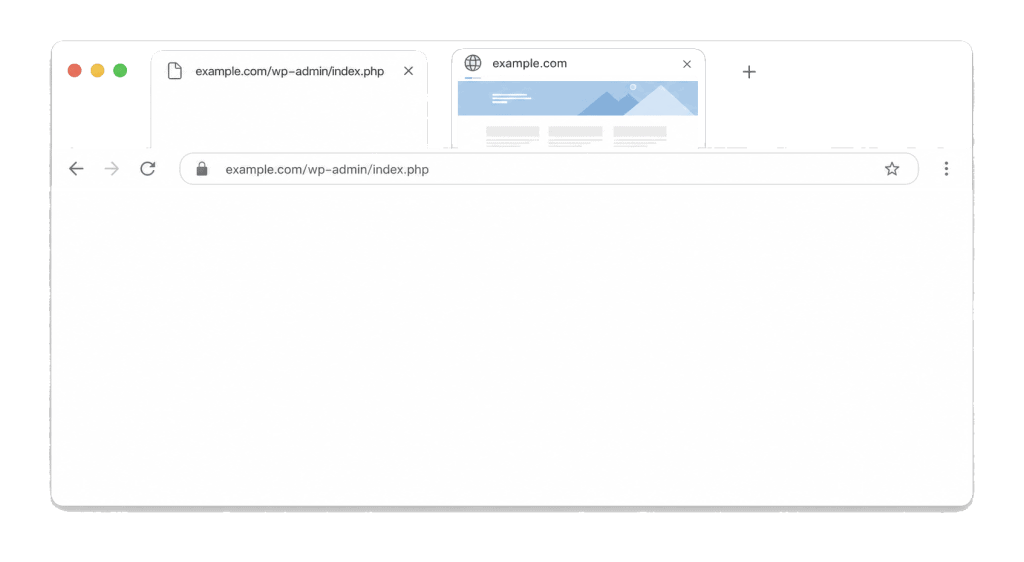
White Admin Page is a WordPress error where the wp-admin dashboard loads as a completely blank white page while the front end of the site continues to display normally to visitors. This is distinct from the White Screen of Death (WSOD) — which typically blanks both the admin and the front end simultaneously. When only the dashboard is blank, a plugin or theme is causing a fatal PHP error specifically in the admin context, and the front end is unaffected because it does not load that code.
The most reliable fix is to disable plugins via SFTP or your hosting file manager, isolate which plugin is causing the admin crash, and then either update or remove it. Because you cannot access wp-admin, you must work through the file system directly.
Need a quick map of every WordPress error? See our 70+ WordPress Errors Guide → for a categorized reference of every common WordPress issue.
How White Admin Page Works
WordPress loads different sets of code for admin pages versus front-end pages. When you visit wp-admin/, WordPress includes admin-specific files, loads admin-only plugin hooks, and executes any functions registered to run only in the admin context. A plugin or theme that contains a fatal PHP error in its admin-area code will crash the admin interface while leaving the front-end output unaffected — because the front end never executes that code path.
Common triggers for a white admin page specifically:
- A plugin update introduced a fatal error in admin-only code — PHP syntax errors or undefined function calls in a plugin’s admin classes crash the entire admin. The White Screen of Death affects both admin and front end; this variant affects only admin because the broken code is never loaded on the front end.
- A plugin that hooks into
admin_initoradmin_menuwith broken code — If a plugin registers a callback on an admin-specific hook and that callback has a PHP error, every admin page load triggers the crash. - A theme’s
functions.phpfile containing code that errors only in admin context — Some functions infunctions.phpbehave differently in admin versus front-end context. A conditional that works on the front end may fail on an admin page due to different available globals or load order. - WordPress core file corruption — Less common, but a partial file upload during a WordPress core update can corrupt
wp-admin/index.phpor a core admin include. The result is a blank admin page with no obvious plugin cause. - PHP version mismatch after a hosting migration — A hosting change that drops to an older PHP version can make previously functional plugin code fail when the plugin uses syntax from a newer PHP version. This manifests as a white admin page immediately after migration.
Check This First — 2-Minute Diagnostic
- Confirm the front end is working — Open your site’s homepage in a new browser tab. If the front end is also blank, you are dealing with the full White Screen of Death or a memory exhausted error, not a white admin page specifically.
- Check whether you can access other admin URLs — Try navigating to
yourdomain.com/wp-admin/plugins.phpdirectly. If that loads butwp-admin/index.phpis blank, the issue may be specific to the dashboard widget code from a specific plugin. - Check for a recent change — Did the white admin page appear after installing or updating a plugin, installing a new theme, or editing
functions.php? Identifying the last change often points directly to the cause. - Enable WP_DEBUG via wp-config.php — Connect via SFTP and add
define('WP_DEBUG', true);anddefine('WP_DEBUG_LOG', true);towp-config.php. Then try loading the admin page and checkwp-content/debug.logfor the PHP fatal error message. - Rename the plugins folder via SFTP — Connect to your server via SFTP. Navigate to
wp-content/and rename thepluginsfolder toplugins_disabled. Reloadwp-admin/. If the admin loads, a plugin is the cause. Rename the folder back topluginsand reactivate plugins one at a time from the dashboard.
Purpose & Benefits
1. A Blank Admin Page Blocks All Site Management
While the front end continues working, a white admin page effectively locks you out of every administrative function: publishing content, updating plugins, managing orders, running backups, and responding to form submissions. The longer this persists, the more operational tasks back up. Resolving it through the systematic file-system approach described below typically takes under 20 minutes even without prior technical experience.
2. The White Admin Page and WSOD Are Different Problems With Different Solutions
Understanding the distinction between the White Admin Page and the White Screen of Death (WSOD) matters for diagnosis. The WSOD blanks both admin and front end, usually indicates a PHP fatal error or memory exhaustion site-wide, and often requires a memory limit increase or PHP error log review alongside plugin deactivation. The White Admin Page is admin-only, almost always caused by a plugin or theme error in admin-specific code, and is resolved by isolating the offending plugin. Starting with the wrong diagnosis wastes time on fixes that will not work.
3. The Recovery Process Works Without Admin Access
One of the more stressful aspects of this error is that the usual recovery tools — the WordPress dashboard, the Plugins page, the Theme Editor — are all inaccessible. The fix requires connecting via SFTP or your hosting file manager, renaming folders, and editing configuration files. Understanding this process means you are not dependent on wp-admin access to recover your site, which is a generally useful capability for any WordPress site owner to have documented.
Examples
1. Plugin Update Causing Fatal Admin Error
A WooCommerce extension updated automatically overnight and introduced a fatal PHP error in its admin class file. The next morning, the shop owner found the entire admin blank. The front-end store was fully operational. Enabling WP_DEBUG revealed the exact error in debug.log:
PHP Fatal error: Call to undefined function wc_get_product() in
/wp-content/plugins/woo-extension/admin/class-admin.php on line 47
This identified the specific plugin. Connecting via SFTP and deleting the woo-extension folder from wp-content/plugins/ restored the admin immediately. The plugin was reinstalled from a previous version while the developer fixed the fatal error.
2. Disabling Plugins via SFTP to Restore Admin Access
When the specific problem plugin is not known, renaming the plugins folder is the fastest recovery method:
# Via SFTP (using FileZilla, Transmit, or Cyberduck):
# 1. Connect to your server with SFTP credentials
# 2. Navigate to: /public_html/wp-content/
# 3. Rename folder: plugins → plugins_disabled
# 4. Load wp-admin/ in browser — admin should appear
# 5. Rename back: plugins_disabled → plugins
# 6. In wp-admin > Plugins: reactivate one by one until admin blanks again
# 7. That plugin is the cause — deactivate and update or remove it
This approach deactivates all plugins without needing any WordPress admin access. When the admin loads after renaming the folder, all plugins will show as inactive. Rename the folder back and then reactivate them one at a time to identify the specific culprit.
3. functions.php Error Causing Admin-Specific Crash
A developer added a custom function to functions.php that used get_current_screen() — a function that is only available in the admin context, but only after a specific hook runs. The function was called too early in the load sequence, returning null and triggering a fatal error when admin-only code tried to call a method on the null return value.
// Problematic code: get_current_screen() called too early
function my_admin_customization() {
    $screen = get_current_screen(); // Returns null if called too early
    if ( $screen->id === 'dashboard' ) { // Fatal: calling method on null
        // Custom code
    }
}
add_action( 'admin_init', 'my_admin_customization' );

// Fixed: wrap in a check before calling methods on the return value
function my_admin_customization() {
    $screen = get_current_screen();
    if ( $screen && $screen->id === 'dashboard' ) {
        // Custom code — only runs when screen object is available
    }
}
add_action( 'current_screen', 'my_admin_customization' );
Adding the null check and moving the hook to current_screen (which runs after get_current_screen() is available) resolved the blank admin page without any plugin changes.
Common Mistakes to Avoid
- Assuming the same cause as the White Screen of Death — The White Admin Page and the WSOD look identical in the browser but have different causes and different diagnostic priorities. Confirm the front end is working first — that single check determines which error you are dealing with.
- Editing files via a browser-based editor while the admin is broken — Some hosting dashboards include a built-in code editor. While this can work in an emergency, it is less reliable than proper SFTP access and risks introducing whitespace or encoding issues. Use a dedicated SFTP client like FileZilla or Cyberduck.
- Deleting the plugins folder instead of renaming it — Renaming the plugins folder (
plugins→plugins_disabled) disables all plugins without deleting any data. Deleting the folder removes plugin files and may require reinstalling plugins from scratch. Always rename first; you can delete specific plugin folders after identifying the culprit. - Forgetting to check the theme as a cause — Most white admin page cases are plugin-related, but the active theme’s
functions.phpis also admin-loaded. If disabling all plugins does not resolve the blank admin, rename your active theme folder via SFTP (WordPress will fall back to a default theme) and test again. - Not removing WP_DEBUG after fixing — After using WP_DEBUG to identify the error, remove the debug lines from
wp-config.phpor set them tofalse. Leaving debug mode active on a production site can expose sensitive error messages to visitors.
Best Practices
1. Enable WP_DEBUG Immediately to Identify the Exact Error
The fastest path to a definitive diagnosis is enabling WP_DEBUG in wp-config.php. This logs the exact PHP fatal error, file name, and line number causing the crash. Without this, you are guessing which plugin is at fault. With the debug log, you know immediately — and the fix is usually a targeted deletion of one plugin folder rather than a process of elimination.
// Add to wp-config.php to enable debug logging
// Place above "That's all, stop editing!"
define( 'WP_DEBUG', true );
define( 'WP_DEBUG_LOG', true );
define( 'WP_DEBUG_DISPLAY', false ); // Don't show errors to visitors
Check wp-content/debug.log after attempting to load the admin page. The fatal error message will be at the bottom of the log.
2. Disable Plugins via SFTP Without Needing Admin Access
Connect to your site via SFTP using FileZilla, Cyberduck, or your hosting file manager. Navigate to wp-content/ and rename the plugins folder to plugins_disabled. Reload the admin page. This is the most reliable way to isolate a plugin cause without admin access. Once the admin loads, rename the folder back and systematically reactivate plugins to find the specific offender.
3. Increase PHP Memory as a Secondary Check
If disabling plugins does not resolve the blank admin page, a PHP memory limit may be insufficient for the admin interface to load. Add define('WP_MEMORY_LIMIT', '256M'); to wp-config.php and also check for an ini_set('memory_limit', '256M'); setting in wp-admin/index.php if the issue is specific to the dashboard page. A memory exhaustion that affects only the admin (because admin pages load more code) is less common but worth ruling out.
4. Check wp-config.php for Output Before HTML
A common but easily overlooked cause of blank admin pages is a wp-config.php file that has a PHP closing tag (?>) followed by whitespace or newlines at the end of the file. This sends an HTTP response header prematurely, causing the admin page to appear blank. Open wp-config.php via SFTP, scroll to the end, and ensure there is no closing ?> tag and no blank lines after the last line of code.
5. Keep a Record of What Changed Before the Error
Most white admin page errors can be tied to a specific action: plugin installation, plugin update, theme switch, or code edit. Documenting the sequence of events — even a brief note in a shared document — makes diagnosis dramatically faster and enables a developer to go directly to the most likely cause. Our WordPress maintenance services include change logging as part of managed site operations, which makes post-incident diagnosis straightforward.
Frequently Asked Questions
What causes the white admin page most often?
A plugin that has a PHP fatal error in its admin-specific code — most commonly after an automatic update that introduced a bug. The front end remains functional because that code is never loaded outside wp-admin. Check wp-content/debug.log after enabling WP_DEBUG; it identifies the exact plugin and line number causing the crash.
How is the white admin page different from the White Screen of Death?
The White Screen of Death (WSOD) typically blanks both the front end and the admin simultaneously, indicating a PHP fatal error that affects all page loads. The white admin page affects only wp-admin/ while the front end continues to work. The distinction matters because the WSOD requires checking PHP memory limits and front-end error logs, while the white admin page almost always has a plugin or theme admin-code cause that is isolated to the admin context.
How do I fix a white admin page when I have no SFTP access?
Your hosting control panel’s File Manager provides the same capability as SFTP without needing a separate FTP client. Log into cPanel, Plesk, or your host’s dashboard and look for a File Manager. Navigate to public_html/wp-content/ and rename the plugins folder there. If you truly have neither SFTP nor file manager access, contact your hosting provider directly — this is an emergency situation and most hosts will assist promptly.
Can this error hurt my SEO?
Your front-end content and search visibility are fully intact. Visitors see the site normally and search engines continue to crawl and index it. The risk is operational: if the admin is blank for days, you cannot publish updates, respond to WooCommerce orders, or run plugin and security updates, which creates indirect business and security risks.
What if disabling all plugins doesn’t fix the white admin page?
If the admin is still blank after renaming the plugins folder, the cause is the active theme’s functions.php or a WordPress core file corruption. Rename your active theme folder via SFTP to force WordPress to fall back to a default theme, then test the admin. If that fixes it, the theme code is the cause. If the admin is still blank with both plugins and the theme disabled, you are likely dealing with a corrupted WordPress core file — reinstalling core via SFTP (uploading a fresh copy of WordPress, excluding wp-content/) is the next step.
Related Glossary Terms
- White Screen of Death (WSOD)
- SFTP (Secure File Transfer Protocol)
- wp-config
- Debug Mode (WP_DEBUG)
- Memory Exhausted Error
- Plugin
- 500 Internal Server Error
- Parse or Syntax Errors
How CyberOptik Can Help
Still broken? Our team fixes WordPress errors like this in under 30 minutes for maintenance clients. A white admin page blocks every routine site management task, and the SFTP-based recovery process can be unfamiliar and stressful if you have not done it before. Our WordPress maintenance services include same-day emergency recovery for admin access issues, plus proactive plugin update management that catches fatal errors before they reach production. Contact us to get your admin back or review what our maintenance plans cover.


