Severity: Major · Fix time: 15–60 min · Skill level: Advanced
API Fetch Failed is a Gutenberg block editor error indicating that an HTTP request from the editor to the WordPress REST API did not complete. The browser received a network-level failure, a 403 Forbidden response, a 500 Internal Server Error, or a timeout instead of a valid response. The editor cannot function properly until the underlying fetch request succeeds.
This error is different from Gutenberg Updating Failed, which occurs when a save request is blocked or returns an unexpected response. API Fetch Failed is earlier in the chain — it indicates a network or security layer is blocking or breaking the HTTP request before it even reaches the WordPress application layer. It is also distinct from REST API Cookie Check Failed, which is a WordPress-level authentication failure after the request does reach the server. API Fetch Failed usually never gets that far.
Need a quick map of every WordPress error? See our 70+ WordPress Errors Guide → for a categorized reference of every common WordPress issue.
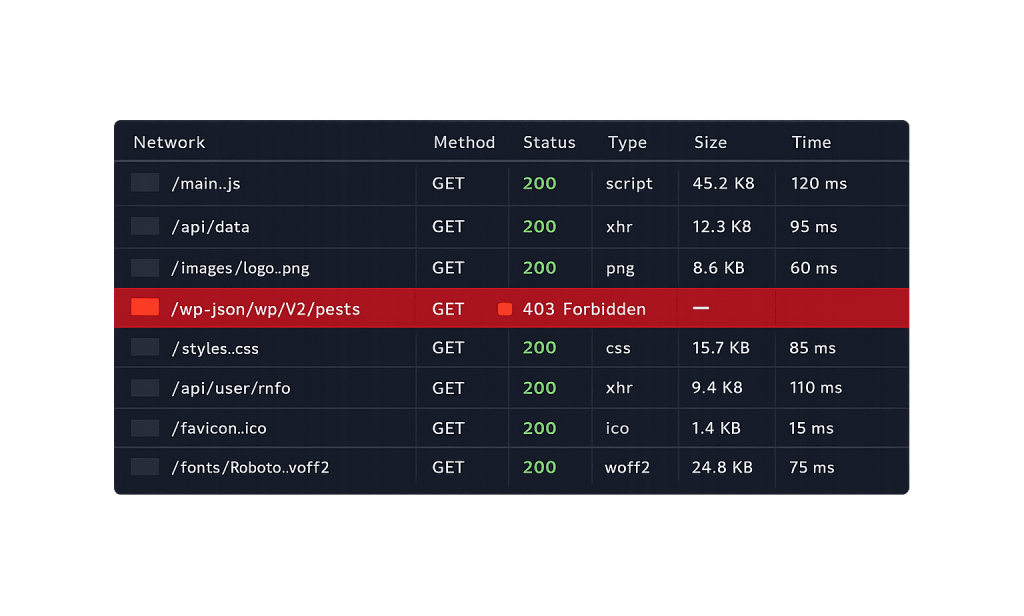
[Image: Browser developer tools Network tab showing a failed wp-json API request with a 403 status code]
How API Fetch Failed Works
Gutenberg makes dozens of REST API calls while loading and operating the editor. These include fetching the list of available blocks, loading post metadata, retrieving taxonomy terms for the sidebar, and checking plugin-provided block options. Each of these calls is an HTTP request from the browser to your WordPress site’s /wp-json/ endpoint.
When any of these requests fails, the Gutenberg JavaScript library (called @wordpress/api-fetch) surfaces a generic error indicating the fetch did not succeed. The specific failure cause lives in the network response, not the WordPress application log — which is why this error requires checking the browser’s developer tools rather than just the WordPress error log.
Common causes include:
- Server firewall or WAF blocking wp-json requests — Cloudflare firewall rules, server-level mod_security rules, or security plugins like Wordfence may treat REST API requests as suspicious and return a 403. This is the most common cause we see. The key distinction from REST API Cookie Check Failed is that here, the request is blocked before WordPress even authenticates it — a firewall or proxy is rejecting it.
- Reverse proxy or CDN misconfiguration — Proxies sitting in front of WordPress sometimes strip authentication headers, modify request paths, or block POST requests. The browser makes a correct fetch request, but the proxy transforms or rejects it before it reaches WordPress.
- Content Security Policy (CSP) headers blocking XHR/fetch — A strict CSP header from your server or a security plugin can prevent JavaScript from making fetch requests to certain endpoints, even on the same domain.
- CORS misconfiguration on multisite or subdomain setups — If your WordPress admin is served from a different subdomain than expected, cross-origin restrictions can block fetch requests entirely.
- PHP memory exhaustion or timeout on complex requests — A REST API endpoint that hits the PHP memory limit mid-response returns a malformed response that the browser cannot parse as valid JSON. The fetch library treats this as a failure.
- Plugin or theme JavaScript conflicts — A JavaScript error in another plugin or theme that loads in the editor context can prevent the
api-fetchmiddleware from initializing correctly.
Check This First — 2-Minute Diagnostic
- Open Browser Developer Tools → Network tab — In Chrome or Firefox, press F12, go to the Network tab, reload the editor, and look for red (failed) requests to URLs containing
/wp-json/. Click the failed request and check the status code: 403 = firewall block, 500 = server error, 0 = network-level block or CORS. - Check Tools → Site Health → Status — WordPress will flag REST API issues here. A red warning about the REST API immediately narrows the cause.
- Test the REST API directly — In a browser, visit
https://yourdomain.com/wp-json/wp/v2/posts. You should see JSON output. If you get an HTML error page, a blank page, or a Cloudflare error, the REST API is blocked at the infrastructure level. - Disable security plugins temporarily — Bulk-deactivate security plugins and test the editor. If the error clears, a security plugin’s firewall is the culprit.
- Check PHP error log timing — Note the exact time of the API fetch failure and compare it to your PHP error log. Memory exhaustion errors during a REST request appear there with matching timestamps.
Purpose & Benefits
1. A Broken API Fetch Blocks the Entire Editorial Workflow
Unlike narrower errors that affect only saving, API Fetch Failed can prevent the editor from loading blocks, displaying post thumbnails, populating category/tag dropdowns, or rendering any plugin-provided sidebar options. In practice, your editors may be unable to create or edit any content until the issue is resolved. The business impact of a blocked editorial workflow is immediate — content deadlines, campaign launches, and product updates all depend on the editor functioning.
2. The Difference Between Fetch Failures and Auth Failures Matters for Security
Understanding that API Fetch Failed is a network/security layer issue — not an authentication issue — helps you apply the right fix without weakening security unnecessarily. REST API Cookie Check Failed is an authentication problem that may require adjusting nonce handling. API Fetch Failed is an access problem that requires adjusting firewall rules or proxy configuration — a different class of change with different security implications.
Examples
1. Cloudflare WAF Rule Returning 403 on wp-json Requests
A site behind Cloudflare had a custom firewall rule blocking POST requests to any URL path containing /wp-json/ — put in place after a previous security incident. When Gutenberg loaded, every POST fetch to save block data failed with a 403. The Network tab in developer tools showed the 403 coming from Cloudflare’s edge, not from WordPress. The fix: added a Cloudflare firewall exception for authenticated admin traffic to /wp-json/wp/v2/*, preserving WAF protection for public traffic.
# In Cloudflare: WAF Custom Rule bypass for authenticated REST calls
# (Example of the rule logic — implemented in Cloudflare dashboard)
# Condition: (http.request.uri.path contains "/wp-json/wp/v2/")
#            AND (http.cookie contains "wordpress_logged_in")
# Action: Skip → WAF Managed Rules
# This allows admin REST API calls while keeping WAF active for public traffic
3. Plugin JavaScript Conflict Preventing api-fetch Initialization
A site with a complex set of admin plugins had a JavaScript error in a drag-and-drop table plugin’s admin script that threw an uncaught exception before the Gutenberg api-fetch middleware finished initializing. The Gutenberg editor loaded but fetch calls silently failed. The browser console showed the JS error preceding the fetch failures. Deactivating the conflicting plugin and flagging the error to that plugin’s developer resolved it.
Common Mistakes to Avoid
- Disabling all security plugins permanently — A security plugin causing API Fetch Failed needs to be configured correctly, not removed. Identify the specific firewall rule or setting causing the block and adjust it. Leaving security plugins fully disabled is never an acceptable final state.
- Confusing API Fetch Failed with Updating Failed — These look similar but have different causes. Gutenberg Updating Failed occurs when a save request reaches WordPress but fails at the application level. API Fetch Failed occurs when the HTTP request fails before reaching the WordPress application. Check the Network tab to confirm which is happening.
- Confusing API Fetch Failed with REST API Cookie Check Failed — REST API Cookie Check Failed means the request reached WordPress but authentication failed (usually a nonce issue). API Fetch Failed means the request was blocked before authentication could be checked. The Network tab status code distinguishes them: 401/403 from WordPress = cookie/auth issue; 403 from Cloudflare/mod_security, or 0 (blocked) = fetch failure.
- Increasing PHP memory without checking the Network tab first — Memory exhaustion can cause API Fetch Failed, but it’s not the most common cause. Check the Network tab status codes before making server configuration changes.
- Testing only in one browser — Browser extensions, VPNs, and cached responses can cause false positives. Always test in an incognito/private window before concluding the issue is server-side.
Best Practices
1. Use Browser Developer Tools as Your Primary Diagnostic
Every API Fetch Failed diagnosis starts with the browser Network tab. Press F12 (Chrome/Firefox), go to the Network tab, reload the editor, and filter by XHR or Fetch requests. Look for requests to /wp-json/ with non-200 status codes. The status code, response headers, and response body tell you exactly what layer is blocking the request — making every other troubleshooting step targeted rather than speculative.
2. Increase PHP Memory Limit as a Secondary Check
If the Network tab shows 500 responses to REST API calls, a PHP memory limit is a likely contributor. Add this to wp-config.php above the “That’s all, stop editing!” line:
// Increase PHP memory limit for REST API request handling
// Add to wp-config.php — use 256M as the standard value
define( 'WP_MEMORY_LIMIT', '256M' );
After saving, reload the editor and check the Network tab for the same 500 responses. If they clear, memory was the cause.
4. Enable WP_DEBUG to Capture REST API PHP Errors
// Temporary debug configuration — add to wp-config.php
define( 'WP_DEBUG', true );
define( 'WP_DEBUG_LOG', true );
define( 'WP_DEBUG_DISPLAY', false );
// Review wp-content/debug.log for PHP errors during REST API request failures
Remove these constants once the issue is diagnosed. Leaving WP_DEBUG active on a production site can expose error information in REST API responses.
Frequently Asked Questions
What causes API Fetch Failed most often?
A firewall rule — typically from Cloudflare, a server-level WAF, or a security plugin like Wordfence — that blocks HTTP requests to the /wp-json/ endpoint. Check the Network tab in browser developer tools: a 403 response from a proxy or CDN before the request reaches WordPress is the most common pattern we see.
How do I fix API Fetch Failed when locked out of wp-admin?
This error appears in the Gutenberg editor but doesn’t lock you out of wp-admin. You can still access the dashboard, view posts, and navigate wp-admin normally — you simply can’t use the block editor to create or edit content. Log in normally, use the Network tab to diagnose the fetch failure, and apply the appropriate firewall or plugin fix.
Can API Fetch Failed hurt my SEO?
Not directly. Published content continues to render normally on the front end and remains indexed. The indirect risk is an inability to create or update content — blocking new page creation, content updates for campaigns, and metadata changes that would improve search performance. Resolving it promptly is a business priority even if it’s not a ranking emergency.
Related Glossary Terms
- WordPress REST API
- Gutenberg Updating Failed
- REST API Cookie Check Failed
- Block Editor (Gutenberg)
- wp-config
- Memory Exhausted Error
- 500 Internal Server Error
- htaccess
How CyberOptik Can Help
Still broken? Our team fixes WordPress errors like this in under 30 minutes for maintenance clients. API Fetch Failed errors caused by WAF misconfiguration require precise rule adjustments — too broad a bypass and you weaken your security; too narrow and the editor remains broken. We handle this kind of infrastructure-level conflict for clients regularly, balancing security configuration with WordPress compatibility. Our WordPress maintenance services include REST API health monitoring and proactive conflict resolution so your editors stay productive. Contact us to discuss your site or review what our maintenance plans cover.