Severity: Critical · Fix time: Under 5 min · Skill level: Intermediate
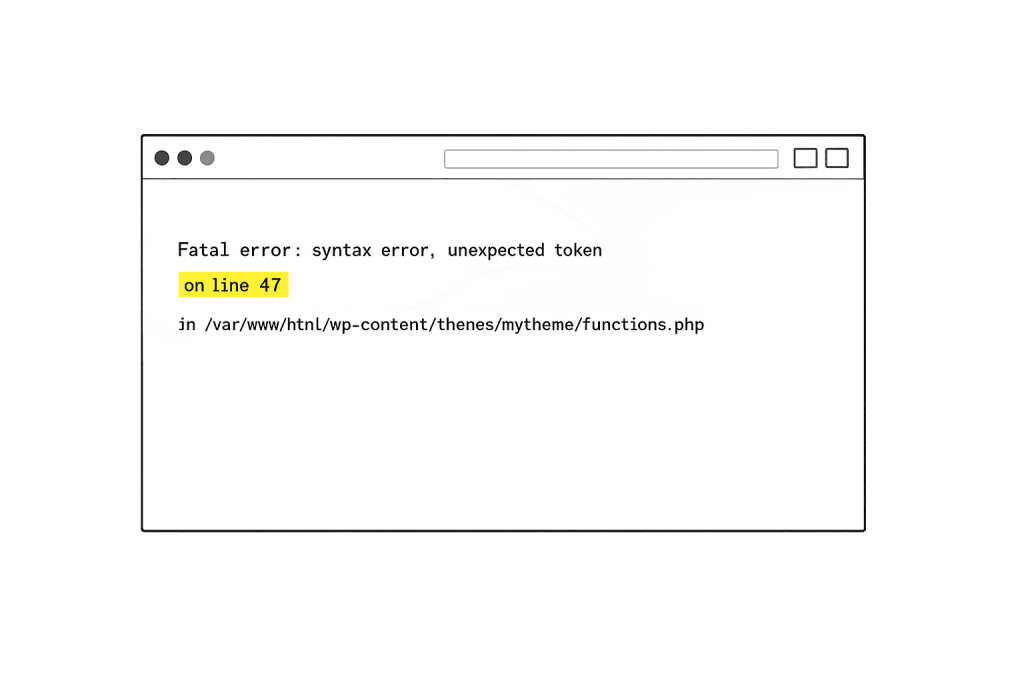
A Syntax Error on Line X is a PHP fatal error that halts WordPress entirely because a PHP file contains code that the interpreter cannot parse. The message is precise: it names the file, states “syntax error,” and identifies the exact line number where PHP encountered the problem. That specificity is the key difference between this error and a generic parse or syntax error — the “on line X” identifier tells you exactly where to look rather than leaving you to search an entire file.
This error most often appears immediately after editing a PHP file — adding a custom function to functions.php, pasting a code snippet from a tutorial, or modifying a theme file. The site goes blank or displays a fatal error screen, but the fix takes under five minutes once you understand how to read the line number and correct the underlying syntax problem.
Need a quick map of every WordPress error? See our 70+ WordPress Errors Guide → for a categorized reference of every common WordPress issue.
[Image: PHP fatal error message in a browser showing the file path and “on line 47” highlighted]
How Syntax Error on Line X Works
PHP is an interpreted language — every time a page loads, PHP reads and compiles the requested file before executing it. If the file contains a syntax problem, PHP stops at the point of failure and outputs a fatal error rather than attempting to execute partial code. The message follows a consistent format:
Parse error: syntax error, unexpected token "}" in /wp-content/themes/your-theme/functions.php on line 47This message contains four critical pieces of information:
- “Parse error: syntax error” — Confirms PHP couldn’t read the file, not that code ran and produced a wrong result
- “unexpected token” — Describes what PHP found that didn’t fit expected grammar (a
}, aT_STRING, an unexpectedEOF) - The file path — The exact file containing the problem
- “on line 47” — Where PHP gave up
One nuance worth understanding: the line PHP reports is where it detected the problem, not always where the error originates. A missing opening brace on line 30 may not cause PHP to fail until line 47, where the subsequent code no longer makes sense without it. Always check a few lines above the reported line number when the indicated line looks correct on its own.
Check This First — 2-Minute Diagnostic
- Read the full error message — Write down the file path and line number before doing anything else. This is your map to the fix.
- Identify the last edit you made — If you just pasted a code snippet, that snippet is almost certainly the source. Syntax errors virtually never appear without a recent file change.
- Open the file via SFTP — Connect with SFTP and download the affected file. Open it in a code editor that highlights syntax errors (VS Code, Sublime Text, Notepad++).
- Navigate to the reported line number — Most code editors let you jump directly to a line with Ctrl+G or Cmd+G. Look at the line and the 3–5 lines immediately above it.
- Check the most common culprits — Missing semicolon, mismatched quotation marks, unclosed parentheses or curly braces, or a non-PHP character accidentally pasted from a rich text source.
Purpose & Benefits
1. The Line Number Eliminates Guesswork
The “on line X” identifier reduces a potentially file-wide search to a single line and its immediate context. This is what separates a syntax error from a vague White Screen of Death where you have no starting point. Business owners who can read a line number can often fix this error themselves without developer involvement.
2. Fast Recovery Minimizes Downtime
A syntax error typically brings down the entire WordPress site. But because the fix is almost always a minor character correction, recovery time is measured in minutes. The critical skill is knowing how to access the file via SFTP when wp-admin is also unreachable — which it will be when functions.php or a core file is broken.
3. Syntax Errors Expose Unsafe Editing Practices
Syntax errors are nearly always caused by editing live PHP files through the browser-based theme or plugin editor. Each occurrence is an opportunity to improve the workflow: use a staging environment, validate before uploading, and never make live edits without a backup. Our WordPress maintenance plans include staging environments precisely to prevent this class of error.
Examples
1. Missing Semicolon After a Function Call
A site owner adds a tracking snippet to functions.php by pasting code from a blog post. The pasted snippet is missing a semicolon at the end of a function call. WordPress returns a fatal syntax error on the line immediately following the paste.
<?php
// Missing semicolon — PHP detects the error on the NEXT line
function add_tracking_code() {
    echo '<script>/* GA code */</script>'  // ← missing semicolon here
}
add_action('wp_footer', 'add_tracking_code');
Fix: open the file via SFTP, add the missing ; after the echo statement, and save. Site recovers immediately.
2. Mismatched Quotation Marks From a Rich Text Paste
A developer copies a snippet from a PDF. The document uses typographic “smart quotes” instead of straight quotes. PHP cannot parse smart quotes as string delimiters.
<?php
// Smart quotes cause a parse error — PHP doesn't recognize them
define('SITE_NAME', "My WordPress Site");  // ← curly quotes break this
Fix: retype the quotes in a plain text code editor. Never paste code directly from a PDF, Word document, or rich text source.
3. Unclosed Function Bracket Detected Lines Later
A developer adds a function to functions.php but forgets the closing }. PHP processes the file normally until it reaches the next function, where the missing brace makes the structure invalid.
<?php
// Missing closing brace — PHP reports an error at line 62, not line 50
function my_custom_function() {
    $output = 'Hello World';
    return $output;
// ← missing closing } here (line 55)

function another_function() {  // line 62 — where PHP gives up
    return true;
}
The fix is at line 55 (add }), even though the error message reports line 62.
Common Mistakes to Avoid
- Editing live PHP files through the WordPress Theme/Plugin Editor — The built-in editor has no syntax validation. A single mistake takes the entire site offline instantly. Use a staging environment or validate code locally before uploading.
- Trusting the reported line as the exact error location — PHP reports where it stopped parsing, not always where the error originated. Always inspect 5–10 lines above the reported line, especially for unclosed brackets.
- Pasting code from rich text sources — PDFs and Word documents use typographic quotation marks that break PHP syntax. Always paste into a plain text editor first.
- Not keeping a backup before editing — Download a copy of any PHP file before editing it. A 30-second download prevents a potentially site-down situation.
Best Practices
1. Validate PHP Syntax Before Uploading
Before uploading any edited PHP file, run a syntax check. Code editors (VS Code with PHP Intelephense, PhpStorm) highlight errors in real time. For manual validation:
# Validate PHP syntax before uploading
php -l /path/to/your/functions.php
# Returns: "No syntax errors detected" or the exact error and line number
2. Use WP_DEBUG Logging to Capture Error Messages
If the site is already down and you can’t read the error in the browser, enable debug mode in wp-config.php to log errors to a file:
// In wp-config.php — enable debug logging
define('WP_DEBUG', true);
define('WP_DEBUG_LOG', true);
define('WP_DEBUG_DISPLAY', false);
Errors write to /wp-content/debug.log, readable via SFTP even when the site is unreachable.
3. Restore From a Backup When You Can’t Find the Error
If you cannot locate the syntax error after checking the reported line and surrounding code, restore the file from a backup rather than continuing to debug. Download a clean copy, upload it via SFTP, and the site recovers immediately.
Frequently Asked Questions
What causes a syntax error on line X most often?
Almost always a recent PHP file edit — a missing semicolon, mismatched quotation marks from a rich text paste, or unclosed curly braces. If you haven’t recently edited a PHP file, check whether a plugin auto-update modified a file or a theme customization saved incorrectly.
How do I fix a syntax error when locked out of wp-admin?
Connect via SFTP and download the affected file (the path is in the error message). Open it in a code editor, navigate to the reported line, correct the syntax, and re-upload. You don’t need wp-admin access. If you can’t read the error in the browser, check your hosting control panel’s error log.
Can a syntax error hurt my SEO?
Yes. A syntax error preventing WordPress from loading means every page returns a fatal error or blank screen. Search engines crawling during this window may mark affected pages as unavailable. Fixing syntax errors quickly limits SEO impact to the downtime window.
What is the difference between a syntax error on line X and a parse or syntax error?
The underlying error type is identical — both are PHP parse errors. The parse or syntax error is the broader category; “on line X” is what makes a specific instance actionable. When the line number is included, you have a direct path to the fix.
Why does the error point to a line that looks correct?
PHP reports where it stopped parsing, not always where the error originated. A missing opening brace from an earlier line doesn’t cause PHP to fail until subsequent code becomes structurally invalid. Always check several lines above the reported line when the indicated line looks correct.
Related Glossary Terms
- Parse or Syntax Errors
- PHP
- wp-config
- Debug Mode (WP_DEBUG)
- White Screen of Death (WSOD)
- SFTP (Secure File Transfer Protocol)
- Fatal Error: Allowed Memory Size Exhausted
- There Has Been a Critical Error on This Website
How CyberOptik Can Help
Still broken? Our team fixes WordPress errors like this in under 30 minutes for maintenance clients. Syntax errors are quick to resolve once you can access the file — but getting that access requires SFTP credentials, a code editor, and familiarity with PHP structure that not every site owner has on hand. Our WordPress maintenance plans include emergency error resolution and a staging environment so code changes never risk live site availability. Contact us and we’ll get your site back online.