Severity: Critical · Fix time: 5–15 min · Skill level: Beginner
A Fatal Error: Allowed Memory Size Exhausted message appears when a WordPress PHP script attempts to use more memory than the server has allocated to PHP, causing the process to abort. The site stops loading, typically displaying a white screen, a generic error page, or the PHP fatal error directly. This is closely related to the Memory Exhausted Error, with one key distinction: this variant includes the specific script file path that triggered the crash, giving you a direct clue about which plugin, theme, or process consumed the memory.
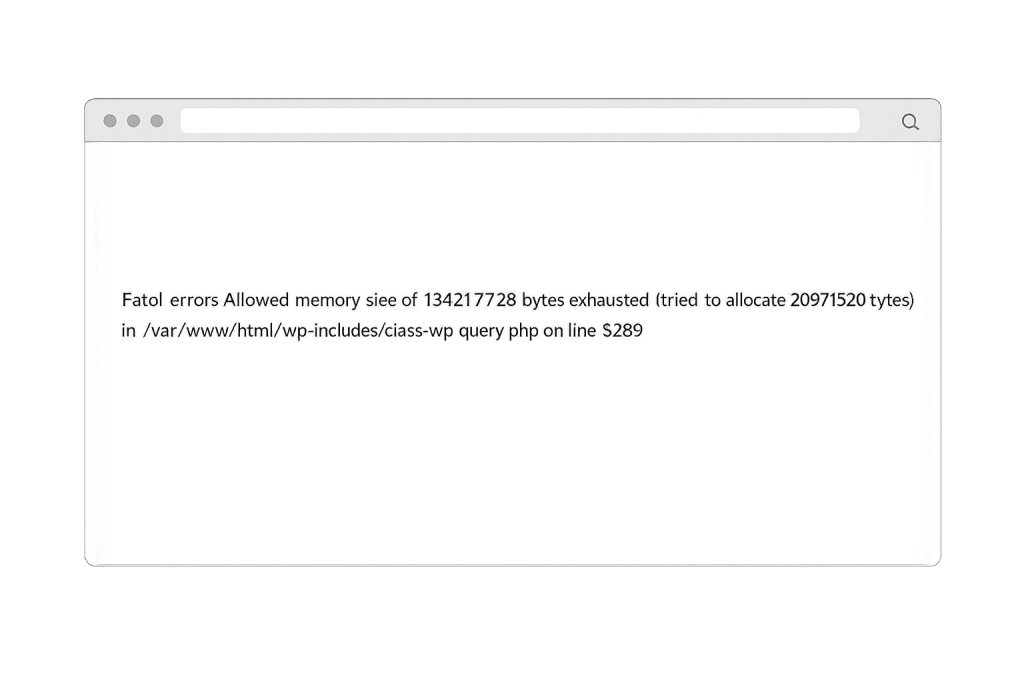
The full message looks something like: Fatal error: Allowed memory size of 134217728 bytes exhausted (tried to allocate 4096 bytes) in /wp-content/plugins/your-plugin/some-file.php on line 247. That file path is actionable — it tells you whether the issue is a plugin, a theme, or WordPress core, and points you at the root cause rather than just the symptom.
Need a quick map of every WordPress error? See our 70+ WordPress Errors Guide → for a categorized reference of every common WordPress issue.
[Image: PHP fatal error message showing the memory size in bytes, the file path, and line number]
How Fatal Error: Allowed Memory Size Exhausted Works
PHP operates within a memory budget set by the server. WordPress has its own memory limit setting that layers on top of the server’s PHP limit — neither can exceed the other. When a script tries to allocate memory beyond the allowed ceiling, PHP terminates the script immediately rather than letting it use system resources beyond the cap.
The number shown in the error message converts directly to megabytes: divide by 1,048,576. So 134,217,728 bytes equals 128MB — a common default PHP memory limit on shared hosting.
Common triggers:
- Plugins loading large datasets — An analytics plugin processing large data sets or an e-commerce plugin loading an entire product catalog in a single request
- Image processing operations — Very large images loaded into PHP memory for resizing or compression
- Page builders loading excessive assets — Builders that load all registered blocks on every request can balloon memory usage on complex sites
- WooCommerce checkout operations — Complex discount rules and cart calculations spike memory usage on large stores
- Poorly optimized database queries — Queries that load thousands of rows into PHP arrays
Check This First — 2-Minute Diagnostic
- Read the file path in the error message — It identifies whether a plugin, theme, or core file is exhausting memory. This single piece of information determines your next step.
- Check your current PHP memory limit — Go to Tools → Site Health → Info → Server and look for “PHP memory limit.” If it’s at 64MB or 128MB, an increase to 256M is the immediate fix.
- Confirm the trigger action — Does the error appear on all page loads, or only during a specific action (checkout, image upload, data import)? Action-triggered errors point to a specific plugin.
- Check if a recent plugin update coincided with the error — A plugin that just updated and now exhausts memory has likely introduced a memory regression.
- Test with plugins deactivated — If wp-admin loads, deactivate plugins one by one (starting with the one named in the error path) until the error stops.
Purpose & Benefits
1. The File Path Identifies the Root Cause Without Guessing
The Memory Exhausted Error tells you memory ran out — this variant tells you which script ran out of it. That specificity means you can target the fix: update the named plugin, contact the developer with the exact file reference, or deactivate the plugin while you find a resolution.
2. Memory Limit Increases Are a Temporary Solution, Not a Cure
Raising the PHP memory limit resolves the immediate crash, but the underlying issue — a plugin or process consuming excessive memory — remains. In our experience, a site that regularly hits memory limits has either a bloated plugin stack, inefficient custom code, or a configuration problem that a simple limit increase will only mask. Investigating the named script leads to the real fix.
3. Memory Errors Have Direct Business Impact
A fatal memory error on a WooCommerce checkout page stops transactions entirely. A memory error on a high-traffic landing page removes it from the visitor experience. Knowing how to increase the memory limit — and how to read the error to identify the responsible plugin — is the difference between a five-minute recovery and an hour of uncertainty. Our WordPress maintenance plans include performance monitoring that catches memory trends before they cause crashes.
Examples
1. Plugin Update Introduces a Memory Regression
Immediately after updating a popular page builder, the homepage starts returning a fatal memory error naming the page builder’s main PHP file. The immediate fix: increase the PHP memory limit in wp-config.php. The follow-up fix: report the regression to the plugin developer and check their support forum for a patch.
// Add to wp-config.php — above the "That's all, stop editing!" line
define('WP_MEMORY_LIMIT', '256M');
The server’s PHP-level limit must be at least 256M for this to take effect.
2. WooCommerce Checkout Fails on Large Order
A WooCommerce store with complex variable products and discount rules exhausts PHP memory during checkout calculation. The error appears only at checkout. Fix: increase the memory limit and investigate whether the discount rules plugin loads full product objects instead of just the required fields.
// Alternative: set memory limit in .htaccess if your host supports PHP directives
php_value memory_limit 256M
If neither wp-config.php nor .htaccess override takes effect, contact your hosting provider — some shared hosts enforce a hard memory cap that requires a plan upgrade.
3. Image Compression Plugin Exhausts Memory on Upload
Uploading a high-resolution photograph (30MB+ raw file) triggers a fatal memory error naming the compression plugin’s resize function. The plugin loads the entire uncompressed image into memory before processing. Fix: configure the plugin to use server-side compression instead of PHP-based processing, or set an upload size limit that prevents oversized source files.
// In wp-config.php — address both memory limit constants
define('WP_MEMORY_LIMIT', '256M');       // Standard memory for front-end/admin
define('WP_MAX_MEMORY_LIMIT', '256M');   // Admin-area operations (uploads, imports)
Common Mistakes to Avoid
- Setting memory limits higher than the server allows — If your hosting plan’s PHP limit is 128M and you set
WP_MEMORY_LIMITto256M, WordPress will still only get 128M. The server-level limit is the ceiling. Confirm your host’s actual PHP memory limit before adjusting. - Using 512M as a starting point — Start with 256M. Higher limits increase server resource usage and can mask poorly optimized plugins that should be fixed, not accommodated.
- Ignoring the file path in the error message — Increasing the memory limit without investigating the named file solves the immediate crash but leaves the real problem in place.
- Editing wp-config.php without a backup — Always download a copy of
wp-config.phpbefore editing it. A syntax error in this file causes a separate fatal error that prevents WordPress from loading.
Best Practices
1. Set the Memory Limit in wp-config.php
The most reliable approach is through wp-config.php. Add this line above the “That’s all, stop editing!” comment:
// Standard WordPress memory limit — add to wp-config.php
define('WP_MEMORY_LIMIT', '256M');

// For memory-intensive admin tasks (imports, bulk operations)
define('WP_MAX_MEMORY_LIMIT', '256M');
After saving, reload the affected page and confirm the error is resolved.
2. Use WP_DEBUG to Log Memory Errors Without Displaying Them
On production sites, enable debug mode to log errors to a file instead of showing them to visitors:
// In wp-config.php — log errors to debug.log without displaying them
define('WP_DEBUG', true);
define('WP_DEBUG_LOG', true);
define('WP_DEBUG_DISPLAY', false);
This writes all PHP errors to /wp-content/debug.log, reviewable via SFTP to track recurring memory consumers.
3. Audit the Plugin Named in the Error Message
Treat the file path as a starting point for a plugin audit. Check the plugin’s changelog for memory-related changes, search its support forum for similar reports, and test with it temporarily deactivated. If the memory error disappears, you have confirmation — contact the developer or find an alternative.
Frequently Asked Questions
What is the difference between this error and the Memory Exhausted Error?
Both mean PHP ran out of allocated memory. The generic Memory Exhausted Error may not include a specific script path, while this variant always includes the file path and line number. That path tells you which plugin was running when memory ran out, making diagnosis faster.
How do I fix this error when locked out of wp-admin?
Connect via SFTP and edit wp-config.php directly. Add define('WP_MEMORY_LIMIT', '256M'); above the “That’s all, stop editing!” line. If the error persists, the responsible plugin may need to be deactivated by renaming its folder in /wp-content/plugins/ via SFTP.
Can this error hurt my SEO?
Yes. Any page returning a fatal error during a search engine crawl will not be indexed. If the error affects your homepage or high-traffic pages, you may see a drop in indexed pages and organic traffic. After fixing, submit affected URLs in Google Search Console for re-crawling.
Is 256M enough, or should I use a higher limit?
256M is sufficient for most WordPress sites, including mid-size WooCommerce stores. 512M is only needed for sites processing bulk data imports frequently or heavily customized builds. Start with 256M and investigate the specific script if the error recurs rather than simply raising the limit again.
Why does this error only appear on some pages?
Memory usage varies based on what WordPress loads for each request. A simple blog post loads far less than a WooCommerce archive page rendering 48 product thumbnails with discount rules applied. Pages most prone to memory errors trigger the most plugin activity — checkout pages, large archives, and admin operations like imports or bulk edits.
Related Glossary Terms
- Memory Exhausted Error
- PHP
- wp-config
- Debug Mode (WP_DEBUG)
- White Screen of Death (WSOD)
- There Has Been a Critical Error on This Website
- SFTP (Secure File Transfer Protocol)
- Maximum Execution Time Exceeded
How CyberOptik Can Help
Still broken? Our team fixes WordPress errors like this in under 30 minutes for maintenance clients. Memory exhaustion errors look simple — increase a number, move on — but persistent memory issues almost always point to a plugin or configuration problem that requires investigation, not just accommodation. Our WordPress maintenance plans include performance monitoring and proactive plugin audits that catch memory-hungry code before it crashes your site. Contact us to discuss your situation.