
A shopping cart is the component of an e-commerce website where customers accumulate items they intend to purchase before proceeding to checkout. It’s the digital equivalent of the physical shopping cart in a retail store — a temporary holding area where items can be added, reviewed, adjusted in quantity, and removed before the buyer commits to a transaction.
In WooCommerce and most e-commerce platforms, the shopping cart persists across a shopping session and often beyond it. Items added to a cart are typically remembered for days or weeks, even if the visitor leaves and returns later (for logged-in users, or through browser cookies for guests). The cart page is a critical touchpoint in the buying journey — it’s where shoppers review their selections, see total costs including shipping and taxes, and decide whether to proceed. Roughly 70% of all online shopping carts are abandoned before checkout, making cart design and optimization one of the highest-leverage areas in e-commerce conversion rate work.
How the Shopping Cart Works in WooCommerce
In a WooCommerce store, the cart operates as follows:
- When a customer clicks “Add to Cart,” the item is added to a cart session stored in a browser cookie and (for logged-in users) in the WordPress database.
- The cart page (
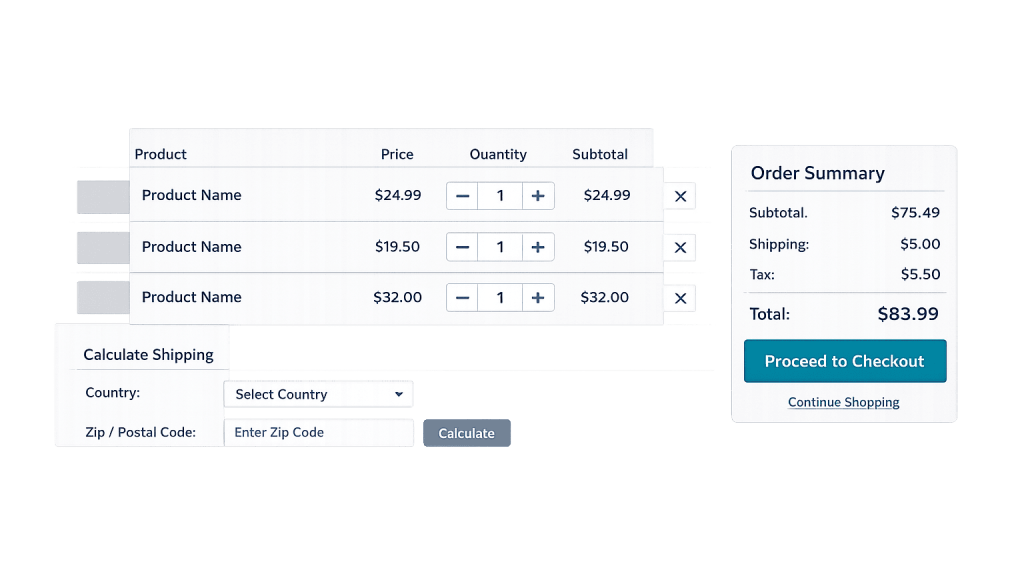
/cart/) displays all items, allows quantity adjustments and removals, shows a subtotal, and typically includes a shipping cost calculator. - Customers proceed from the cart to the checkout page (
/checkout/) where billing, shipping, and payment details are collected. - Coupon codes can be applied on the cart page to adjust totals before checkout.
WooCommerce’s default cart and checkout pages are created automatically at setup. Their appearance and functionality can be modified through plugins, theme customization, or custom development to optimize the conversion experience.
[Image: Screenshot of a WooCommerce cart page showing product thumbnails, names, prices, quantity fields, remove buttons, subtotal, shipping calculator, and “Proceed to Checkout” button]
Purpose & Benefits
1. Enable Multi-Item Purchasing in a Single Transaction
Without a cart, customers would need to complete a separate checkout for each item they want — an experience that would eliminate any meaningful e-commerce. The cart aggregates multiple products into a single transaction, allowing customers to shop naturally and purchase everything they want in one checkout. This directly supports higher average order values.
2. Give Customers a Review Point Before Commitment
The cart page provides a natural stopping point where customers can confirm their selections, check total pricing, and decide whether they’re ready to proceed. This reduces buyer’s remorse and returns — customers who’ve reviewed their cart carefully are more confident in their purchase. A well-designed cart page that clearly presents all costs (including shipping) before checkout reduces the surprise of final totals that drives cart abandonment.
3. Create an Opportunity for Last-Minute Conversion Optimization
The cart page is a high-intent page — every visitor on it has already made at least one purchase decision. This makes it an effective location for upsell suggestions (“customers also bought…”), free shipping threshold indicators (“spend $12 more for free shipping”), and trust signals (payment badges, return policy reminders). These elements can meaningfully increase both conversion rate and average order value without requiring visitors to make an additional navigation decision.
Examples
1. Abandoned Cart Recovery Campaign
A WooCommerce store tracks cart activity for registered users and guests who’ve entered their email. When a cart is abandoned — a user adds items but doesn’t complete checkout — the store sends an automated email sequence: a 1-hour reminder, a 24-hour follow-up, and a 72-hour email with a 10% discount code. This sequence recovers a meaningful percentage of otherwise lost sales. Managing cart abandonment is one of the clearest revenue opportunities in e-commerce optimization. See cart abandonment for more.
2. Free Shipping Progress Bar
A home goods store configures a progress indicator on the cart page that shows how close a customer is to qualifying for free shipping. “You’re $15.00 away from free shipping!” encourages customers to add another item rather than pay for shipping — increasing average order value while improving the customer experience by making the incentive visible and actionable.
3. Cart Totals With Shipping Estimate
A WooCommerce store configures its cart page to include a shipping cost calculator, so customers can see their total (including shipping) before clicking “Proceed to Checkout.” This transparency is proven to reduce checkout abandonment caused by shipping cost surprise — one of the top reasons customers abandon at the checkout stage rather than the cart stage.
Common Mistakes to Avoid
- Requiring login to view the cart — Forcing customers to create an account or log in before adding items or proceeding introduces unnecessary friction. Guest checkout and guest cart browsing are expected by modern online shoppers. WooCommerce supports guest checkout by default; make sure it’s enabled.
- Hiding shipping costs until checkout — If shipping isn’t free or if rates vary, showing estimated shipping on the cart page reduces the number of customers who abandon at checkout after seeing costs for the first time. The earlier you reveal total cost, the better.
- Cluttered cart pages that distract from conversion — The cart page has one job: move customers to checkout. Excessive navigation, promotional banners, and unrelated content pull attention away from the primary action. Keep the cart page clean and focused.
- Not testing the cart-to-checkout flow on mobile — Over half of e-commerce traffic comes from mobile devices. A cart page that works well on desktop but has small buttons, cramped quantity fields, or a difficult checkout CTA on mobile is costing sales. Test the complete flow on multiple devices regularly.
Best Practices
1. Optimize the Cart Page for Conversion
Apply proven cart page best practices: clear product thumbnails and names, easy quantity adjustment, visible remove options, a clear subtotal, and a prominent “Proceed to Checkout” button. Display trust signals — security badges, accepted payment logos, and a brief return policy reminder — near the checkout button. These elements address common hesitations at the point where customers are deciding whether to proceed.
2. Implement Cart Abandonment Recovery
Install a cart abandonment recovery plugin (WooCommerce Cart Abandonment Recovery, Retainful, or CartFlows are commonly used) to capture email addresses and trigger automated recovery sequences. Even recovering 5–10% of abandoned carts can represent a significant revenue increase for most stores. Connect recovery messaging to your existing email marketing infrastructure for the most seamless experience.
3. Use Upsell and Cross-Sell Strategically
WooCommerce supports built-in cross-sell products that appear on the cart page. Configure these thoughtfully — recommend genuinely complementary products, not random items. A customer buying a coffee maker sees a recommendation for coffee filters; that’s relevant. A customer buying a book doesn’t need to see a cookware set. Relevant recommendations increase average order value without feeling like spam.
Frequently Asked Questions
What’s the difference between the cart page and the checkout page?
The cart page is where customers review and adjust their selected items before committing to purchase. The checkout page is where they enter billing, shipping, and payment information to complete the transaction. The cart is a review step; checkout is the commitment step. Both pages need to be optimized, but for different friction points.
Does WooCommerce save cart contents automatically?
Yes. For logged-in users, WooCommerce saves cart contents in the WordPress database — items persist across sessions. For guest users, cart contents are stored in browser cookies and persist for a configurable duration (typically days). This persistence is helpful for recovery campaigns but requires a privacy policy disclosure in GDPR-regulated regions.
Can I customize the WooCommerce cart page?
Yes, with varying levels of complexity. Basic customization (colors, fonts, layout tweaks) can be done through theme settings. More significant changes (restructured layout, new sections, cart upsell blocks) typically require a page builder plugin, a WooCommerce-compatible theme with cart templates, or custom development. Avoid editing WooCommerce core template files directly — use a child theme for template overrides.
How do I reduce cart abandonment?
The most impactful steps: show shipping costs early, enable guest checkout, simplify the path from cart to completion, and implement an email recovery sequence. Longer-term improvements include A/B testing cart page layouts, adding trust badges, and ensuring the checkout flow works well on mobile. See cart abandonment for a detailed breakdown of causes and solutions.
Can customers have multiple carts in WooCommerce?
Standard WooCommerce supports one active cart per session — there’s no native multi-cart functionality. For businesses that need saved lists, wishlist functionality, or named carts (common in B2B e-commerce), these features are available through plugins or custom development.
Related Glossary Terms
- Cart Abandonment
- Checkout Flow
- WooCommerce
- Payment Gateway
- Conversion Rate
- Shipping Zone / Shipping Class
- Coupon (WooCommerce)
How CyberOptik Can Help
The shopping cart is one of the most important pages on any e-commerce site — and one of the most frequently neglected. We build WooCommerce stores with cart and checkout experiences designed for conversion, and we optimize existing store flows where the data shows customers dropping off. If your store is losing sales between “add to cart” and “order complete,” that’s a solvable problem. Contact us to discuss your eCommerce project or explore our eCommerce services.


