
Severity: Critical · Fix time: 5–15 min · Skill level: Intermediate
A 502 Bad Gateway is an HTTP status code that appears when a server acting as a gateway or proxy receives an invalid, corrupted, or unintelligible response from an upstream server. Unlike a 504 Gateway Timeout, which means the upstream server didn’t respond in time, a 502 means it did respond — but with something the gateway couldn’t use. From the visitor’s perspective, the page simply fails to load, often with a terse error message.
On WordPress sites, 502 errors most commonly appear when the web server layer (Nginx or Apache acting as a proxy) can’t communicate properly with PHP-FPM, the database, or a CDN upstream. These errors can be transient — resolving within seconds during a brief server hiccup — or persistent, indicating a genuine infrastructure problem that needs active intervention.
Need a quick map of every WordPress error? See our 70+ WordPress Errors Guide → for a categorized reference of every common WordPress issue.
[Image: Browser displaying a “502 Bad Gateway” error message, possibly with Nginx or Cloudflare branding]
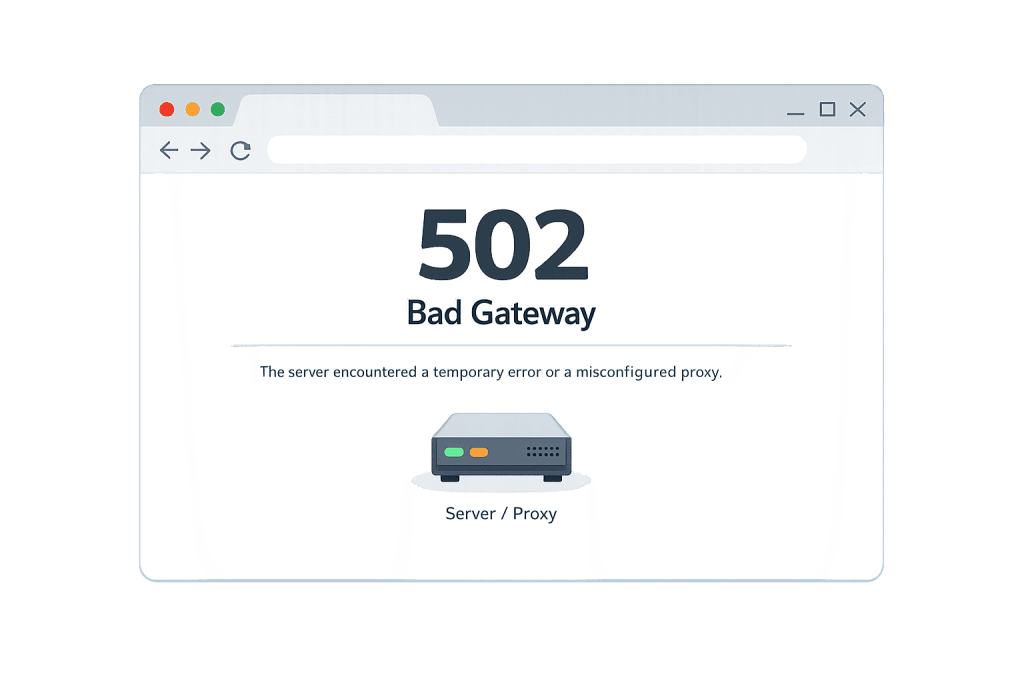
How a 502 Bad Gateway Works
The 502 error sits in the 5xx range — all server-side problems. When a web server configured as a reverse proxy (Nginx is the most common in modern hosting stacks) receives a request, it forwards that request to a backend process — typically PHP-FPM, a Node.js process, or another web server. If that backend sends back a malformed response, crashes mid-response, or sends headers that the proxy can’t interpret, the proxy returns a 502 to the browser.
Common triggers on WordPress sites include:
- PHP-FPM crash or restart — PHP-FPM manages the pool of PHP worker processes. If it crashes, runs out of workers, or restarts mid-request, Nginx receives an invalid or empty response and returns a 502.
- Overloaded server backend — A server with insufficient PHP workers for its traffic volume will exhaust available processes, causing new requests to receive malformed or null responses from the pool.
- CDN or proxy misconfiguration — If a CDN like Cloudflare is proxying requests to your origin server and the origin sends an invalid response (wrong headers, corrupted response body), the CDN may return a 502 to the visitor even if the origin is technically “up.”
- Plugin sending malformed HTTP responses — Certain plugins — particularly those that buffer and modify HTTP response headers — can produce headers that confuse the upstream proxy layer, generating 502 errors on specific pages.
- Database connection failure causing PHP to crash — A broken database connection can cause PHP to terminate mid-response, sending an incomplete response that the proxy layer interprets as invalid. This produces a 502 rather than the more typical error establishing a database connection message.
- Firewall or WAF returning an unexpected response — A web application firewall that intercepts a request and returns a non-standard response can produce a 502 from the proxy layer’s perspective.
Check This First — 2-Minute Diagnostic
- Reload the page once — A single 502 can be a momentary backend hiccup. If it resolves on refresh, monitor for recurrence rather than immediately investigating.
- Check if it’s site-wide — Load several pages. A site-wide 502 points to PHP-FPM or the web server. A page-specific 502 points to a plugin or resource on that particular page.
- Check your hosting dashboard — Look for server resource usage, PHP error indicators, or PHP-FPM status. Many managed hosts display this prominently during failures.
- Review server error logs — In cPanel, go to Logs → Error Log. Look for entries referencing “upstream,” “bad gateway,” “PHP-FPM,” or “no live upstreams.”
- Check your CDN settings — If you’re using Cloudflare or another CDN, check whether the 502 is happening at the CDN level or the origin. Cloudflare-branded 502s often indicate an origin server issue, not a CDN issue.
Purpose & Benefits
1. Understanding the Gateway Layer Speeds Diagnosis
The word “gateway” in 502 is the key. It tells you the problem is between two server layers — not in the browser, not in WordPress itself, but in the communication between your web server proxy and a backend process. This directs your investigation to PHP-FPM configuration, server resource limits, and CDN settings rather than to WordPress plugin conflicts or database credentials. Knowing where to look cuts diagnostic time significantly.
2. Identifying Infrastructure Limits Before They Become Outages
Recurring 502 errors during peak traffic are a reliable indicator that your hosting infrastructure is hitting its limits — specifically, PHP worker pool exhaustion. Each 502 is a data point: what time did it occur, what was the traffic level, what were PHP worker counts showing in the dashboard? This data informs decisions about hosting plan upgrades, PHP-FPM worker configuration, or caching improvements that prevent future outages rather than just recovering from them.
3. Protecting Site Availability During CDN or Proxy Issues
For sites using Cloudflare, a reverse proxy, or a CDN layer, 502 errors can originate upstream from WordPress entirely. Understanding that a 502 doesn’t necessarily mean WordPress itself is broken prevents unnecessary WordPress-side troubleshooting. If Cloudflare is generating the 502, the investigation belongs in Cloudflare’s dashboard and your origin server’s response headers — not in plugin settings or wp-config.php.
Examples
1. PHP-FPM Worker Pool Exhaustion During a Traffic Spike
A business publishes a high-traffic piece of content that gets picked up by a major news aggregator. Within an hour, concurrent visits spike from 150 to 1,800. The hosting server’s PHP-FPM pool is configured for 20 workers — enough for baseline traffic but insufficient for the spike. New requests find no available workers, receive a null response from PHP-FPM, and Nginx returns a 502. Short-term fix: activate full-page caching immediately (WP Rocket, LiteSpeed Cache) to serve most requests without hitting PHP at all. Long-term: upgrade hosting or reconfigure PHP-FPM worker limits.
2. Cloudflare Proxy Receiving Invalid Headers from Origin
A site using Cloudflare begins generating sporadic 502 errors after a plugin update. The updated plugin adds custom HTTP response headers that include illegal characters — headers Cloudflare can’t parse. Cloudflare receives these malformed headers and returns a 502 to visitors, even though the origin server is functioning. Identifying the offending plugin requires checking Cloudflare’s error logs (which include the Ray ID and error detail), then deactivating plugins one at a time while monitoring Cloudflare’s response. Removing the plugin resolves the invalid headers and eliminates the 502.
3. PHP Crash Caused by a Corrupted Database Connection
A WordPress site begins returning 502 errors intermittently — specifically on pages that require heavy database queries. The server error log shows PHP-FPM processes terminating abnormally. Investigation reveals that the database server is intermittently dropping connections under load, causing PHP processes to crash mid-execution. The crashed PHP process sends an incomplete response to Nginx, which returns a 502. The fix involves two layers: adding object caching (Redis or Memcached) to reduce database query frequency, and working with the hosting provider to stabilize the database connection pool.
// Add to wp-config.php to enable object caching with Redis
// (requires Redis server and a caching plugin like Redis Object Cache)
define('WP_CACHE', true);
define('WP_REDIS_HOST', '127.0.0.1');
define('WP_REDIS_PORT', 6379);
Common Mistakes to Avoid
- Conflating 502 with 504 — A 504 Gateway Timeout means the upstream server didn’t respond within the time limit. A 502 means it responded, but invalidly. The distinction matters for diagnosis: 504 points to slow processes; 502 points to crashed or misconfigured processes. Check your error log to confirm which you’re actually seeing.
- Assuming WordPress is the problem — Many 502 errors are infrastructure-level, occurring in the web server or CDN layer before WordPress is even involved. Jumping to plugin deactivation or WordPress-specific fixes wastes time when the actual issue is PHP-FPM configuration or a CDN proxy setting.
- Ignoring CDN error logs — If you use Cloudflare or another CDN, their dashboard includes detailed error logs that often identify exactly which server layer is generating the 502. This is critical information that many site owners overlook.
- Not caching to reduce PHP worker pressure — Sites that serve every request through PHP are significantly more vulnerable to 502 errors during traffic spikes. Full-page caching is not a workaround — it’s a fundamental part of a resilient hosting configuration. Without it, even modest traffic events can exhaust PHP worker pools.
Best Practices
1. Implement Full-Page Caching to Protect PHP Workers
Full-page caching is the single most effective mitigation against traffic-driven 502 errors. When most page requests are served from a cache — without executing PHP or querying the database — the number of requests that actually consume PHP workers drops dramatically. Configure caching at the plugin level (WP Rocket, W3 Total Cache, LiteSpeed Cache) and, where available, at the server level. A well-cached WordPress site can handle traffic spikes that would exhaust an uncached site’s PHP-FPM pool within minutes.
2. Review PHP-FPM Configuration for Your Traffic Volume
If your hosting gives you access to PHP-FPM configuration (common on VPS, cloud, or dedicated hosting), review the pm.max_children setting — the maximum number of PHP worker processes. A shared hosting plan that limits this to 10-20 workers can be easily overwhelmed by moderate traffic. Work with your host or server administrator to set worker counts appropriate for your actual traffic patterns and memory constraints.
; PHP-FPM pool configuration — adjust based on server RAM
; pm.max_children = (Total RAM - OS/other overhead) / average PHP process size
; Typical: 256MB RAM per worker * n workers
pm.max_children = 10
pm.start_servers = 3
pm.min_spare_servers = 2
pm.max_spare_servers = 5
3. Set Up Uptime Monitoring with Immediate Alerts
You shouldn’t find out your site is returning 502 errors from a customer complaint. Uptime monitoring services (UptimeRobot, Pingdom, or monitoring included in your hosting plan) check your site at regular intervals — typically every 1-5 minutes — and send an immediate alert when error responses are detected. Early detection means you can investigate during the first minute of an outage rather than after it’s persisted for hours.
4. Configure Cloudflare for Your Origin Server’s Response Time
If you use Cloudflare, ensure the Origin Server header timeout in Cloudflare’s dashboard is set appropriately for your server’s typical response time. Cloudflare’s default timeout may be shorter than what your origin server needs for resource-intensive pages. Mismatches between Cloudflare’s timeout and your origin’s response time produce 502 errors. Review Cloudflare Dashboard → Speed → Optimization → Protocol Optimization for relevant settings.
5. Check Plugin HTTP Response Headers for Compliance
After installing plugins that modify HTTP response headers — caching plugins, security headers plugins, CDN integrations — verify that the headers they send are RFC-compliant. Malformed headers are a less obvious but real cause of 502 errors on sites with proxy layers. Use a browser developer tool or an HTTP header analysis service to inspect what headers your server is actually sending.
Frequently Asked Questions
What causes a 502 Bad Gateway error most often?
On WordPress sites, the most common causes are PHP-FPM worker exhaustion (too many concurrent requests for the available PHP worker pool) and CDN or proxy layers receiving invalid responses from the origin server. Database connection failures that cause PHP to crash mid-response are also a significant cause, particularly on shared hosting during peak traffic. Check your server error log first — it usually identifies the specific upstream process that failed.
How do I fix a 502 Bad Gateway when locked out of wp-admin?
If the 502 is site-wide and you can’t access wp-admin, the problem is almost certainly at the server infrastructure level rather than in WordPress itself. Contact your hosting provider immediately and provide the error log entries. While waiting, connect via SFTP and check whether .htaccess has any proxy-related rules that might be causing conflicts. If a specific plugin is suspected, rename /wp-content/plugins/ to /wp-content/plugins-disabled/ to eliminate WordPress-side plugin causes.
Can a 502 Bad Gateway error hurt my SEO?
Yes, if it persists. Brief 502 errors — resolving within minutes — are generally treated by search engines as transient server conditions with minimal lasting impact. Persistent 502 errors over hours or days can lead Google to reduce crawl frequency for your site and temporarily suppress affected pages from search results. As with all 5xx errors, fast resolution is the best SEO protection. Submit your sitemap to Google Search Console after recovery to prompt reindexing.
What is the difference between a 502 and a 504 error?
A 504 Gateway Timeout means the gateway waited for an upstream response but never received one within the time limit — the upstream server was too slow to respond. A 502 Bad Gateway means the gateway did receive a response, but it was invalid or malformed. In practice, both often indicate server overload, but 502s more commonly point to crashes or misconfigurations, while 504s point to slow processes or timeout limit mismatches.
Does a 502 error mean my site was hacked?
Rarely. A 502 Bad Gateway is an infrastructure communication failure, not a security indicator. While a malware infection that corrupts PHP processes could theoretically produce 502 errors, the vast majority of 502s are caused by server load, PHP-FPM configuration issues, or CDN proxy mismatches. If you suspect a security issue alongside the 502, check your site for malware after resolving the immediate connectivity problem.
Related Glossary Terms
- 500 Internal Server Error
- 503 Service Unavailable
- 504 Gateway Timeout
- 501 Not Implemented
- Content Delivery Network (CDN)
- Caching
- PHP
- Error Establishing a Database Connection
How CyberOptik Can Help
Still broken? Our team fixes WordPress errors like this in under 30 minutes for maintenance clients. A 502 Bad Gateway often requires investigating multiple server layers — web server proxy configuration, PHP-FPM settings, CDN behavior, and database stability — to pinpoint the actual cause. Our WordPress maintenance plans include infrastructure monitoring, hosting configuration audits, and rapid incident response for exactly these situations. Contact us to discuss your site or learn about our managed WordPress hosting.


