
Order management in WooCommerce refers to the system built into WooCommerce for receiving, tracking, processing, fulfilling, and communicating about customer orders. It serves as the operational backbone of any WooCommerce store — giving store owners a central place to see what customers have purchased, where their orders stand, and what actions still need to be taken.
Every sale that comes through a WooCommerce store creates an order record. That record captures everything: the items purchased, the customer’s shipping and billing information, the payment method used, and the order’s current status. Managing orders efficiently is the difference between a store that runs smoothly and one that creates constant headaches for both the business and its customers.
[Image: Screenshot of the WooCommerce Orders screen showing a list of orders with statuses, customer names, totals, and action buttons]
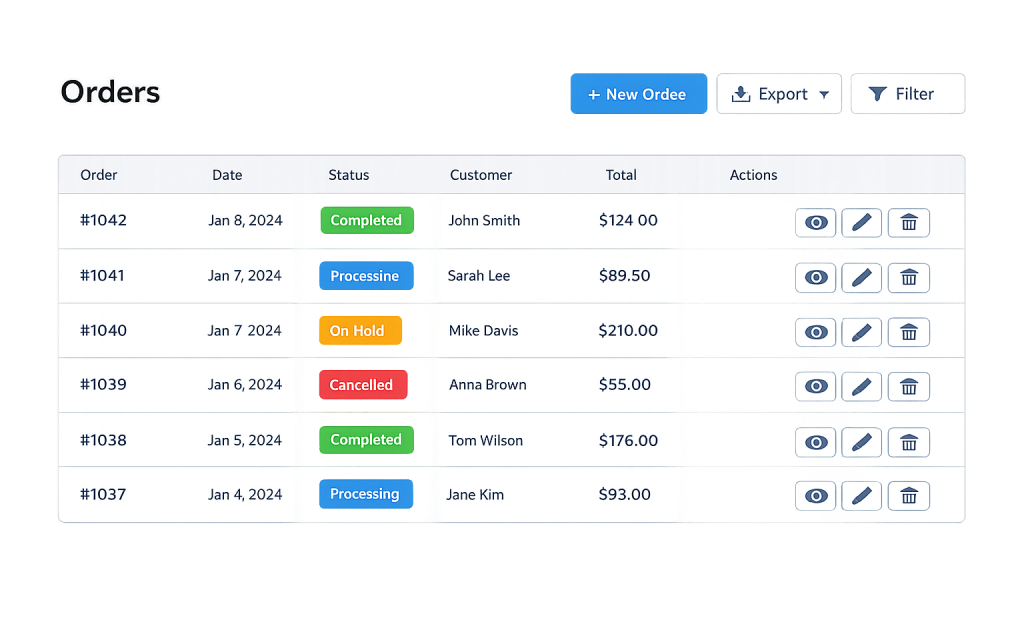
How WooCommerce Order Management Works
WooCommerce stores all order data in the WordPress database. When a customer completes a purchase, the order record is created automatically and assigned an initial status based on the payment result.
Order statuses are the core of how WooCommerce tracks progress:
- Pending payment — Order received but payment hasn’t been confirmed yet.
- Processing — Payment confirmed; the order is awaiting fulfillment.
- On hold — Awaiting payment verification (common with bank transfer payments).
- Completed — Order has been fulfilled and delivered.
- Cancelled — The order was cancelled by the customer or store owner.
- Refunded — A full or partial refund has been issued.
- Failed — Payment was declined or failed.
Store owners move orders through these statuses manually or through automated workflows as fulfillment progresses. WooCommerce sends automated email notifications to customers at key status changes — for example, a “Your order is on its way” email when status changes from Processing to Completed.
Within each individual order, you can view and edit order details, add notes (visible to the customer or private), issue refunds, resend order emails, and update shipping information. For stores with physical inventory, this view also supports tracking and adjusting stock.
Purpose & Benefits
1. Centralized Order Visibility
All orders from your WooCommerce store appear in one dashboard view. You can filter by status, search by customer name or order number, and sort by date or total. This gives you a clear picture of what needs attention — which orders are waiting on fulfillment, which have been completed, and which may need follow-up.
2. Customer Communication
WooCommerce triggers automated emails at each status change, keeping customers informed without manual effort. You can also add order notes that notify the customer directly — helpful for communicating shipping delays, special instructions, or any changes to the order. Consistent communication reduces support requests and builds trust.
3. Refund and Returns Processing
WooCommerce’s built-in refund system lets you issue full or partial refunds directly from the order screen without needing to log into your payment gateway separately. For stores using a payment gateway like Stripe or PayPal, the refund is processed and the customer is notified automatically, keeping the process clean and accountable.
Examples
1. A Physical Product Store
A store selling handmade goods receives 15 orders on a Monday morning. The owner opens the Orders screen, filters by “Processing,” and sees which orders need to be packed and shipped. After shipping each one, they update the order status to “Completed” and add a tracking number in the order notes — triggering an automatic email to the customer with the tracking information.
2. A Digital Product or Service Store
A store selling downloadable files or service packages uses WooCommerce’s order management to track which customers have purchased which services. When a new order comes in with status “Processing,” the team is alerted and can manually add an order note to confirm delivery of the digital product or schedule the service — then mark the order “Completed.”
3. Handling a Return or Dispute
A customer contacts the store about a damaged item. The store owner opens the relevant order, reviews the original purchase details, and uses the Refund button to issue a partial refund for the damaged product. The order status updates, WooCommerce logs the refund in the order record, and the customer receives an automatic notification — keeping everything documented without extra steps.
Common Mistakes to Avoid
- Leaving orders in “Processing” indefinitely — Orders stuck in Processing without action can confuse customers who are waiting. Build a regular routine for reviewing and advancing order statuses — especially during high-volume periods.
- Ignoring “On Hold” orders — On Hold orders often require manual payment verification. If they’re left unreviewed, they may be abandoned orders from incomplete transactions that should be cancelled to free up any held inventory.
- Not using order notes for communication — Many store owners contact customers through external email and lose the thread. WooCommerce order notes keep all communication attached to the specific order, making it easy to review history if a dispute arises later.
- Skipping refund documentation — Processing refunds outside WooCommerce (directly through the payment processor) can create a mismatch in your order records. Always issue refunds through WooCommerce so the data stays accurate.
Best Practices
1. Establish a Daily Order Review Routine
Open your WooCommerce Orders screen at a consistent time each day. Filter for “Processing” orders and work through fulfillment systematically. This prevents orders from sitting unaddressed and ensures customers receive timely status updates. Consistent routines are especially important during promotions or seasonal spikes.
2. Use Custom Order Statuses for Complex Workflows
WooCommerce’s default statuses cover basic fulfillment, but some stores need more granularity — for example, “Awaiting Supplier” or “Ready for Pickup.” WooCommerce extensions and plugins can add custom statuses to match your specific fulfillment process, making the Orders screen more useful and reducing miscommunication within your team.
3. Connect Your Inventory to Orders
If your store carries physical products, link order management to your inventory tracking. WooCommerce automatically decrements stock when an order is placed, but enabling stock management in your product settings is required for this to work. Low-stock alerts prevent you from overselling products you can’t fulfill — which is far worse than losing a sale.
Frequently Asked Questions
Can I edit an order after it’s been placed?
Yes. WooCommerce allows store owners to edit existing orders — you can modify items, quantities, prices, shipping methods, and customer details from the individual order screen. However, if payment has already been processed, any changes that affect the total may require issuing a manual adjustment or partial refund.
How do I handle orders that were paid but the customer never received a confirmation email?
Open the order in WooCommerce, scroll to the Order Actions section, and use the “Resend new order notification” or “Send order details to customer” option. This resends the confirmation email directly from the order screen without requiring you to contact the customer separately or recreate the communication.
What’s the difference between a Completed and a Cancelled order?
A Completed order means the purchase was fulfilled and delivered. A Cancelled order means the order will not be fulfilled — either the customer requested cancellation before fulfillment or the payment failed. Cancelled orders do not affect your revenue reports the same way completed orders do, and any held inventory is released back to stock.
Can multiple team members manage orders simultaneously?
Yes. WooCommerce uses standard WordPress user roles, and the “Shop Manager” role has full access to orders without having access to site administration settings. For teams with multiple people handling fulfillment, assigning the Shop Manager role keeps order management accessible without giving full admin access.
Are there tools to speed up bulk order processing?
WooCommerce includes basic bulk actions on the Orders screen (you can change the status of multiple orders at once). For stores with high order volumes, dedicated order management plugins offer more powerful bulk editing, shipping label generation, and workflow automation tools.
Related Glossary Terms
- WooCommerce
- WooCommerce Extension / Add-on
- Payment Gateway
- Coupon (WooCommerce)
- Cart Abandonment
- SKU
- Shipping Zone / Shipping Class
How CyberOptik Can Help
A well-configured WooCommerce store makes order management straightforward — and a poorly configured one creates daily friction. We build and optimize WooCommerce stores with fulfillment workflows in mind, from order status automation to custom order management extensions that match the way your business actually operates. Contact us to discuss your eCommerce project or explore our eCommerce development services.


