
General Settings is the first and most fundamental settings page in WordPress, found at Settings → General in the dashboard. It controls your site’s core identity and configuration: the site title, tagline, WordPress and site URL, administrator email address, membership options, default user role, site language, timezone, date format, time format, and week start day.
These settings establish the foundation of how your WordPress site presents itself and operates. Getting them right during initial setup matters — your site title appears in browser tabs, search engine results, and throughout the WordPress interface. The timezone setting affects when scheduled posts publish and how timestamps display. The site URL settings, if changed incorrectly, can make your site inaccessible. General Settings is one of the first places to visit when configuring a new WordPress installation or troubleshooting display and scheduling issues.
[Image: Screenshot of WordPress General Settings page showing all fields]
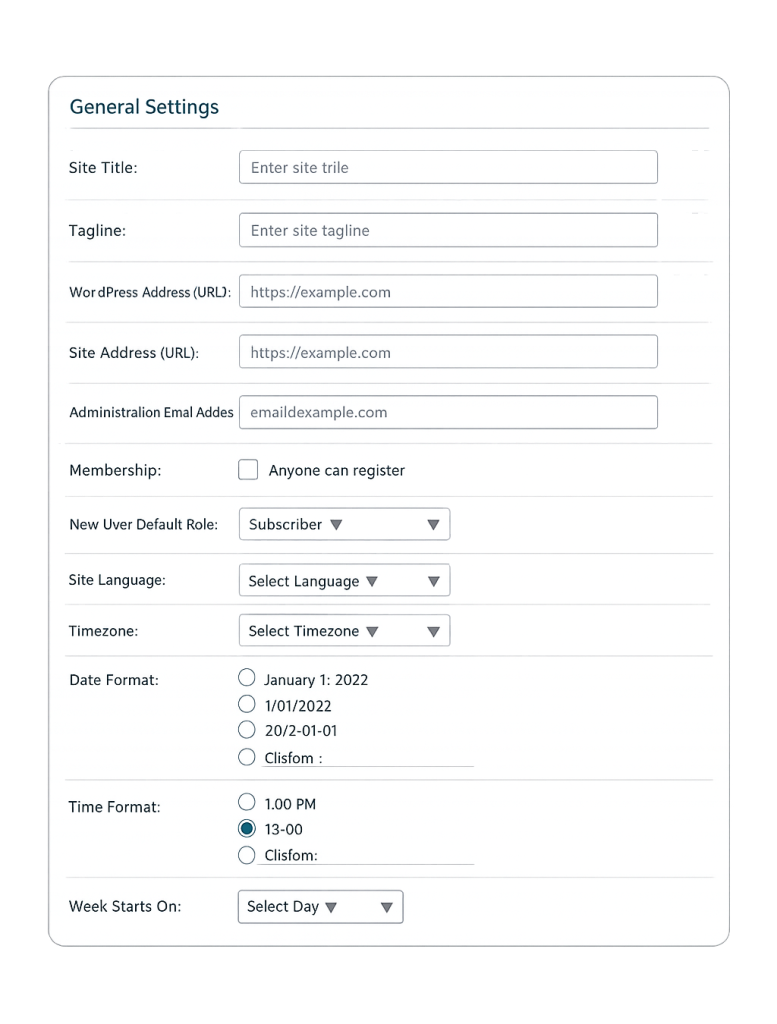
What General Settings Controls
WordPress General Settings contains the following fields:
- Site Title — The name of your website. Appears in the browser tab, search results, and email notifications from WordPress. Should reflect your business or brand name.
- Tagline — A short description or slogan. Some themes display this prominently; others don’t show it at all. Worth setting accurately regardless.
- WordPress Address (URL) — The URL where WordPress core files are installed. Typically the same as the Site Address unless WordPress is installed in a subdirectory.
- Site Address (URL) — The URL visitors use to reach your site. This is what appears in the browser bar. Changing this without proper preparation can break your site.
- Administration Email Address — The email address WordPress uses for admin notifications, new user registrations, and system emails.
- Membership — Whether anyone can register an account on your site (checkbox).
- Default Role — The user role automatically assigned to new registrants (defaults to Subscriber).
- Site Language — The language for the WordPress admin interface and built-in text elements.
- Timezone — Your local timezone, which controls when scheduled posts publish and how timestamps display.
- Date Format / Time Format — How dates and times appear on the front end of your site.
- Week Starts On — Which day appears first on calendar views.
Purpose & Benefits
1. Establishes Your Site’s Identity for Search Engines and Visitors
The site title and tagline contribute to how search engines and browsers identify your pages. Your site title typically appears in the browser tab and is used by themes in the header. A clear, accurate site title helps visitors and search engines understand what your site is about — a small but meaningful part of your SEO foundation. Pair this with well-configured permalink settings for a clean, search-friendly site structure.
2. Controls Scheduling and Display Accuracy
The timezone setting has a direct, practical effect on your site’s behavior. If your timezone is set to UTC when you’re operating in a different time zone, scheduled posts will publish at the wrong time, and post timestamps will display incorrectly. Getting this right once prevents persistent confusion about when content goes live.
3. Manages Access and User Registration
The membership and default role settings determine whether visitors can register accounts and what they can do once they do. For most business websites, user registration is turned off. For membership sites, blogs with comment functionality, or sites with client portals, these settings become important user permissions controls that affect both security and functionality. Our team configures these as part of every WordPress support engagement.
Examples
1. New Business Website Setup
A company launches a WordPress site. In General Settings, the developer sets the Site Title to the company’s official name, adds a tagline that describes the primary service, configures the timezone to match business operations, and sets the administration email to the business owner’s address. These baseline settings ensure admin notifications go to the right person and timestamps on blog posts are accurate.
2. Site URL Configuration After Migration
A site is migrated from a staging environment (staging.example.com) to the live domain (www.example.com). The WordPress Address and Site Address in General Settings must be updated to reflect the new domain. Failure to update these fields will cause the site to redirect back to the staging URL, making the live site inaccessible. This is one of the key steps in any WordPress migration.
3. Multilingual Site Language Setup
A business with an international audience sets the Site Language in General Settings to match their primary audience’s language. This controls the language of built-in WordPress UI elements (like comment form text and buttons). Combined with a multilingual plugin, this setting lays the groundwork for serving content in the right language.
Common Mistakes to Avoid
- Changing the WordPress Address or Site Address incorrectly — These fields, if set wrong, can make your site completely inaccessible. Always back up before changing them, and if you get locked out, you can restore them via
wp-config.phporwp-optionsin the database. - Leaving the timezone at UTC — Most sites should match the timezone where the business or primary content creator operates. An incorrect timezone causes scheduled posts to publish at the wrong time and makes timestamps confusing for readers.
- Leaving the administration email on the developer’s address — After launch, the site owner should be the administration email recipient. Admin notifications about new users, failed updates, and plugin warnings will go to whoever’s address is in this field.
- Enabling open registration without a plan — Leaving “Anyone can register” checked on a site that doesn’t need it is a security risk. Bots and spam accounts will register. Keep registration disabled unless your site explicitly needs it.
Best Practices
1. Confirm Settings After Every Migration or Cloning
Site cloning, staging-to-live migrations, and domain changes all have the potential to leave General Settings pointing at the wrong URL. After any migration, verify both URL fields are correct, then test the site in an incognito browser before removing the staging redirect. Checking permalink settings at the same time is also recommended.
2. Set the Admin Email to a Monitored Inbox
WordPress sends important notifications to the administration email — everything from plugin update failures to new user registrations to security alerts. Set this to an email address that someone checks regularly. Don’t leave it as the email used during initial installation if that’s a developer’s address.
3. Document Your Settings for Future Reference
For client sites, documenting the initial General Settings configuration is good practice. Knowing the correct timezone, URL structure, and registration settings prevents confusion when troubleshooting or handing the site over to a new developer. Pair this with documentation of your settings for writing, reading, and discussion.
Frequently Asked Questions
What happens if I change the WordPress Address or Site Address?
If you change these fields to an incorrect URL, WordPress will redirect to that address — potentially locking you out of the admin. You can recover by adding define('WP_HOME', 'https://yoursite.com') and define('WP_SITEURL', 'https://yoursite.com') to wp-config.php, which overrides the database values. Always back up before making URL changes.
Does the Site Title affect SEO?
It contributes to your site’s identity in search results, but your page titles (set by your SEO plugin or theme) matter more for individual page rankings. The Site Title often appears in the browser tab alongside the page title. Keep it accurate to your brand, and let your meta descriptions and page titles do the heavier SEO lifting.
How does the timezone setting affect scheduled posts?
Scheduled posts publish based on the timezone configured in General Settings. If your timezone is set to UTC and you schedule a post for 9:00 AM, it will publish at 9:00 AM UTC — which may be significantly different from your local time. Set the timezone correctly when you first install WordPress to avoid this confusion.
What’s the difference between WordPress Address and Site Address?
WordPress Address is where the WordPress files live. Site Address is what visitors type to reach your site. They’re the same for most standard installations. They differ only when WordPress is installed in a subdirectory (e.g., WordPress files at example.com/wordpress/ but the site is served from example.com).
Can changing General Settings break my site?
Most fields are low-risk to change. The URL fields are the exception — getting those wrong can make your site inaccessible. All other fields (title, tagline, email, timezone, date format) can be changed without affecting site functionality.
Related Glossary Terms
How CyberOptik Can Help
Understanding how WordPress works under the hood helps you make better decisions about your site. Our team manages General Settings and full WordPress configuration for clients every day — from initial site setup to post-migration cleanup — so you can focus on running your business rather than troubleshooting settings. Get in touch to discuss your project or explore our WordPress development services.


