Severity: Major · Fix time: 5–15 min · Skill level: Intermediate
The FTP Connection Failed error appears in WordPress when the dashboard tries to install, update, or delete a plugin or theme using FTP as the file system method, but WordPress cannot establish a connection to the FTP server. WordPress falls back to requesting FTP credentials when it doesn’t have direct write access to its own files — a common situation on servers where the PHP process runs as a different user than the files’ owner. The error can appear as a credentials prompt that never succeeds, or outright as “FTP Connection Failed” after entering details.
In most cases, the right solution is not to configure FTP at all — it’s to tell WordPress to write files directly, bypassing FTP entirely. FTP is an older, insecure protocol that most modern WordPress setups don’t need for routine updates.
Need a quick map of every WordPress error? See our 70+ WordPress Errors Guide → for a categorized reference of every common WordPress issue.
[Image: WordPress dashboard showing the “Connection Information” FTP credentials prompt when attempting to install a plugin]
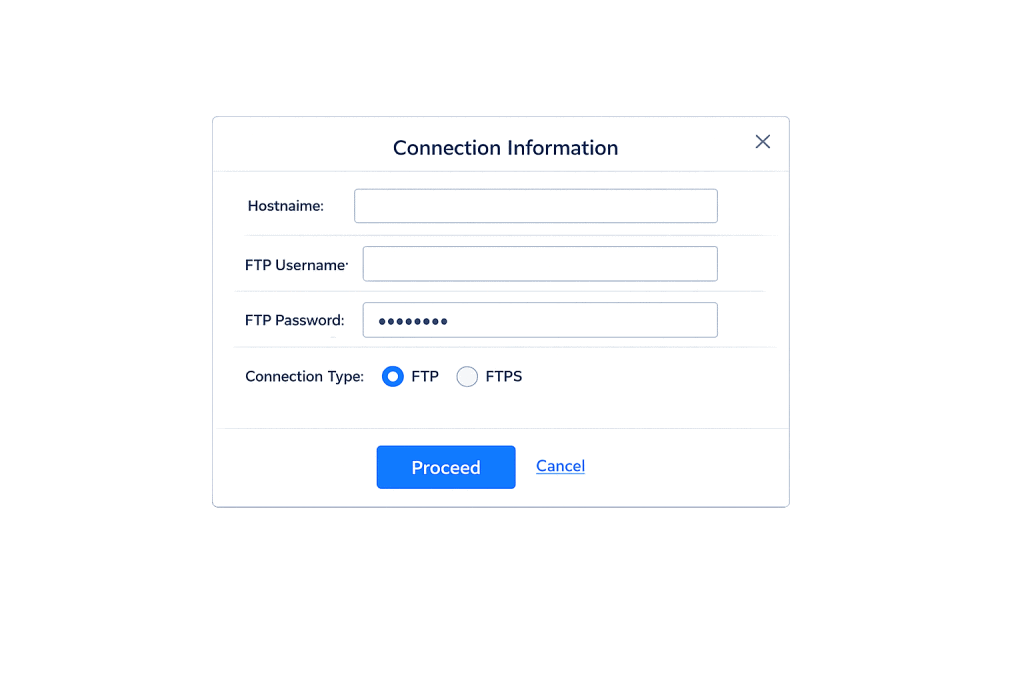
How the FTP Connection Error Works
When WordPress installs an update or new plugin, it needs to write files to /wp-content/plugins/, /wp-content/themes/, or the WordPress core directory. Before writing, it checks which file system method is available:
- Direct — WordPress writes files directly using PHP’s built-in file functions. This works when the PHP process user owns the WordPress files.
- FTP — WordPress opens an FTP connection to write files. Required when the file owner differs from the PHP process user.
- FTPS/SSH2 — Encrypted variants used on servers that require secure connections.
The FTP prompt appears when direct fails — usually because file permissions or file ownership don’t allow direct writes. If FTP credentials are wrong, the server’s FTP port is blocked, or the FTP service isn’t running, you see “FTP Connection Failed.”
Common specific causes:
- Wrong hostname — Using
localhostwhen the FTP server is on a different host, or using the wrong hostname format. - Incorrect FTP port — Standard FTP is port 21. SFTP is port 22. Entering one when the server expects the other causes a connection failure.
- FTP blocked by firewall — Some managed hosting platforms block outbound FTP connections from the PHP process to prevent attack vectors.
- Wrong credentials — FTP credentials are separate from cPanel login credentials. A cPanel password change doesn’t automatically update FTP user passwords.
- FTP service not running — On servers where FTP has been disabled for security, the service may simply not be active.
Check This First — 2-Minute Diagnostic
- Try FS_METHOD first — Adding
define('FS_METHOD', 'direct');towp-config.phpbypasses FTP entirely if the PHP process can write to the files. Try this before configuring FTP credentials. - Verify your FTP hostname — Your FTP hostname is usually
ftp.yourdomain.comor your server’s IP address. Check your hosting control panel — it’s listed in cPanel under FTP Accounts. - Check FTP vs. SFTP port — Standard FTP uses port 21. SFTP uses port 22. Select the correct connection type in WordPress’s credentials prompt.
- Test FTP credentials independently — Use FileZilla to test your FTP credentials before entering them in WordPress. This confirms whether the credentials themselves are valid.
- Ask your host — Ask whether outbound FTP connections from the web process are allowed. Some security configurations block this intentionally.
Purpose & Benefits
1. Plugin and Theme Updates Are Your Primary Security Mechanism
WordPress plugin and theme updates deliver security patches. If you can’t apply updates through the dashboard, your site accumulates unpatched vulnerabilities. Resolving FTP errors and setting up reliable direct file access keeps your update workflow functional. Our WordPress maintenance plans handle updates on your behalf so this error never stalls your security patching.
2. Understanding File Ownership Reduces Future Configuration Friction
The FTP prompt appears because of a disconnect between who owns the files and who runs PHP. Understanding this — and knowing that FS_METHOD direct resolves it on most servers — also helps troubleshoot related issues: file permissions errors, failed auto-updates, and staging environment misconfigurations.
3. Moving Away from FTP Improves Security
FTP transmits credentials in plain text. Even if your FTP connection works, using it routinely for WordPress updates is a security step backward. SFTP encrypts all traffic, and FS_METHOD direct eliminates the need to transmit credentials at all. Removing FTP from your update workflow is a genuine security improvement.
Examples
1. Using FS_METHOD direct to Bypass FTP
The fastest and most common fix. If the PHP process user owns the WordPress files, direct file access works without any FTP configuration:
// Add to wp-config.php before the "stop editing" comment
// Tells WordPress to write files directly via PHP without FTP
define('FS_METHOD', 'direct');
define('FS_CHMOD_DIR',  0755); // Correct directory permissions for new dirs
define('FS_CHMOD_FILE', 0644); // Correct file permissions for new files
After adding these constants, test a plugin install from Plugins → Add New. If the FTP prompt is gone and installs succeed, the fix is complete.
2. Providing FTP Credentials in wp-config.php
When direct file access won’t work, you can store FTP credentials in wp-config.php so WordPress connects automatically without prompting each time:
// FTP credentials for WordPress file system access
// Replace with your actual FTP account details from your hosting panel
define('FTP_USER', 'your_ftp_username');
define('FTP_PASS', 'your_ftp_password');
define('FTP_HOST', 'ftp.yourdomain.com');
define('FTP_PORT', 21);    // 21 for FTP, 22 for SFTP
define('FTP_SSL',  false); // Set to true for FTPS
3. Configuring SFTP Instead of FTP
For servers that use SSH-based file transfer, WordPress can connect via SFTP using SSH credentials:
// Use SFTP (port 22) for encrypted file transfer
define('FTP_USER', 'your_ssh_username');
define('FTP_PASS', 'your_ssh_password');
define('FTP_HOST', 'yourdomain.com'); // Not ftp. prefix for SSH
define('FTP_PORT', 22);              // SFTP uses port 22
define('FTP_SSL',  false);           // SSL/FTPS is different from SFTP
Most modern managed hosting platforms support SFTP. Using port 22 with SSH credentials is more secure than plain FTP and less likely to be blocked by firewalls.
Common Mistakes to Avoid
- Using your cPanel password as the FTP password — cPanel and FTP are separate credential systems. Check your hosting panel’s FTP Accounts section for the correct FTP credentials.
- Entering
localhostas the FTP host — This only works if the FTP server runs on the same machine as the web server. On many hosting setups, the FTP server has a different hostname. Use your actual FTP hostname from the hosting control panel. - Skipping
FS_METHOD direct— Most shared hosting setups support direct file access onceFS_METHODis set. Try this first — it’s faster, simpler, and more secure. - Leaving FTP credentials in wp-config.php unnecessarily — If you switched to
FS_METHOD direct, remove any leftoverFTP_USER,FTP_PASS,FTP_HOSTconstants. Storing credentials you’re not actively using carries unnecessary risk. - Confusing FTP with SFTP in the connection type — FTP (port 21) and SFTP (port 22) are different protocols. The WordPress connection prompt has a “Connection Type” dropdown — selecting the wrong type causes a connection failure even with correct credentials.
Best Practices
1. Set FS_METHOD direct in wp-config.php on Supported Hosts
Most modern shared hosting environments run PHP as the same user who owns the WordPress files, which means direct file access works. Add FS_METHOD direct to wp-config.php during initial WordPress setup.
// Recommended for most shared hosting environments
define('FS_METHOD', 'direct');
2. Use SFTP for Manual File Transfers
For any file management outside of the WordPress dashboard — editing theme files, deploying backups, reviewing logs — use SFTP rather than plain FTP. SFTP encrypts the connection and credentials. FileZilla, Cyberduck, and Transmit all support SFTP natively on port 22.
3. Verify File Ownership After Server Migrations
FTP connection failures that appear after a migration are often file ownership problems in disguise. The web server process can’t write files owned by a different user. Connect via SFTP or ask your host to confirm the correct file owner:
# Replace www-data with your actual web server user
sudo chown -R www-data:www-data /var/www/html/wordpress/
After fixing ownership, test with FS_METHOD direct — the FTP requirement usually disappears.
4. Keep FTP Disabled When Not in Use
If your hosting plan offers FTP and you’re using FS_METHOD direct instead, consider disabling the FTP service entirely in your hosting control panel. An FTP port that isn’t listening can’t be brute-forced. Removing unused services is a basic security hardening step.
Frequently Asked Questions
What causes FTP Connection Failed in WordPress most often?
The most common cause is WordPress being configured to use FTP when FS_METHOD direct would work — often because file ownership doesn’t match the PHP process user. On most shared hosting environments, define('FS_METHOD', 'direct'); resolves the issue without any FTP configuration.
How do I fix this when locked out of wp-admin?
This error appears within wp-admin, not on the login screen — you should still be able to log in. Connect via SFTP to add the FS_METHOD direct constant to wp-config.php directly.
Can this error affect my SEO?
The FTP connection error only affects the WordPress backend and doesn’t impact your front-end pages. However, if it prevents you from installing security or SEO plugin updates, it indirectly affects your site’s security posture and optimization capabilities.
Is it safe to store FTP credentials in wp-config.php?
Reasonably safe with proper file permissions — set wp-config.php to 640 or 644, not 777. It already contains your database credentials. That said, FS_METHOD direct is preferable because it stores no credentials at all.
Does WordPress still need FTP on modern hosting?
Rarely. Most modern hosting environments configure file ownership so the PHP process can write directly to WordPress directories. With FS_METHOD direct, most WordPress sites never need FTP for dashboard operations.
Related Glossary Terms
- SFTP (Secure File Transfer Protocol)
- File Permissions Error
- wp-config
- FTP (File Transfer Protocol)
- WordPress Hosting
- 500 Internal Server Error
- cPanel
- Disk Space
How CyberOptik Can Help
Still broken? Our team fixes WordPress errors like this in under 30 minutes for maintenance clients. FTP connection issues often reveal a gap in how the server and WordPress are configured together — and getting it right the first time prevents the same problem from surfacing after every update. Our WordPress maintenance plans include server configuration review and update management so you’re never blocked from applying critical patches. Contact us to get your WordPress updates flowing again or explore our hosting solutions.