
Severity: Minor · Fix time: Under 5 min · Skill level: Beginner
Destination Folder Already Exists is a WordPress error that appears during plugin or theme installation — specifically when WordPress tries to create a new directory for the plugin or theme but finds a folder with the same name already exists in wp-content/plugins/ or wp-content/themes/. The full error message reads: “Installation failed: Destination folder already exists.” WordPress refuses to overwrite the existing folder automatically and instead stops the installation with this message.
The fix is almost always to delete the existing rogue folder via SFTP, your hosting file manager, or (occasionally) from within WordPress itself, and then retry the installation. The entire process takes under five minutes once you know where to look.
Need a quick map of every WordPress error? See our 70+ WordPress Errors Guide → for a categorized reference of every common WordPress issue.
[Image: WordPress plugin installation screen showing the full “Installation failed: Destination folder already exists” error with the file path displayed]
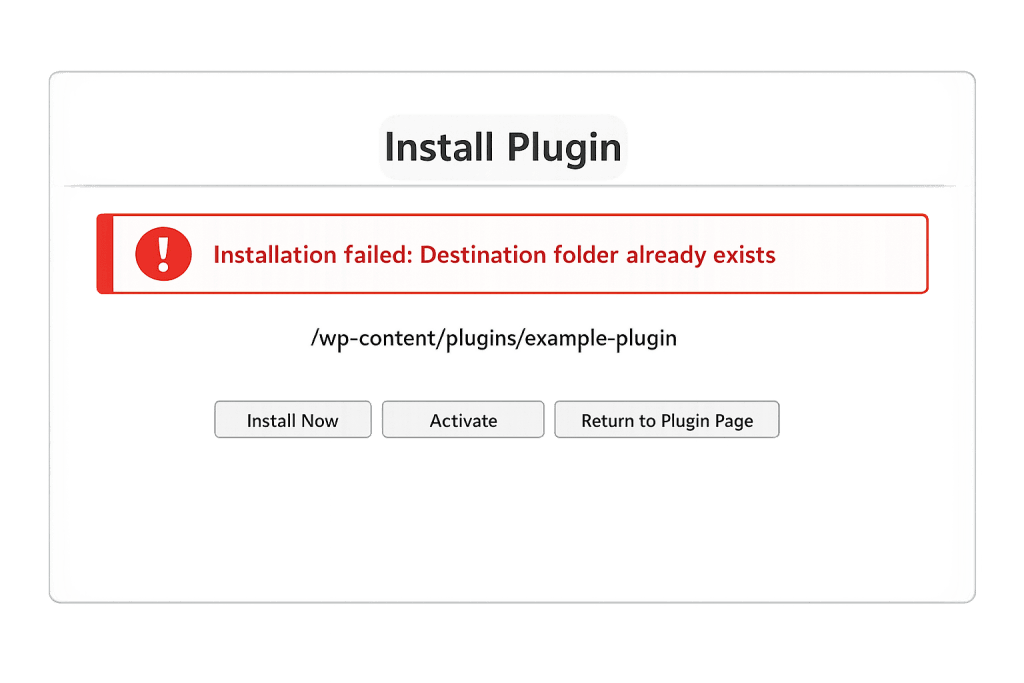
How Destination Folder Already Exists Works
When WordPress installs a plugin, it extracts the plugin’s .zip file and attempts to create a new directory inside wp-content/plugins/ using the plugin’s slug as the folder name (e.g., wp-content/plugins/my-plugin/). Before creating the directory, WordPress checks whether a folder with that name already exists. If it does, WordPress stops and returns the “Destination folder already exists” error rather than overwriting the existing folder.
This protective behavior exists for good reason — silently overwriting a folder that might contain the live version of a currently active plugin could corrupt the site. But it means that leftover folders from previous failed installations or incomplete deletions will always block new installations.
The leftover folder typically exists because:
- A previous installation was interrupted — A prior plugin install attempt failed partway through (due to a network timeout, session expiry, or server interruption) after creating the folder but before completing the file copy. WordPress never cleaned up the incomplete folder.
- A plugin deletion was incomplete — The plugin was deactivated and deleted from the WordPress Plugins screen, but a file system error left the folder present on the server without removing it. The WordPress database was updated to reflect deletion, but the folder remains.
- Manual upload via SFTP was left incomplete — A folder was manually created or partially uploaded via SFTP as preparation for a manual plugin installation that was never completed.
- A failed update left a temporary folder — Update processes occasionally leave partial folders in
wp-content/plugins/when interrupted. These look identical to the installed version’s folder from WordPress’s perspective.
Check This First — 2-Minute Diagnostic
- Check if the plugin is already installed — Before connecting via SFTP, go to your WordPress Plugins screen (Plugins → Installed Plugins). If the plugin appears in the list (even as inactive), it may already be fully installed and simply needs to be activated, not reinstalled.
- Confirm the exact folder name causing the conflict — The error message includes the full path:
Installation failed: Destination folder already exists. /home/user/yoursite.com/wp-content/plugins/plugin-folder-name/. Note the folder name — this is what you need to delete. - Determine whether the folder has content — Connect via SFTP or your hosting file manager. Check whether the existing folder is empty (a sign of an interrupted install) or contains files (a sign of a previously deleted or partially installed plugin).
- Check for an on-screen “Replace current with uploaded” option — When uploading a plugin ZIP manually, WordPress sometimes presents an option to “Replace current with uploaded” rather than showing an error. If that option appears, use it.
- Back up before deleting — If the folder contains files and you are unsure whether those files are active, take a quick site backup before deleting. For empty folders or clearly-leftover folders from long-inactive plugins, this is optional.
Purpose & Benefits
1. The Error Is Protection, Not a Bug
WordPress deliberately refuses to overwrite the existing folder because it cannot distinguish between a rogue leftover folder and a live plugin installation that happens to share a name. This protection prevents accidental overwriting of active plugin data. Understanding this means you approach the fix correctly — delete the obstacle, then install cleanly — rather than trying to force WordPress to bypass its own safeguards.
2. Leftover Folders Are a Sign of an Underlying Process Issue
A single leftover folder from a one-time interrupted install is unremarkable. If you are regularly encountering “Destination folder already exists” errors across multiple plugins, something in your installation process is consistently failing to clean up after itself. This could be a server timeout that always interrupts installs at the same stage, a file permission issue that prevents WordPress from completing cleanup, or an SFTP workflow that leaves partial uploads. Identifying the pattern prevents the same cleanup work from being needed repeatedly.
3. This Error Has a Different Fix Than “Could Not Create Directory”
The “Destination Folder Already Exists” error and the “Plugin Install Failure: Could Not Create Directory” error are both installation failures, but they have different causes and different fixes. “Could not create directory” means WordPress cannot write to the plugins folder at all — a permissions or disk space problem. “Destination folder already exists” means WordPress can access the plugins folder fine but there is a specific leftover folder in the way. Confusing them leads to unnecessary server-level troubleshooting when the real fix is a 30-second folder deletion.
Examples
1. Deleting a Leftover Folder via Hosting File Manager
A site owner tried to install a form plugin, received “Destination folder already exists,” and needed to resolve it without using an FTP client. Using the hosting control panel’s built-in file manager was sufficient.
# Via cPanel File Manager (or equivalent hosting file manager):
# 1. Log into your hosting control panel
# 2. Open File Manager
# 3. Navigate to: public_html/wp-content/plugins/
# 4. Find the folder matching the plugin's slug
#    (the path shown in the error message tells you the exact folder name)
# 5. Right-click the folder → Delete
#    If the folder contains files: verify they are from an old/inactive install
#    If the folder is empty: delete without concern
# 6. Return to WordPress → Plugins → Add New and retry installation
The plugin installed successfully after the leftover empty folder was removed. The entire process took under three minutes.
2. Using SFTP to Remove a Conflicting Theme Folder
A client attempted to install an updated version of their theme manually by uploading the new ZIP via Appearance → Themes → Add New → Upload Theme. The installation failed with “Destination folder already exists” pointing to /wp-content/themes/their-theme/. A previous failed update attempt had left the theme folder in a partially overwritten state. The correct resolution was to delete the existing theme folder and upload the clean version.
# Via SFTP (FileZilla, Transmit, or Cyberduck):
# 1. Connect to your server with SFTP credentials
#    (Hostname: your domain or server IP, Port: 22, credentials from hosting)
# 2. Navigate to: /wp-content/themes/
# 3. Locate the theme folder named in the error
# 4. Before deleting: confirm a backup child theme or default theme is active
#    (so the site has a working theme after deletion)
# 5. Right-click the theme folder → Delete
# 6. Upload the clean extracted theme folder to /wp-content/themes/
# 7. In WordPress → Appearance → Themes, verify and activate the theme
After deleting the conflicted folder and uploading a clean copy, the theme appeared correctly in the Themes screen at the current version number.
3. WordPress Offering a “Replace” Option During Manual Upload
When uploading a plugin ZIP file through Plugins → Add New → Upload Plugin, WordPress sometimes detects the existing folder and presents an inline comparison with the option to “Replace current with uploaded” rather than immediately returning an error. This flow is context-dependent and is not always shown, but when it appears, using it is the fastest resolution.
# When you see the "Replace current with uploaded" screen:
# WordPress shows:
# - Current installed version: [version number]
# - Version to install: [version number]
# Two options: "Replace current with uploaded" or "Cancel and go back"
#
# Click "Replace current with uploaded"
# WordPress will overwrite the existing folder with the uploaded version
# This is safe when you know the uploaded version is what you intend to install
This option is only presented during manual ZIP uploads, not during installs from the plugin repository. For repository installs, SFTP deletion is the path.
Common Mistakes to Avoid
- Trying to install the plugin a second time without deleting the folder — The error will repeat identically on every install attempt until the conflicting folder is removed. Retrying without clearing the obstacle wastes time and adds additional partial folders in some cases.
- Deleting the folder while the plugin is actively running — If the folder contains files and there is any chance the plugin is currently active (check Plugins → Installed Plugins first), deleting the folder while it is active will cause a fatal error on the next page load. Always deactivate the plugin from the dashboard before deleting the folder, or check that it is not listed as active.
- Confusing this with a permissions error — “Destination folder already exists” does not mean WordPress cannot write to the plugins folder. It means WordPress can access the folder but found a specific naming conflict. If you attempt to fix permissions and they are already correct, you are solving the wrong problem. The fix is to delete the specific conflicting folder.
- Not checking whether the plugin is already installed — The error sometimes appears because a previous successful installation was not obvious to the user. Before deleting any folder, confirm in Plugins → Installed Plugins that the plugin is not already there, inactive, and simply needs to be activated.
- Leaving empty plugin/theme folders in wp-content — Over time, incomplete installs and failed deletions accumulate leftover folders in
wp-content/plugins/andwp-content/themes/. These folders cause no immediate harm but clutter the directory and can cause future installation conflicts. Periodically review both directories via SFTP and remove any folders that do not correspond to actively installed plugins or themes.
Best Practices
1. Always Check the Plugins Screen Before Connecting via SFTP
Before connecting to your server, go to Plugins → Installed Plugins in your WordPress dashboard. If the plugin is already listed there (even as deactivated), it was previously installed and may simply need activation. This check takes 10 seconds and occasionally reveals that no file system action is needed at all.
2. Use SFTP or File Manager to Confirm Folder Contents Before Deleting
Connect via SFTP or your hosting file manager and look at the contents of the conflicting folder before deleting it. An empty folder or one containing only a few partial files can be deleted without concern. A folder that appears to contain a full, working plugin install warrants a quick backup before deletion and a confirmation that the plugin is deactivated before the folder is removed.
3. Clean Up wp-content/plugins/ and /themes/ Periodically
Run a periodic review of wp-content/plugins/ via SFTP to identify folders that do not correspond to any plugin shown in the WordPress Plugins screen. These are leftover directories from incomplete installs or failed deletions, and they can cause future “Destination folder already exists” errors for any new plugin with the same slug. Removing them during routine maintenance prevents the error from appearing unexpectedly. This type of cleanup is part of the auto-update maintenance checks we perform for maintenance clients.
4. Maintain a Pre-Install Backup Habit
Before installing any plugin or theme — particularly one you are installing for the first time or reinstalling after a conflict — take a quick backup of the site. This is especially important if you are deleting a folder that may contain plugin data. A current backup makes any file system operation consequence-free: if the deletion goes wrong or the new installation causes an issue, you can restore to the pre-install state immediately.
5. Document Manual Installs and SFTP Operations
If you or a developer manually upload plugin or theme folders via SFTP, keep a note of what was added and when. Undocumented SFTP uploads are the most common source of orphaned folders — someone uploaded something, the task was not completed, and the partial folder sits in wp-content/plugins/ waiting to conflict with a future installation. A brief note in a site log or shared document eliminates this source of confusion.
Frequently Asked Questions
What causes “Destination folder already exists” most often?
A previous plugin or theme installation was interrupted before WordPress could clean up, leaving a partial or empty folder behind. The folder name matches the plugin or theme you are now trying to install, blocking the new installation. The fix is to delete the specific folder via SFTP or your hosting file manager, then retry.
How do I fix this error without SFTP access?
Use your hosting control panel’s File Manager. Every major shared hosting provider (cPanel, Plesk, hPanel) includes a browser-based file manager that lets you navigate to wp-content/plugins/ and delete folders without a separate SFTP client. If neither SFTP nor file manager is available, contact your hosting provider’s support team — this is a straightforward file deletion request they can process quickly.
Can this error hurt my SEO?
No. The error appears during plugin installation in your wp-admin and does not affect any front-end content or search visibility. Your site continues to function normally for visitors and search engines during this error. The only consequence is that the plugin you are trying to install is not yet active.
How is this different from “Plugin Install Failure: Could Not Create Directory”?
These look similar but have opposite causes. “Could Not Create Directory” means WordPress cannot create any folder in the plugins directory — a file permissions or disk space problem. “Destination folder already exists” means WordPress can access the plugins directory normally but there is a specific pre-existing folder in the way. The former requires fixing server permissions; the latter requires deleting one specific folder.
Will this happen again after I fix it?
Not for the same plugin, once the folder is deleted and a clean installation completes. If you regularly see this error across different plugins, a pattern of interrupted installs or incomplete deletions suggests either a server timeout issue (installs frequently fail mid-process) or a file system permission issue that prevents WordPress from cleaning up after failed installs. Investigate the pattern rather than treating each instance as a one-off.
Related Glossary Terms
- Plugin Install Failure
- Auto-Update Failure
- Theme Update Failure
- Another Update Is Currently in Progress
- SFTP (Secure File Transfer Protocol)
- WordPress Stuck in Maintenance Mode
- Plugin
- Backup
How CyberOptik Can Help
Still broken? Our team fixes WordPress errors like this in under 30 minutes for maintenance clients. “Destination folder already exists” is one of the simpler WordPress errors — it almost always resolves in under five minutes once you know what to delete. But if you are seeing it regularly across multiple plugins, it points to a broader installation or cleanup issue that warrants a closer look at your hosting environment. Our WordPress maintenance services include routine file system hygiene, managed updates, and immediate resolution of installation errors. Contact us to discuss your site or review what our maintenance plans include.


