Severity: Major · Fix time: Under 5 min · Skill level: Beginner
Broken permalinks in WordPress is a condition where every post, page, or category URL returns a 404 error even though the content exists in the database. The homepage loads normally, but clicking any internal link shows “Page Not Found.” It’s one of the most disorienting WordPress errors because the site appears to be working — until you try to navigate anywhere.
The good news: this is almost always a one-step fix. WordPress stores its URL rewrite rules in both the database and the .htaccess file. When those rules go stale or the .htaccess file gets corrupted, every post URL breaks at once. Saving the permalink settings page regenerates both sets of rules and resolves the issue in under a minute for most sites.
Need a quick map of every WordPress error? See our 70+ WordPress Errors Guide → for a categorized reference of every common WordPress issue.
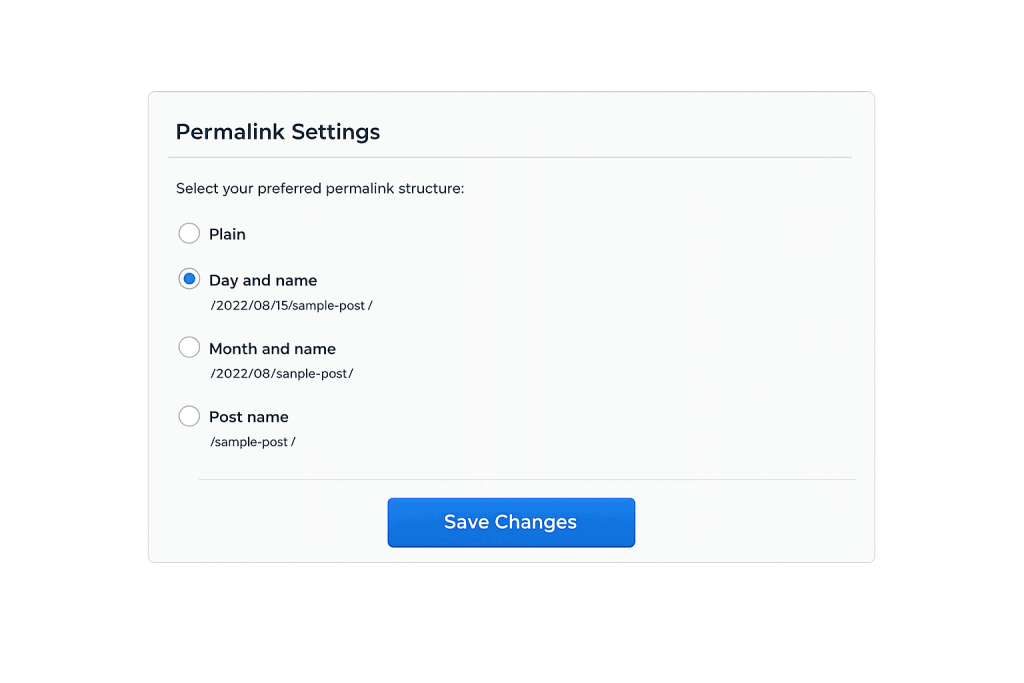
[Image: WordPress admin screen showing Settings → Permalinks with the Save Changes button highlighted]
How Broken Permalinks Work
WordPress uses a URL rewriting system to turn clean, human-readable URLs (like yoursite.com/about-us/) into requests the server can resolve. On Apache servers, this is handled by the .htaccess file in the WordPress root directory. On Nginx servers, it’s handled by server configuration. When either of those gets corrupted, overwritten, or deleted, WordPress can no longer route URL requests correctly — every non-homepage URL returns a 404.
Common triggers for broken permalinks include:
- Plugin conflicts — Some security, caching, or redirect plugins modify the
.htaccessfile and can introduce syntax errors or overwrite WordPress rewrite rules. - Failed migration or backup restore — Moving a site to a new server or restoring from backup sometimes loses the
.htaccessfile or sets incorrect WordPress/site URLs. - WordPress or plugin updates — An update that modifies URL structure or flushes rewrite rules without regenerating them can leave permalinks broken.
- Manually edited
.htaccess— An accidental change to the.htaccessfile during troubleshooting can break the rewrite rules. - Nginx servers without correct configuration — On Nginx, there’s no
.htaccesssupport. WordPress rewrite rules must be added to the server’s Nginx config block by a server administrator.
Check This First — 2-Minute Diagnostic
- Test the homepage — If it loads, WordPress is running. If posts return 404 but the homepage loads, it’s a permalink/rewrite issue.
- Try the one-step fix first — Go to Settings → Permalinks in wp-admin and click Save Changes without changing anything. Test a post URL immediately after.
- Check for a
.htaccessfile — Connect via SFTP or File Manager and confirm the.htaccessfile exists in the root directory. If it’s missing, that’s your problem. - Look for recent changes — Did a plugin get installed or updated recently? Did someone migrate the site? Changes in the last 24 hours are usually connected to permalink breaks.
- Check the WordPress and Site URL — Go to Settings → General and confirm both “WordPress Address” and “Site Address” use the correct domain and protocol (http vs. https).
Purpose & Benefits
1. Clean URLs Are Essential for SEO
WordPress permalink structure determines the URL format for every piece of content on your site. When permalinks break, all those URLs return 404 errors — which means search engines can’t crawl your content, and any rankings you had for those pages are at risk. Restoring functioning permalinks is an urgent SEO task. Our SEO services include technical audits that catch URL issues before they compound.
2. Understanding Rewrite Rules Prevents Repeat Breakage
Most permalink breaks happen because something overwrote the .htaccess file or the WordPress rewrite rules in the database. Once you understand this mechanism, you can protect against it — by setting correct file permissions on .htaccess (644) and being cautious about plugins that modify server configuration files.
3. A Fast Fix Minimizes Downtime Exposure
Broken permalinks make your content completely inaccessible to visitors and crawlers — but the fix is usually one click. Knowing this prevents unnecessary panic and time spent on complex debugging when a simple save operation resolves the issue.
Examples
1. Permalinks Break After Installing a Caching Plugin
A site owner installs a new caching plugin that adds its own rewrite rules to .htaccess. The plugin’s rules conflict with WordPress’s rewrite block, breaking URL resolution. Fix: Go to Settings → Permalinks → Save Changes to regenerate a clean .htaccess. If the caching plugin keeps overwriting the file, check the plugin’s settings for a “regenerate .htaccess” option, or replace the plugin.
2. Migration to a New Host Loses the .htaccess File
After migrating a WordPress site to a new hosting provider, the site owner notices all post links return 404. The migration tool didn’t transfer the .htaccess file (it was hidden and excluded from the ZIP). Fix: Create a new .htaccess file in the root directory with the standard WordPress rules:
# BEGIN WordPress
<IfModule mod_rewrite.c>
RewriteEngine On
RewriteBase /
RewriteRule ^index\.php$ - [L]
RewriteCond %{REQUEST_FILENAME} !-f
RewriteCond %{REQUEST_FILENAME} !-d
RewriteRule . /index.php [L]
</IfModule>
# END WordPress
Then go to Settings → Permalinks → Save Changes to regenerate the full rewrite rules.
3. Permalinks Break on a Subdirectory Install
A WordPress site installed in a subdirectory (yoursite.com/blog/) starts returning 404 on all post URLs after a URL migration. The cause: the RewriteBase directive in .htaccess still points to / instead of /blog/. Going to Settings → Permalinks → Save Changes updates the RewriteBase to match the new subdirectory path automatically.
Common Mistakes to Avoid
- Changing the permalink structure as the “fix” — Switching from
/%postname%/to/?p=123and back restores function, but also changes all your existing URLs — breaking external links and SEO. Just click Save Changes without changing the structure. - Editing
.htaccessmanually without a backup — The.htaccessfile is sensitive. A single typo causes all rewrite rules to fail. Always save a backup before manually editing it. - Forgetting that Nginx doesn’t use
.htaccess— On Nginx servers, WordPress URL rewriting requires a specific location block in the Nginx site configuration. The.htaccessfix doesn’t apply — your host needs to update the server config. - Confusing broken permalinks with a 404 page template issue — A broken 404 page template is different from broken permalinks. If your 404 page looks unstyled but all content URLs still load, the issue is the 404 template, not the permalink structure.
Best Practices
1. Resave Permalink Settings First — Always
For 80% of broken permalink situations, this single action resolves the issue: go to Settings → Permalinks in your WordPress dashboard and click Save Changes without modifying anything. This forces WordPress to regenerate the rewrite rules in the database and rewrite the .htaccess file. It takes five seconds and fixes the problem without any file editing.
2. Verify or Recreate the .htaccess File via SFTP
If the Save Changes action doesn’t fix the issue, connect via SFTP or your hosting file manager and check the root directory for a .htaccess file. Enable “show hidden files” — .htaccess starts with a dot and is hidden by default. If the file is missing, create it manually and paste the standard WordPress rewrite block (shown above in Example 2). Set file permissions to 644. Then return to Settings → Permalinks → Save Changes.
3. Check Apache mod_rewrite Is Enabled
On Apache servers, WordPress permalink rewriting requires the mod_rewrite module to be active. Most managed hosts have it enabled by default, but bare-metal or DIY server installs may not. Contact your hosting provider to confirm mod_rewrite is enabled and that AllowOverride All is set for your document root. Without these, .htaccess rewrite rules are silently ignored no matter how correct the file is.
Frequently Asked Questions
What causes broken permalinks most often?
A corrupted, overwritten, or missing .htaccess file is the most common cause. This frequently happens after installing a plugin that modifies .htaccess, after a site migration, or after a manual .htaccess edit gone wrong. The one-step fix — saving the Permalinks settings page — usually resolves it immediately.
How do I fix broken permalinks when locked out of wp-admin?
If you can’t access wp-admin, connect to your site via SFTP or your hosting file manager. Navigate to the site root (the folder containing wp-config.php). Look for .htaccess (enable “show hidden files” first). If it’s missing or corrupted, replace it with the standard WordPress rewrite block shown in the Examples section. Set permissions to 644. Then try accessing wp-admin again — it should work, and you can save the Permalinks settings to finalize the fix.
Can broken permalinks hurt my SEO?
Yes, significantly. While the homepage remains accessible, every post, page, and category URL returns a 404 error. Search engines record these as missing pages. If the break persists for more than a day or two, Google may deindex the affected URLs. Once fixed, submitting your XML sitemap in Google Search Console helps prompt faster reindexing.
Why do my permalinks break after every plugin update?
If permalinks keep breaking after updates, a specific plugin is repeatedly overwriting your .htaccess file with incompatible rules. Identify the plugin by deactivating them one by one after the next break. Check that plugin’s .htaccess rules for conflicts with WordPress’s rewrite block. You may need to replace the plugin with one that doesn’t modify .htaccess.
Does this fix work for WordPress Multisite?
Multisite permalink rules are more complex than single-site installations. The .htaccess rules differ for subdomain vs. subdirectory multisite setups. The Save Changes approach still applies, but if it doesn’t work, you’ll need to confirm the correct Multisite-specific rewrite rules for your setup are in place — these are different from the standard single-site block.
Related Glossary Terms
- 404 Error
- .htaccess
- Permalink
- Permalink Settings
- 301 Redirect
- SFTP (Secure File Transfer Protocol)
- WordPress Core
- On-Page SEO
How CyberOptik Can Help
Still broken? Our team fixes WordPress errors like this in under 30 minutes for maintenance clients. Broken permalinks are fast to fix when you know what to look for — but if yours keep recurring after updates or after migrations, that’s a sign of a deeper conflict worth investigating. Our WordPress maintenance services include proactive monitoring and post-update checks that catch permalink breaks before they affect your visitors. Contact us to discuss your site or explore our WordPress support services.