WordPress Cron — often called WP-Cron — is WordPress’s built-in task scheduling system. It allows WordPress and its plugins to run automated tasks at defined intervals: publishing scheduled posts, checking for plugin and theme updates, sending email notifications, generating backups, and more. The name borrows from “cron,” the traditional Unix time-based job scheduler, though WP-Cron works differently in important ways.
Unlike a true system cron job that fires at precise times regardless of server activity, WP-Cron is triggered by site visits. When a visitor loads a page, WordPress checks whether any scheduled tasks are due — and if so, processes them as part of that request. This design makes WP-Cron compatible with virtually any hosting environment, including shared hosting where server-level cron access is often unavailable. The tradeoff is that low-traffic sites may experience tasks running later than scheduled if no visitors trigger the check in time.
[Image: Diagram showing the WP-Cron flow — page request triggers init hook → WordPress checks scheduled events → due events fire via wp-cron.php → event completes]
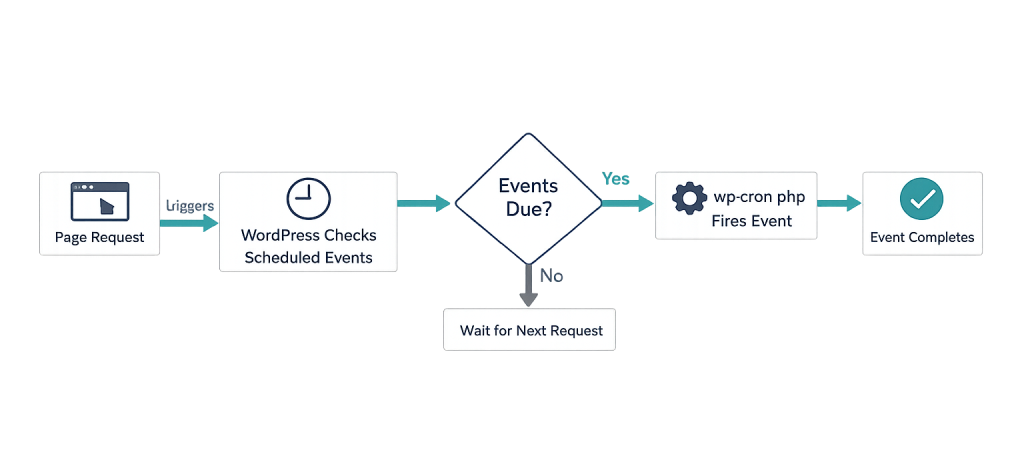
How WordPress Cron Works
Every time a page is loaded on a WordPress site, the init hook fires a check of the database for scheduled events. If any tasks are overdue, WordPress spawns a non-blocking HTTP request to wp-cron.php, which executes the associated callback functions. The process runs asynchronously — it doesn’t delay page load for the visitor triggering it.
WordPress includes four default cron intervals:
- Hourly —
hourly - Twice daily —
twicedaily - Daily —
daily - Weekly —
weekly(added in WordPress 5.4)
Plugins can register custom intervals and schedule their own events using core WP-Cron functions. For example, a backup plugin might schedule a nightly database export, while an email marketing plugin might queue a batch send every six hours.
On high-traffic sites, WP-Cron works reliably. On low-traffic sites — or sites with heavy cron queues — it’s common practice to disable the built-in WP-Cron and replace it with a true server-level cron job for more predictable execution.
Purpose & Benefits
1. Automates Routine WordPress Tasks Without Developer Intervention
WP-Cron handles publishing scheduled posts, checking for WordPress Core and plugin updates, and cleaning expired transients — all without any manual action. For site owners, this means content can be scheduled in advance, and the site maintains itself on a predictable cadence, as part of a solid WordPress maintenance workflow.
2. Enables Plugins to Run Background Processes
Plugins for backups, email, SEO, and caching rely on WP-Cron to perform tasks in the background rather than blocking the user interface. A backup plugin scheduling a nightly export, a caching plugin regenerating expired files, or a WooCommerce plugin checking for abandoned carts — all of these use WP-Cron as the timing mechanism.
3. Works Across All Hosting Types
Because WP-Cron doesn’t require server-level cron access, it functions on shared hosting, VPS environments, and managed platforms alike. This universality is deliberate — WordPress is designed to run on the widest possible range of WordPress hosting environments, and WP-Cron reflects that philosophy.
Examples
1. Scheduling a Recurring Custom Event
A developer needs to run a custom function every six hours to sync product inventory from an external API:
// Register a custom cron interval
add_filter( 'cron_schedules', 'cyberoptik_add_six_hour_interval' );
function cyberoptik_add_six_hour_interval( $schedules ) {
    $schedules['every_six_hours'] = array(
        'interval' => 21600, // 6 hours in seconds
        'display'  => __( 'Every Six Hours' ),
    );
    return $schedules;
}

// Schedule the event on plugin activation
register_activation_hook( __FILE__, 'cyberoptik_schedule_sync' );
function cyberoptik_schedule_sync() {
    if ( ! wp_next_scheduled( 'cyberoptik_inventory_sync' ) ) {
        wp_schedule_event( time(), 'every_six_hours', 'cyberoptik_inventory_sync' );
    }
}

// Hook the callback to the scheduled event
add_action( 'cyberoptik_inventory_sync', 'cyberoptik_run_inventory_sync' );
function cyberoptik_run_inventory_sync() {
    // Sync logic runs here
}
This registers a custom interval, schedules the event on plugin activation, and attaches the callback. The sync runs automatically every six hours as long as the plugin is active.
2. Scheduling a One-Time Delayed Action
A developer needs to send a follow-up email 48 hours after a user registers:
// Fire a single cron event 48 hours after user registration
add_action( 'user_register', 'cyberoptik_schedule_followup_email' );
function cyberoptik_schedule_followup_email( $user_id ) {
    wp_schedule_single_event(
        time() + ( 48 * HOUR_IN_SECONDS ),
        'cyberoptik_send_followup',
        array( $user_id )
    );
}

// The callback that runs when the event fires
add_action( 'cyberoptik_send_followup', 'cyberoptik_send_followup_email' );
function cyberoptik_send_followup_email( $user_id ) {
    $user = get_userdata( $user_id );
    wp_mail( $user->user_email, 'Welcome back!', 'Thanks for joining us.' );
}
wp_schedule_single_event() fires exactly once at the specified time. HOUR_IN_SECONDS is a WordPress constant that keeps the code readable without magic numbers.
3. Replacing WP-Cron with a Real Server Cron Job
On a high-traffic or mission-critical site, disabling WP-Cron and using a system-level cron ensures tasks run at exact intervals regardless of traffic:
// Add this to wp-config.php to disable the built-in WP-Cron
define( 'DISABLE_WP_CRON', true );
Then add a server-level cron job (via cPanel or the server’s crontab) to call wp-cron.php directly every 5 minutes:
# Run WordPress cron every 5 minutes via system cron
*/5 * * * * wget -q -O - https://example.com/wp-cron.php?doing_wp_cron > /dev/null 2>&1
With DISABLE_WP_CRON set to true, WordPress no longer checks for scheduled events on every page load. The system cron takes over and fires the check reliably on schedule.
Common Mistakes to Avoid
- Not unscheduling events on plugin deactivation — If a plugin registers a cron event but doesn’t clean it up when deactivated, the scheduled hook remains in the database and causes PHP errors when it fires (since the callback function no longer exists). Always call
wp_clear_scheduled_hook()in a deactivation hook. - Scheduling the same event multiple times — Calling
wp_schedule_event()without first checkingwp_next_scheduled()will create duplicate entries. Always check before scheduling to avoid multiple simultaneous event executions. - Assuming precision timing — WP-Cron fires on visitor requests, so a “daily” event may run at 2 AM one day and 4 PM the next if traffic patterns are uneven. For time-sensitive tasks, use a real server cron job instead.
- Ignoring WP-Cron on low-traffic sites — Sites with minimal daily traffic may go hours without a page load, causing scheduled tasks (like backups) to run far behind schedule. A server cron is particularly important in these cases.
Best Practices
1. Always Check Before Scheduling
Before registering a cron event, verify it isn’t already scheduled with wp_next_scheduled(). This prevents duplicate events, which can cause tasks to run multiple times simultaneously and put unnecessary load on the server and database.
// Safe way to schedule — check first
if ( ! wp_next_scheduled( 'my_custom_hook' ) ) {
    wp_schedule_event( time(), 'daily', 'my_custom_hook' );
}
2. Clean Up Events on Plugin Deactivation
Register a deactivation hook that removes any scheduled events your plugin created. This keeps the cron queue clean and prevents errors from firing callbacks that no longer exist.
register_deactivation_hook( __FILE__, 'cyberoptik_deactivate_plugin' );
function cyberoptik_deactivate_plugin() {
    wp_clear_scheduled_hook( 'cyberoptik_inventory_sync' );
}
3. Use a Real System Cron for Production Sites
For any site where scheduled tasks matter — backups, order processing, email queues — disable DISABLE_WP_CRON and configure a server cron to call wp-cron.php on a defined schedule. This ensures tasks run reliably and removes the overhead of cron checks from every page load. Your WordPress hosting provider can usually set this up, or it can be configured directly via cPanel or SSH access.
Frequently Asked Questions
Is WP-Cron the same as a server cron job?
No. WP-Cron is a PHP-level simulation of a cron system — it runs inside WordPress when pages are loaded. A server cron job is managed by the operating system and fires at exact times regardless of web traffic. For precise scheduling on production sites, a server cron calling wp-cron.php directly is more reliable.
Why isn’t my scheduled post publishing on time?
Delayed scheduled posts are almost always a WP-Cron issue. If your site has low traffic, no visitor may have loaded a page near the scheduled publish time, so WP-Cron never fired. The fix is either a server cron job or a plugin like WP Crontrol to monitor and manage the cron queue.
Does WP-Cron slow down my website?
Not meaningfully for most sites. Since WordPress 6.9, cron checks happen during the shutdown process rather than initialization, making the impact on page load time negligible. However, if a cron callback itself is resource-intensive (like a heavy backup), it may affect server load during execution.
How can I see what’s scheduled in WP-Cron?
The free WP Crontrol plugin provides a dashboard view of all scheduled events, their next run times, and intervals. You can also use WP-CLI (wp cron event list) to inspect the cron queue from the command line without installing any additional plugins.
Can I use WP-Cron without a plugin?
Yes. The core functions — wp_schedule_event(), wp_schedule_single_event(), wp_next_scheduled(), and wp_clear_scheduled_hook() — are all available in WordPress Core with no plugins required. Plugins like WP Crontrol just provide a visual interface for managing events that already exist.
Related Glossary Terms
How CyberOptik Can Help
WP-Cron is one of those systems that works quietly in the background — until it doesn’t. Missed backups, delayed emails, and stale caches are often cron problems in disguise. As a WordPress-focused agency, we configure and troubleshoot WP-Cron on every site we manage, and we set up real server cron jobs for sites where precise scheduling matters. You don’t need to write any of this code yourself — that’s what we’re here for. Get in touch to discuss your project or explore our WordPress development services.