
WordPress hardening is the practice of applying security configurations, access controls, and system-level protections to reduce a WordPress site’s vulnerability to attacks. A freshly installed WordPress site includes sensible defaults, but the default configuration is not designed for maximum security — it’s designed for ease of setup. Hardening involves deliberately tightening that configuration to limit the attack surface, contain potential damage if a breach occurs, and make unauthorized access measurably harder.
WordPress powers over 43% of the web, which makes it the most targeted CMS by attackers. Most attacks are not sophisticated, targeted strikes — they’re automated bots scanning for known vulnerabilities in outdated software, weak credentials, and exposed configuration files. WordPress hardening addresses these vectors systematically. It’s not about becoming impenetrable (no system is), but about making your site an unattractive, difficult target compared to less-secured alternatives.
Key Hardening Techniques
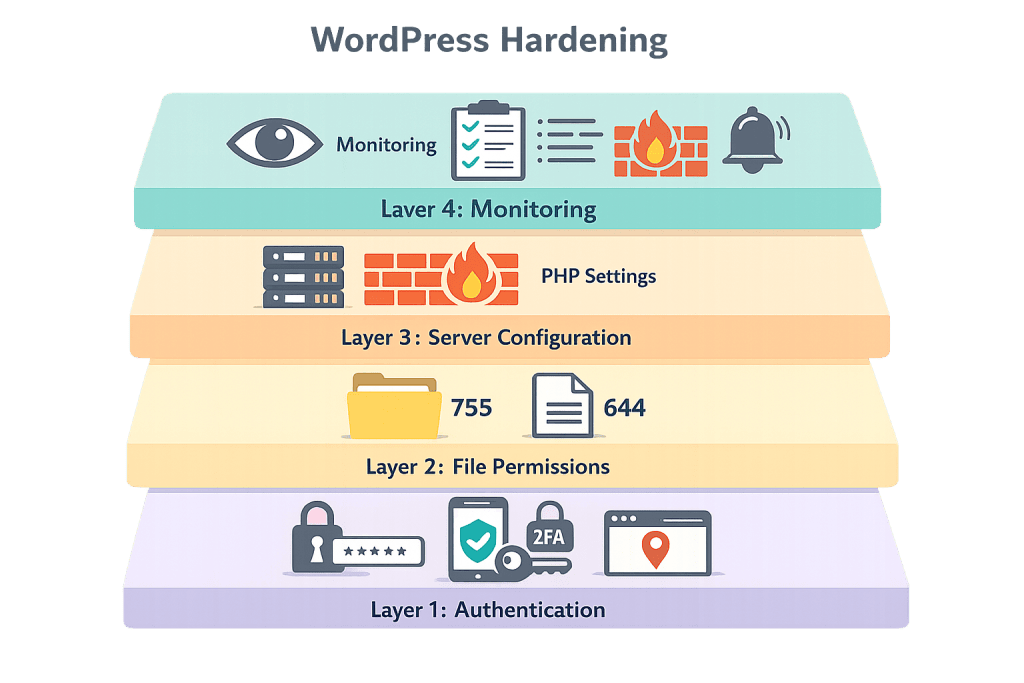
WordPress hardening spans several layers of a site’s infrastructure:
Authentication hardening:
– Use strong, unique passwords for all accounts
– Enable two-factor authentication (2FA) for admin accounts
– Limit login attempts to block brute-force attacks
– Change the default wp-admin login URL to a non-standard path
– Rename or avoid the default admin username
File and permission hardening:
– Set file permissions to 644 and directory permissions to 755
– Set wp-config.php permissions to 400 or 440 (owner-readable only)
– Restrict access to wp-config.php via .htaccess rules
– Block direct PHP execution in the wp-includes directory
– Disable the WordPress file editor (which allows theme/plugin code editing from the dashboard)
Configuration hardening:
– Update and refresh WordPress security keys in wp-config.php
– Change the default database table prefix from wp_ to a custom value
– Disable XML-RPC if not actively used (a common brute-force target)
– Remove the WordPress version number from page source and feeds
Hosting and network hardening:
– Use HTTPS (SSL certificate) to encrypt all traffic
– Deploy a Web Application Firewall (WAF) to filter malicious requests
– Enable a firewall at the server or CDN level
– Use SFTP rather than FTP for file transfers
Ongoing maintenance hardening:
– Keep WordPress Core, themes, and plugins updated
– Remove unused themes and plugins (inactive code is still vulnerable code)
– Maintain regular backups with tested restore procedures
– Monitor file integrity to detect unauthorized changes
[Image: Layered diagram showing hardening across authentication, file permissions, server configuration, and monitoring]
Purpose & Benefits
1. Reduces the Attack Surface
Every default WordPress feature you don’t need is a potential entry point. Disabling XML-RPC, removing unused plugins, and blocking direct file access all reduce the number of ways an attacker can interact with your site. Our WordPress maintenance services include regular audits to ensure the attack surface stays small as your site evolves.
2. Limits Damage if a Breach Occurs
Hardening isn’t only about prevention — it’s about containment. If an attacker gains access to one part of your site, proper file permissions and database restrictions limit what they can do. Disabling the file editor means a compromised admin account can’t be used to inject malware directly into theme or plugin files from the dashboard.
3. Supports Uptime, Trust, and SEO
A compromised WordPress site typically results in malware infections, search engine blacklisting, and hosting suspension. Google flags compromised sites in search results — directly damaging rankings and user trust. Hardening is proactive protection that keeps your site in Google’s good graces and your customers’ trust intact. Our hacked website cleanup services address incidents that proper hardening could have prevented.
Examples
1. Disabling the WordPress File Editor
A site owner discovers that a disgruntled former admin has access to login credentials. By having DISALLOW_FILE_EDIT set in wp-config.php, even a valid admin account cannot use the WordPress dashboard to inject malicious code into theme or plugin files. This single line reduces a major attack vector:
define( 'DISALLOW_FILE_EDIT', true );
This is typically added by a developer during initial WordPress hardening setup and requires no ongoing maintenance.
2. Restricting wp-config.php Access
An agency applies a hardening checklist to a new client’s site. One step involves adding an .htaccess rule to deny all HTTP access to wp-config.php — the file containing database credentials and security keys. Even if an attacker knows the file path, the web server will refuse to serve it:
<Files "wp-config.php">
Require all denied
</Files>
Combined with setting the file’s permissions to 440, this creates two independent layers of protection for the most sensitive file in the installation.
3. Replacing Default Login URL and Limiting Attempts
A retail site’s admin account is targeted by a credential-stuffing bot making thousands of login attempts. The site has already been hardened: the login URL has been changed from the default /wp-admin/ to a custom path, and a security plugin limits failed login attempts to three before temporarily blocking the IP. The bot’s attempts fail entirely because it’s hitting a 404 on the default URL, and even if it found the new URL, it would be locked out after three tries.
Common Mistakes to Avoid
- Treating hardening as a one-time setup — Hardening isn’t a checkbox you complete once. New vulnerabilities emerge, plugins change, and configurations drift. Security posture requires regular review as part of ongoing WordPress maintenance.
- Deleting unused plugins without deactivating them first — Inactive plugins still have exploitable code. Always deactivate a plugin before deleting it, and remove any plugin you no longer actively use — not just disable it.
- Using “admin” as the administrator username — This is one of the first usernames automated attacks try. If your WordPress admin account is named
admin, rename it. All automated brute-force tools tryadminfirst. - Assuming an SSL certificate equals a hardened site — HTTPS encrypts traffic between visitors and the server, but it does nothing to protect against a compromised plugin, weak passwords, or exposed configuration files. SSL is one component of hardening, not a substitute for it.
Best Practices
1. Apply Hardening in Layers, Not All at Once
WordPress hardening is most effective when it covers multiple independent layers: authentication, file system, database, network, and monitoring. No single measure protects everything. Prioritize the highest-impact measures first — strong passwords and 2FA, keeping software updated, and restricting wp-config.php access — then add layers progressively.
2. Use Security Keys and Refresh Them After Incidents
WordPress security keys in wp-config.php are used to encrypt cookies and authentication tokens. After any suspected breach — or periodically as a precaution — generate fresh keys using the WordPress secret key generator and update wp-config.php. This invalidates all existing sessions, forcing everyone to re-authenticate.
3. Pair Hardening with Monitoring and Backups
A hardened site without monitoring is a site you’re flying blind on. Implement file integrity monitoring to alert you when Core or plugin files change unexpectedly. Keep regular, tested backups stored off-server — if something does go wrong, recovery speed depends on backup quality. Hardening reduces the likelihood of an incident; monitoring and backups reduce its impact.
Frequently Asked Questions
Is WordPress hardening only for high-traffic or large sites?
No — in fact, smaller sites are often more vulnerable because they’re less actively monitored. Automated attacks don’t discriminate by traffic volume. Any publicly accessible WordPress site benefits from hardening, regardless of its size or content.
Do security plugins handle all of WordPress hardening?
Security plugins automate many hardening tasks — limiting login attempts, scanning for malware, and monitoring file changes. But they don’t replace server-level configuration, proper file permissions, or good hosting choices. Think of security plugins as one layer of a broader strategy, not the strategy itself.
How does WordPress hardening affect my site’s performance?
Most hardening measures have no measurable performance impact. A Web Application Firewall (WAF) may add a few milliseconds of latency, which is typically offset by the CDN services that accompany it. The performance cost of a hardened site is far lower than the cost of recovering from a malware infection.
What’s the first thing I should do to harden my WordPress site?
Update everything. WordPress Core, all plugins, and all themes. More sites are compromised through known vulnerabilities in outdated software than through any other vector. Once everything is current, enable 2FA on admin accounts and ensure no account is using “admin” as its username.
Can a hardened WordPress site still get hacked?
Yes. No site is unhackable. The goal of hardening is to reduce risk significantly and limit damage if something does happen — not to guarantee absolute security. A well-hardened site is a far less attractive target for automated attacks, and a site that’s breached with good backups and monitoring in place recovers faster than one without.
Related Glossary Terms
- WordPress Core
- Security Keys
- Two-Factor Authentication (2FA)
- SSL Certificate
- Firewall
- Malware
- Backup
- wp-config.php
How CyberOptik Can Help
A misconfigured or unprotected WordPress site is a liability. We apply WordPress hardening as a standard part of every site we build and maintain — covering file permissions, login security, configuration controls, and ongoing monitoring. If your existing site hasn’t been reviewed for security, we can audit it and apply hardening measures that match your risk profile. Learn about our hosting and security services or contact us to discuss your site’s security.


