Extension is a broad term in web technology that refers to software that extends or adds functionality to an existing application, platform, or browser. The word is used interchangeably with “plugin” in many contexts, but the term appears in three distinct environments that matter to WordPress users and website owners: WooCommerce extensions, WordPress plugin extensions, and browser extensions. Understanding what each refers to — and how they differ — helps you navigate software decisions more confidently.
In the WordPress ecosystem, “extension” is most commonly encountered in the context of WooCommerce, where add-on software that expands the store’s capabilities is officially called an “extension” rather than a plugin. In everyday usage, the terms are largely synonymous — WooCommerce extensions install and manage exactly like WordPress plugins. The distinction is primarily one of marketplace branding rather than technical difference.
[Image: Three-column diagram showing WooCommerce extensions marketplace, WordPress plugin directory, and browser extension library side by side]
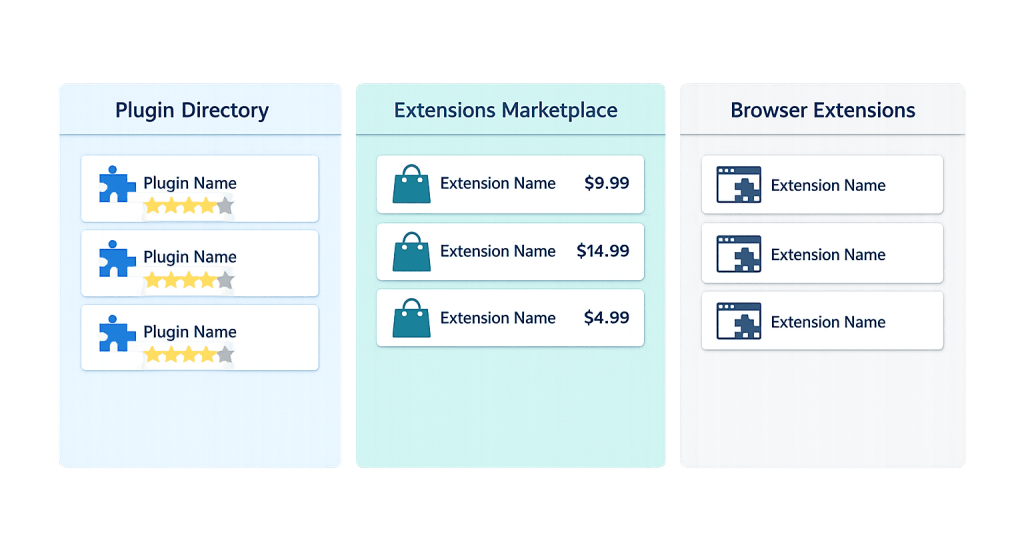
Types of Extensions
WooCommerce Extensions
WooCommerce is itself an extension of WordPress — it transforms a content management system into an eCommerce platform. Extensions built specifically for WooCommerce add capabilities that the core WooCommerce plugin doesn’t include: payment gateway integrations, subscription billing, advanced shipping rules, product configurators, membership systems, and more.
WooCommerce extensions are available from:
– The official WooCommerce.com marketplace (primarily premium, officially vetted)
– The WordPress plugin directory (free extensions from third-party developers)
– Third-party plugin shops (like YITH, Iconic, and others)
The terms “WooCommerce extension,” “WooCommerce add-on,” and “WooCommerce plugin” all refer to the same thing. The WooCommerce.com marketplace uses “extension” as its official terminology.
WordPress Plugin Extensions
Some WordPress plugins serve as platforms in their own right — they have their own ecosystems of add-ons that extend them. Examples include:
– WooCommerce (as described above)
– WP Forms — has add-ons for payment collection, conditional logic, surveys
– Gravity Forms — has add-ons for CRM integrations, user registration, payment gateways
– Elementor — has a large ecosystem of third-party extensions that add new widgets and features
In these contexts, an “extension” is an add-on that requires the parent plugin to function. It doesn’t stand alone.
Browser Extensions
Browser extensions are small software programs that add functionality to web browsers like Google Chrome, Firefox, Safari, or Edge. They install directly in the browser and modify or enhance the browsing experience — independent of any website you’re visiting.
Common types relevant to website owners include:
– SEO tools — Ahrefs Toolbar, MozBar, and Semrush extensions that show domain authority and keyword data while browsing
– Password managers — 1Password, LastPass, and Bitwarden for secure credential management
– Accessibility checkers — WAVE and axe DevTools for spotting accessibility issues
– Ad blockers — uBlock Origin, Ghostery
– Developer tools — ColorZilla for color picking, Web Developer Toolbar for inspecting elements
Browser extensions run in the browser, not on your website, and they affect only the person who has the extension installed — not your site’s visitors.
Purpose & Benefits
1. Extending Platform Capabilities Without Custom Development
Extensions let you add specific features to your WooCommerce store or WordPress site without writing custom code. Need recurring subscriptions? There’s an extension. Need to offer product bundles? There’s an extension. This modularity is one of WordPress and WooCommerce’s core strengths — you add what you need, when you need it, without rebuilding the whole platform. Our work with WooCommerce stores relies on this ecosystem daily to deliver features efficiently.
2. Access to Specialized Functionality from Expert Developers
Extension marketplaces aggregate purpose-built tools created by developers who specialize in a specific functionality. A payment gateway extension is built by a team that works on payment integrations full-time; a shipping extension is built by shipping logistics specialists. Rather than having one team build everything, the ecosystem allows specialized expertise to be packaged and distributed broadly.
3. Cost-Effective Compared to Custom Development
A premium WooCommerce extension that adds subscription billing functionality might cost $199/year. Building equivalent functionality from scratch requires significant development hours. For most business needs, a well-built extension is the faster and more cost-effective solution. The exceptions are highly customized requirements where no existing extension fits — those situations warrant custom development through a team like ours at /websites/website-development/.
Examples
1. WooCommerce Subscriptions Extension
A membership box company needs to offer monthly subscription billing on their WooCommerce store. They install WooCommerce Subscriptions — an official premium extension from WooCommerce.com — which adds subscription product types, automatic renewal billing, subscriber management, and dunning management for failed payments. The feature set would have required months of custom development; the extension delivers it in hours of configuration time.
2. Gravity Forms Payment Add-On
A service business uses Gravity Forms to power their quote request forms. They add the Stripe add-on (an extension to Gravity Forms) to allow clients to pay a deposit directly within the inquiry form. The extension integrates Gravity Forms’ form data collection with Stripe’s payment processing, creating a seamless client experience. Without the extension, the team would need to build this integration manually or use a separate system.
3. Browser Extension for Site Auditing
A marketing manager installs the Ahrefs SEO Toolbar as a browser extension. Now, whenever they visit any web page — including competitor sites and their own — they see domain rating, URL rating, organic traffic estimates, and backlink data displayed directly in the browser. The extension doesn’t touch their website; it simply adds a data layer to their browsing experience that informs their marketing decisions.
Common Mistakes to Avoid
- Installing too many extensions without auditing them — Every active extension (plugin) adds to your site’s load, increases security surface area, and can conflict with other extensions. In our experience, plugin bloat is one of the most common causes of slow WordPress and WooCommerce sites. Install only what you actively use, and review your extension list periodically.
- Choosing extensions based on price alone — A free extension maintained by a solo developer with no recent updates is riskier than a premium extension from a reputable vendor with active support. Check the last update date, active installation count, and support response quality before relying on any extension for a critical function.
- Not testing updates in a staging environment — Extension updates can conflict with your theme or other plugins. Testing updates on a staging site before applying them to your live site prevents customer-facing disruptions.
- Confusing browser extensions with website plugins — Browser extensions run in your browser and affect only your view of a page — not your site’s code, performance, or visitors’ experience. Don’t troubleshoot website problems by uninstalling browser extensions (and vice versa).
Best Practices
1. Evaluate Extensions Before Installing
Before adding any extension to your WordPress or WooCommerce site, review: last updated date (should be within the past 6–12 months), active installations, support forum activity, compatibility with your WordPress version, and developer reputation. For premium WooCommerce extensions, check whether the vendor offers a refund period. A few minutes of evaluation prevents hours of troubleshooting later.
2. Keep Extensions Updated
Outdated extensions are one of the leading causes of WordPress security vulnerabilities. Enable automatic background updates for minor extension releases, and review and apply major updates promptly — after testing on a staging site when possible. Pairing this habit with a reliable backup strategy means you can update confidently and recover quickly if something goes wrong.
3. Remove Deactivated Extensions Completely
Deactivating a plugin stops it from running, but doesn’t remove its files from your server. Inactive extensions still represent a security risk and clutter your file system. If you’re no longer using an extension, delete it entirely. If it was a WooCommerce extension that stored data in your database, check whether any database cleanup is needed before removal.
Frequently Asked Questions
What’s the difference between an extension and a plugin in WordPress?
Functionally, they’re the same thing. “Plugin” is the standard WordPress term for software that extends WordPress’s functionality. “Extension” is the term WooCommerce uses for add-ons to WooCommerce specifically, and it’s also used by other plugin platforms for their own add-ons. Both install the same way and appear in the same Plugins section of your WordPress dashboard.
How many WooCommerce extensions should I have on my store?
There’s no magic number, but less is generally better. Start with only the extensions you genuinely need, and add new ones intentionally. Each extension adds complexity, potential conflicts, and maintenance overhead. Regularly audit your active extensions and remove any that no longer serve a purpose. WooCommerce itself has added many features to its core in recent years, reducing the need for some previously essential extensions.
Are WooCommerce extensions safe?
Extensions from WooCommerce.com and the WordPress plugin directory go through review processes, but no centralized review guarantees complete safety. Choose extensions from established vendors, keep them updated, and use a security plugin to monitor for vulnerabilities. Extension security is an ongoing practice, not a one-time judgment.
Can browser extensions slow down my website?
Your browser extensions affect your own browsing performance, not your website’s performance for visitors. If your website feels slow to you but performs normally for others, your browser extensions may be contributing — try accessing the site in an Incognito/Private window (which disables most extensions) to test. For actual site performance issues affecting all visitors, look at server-side factors and your WordPress plugins instead.
Related Glossary Terms
How CyberOptik Can Help
Understanding how WordPress works under the hood helps you make better decisions about your site — including which extensions to install and trust. Our team evaluates, configures, and maintains extensions for clients across WordPress and WooCommerce sites daily, ensuring each installation serves a real purpose without creating performance or security risks. Get in touch to discuss your project or explore our WordPress development services.