
Excerpt is a short summary or preview of a WordPress post that appears in place of the full content in certain contexts — such as blog archive pages, category pages, search results, and some theme layouts. Instead of displaying an entire post on a listing page, WordPress uses the excerpt to give visitors a brief preview that helps them decide whether to click through and read the full article.
WordPress generates excerpts in two ways: automatically (by trimming the first 55 words of the post content) or manually (when the site editor writes a custom excerpt in the post’s Excerpt field in the sidebar). Manual excerpts give you full control over the preview text — which matters both for user experience and, in some cases, for how your content appears in search results. For any site with a blog, understanding and using excerpts deliberately is a small effort with a meaningful impact on how your content is presented.
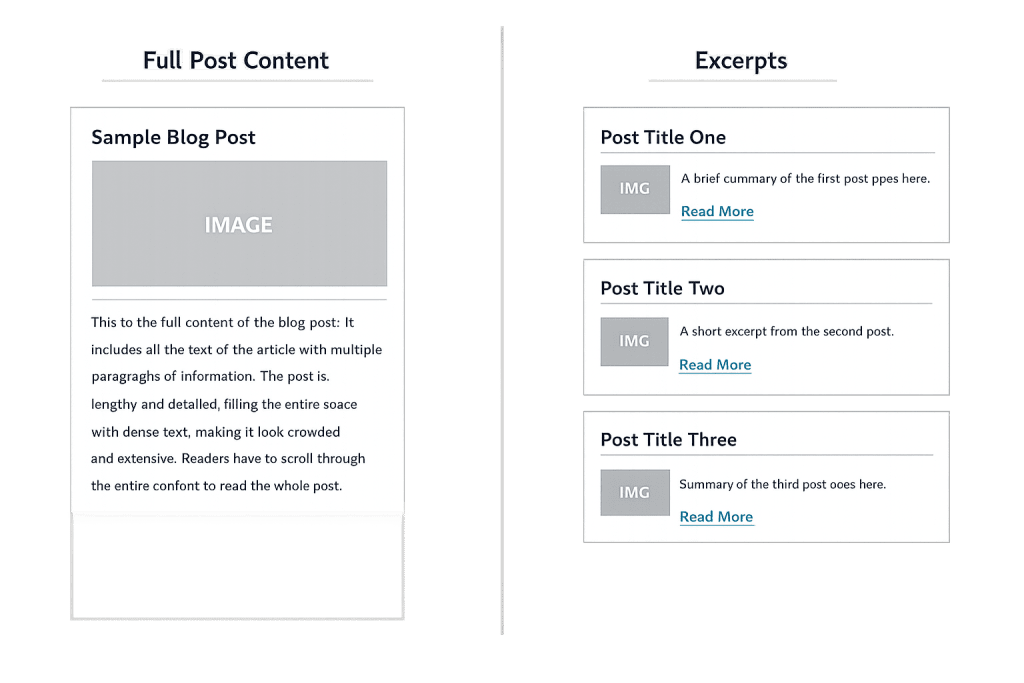
[Image: Side-by-side comparison of a WordPress blog archive page using full post content vs. excerpts — showing how excerpts create a cleaner, more scannable listing page]
How Excerpts Work in WordPress
When WordPress displays a list of posts — on the blog homepage, a category archive, a tag page, or a search results page — it needs to decide how much of each post to show. The behavior depends on:
1. Automatic excerpt — If no manual excerpt is written, WordPress takes the first 55 words of the post content and adds an ellipsis (…) or a “Read More” link. This often cuts mid-sentence and lacks polish.
2. Manual excerpt — Entered in the Excerpt field in the post editing sidebar (visible in both the Classic Editor and Block Editor). This gives the editor full control over what the summary says, independent of what appears in the post body.
3. The <!--more--> tag — A different but related feature. Inserted within the post body, the <!--more--> tag splits the post at that point when displayed in archive views, showing everything above it as the preview. It’s a content-based cut rather than a summary.
4. Theme and template behavior — Whether excerpts are used, and how they’re styled, is controlled by the active WordPress theme. Some themes display full content on archive pages by default; others use excerpts automatically. Custom page templates and plugins can also influence excerpt display.
The excerpt field in WordPress is separate from the meta description. Some SEO plugins (like Yoast SEO) can populate the meta description from the excerpt if no custom meta description is set — but they are different fields with different purposes.
Purpose & Benefits
1. Cleaner, More Navigable Archive Pages
Archive and category pages that display full post content become long, unwieldy pages that are hard to scan. Excerpts create a structured, scannable listing — each post gets a headline, a brief summary, and a call to read more. This improves user experience, reduces page load time, and makes it easier for visitors to browse multiple pieces of content efficiently. In our experience, well-formatted archive pages with strong excerpts see meaningfully better engagement than pages showing full post content.
2. Better Control Over How Your Content Is Previewed
Automatically generated excerpts cut off content mid-thought, which can misrepresent what the post is actually about. A manual excerpt lets you write a deliberate, compelling two-to-three sentence summary that accurately reflects the post’s value and encourages the click-through. This is especially important for blog content where the first impression on an archive page determines whether someone reads the full post.
3. Influence on Meta Descriptions (in Some Configurations)
If your WordPress site uses Yoast SEO, All in One SEO, or a similar plugin, and you haven’t written a custom meta description for a post, the plugin may use the excerpt as the fallback meta description. Writing thoughtful manual excerpts ensures that your archive pages have sensible preview content and that search result snippets have a chance of reflecting something meaningful — rather than the first 55 words of your post, which may not describe it well.
Examples
1. Blog Archive Using Manual Excerpts
A marketing agency maintains a blog and writes a manual excerpt for every post. The excerpt for a post titled “Why Your Website Contact Form Isn’t Converting” reads: “Most contact form problems aren’t about design — they’re about friction. Here are the five most common conversion blockers we find when auditing client sites, and how to fix each one.” This gives archive page visitors a clear reason to click — more compelling than the automatic excerpt, which would truncate the post’s opening context paragraph.
2. News Site Using the More Tag
A news-oriented WordPress site prefers to display a portion of the actual article content rather than a separate summary. Editors place the <!--more--> tag after the first paragraph of each article. Archive pages show the opening paragraph with a “Continue Reading” link. This preserves the article’s original voice and opening hook rather than requiring a separately written excerpt.
3. eCommerce Blog Populating Meta Descriptions via Excerpt
An online retailer runs a product education blog on their WooCommerce site. They use Yoast SEO and write manual excerpts for each post. Since Yoast uses the excerpt as a fallback meta description when no custom meta description is set, the excerpts pull double duty — improving the on-site archive display and ensuring that Google search results show a relevant, readable snippet rather than auto-generated text.
Common Mistakes to Avoid
- Ignoring the excerpt field entirely — Letting WordPress auto-generate all excerpts means your archive pages display awkward cut-off text. Writing even a single sentence of manual excerpt for each post is worth the minute it takes.
- Writing excerpts that are too long — An excerpt should be two to four sentences that hook the reader. Writing a full paragraph doesn’t serve the purpose — visitors are scanning the archive page, not reading it.
- Treating the excerpt as a meta description — The excerpt and the meta description serve different purposes. The excerpt is for site display; the meta description is for search result snippets. When possible, write both separately — but understand the relationship when your SEO plugin uses one as a fallback for the other.
- Not reviewing how your theme handles excerpts — Some themes hide the excerpt field or display excerpts differently than expected. Check how your active theme handles archive pages, and confirm that manual excerpts are actually being used before spending time writing them.
Best Practices
1. Write Manual Excerpts for Every Post
Make it a habit to fill in the Excerpt field when publishing or updating any post. A good excerpt answers: what is this post about, and why should someone read it? Two to three sentences that directly address the reader’s potential interest are more effective than any automatic trimming WordPress can produce. This is a small effort that significantly improves archive page quality.
2. Align Excerpts with the Post’s SEO Focus Keyword
Since some SEO configurations use the excerpt as a meta description fallback, write excerpts that naturally include the post’s primary topic or keyword. This doesn’t mean keyword stuffing — it means making sure the excerpt clearly communicates what the post covers, in plain language, which naturally aligns with what someone searching for that topic would want to see.
3. Review Archive Page Display Before Going Live
Before publishing a redesigned theme or a batch of new content, check how your archive pages actually look with your excerpts in place. Browse to your blog page, a category page, and the search results view. Confirm excerpts are displaying as intended, truncation looks clean, and the “Read More” link (if present) is working. Catching display issues early saves fixing them after content is live.
Frequently Asked Questions
Where do I find the Excerpt field in WordPress?
In the Block Editor (Gutenberg), it’s in the right-hand sidebar under the “Post” tab — scroll down to find “Excerpt” below the featured image and categories. In the Classic Editor, it’s a panel below the main content editor (you may need to enable it via Screen Options if it’s not visible). If you’re not seeing it, check that your theme supports custom excerpts.
Does WordPress always use the excerpt, or does it depend on the theme?
It depends on the theme. Most themes are built to use excerpts on archive pages, but some display the full post content by default, and others give you a choice in the theme settings or Customizer. If your archive pages are showing full posts, check your theme’s reading settings and template files.
Does the excerpt affect SEO directly?
Not directly — there’s no evidence that the WordPress excerpt field itself influences rankings. The indirect impact comes through: if your SEO plugin uses the excerpt as a fallback meta description, a well-written excerpt contributes to better search result snippets, which can improve click-through rates. Additionally, well-formatted archive pages with clear excerpts typically see better engagement metrics, which can signal quality to search engines over time.
Can I change the automatic excerpt length?
Yes. WordPress generates automatic excerpts at 55 words by default, but this can be changed by adding a small code snippet to your theme’s functions.php file using the excerpt_length filter. If you need a different default length site-wide, this is a straightforward customization — though in most cases, writing manual excerpts is a better use of time than adjusting the auto-truncation length.
Related Glossary Terms
How CyberOptik Can Help
Understanding how WordPress works under the hood helps you make better decisions about your site. Our team manages WordPress configuration and content details for clients every day — from excerpt setup and archive page optimization to full site builds and maintenance. Whether you have a specific WordPress question or need ongoing support, we can help. Get in touch to discuss your project or explore our WordPress development services.


